
Updated for 2026
Quick answer
Before installing a utility app, check Settings first: Android 16 handles storage and cache cleanup natively, and the built-in file tools clear junk for free with no ads. When you do need an app, judge it by recent updates, install size, listed permissions, and the one and two star reviews. Watch for subscription traps. We cover cleaners, weather, battery savers, file managers, browsers, and app stores below.
These are the quiet workhorses that keep an Android phone running the way you want it to, and in our testing the right one can free up storage, stretch your battery, or just make file digging painless. We spent time with the cleaners, weather apps, battery savers, file managers, browsers, and app stores below to see which ones earn a permanent spot and which only get in the way. Start here to find the dependable tool that fits how you actually use your phone.
A utility app is a small, single-purpose tool that helps you do something specific with the phone itself rather than with the wider world. Think file managers, document and QR scanners, keyboards, screen recorders, battery and storage helpers, and cleaners. The category is broad and a little vague, which is part of the problem. Because almost anything can be called a utility, the listings are full of apps that promise to speed up, boost, optimize, or protect your phone without explaining what they actually do. The useful ones tend to be the boring ones: a file manager that opens folders quickly, a scanner that makes a clean PDF, a keyboard that types the way you expect. A good rule of thumb is that the more excited a utility's store listing sounds, the less it probably does. Tools that genuinely work rarely need to shout about it.
The honest starting point for this whole category is a question most app store pages will never ask you. Do you need an app at all? On a modern Android phone the answer is often no, and knowing that saves you storage, battery, and the small ongoing risk that comes with every extra app you grant access to your data.
A surprising share of utility-app territory is now built into the operating system, and it has been for several versions. Recent Android releases include native storage management that shows you large files, unused apps, and cached data, then clears them in a couple of taps. Screen recording is built in; you no longer need a separate app to capture your screen. File access is built in through the system files tool, which handles browsing, copying, and basic cleanup. The camera app on most phones reads QR codes directly, so a standalone QR scanner is usually redundant.
This matters most for the loudest part of the category: cleaner apps, boosters, and speed-up tools. Most of these are placebo, ad delivery vehicles, or both. Android manages its own memory; an app that claims to free up RAM is usually closing background processes the system would have managed anyway, sometimes making things slower because those apps reload from scratch. A "cleaner" that finds gigabytes of junk is often counting your cache, which the phone rebuilds the moment you reopen an app. If your phone feels slow, the real cause is almost always one of three things: an aging battery, a single misbehaving background app, or genuinely full storage. None of those are fixed by a tap-to-boost button, and the apps that sell that button frequently pay for themselves with full-screen ads.
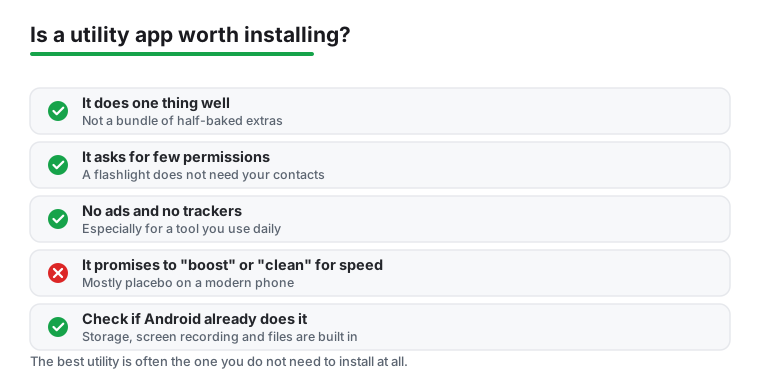
When an app does earn its place, a few plain checks separate the keepers from the clutter. A good utility tends to share these traits.
This is the part of the category that deserves the most caution, because utility apps are some of the worst offenders for requesting access they have no business needing. The clearest warning sign is a permission that has nothing to do with the app's job. A flashlight that wants your contacts, a calculator that wants your microphone, or a QR scanner that wants your precise location at all times are all reasons to back out of the install.
Treat permissions as a running checklist rather than a one-time decision. A few habits keep you in control.
The reason this matters is simple. Every permission you grant is a door, and a utility app sits on your phone for years. A free cleaner that asks for accessibility access, for example, can read and act on nearly everything you do. That is an enormous amount of trust to hand a tool whose only job is supposed to be deleting cache files.
Before you tap install, run through five quick questions. If you cannot answer yes to most of them, the app probably is not worth the space.
If a tool passes that check, it has earned a spot on your phone. If it does not, you are usually better off with what Android already gives you for free.
Pair it with: a file manager if you want to dig through folders and clear large files by hand instead of trusting a booster, an antivirus app if you sideload APKs and want a second opinion before opening them, and a app lock if you share your phone and want a PIN in front of the tools that can touch your files.
For most people, no. Recent Android versions handle cache and storage cleanup natively, and the built-in file tools clear junk in a tap for free with no ads. If your phone feels slow, the cause is usually an aging battery, a badly behaved background app, or very low free storage, not leftover junk files. A dedicated cleaner only makes sense if it offers something specific the built-in tools do not, and even then you should check its permissions and reviews first.
Open the Play Store, tap your profile picture, then Payments and subscriptions, and cancel from there. For a refund you generally have a short window from purchase to request one, and refunds get much harder after the first billing period. If a trial is about to roll over, cancel before the renewal date so you are not charged at all. Setting a calendar reminder a day before any free trial ends is the simplest way to avoid surprise charges.
Any permission that does not match the app's job. A flashlight asking for contacts, a calculator asking for your microphone, or a weather widget tracking location around the clock are all red flags. Open Settings and check the Privacy Dashboard for a 24 hour view of what accessed your camera, mic, and location, then revoke anything that looks wrong. Be especially careful with requests for accessibility access, which lets an app read and act on almost everything on your screen.
Usually not. Android manages its own memory, so an app that claims to free up RAM is mostly closing background processes the system would have handled anyway, and those apps then reload from scratch, which can feel slower. The junk these tools find is often cache that the phone rebuilds within seconds. Real slowdowns come from an aging battery, full storage, or a single misbehaving app, none of which a tap-to-boost button fixes. Many of these apps earn their money through full-screen ads, which is a reason to be cautious rather than hopeful.
Not automatically, but price changes the incentives. A free utility often has to make money somehow, and the common routes are ads and data collection. A modest one-time purchase or an honest, clearly priced subscription removes that pressure, so a paid tool is less likely to bury you in pop-ups or quietly harvest information. The better signal than price alone is still the permission list and the one and two star reviews: a paid app that over-asks for access is no safer than a free one.