
Updated September 2026 · the symptoms now sit in one table, and the two apps that measure what is actually happening carry their own dated listing figures
A phone that won't charge is one of those problems that feels like a disaster and usually isn't. Most of the time it's a dirty port, a tired cable, or the wrong brick. The trick is to test one thing at a time instead of panicking and buying a new phone. Work through the checks below in order. By the end you'll either have it charging again or you'll know, honestly, that it's time for a repair.
Before you take anything apart, one safety check. If the back panel or the screen is bulging, or the phone rocks when you lay it flat, the battery may be swollen. Stop there: don't charge it, don't press on it, and take it to a repair shop. Otherwise, rule out the easy faults. Plug into a wall socket you know works, not a USB hub, a laptop port, or a car socket. Those often deliver far less power and some don't charge at all.
Try a different cable and a different brick if you have them. Cables fail far more often than phones do, usually at the end that gets bent the most. Press the connector firmly into the port. If the phone only charges when you hold the cable at a certain angle, that's a worn connector or a loose port, and the cable is the first suspect.
Restart the phone too. A frozen charging service is more common than people think, and a reboot clears it in thirty seconds. If a quick restart and a known-good socket get you charging, you're done.
This is the single most common fix, and the one people skip. Pocket lint and dust get pushed to the bottom of the port every time you plug in, and over months they pack into a hard little plug. The cable then can't seat fully, so it either won't charge or only charges at an angle.
Power the phone off first. Shine a light into the port and look for grey fluff packed at the back. Before you put anything into the port, know what not to use: nothing metal, because one slip shorts the contacts, and no canned compressed air, because the blast pushes debris deeper. To clear it, use a wooden toothpick or a thin plastic pick, something that does not conduct electricity. Gently hook around the edges of the port to drag the lint out. There's a small flat tab in the centre of a USB-C port. Don't lever against it or bend it, or you'll wreck the port for good.
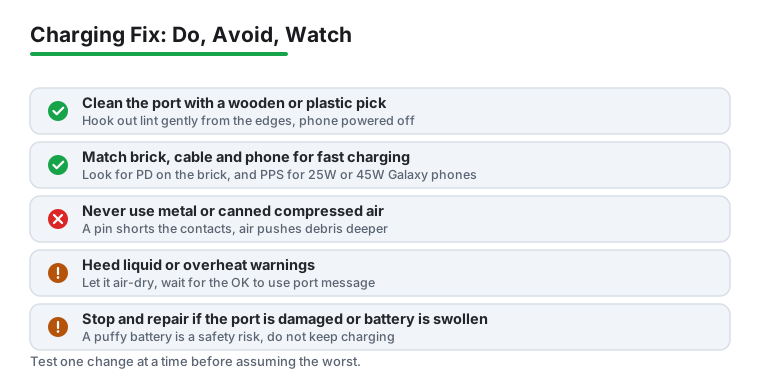
What not to use matters as much as what to use. Skip anything metal, a pin, a needle, the tip of a knife, because one slip shorts the contacts. Skip canned compressed air as well. The blast is strong enough to push debris deeper or damage the nearby microphone. If you're nervous, a repair shop will clean it in a few minutes.
If the phone charges but crawls, the problem is usually a mismatch. Fast charging is a handshake between three parts: the brick, the cable, and the phone. The slowest one sets the speed.
USB-C cables look identical but carry very different power ceilings. A thin cable that came with a pair of earbuds might be rated for 15W even if your brick and phone can both do 45W. You'll charge at 15W and never know why. Same with the brick. A 5W charger left over from an old phone will trickle-charge a modern handset no matter how good the cable is.
One Samsung-specific catch: Galaxy phones that fast charge at 25W or 45W, like the S24 and S25, need a charger that lists PPS support. Plenty of generic PD chargers don't have PPS, so the Galaxy drops to a slower speed. Check the brick's label for it.
The steps above ask you to swap a cable, then a brick, then judge whether anything changed. Two apps turn that judgement into a number, and both are meters rather than managers: neither claims to fix charging, and the battery "savers" this page warns about are a different category entirely.
Telling a bad cable from a bad brick
4.5 stars from 330,114 reviews · 10,000,000+ installs · free to install · in-app purchase $1.99 per item · by gombosdev · Contains ads: Yes · checked 3 September 2026
Google Play listing · 4.5 (330,114) · read 3 September 2026
A meter, not a manager: it reports the charge current the phone is drawing, in milliamps, which is the one number that settles the cable-or-brick argument. Plug in each combination and watch the figure change. Its listing carries the Contains ads label, and the single in-app purchase, $1.99 per item, removes them. Readings come from the phone's own battery sensor, so treat them as a comparison between your own cables rather than a laboratory measurement.
Deciding whether the battery is worn out
4.7 stars from 602,103 reviews · 10,000,000+ installs · free to install · in-app purchases $1.19 to $24.99 per item · by Digibites · Contains ads: Yes · checked 3 September 2026
Google Play listing · 4.7 (602,103) · read 3 September 2026
The other half of the diagnosis: it measures charge and discharge cycles over days and estimates how much of the original capacity is left, which is what tells a worn battery apart from a bad port. It needs time before its estimate means anything, so install it before you need the answer, not during the argument. Its listing carries the Contains ads label, with in-app purchases from $1.19 to $24.99 per item.
If your phone pops up a message about checking the charging accessory, or liquid or debris in the USB port, take it seriously. The phone is refusing to charge on purpose to protect itself.
On a Pixel you'll see "Unplug charger" if the port or cable is overheating, or "Liquid or debris in USB port" if it senses moisture or muck. Google's own advice is to unplug, let it cool, and inspect the port without poking anything into it. If it's wet, power off and let it air-dry at room temperature. Don't use a hairdryer and don't stick a cotton bud in. With the port facing down, tap the phone gently against your palm to shake out loose bits.
For a liquid warning, wait until you get the "OK to use USB port" notification before charging again. If the moisture message hangs around for a couple of hours, or the overheat warning keeps coming back, that points to a hardware problem and you should get it looked at. Some phones with wireless charging will let you top up on a pad while the wired port dries out.
Sometimes the hardware is fine and a misbehaving app is hammering the processor or blocking charging logic. Safe Mode is the clean way to check, because it boots the phone with only the apps it shipped with and nothing you installed.
On most Android phones, press and hold the power button, then touch and hold the "Power off" option until you're asked to reboot into Safe Mode, and confirm. You'll see "Safe mode" in the corner of the screen once it's on. Now plug in and watch. If it charges normally in Safe Mode but not in normal mode, a third-party app is the culprit.
Restart to leave Safe Mode, then remove apps you installed or updated recently, especially battery "savers," cleaners, or anything that claims to manage charging. Those often do more harm than good. Uninstall one, test, repeat. To get out of Safe Mode at any time, just restart the phone normally.
Phones slow down or pause charging when they get warm, and that's the battery management doing its job, not a fault. If you're gaming, using satnav, or sitting in direct sun while plugged in, the phone may stop charging until it cools. Take the case off, move it somewhere cooler, and stop using it while it charges.
Charging also naturally slows as the battery fills. Going from empty to 50% is quick, the last 20% is deliberately slow to protect the cells. So a phone that races to 80% then crawls is behaving exactly as designed.
Many phones now have battery-protection settings that cap the charge or hold it at 80% to extend battery lifespan. On a Pixel it's under Settings, Battery. On a Galaxy, look in Settings, Battery, Battery protection. If your phone seems to "refuse" to fill past 80%, check whether one of these is switched on before you assume something's broken.
If you've cleaned the port, swapped the cable and brick, ruled out apps and heat, and it still charges poorly, the problem is likely inside the phone. Two main suspects: the battery itself or the charging hardware on the board.
A worn battery shows a clear pattern. The phone charges fine but drains fast, drops percentage in big jumps, shuts off at 20% or 30%, or gets noticeably hot. If it also looks puffy or swollen, that is not ordinary wear: stop charging it, don't press on it, and get it replaced. Most lithium batteries start fading after two or three years. On a Pixel, Settings, Battery shows battery health information on newer models; if the estimated capacity has dropped a long way, a battery replacement is the fix.
A board or port fault looks different. The phone won't charge at all with any cable or brick, or only with the connector held at an exact angle, or it charges wirelessly but not over the cable. That points to a damaged port or charging circuit, which is a repair job, not something you can fix at home.
There's a point where more home tinkering just risks making things worse. Stop and book a repair if any of these are true. The port is visibly damaged, bent, or wobbly. The phone gets hot or the battery looks swollen, which is a safety issue, so stop charging and don't press on a puffy battery. Liquid warnings won't clear after a couple of hours. Or you've genuinely done every step above and it still won't take a charge.
An honest note on cost. A battery or port replacement on a three or four year old phone can run a fair chunk of what a newer used handset costs. Get a quote first. Sometimes the repair is clearly worth it; sometimes you're better putting that money toward a replacement. There's no shame in either choice, but you should make it knowing the numbers, not out of panic when the phone won't switch on.
That's almost always a worn cable or a dirty or loose port. Try a known-good cable first, since cables are cheap and fail often. If a fresh cable still needs wiggling, clean the port carefully with a wooden or plastic pick. If it still only works at an angle, the port itself is likely worn and needs a repair.
Yes, if you do it gently and with the right tool. Power the phone off, use a wooden toothpick or thin plastic pick, and hook lint out from around the edges. Never use anything metal, and don't lever against the small tab in the centre. Avoid canned air too. If you're unsure, a repair shop will clean it quickly.
Fast charging needs the brick, the cable and the phone to all support it, and the weakest link sets the speed. A thin low-rated cable or an old 5W brick will slow everything down. Check that the brick says PD, use a cable rated for high wattage, and if you have a Galaxy that fast charges at 25W or 45W, make sure the charger lists PPS support.
Your phone has sensed moisture or muck in the port and blocked charging to protect itself. Unplug, let it air-dry at room temperature, and tap the phone gently with the port facing down to shake out debris. Don't insert anything or use heat. Wait for the "OK to use USB port" message before charging again. If it won't clear after a couple of hours, get it checked.
A worn battery charges fine but drains fast, jumps percentages, or shuts off early, and usually shows up after two or three years. A port or board fault means it won't charge at all, only at a specific angle, or only wirelessly. Battery health info under Settings, Battery on newer phones can help confirm a tired battery.
No, that's normal protection. Phones pause or slow charging when they heat up to protect the battery. Take the case off, move it somewhere cooler, and don't use it heavily while charging. It will resume once it cools down. Persistent overheating with no obvious cause is worth getting looked at, though.
Two, and both only measure. Ampere reports the current the phone is drawing, so swapping cables and bricks while it is open shows which combination is weak, on a listing read 3 September 2026 at 4.5 stars from 330,114 reviews. AccuBattery watches charge cycles over days and estimates the capacity left, which is what separates a worn battery from a bad port, at 4.7 stars from 602,103 reviews. Both are free to install and both listings carry the Contains ads label.
Checked 3 September 2026: the guide had no dated line, no table and nothing to measure with, so every diagnosis rested on the reader's judgement. The nine symptoms now sit in one table that jumps to the fix, and two measuring apps carry fact lines read from their own listings: Ampere at 4.5 stars from 330,114 reviews and AccuBattery at 4.7 stars from 602,103 reviews, both free to install, both carrying the Contains ads label. Nothing in the repair advice changed.
 Google Play Store Not Working or Won't Download AppsTools & Utilities
 How to Speed Up a Slow or Laggy Android PhoneTools & Utilities