
Updated September 2026
Updated September 2026 · the three Google apps that work from another device while this phone is dark now carry their own dated listing figures, and the repair steps are unchanged
A phone that refuses to wake up is frightening, especially when your photos, messages and two-factor codes are all locked inside it. The good news is that a large share of "dead" Android phones are not actually broken. They are often flat batteries, a faulty cable, a frozen system, or a screen that is off while the phone is quietly running. This guide walks you through the checks in a sensible order, from the safest and most common fixes to the point where a repair shop is the right call. We start with the steps that cannot lose your data, and we flag clearly any step that can wipe the phone before you reach it.
"Won't turn on" covers several very different problems, and naming yours narrows the fix a lot. Spend a minute observing before you start pressing buttons.
Try to call the phone from another phone, or message it, or sign in to Google's Find Hub from another device and have it play a sound; its listing facts are just below. If it rings or buzzes, the phone is alive and you are most likely dealing with a display fault rather than a true no-power situation. Keep that observation in mind, because it changes everything that follows.
Confirming a dark phone is alive, from another device
4.2 stars from 1,672,001 reviews · 1,000,000,000+ installs · free · no in-app purchases · updated on the store 3 September 2026 · by Google LLC · Contains ads: No · checked 5 September 2026
Google Play listing · 4.2 (1,672,001) · read 5 September 2026
Listed on Google Play as Google's Find Hub, with android.com/find as the developer address on its listing, this is the app for the first question in this guide, and it runs from a device that works. Its own listing, read 5 September 2026, says it can play a sound to locate a nearby device, so a phone that answers is alive behind a dark screen and the fault is the display. Free, no in-app purchases, no Contains ads label, at 4.2 stars from 1,672,001 reviews on 1,000,000,000+ installs. The blunt con is the one this page is about: a phone with no power cannot be reached, so silence from Find Hub proves nothing about the battery or the board.
Google's own listing, read 5 September 2026, puts it in its own words: "Play a sound to locate your lost device if it’s nearby." and "If you’ve lost a device, you can remotely secure or erase it." It is also the first result when you search Google Play for Find My Device, read 5 September 2026. Its data safety card says no data is shared with third parties and lists an independent security review.
A flat or deeply discharged battery is the single most common reason an Android phone seems dead. A battery that has been run completely empty can take several minutes of charging before it shows any sign of life at all, so do not give up after thirty seconds.
If you have a wireless charger, try that too. If wireless charging works but the cable does not, the charging port or cable is the fault, not the battery or board. Google's own help pages cover charging behaviour for Pixel devices at support.google.com, and Samsung publishes device-specific charging guidance at samsung.com.
If the phone has power but the software has locked up, a normal press of the power button does nothing. A force restart (also called a hard reset, though it does not erase anything) cuts the power to the system and reboots it. This is completely data-safe and fixes a surprising number of "dead" phones.
The button combination depends on the brand, so try the one that matches your phone:
Plug the phone into a charger while you do this. If the battery was completely flat, the phone may need both power and the button combo to respond. If the screen lights up or the logo appears, let it boot fully. Official Android support for restarting devices lives at support.google.com/android.
If the phone powers on but then freezes, crashes, or reboots over and over, a recently installed or updated app may be the culprit. Safe Mode starts Android with only the built-in system apps and all your downloaded apps disabled. It is fully data-safe: nothing is deleted, and a normal restart returns the phone to normal.
The usual way in: while the phone is starting up, press and hold the Volume Down button until it finishes booting. On many phones you can instead hold the on-screen Power off option until a "Reboot to safe mode" prompt appears, then tap OK. You will see the words "Safe mode" in a corner of the screen when it works.
Recovery Mode is a separate, minimal menu built into the phone that loads even when normal Android will not. It is one of the strongest signals that the hardware is fine: if Recovery Mode opens, the battery, board and screen are all working, and your problem is software. This is genuinely useful information.
To enter it on most phones, turn the phone off, then hold Power + Volume Up together until a menu with text options appears (Samsung users may need to hold Volume Up + the Side key while connected to a charger). Use the volume keys to move and the power key to select.
Read this before you touch anything in that menu. Recovery Mode contains options that will permanently erase your phone:
If "Reboot system now" or "Wipe cache partition" gets you back into Android, your data is safe and you are done. If the menu itself will not open, that points back toward a hardware fault.
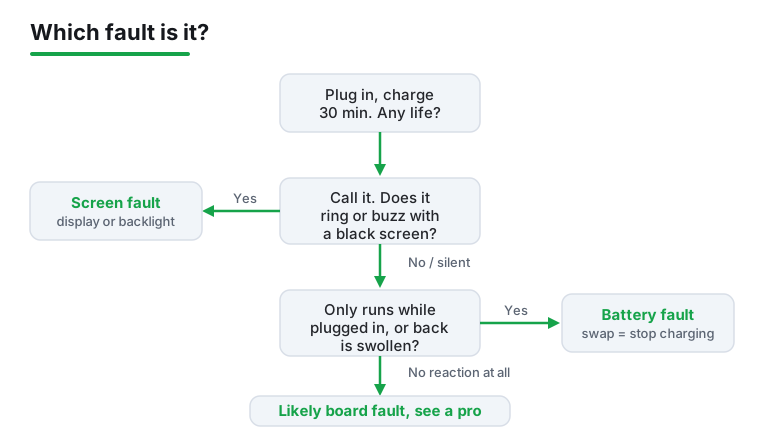
This is the step that saves you money, because the cause determines whether the repair is cheap or expensive. Use the clues you have gathered to place your phone in one of these buckets.
A screen fault and a battery fault are usually affordable part swaps. A board (motherboard) fault is the expensive one and is often where repairing an older phone stops making financial sense.
Everything above is data-safe. The moment you start considering a factory reset or handing the phone to a stranger, your photos and accounts are at stake, so plan for that now.
For wider guidance on keeping a copy of your data, Google's backup help is at support.google.com.
Confirming the photos are already backed up
4.4 stars from 53,931,487 reviews · 10,000,000,000+ installs · free · no in-app purchases · updated on the store 1 September 2026 · by Google LLC · Contains ads: No · checked 5 September 2026
Google Play listing · 4.4 (53,931,487) · read 5 September 2026
The best rated app on this page at 4.4 stars from 53,931,487 reviews on 10,000,000,000+ installs, free with no in-app purchases and no Contains ads label, read 5 September 2026. Its job here is the check this guide asks for before any reset: open it on another device, or photos.google.com in a browser, and what you see there is what has already survived. The blunt con: a backup that was never switched on shows nothing, and nothing on this page can switch it on for a phone that will not start.
Google's own listing, read 5 September 2026, says: "With backup on, you can easily transfer your photos from other apps, galleries and devices, so all of your content is in one place." The same listing says account storage is shared across Google Photos, Gmail and Google Drive. Its data safety card says no data is shared with third parties.
Confirming the device backup exists, and restoring it later
4.1 stars from 909,478 reviews · 1,000,000,000+ installs · free to install · in-app purchases $0.89 to $199.99 per item · updated on the store 5 September 2026 · by Google LLC · Contains ads: No · checked 5 September 2026
Google Play listing · 4.1 (909,478) · read 5 September 2026
The lowest rated of the three at 4.1 stars from 909,478 reviews on 1,000,000,000+ installs, and the only one that sells anything: free to install, with in-app purchases of $0.89 to $199.99 per item for its storage plans, and no Contains ads label, read 5 September 2026. It is where the phone backup this guide tells you to check actually lives, and its own listing says that backup can be restored to a new Android device. The blunt con comes from its data safety card: it says data may be shared with third parties, which neither of the other two apps here declares.
Google's own listing, read 5 September 2026, says: "The Google One app lets you automatically back up your phone and manage your Google cloud storage." and "If you break, lose or upgrade your phone, you can restore everything to your new Android device."
DIY has limits, and pushing past them can turn a cheap fix into an expensive one or create a real safety risk. Take the phone to a professional when any of these is true.
When you do hand it over, ask for a written quote before any work starts, and ask specifically whether your data will be preserved. A reputable shop will answer both clearly.
Give it a solid 30 minutes on a wall charger with a known-good cable before concluding anything. A deeply drained battery can sit blank for several minutes before it shows a charging icon. If there is still no light, sound, or warmth after half an hour, and a different cable and charger also do nothing, then the problem is more than a flat battery.
That is the classic signature of a screen or display fault, not a power problem. The phone is fully on and working; only the display is dead. Your data is intact. A screen or display replacement will fix it and keep your files, so avoid any factory reset and head for a screen repair instead.
A force restart (holding the power and volume buttons to reboot) erases nothing. In Recovery Mode, "Reboot system now" and "Wipe cache partition" are also data-safe. The only destructive option is "Wipe data / factory reset," which deletes everything on the phone. Never select that unless you have a backup or have accepted the data is gone.
If the phone only runs while plugged in and dies the instant you unplug it, or the back is swollen, that points to the battery. If there is no reaction whatsoever to any cable, charger, wireless pad, or button combination after a full charge attempt, especially after a drop or water, that points to the board. Battery and screen faults are usually affordable swaps; a board fault is the expensive one.
Often yes, as long as the storage and board are intact and no one has factory reset the device. Tell the shop up front that data recovery is the priority. The best protection, though, is a backup made in advance: check Google Photos and Google One from another device to see what is already saved before you risk anything.
No. A swollen battery is a fire and injury hazard. Unplug it, keep it away from heat and direct sunlight, do not press or puncture it, and take it to a professional or a proper battery disposal point. Do not try to pry the phone open yourself.
None of them runs on the dead phone; all three run on another device or in a browser. Google's Find Hub, listed under that name on Google Play and read 5 September 2026, says on its listing that it can play a sound to locate a nearby device, so a phone that answers is alive behind a dark screen; it is free with no ads label at 4.2 stars from 1,672,001 reviews. Google Photos shows whether the photo backup already exists, free with no ads label at 4.4 stars from 53,931,487 reviews. Google One shows the device backup and, per its listing, restores it to a new Android device; it is free to install with in-app purchases of $0.89 to $199.99 per item and no ads label, at 4.1 stars from 909,478 reviews.
Checked 5 September 2026: the page named Google Photos and Google One as the places to confirm a backup, linked neither listing, and had no table, no dated line and no capsule. No app runs on a phone that will not start, so only apps that run from another device, and do a job this guide already asks of you, were added, each read from its own listing today: Google's Find Hub, which plays a sound on a nearby phone and is listed under that name on Google Play, at 4.2 stars from 1,672,001 reviews; Google Photos at 4.4 stars from 53,931,487 reviews; and Google One at 4.1 stars from 909,478 reviews, the only one of the three that sells anything, as in-app purchases of $0.89 to $199.99 per item. One clause was added to the first section so the call-the-phone test also names Find Hub. No testing claims were found and no figure was withdrawn; every repair step is carried unchanged. Five FAQ questions move to the second person and one FAQ answer was added from the listings.
 Google Play Store Not Working or Won't Download AppsTools & Utilities
 Signs of Android Malware and How to Remove ItSecurity & Privacy
 How to Transfer Files Between Android and a PCTools & Utilities