
Updated for 2026
One of the quiet joys of Android is that your home screen can actually look and work the way you want, instead of how a factory decided. We compared the launchers, keyboards, and widgets below against their store listings and the developers' own documentation, paying attention to permissions, pricing, and how actively each one is maintained. Whether you are after a calm minimalist setup, a keyboard that finally learns how you type, or fresh wallpapers and icon packs to tie it all together, the guides here point you to the apps worth your time.
Personalization on Android is less about one big app and more about a small stack of tools that work together. The main types you will run into are launchers (they replace your home screen and app drawer, controlling layout, gestures, and folders), keyboards (typing feel, autocorrect, swipe, themes), widgets (live info like weather, calendar, and battery placed right on the home screen), icon packs (a consistent visual style across your app icons), and wallpaper and live wallpaper apps. A good setup usually mixes two or three of these rather than chasing a single do-everything app.
Here is the thing that has changed by 2026: a lot of what you used to need a separate app for now ships with Android itself. The Wallpaper and style settings handle color and theming, dynamic color (Material You) pulls an accent palette out of your wallpaper, and themed monochrome icons tint your app icons to match. Android 16 went further. You get lock screen widgets that swipe in from the right edge, home screen widgets you can resize freely with corners that round to match, widgets you can stack and swipe through, an Expressive theme variant with sixteen palettes pulled from your wallpaper, and icons that morph between circle, squircle, and clover shapes. So the honest way to think about the third-party stack is this: it is what you reach for when the built-ins do not go far enough.
It also helps to name the jobs people are actually trying to do here, because the right tool follows the job. Most setups come down to one of four things. You want a calmer or faster home screen, so you look at launchers. You want better typing, so you look at keyboards. You want glanceable info without opening apps, so you look at widgets. Or you want a cohesive look across everything, which is usually a mix of an icon pack, a wallpaper, and matching accent colors. Start from which of those you care about and you will skip a lot of apps you do not need.
Start from the job, not the app. If you only want your icons to match, you may not need a launcher at all, just themed icons and a wallpaper. Decide built-in versus third-party first, then move on. If you do go third-party, pick one launcher and live with it for a few days instead of installing several. Stacking launchers creates conflicts and confusing back-button behavior, and you never really learn any of them.
If a cohesive look matters to you, check icon-pack support before you commit, since not every launcher applies packs the same way. Verify that backup and restore exists before you invest hours building a layout. Some launchers export your whole setup to a file you can reimport; others make you start over on a new phone. Find out which kind you are using on day one, not the day you upgrade.
One more check that matters more than it used to: is the app still maintained, and who owns it now? Ownership changes can introduce ads and trackers even into apps you already paid for, and a long-standing favorite can quietly turn into something you would not have installed. Read recent reviews, not the five-year-old ones, and look at the update history. Frequent, recent updates and an active developer are worth more than a long feature list.
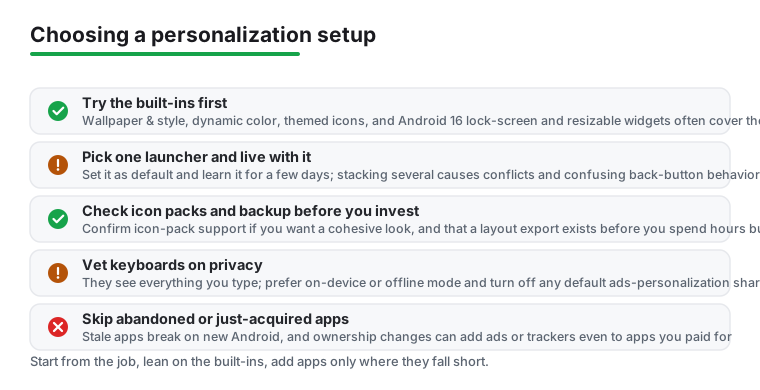
Keyboards deserve the most caution, because a keyboard sees everything you type, including passwords, card numbers, and private messages. Stick to well-known apps with a clear privacy policy, and prefer ones that offer an on-device or offline mode so your typing stays on the phone. A real improvement in 2026 is on-device NPU processing, where prediction and correction run on the phone's own chip instead of a server, so look for that.
Be careful about how you think about incognito or private typing. It is usually triggered by the app you are typing in, not a switch you flip everywhere. A field marked private, or an app like Signal, can tell the keyboard to stop learning and pause prediction, and that works well. But there is no reliable manual force that covers every app, so do not assume your keyboard is in a private mode just because you are typing something sensitive. For anything that really matters, check the field rather than trusting it.
Free "theme" keyboards are one of the most common sources of trackers and intrusive ads, so treat them with suspicion. Even mainstream keyboards can ship with a data-sharing setting turned on by default, often labeled as sharing data for ads personalization, which you can and should turn off in the keyboard's own settings. Read what an app asks for: a keyboard needs to handle typing, but it has little honest reason to demand your contacts, location, or full network access.
On cost, the healthy pattern is free with an optional one-time pro unlock. That gives the developer a reason to keep building without holding your settings hostage. Be wary of three things: basic settings locked behind a subscription, free apps stuffed with full-screen ads, and apps that change hands and then start monetizing the existing userbase. That last one is newer and easy to miss, since the app you installed and the app you are running a year later can be different in ways the icon does not show.
Every app here was checked against its store listing and the developer's own documentation, with attention to permissions, pricing, ads and how actively it is maintained. No paid placement and no rankings bought by developers.
A well-built launcher adds almost no measurable overhead, and several are lighter than some manufacturer skins. The real battery cost comes from extras like live wallpapers, constant widget refreshing, and heavy animations. If you notice drain, turn those off first before blaming the launcher itself.
It depends on the keyboard. Because a keyboard sees everything you type, stick to well-known apps with a clear privacy policy, and check whether it offers an on-device or offline mode that keeps your typing on the phone. Many keyboards switch to a private or incognito mode automatically when an app marks a field as sensitive, but that is triggered by the app, not a manual switch you can rely on everywhere, so do not assume it is on. Avoid no-name theme keyboards that ask for network and contacts access.
You can avoid it, but only if you plan ahead. Most serious launchers include a backup and restore feature that exports your layout, folders, and settings to a file you can import later. Check that your launcher has it, set it up once, save the backup to cloud storage, and moving to a new phone becomes a couple of taps instead of an evening of rebuilding.
Pick one accent color and build around it. On current Android versions, themed icons and dynamic color do a lot of the matching automatically once you set a base wallpaper, and Android 16 even themes icons for apps that did not ship a monochrome layer. If you want to go further, choose a launcher that supports icon packs, apply a pack in that color family, then set your keyboard theme and widget style to the same shade.
For a lot of people, built-in is now enough. Wallpaper and style, dynamic color, themed icons, lock screen widgets, and resizable widgets all ship with Android 16, so you can get a clean, matched look without installing anything. Reach for third-party launchers, keyboards, or icon packs when you want something the built-ins do not do, like deeper gesture control, a specific typing feel, or a particular visual style. Start with the system settings and only add an app when you hit a wall.