
Updated September 2026 · every app listing re-read on 1 September 2026, refreshing 5 review counts, 2 listing dates and 1 rating
Five apps that put a clock on an Android screen, each read at its own Play listing today. What decides whether you get the clock in the screenshots is rarely the styling: it is the Android release the app needs, and whether your phone lets it keep running. One of the five is not a home screen widget at all, and another is a widget maker rather than a finished clock.
DIGI Clock Widget Plus is our best overall because its USD 3.49 listing, read 20 August 2026, carries no ads label and calls itself the ad-free build.
DIGI Clock Widget is our best free pick because its listing, read 20 August 2026, shows 4.6 from 176,236 reviews, the Contains ads label, in-app purchases and no price to install.
KWGT is our build-it-yourself pick because Kustom publishes a page, read 20 August 2026, on keeping the clock updating, and its listing is free with ads.
Data checked: 3 September 2026.
Best free start
Rating 4.6 from 176,236 reviews · Installs 10,000,000+ · Free to install, with in-app purchases USD 0.99 to USD 3.49 per item · Developer ForestTree · Version 3.8.0 · Minimum Android 8.0 · Listing updated 1 September 2026 · Data Safety: may share data types with third parties, may collect data types, data encrypted in transit, data cannot be deleted · Contains ads: Yes · checked 1 September 2026
Google Play listing · 4.6 (176,236) · read 1 September 2026
DIGI Clock Widget is where to start when nothing has to be paid for: 4.6 from 176,236 reviews, 10,000,000+ installs, free to install, and a listing updated 4 May 2026. The cost is on the same listing. It carries the Contains ads label, in-app purchases run USD 0.99 to USD 3.49 per item, and its Data Safety section declares that the app may share data types with third parties and that data cannot be deleted.
On the question this page is built around, this developer answers on the listing itself rather than on a documentation site. Its description closes with a notice telling readers to exclude this widget from any task killers, this will resolve the time freezing issue in most instances
, and separately that If there is missing "DIGI Clock" in list of widgets, try to restart your device
, both read from its own Google Play listing on 20 August 2026. That is the whole of what it publishes on a widget that stops updating or never appears, and it is more than one developer on this page manages. The same description adds that the steps for adding the widget may differ from device to device of by device manufacturer
, which is the launcher question stated in the developer’s own words. One line in that description is behind the listing around it: it claims compatibility with Android 11, while the listing’s own minimum is Android 8.0 and its What’s new section records an update to Android 16 compatibility in version 3.6.0. Its 40 or more fonts for the time and date are named in the same description.
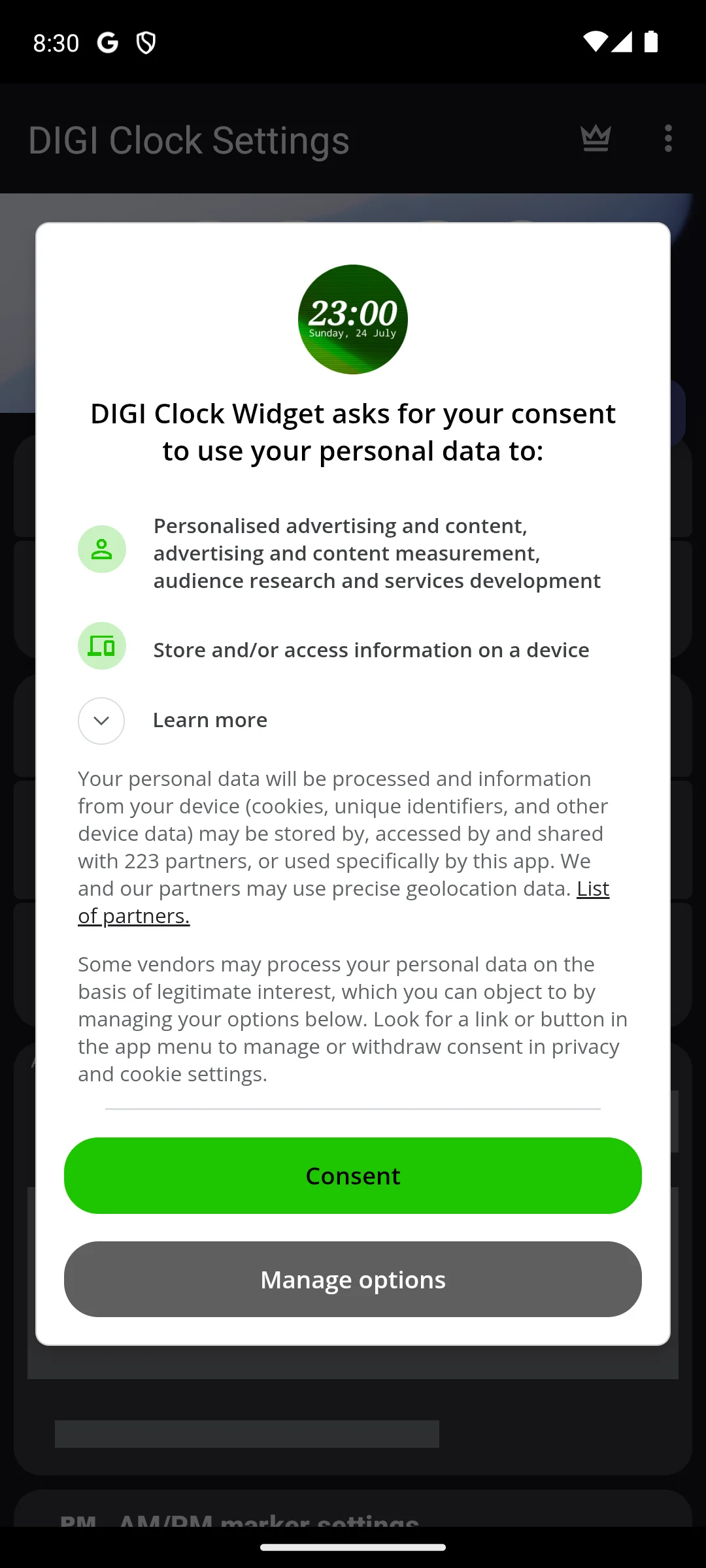
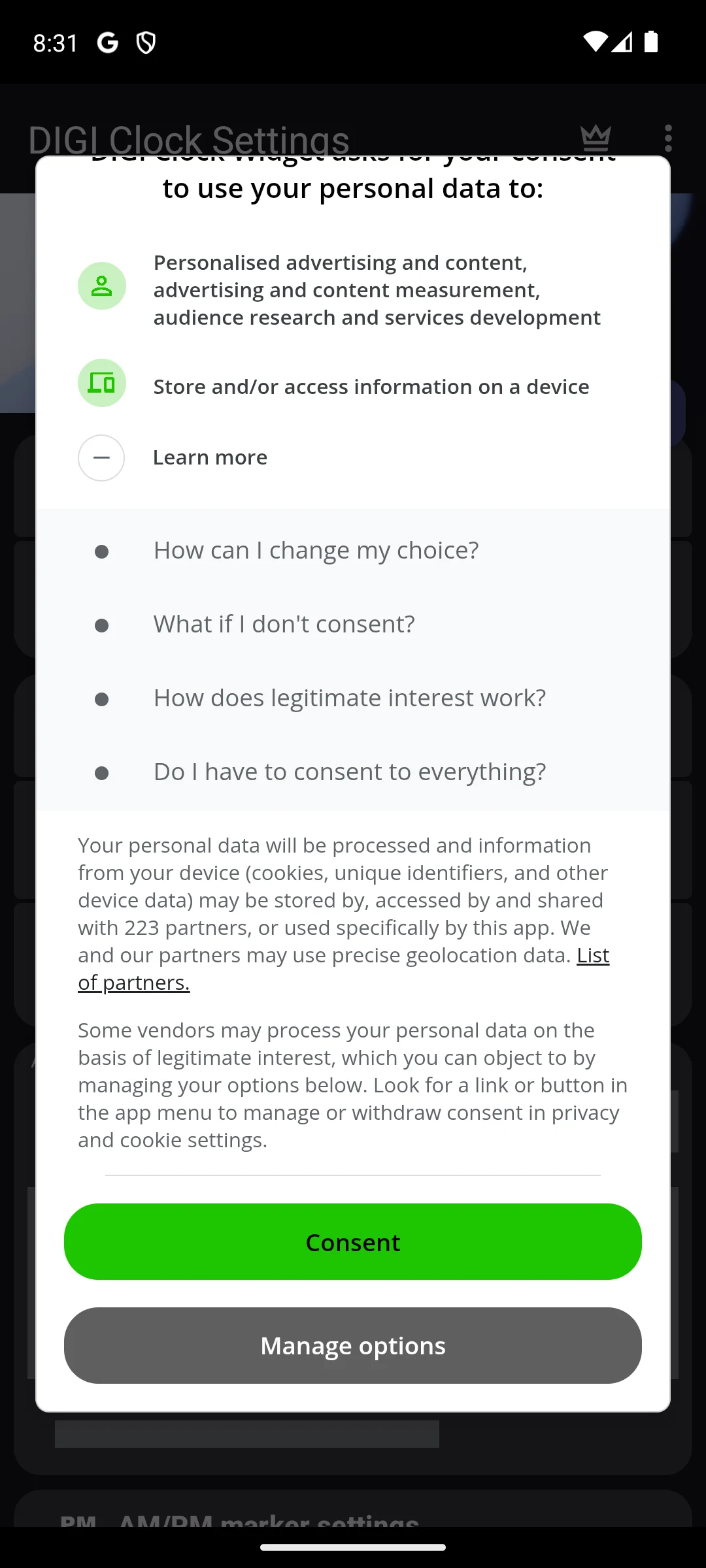
Our own emulator captures below, taken 18 August 2026, show a consent dialog carrying this app’s name over its DIGI Clock Settings screen. The dialog asks for consent to personalised advertising and content, advertising and content measurement, audience research and services development, and to storing or accessing information on the device. It states that personal data may be shared with 223 partners, and that the app and its partners may use precise geolocation data. Nothing on this page describes what the app offers past that dialog.
Skip this if. Skip this if an advertising label on the listing is a dealbreaker, because this listing carries one.
Choosing between them. Choose it over DIGI Clock Widget Plus to see the styling before paying, and the Plus build over it when the advertising label is the thing you want gone.
Pay once, no advertising label
Rating 4.6 from 9,282 reviews · Installs 50,000+ · Price USD 3.49 on Google Play · No in-app purchases listed · Developer ForestTree · Version 3.8.0 · Minimum Android 8.0 · Listing updated 1 September 2026 · Data Safety: may share data types with third parties, may collect data types, data encrypted in transit, data cannot be deleted · Contains ads: No · checked 1 September 2026
Google Play listing · 4.6 (9,282) · read 1 September 2026
DIGI Clock Widget Plus is ForestTree’s paid build of the widget above, rated 4.6 from 9,282 reviews on a listing updated 4 May 2026. Its listing carries no advertising label and lists no in-app purchases at all. The money is due first, though: the install button reads USD 3.49 Buy, and the Data Safety section declares the same lines as the free build, sharing with third parties included.
The developer states the difference between the two builds in its own first sentence. On its own Google Play listing, read 20 August 2026, the description opens "DIGI Clock Widget Plus" is ad-free version of "DIGI Clock Widget"
, which is what the missing advertising label on this listing means in the developer’s own words. On the clock freezing it carries the same notice as the free build, and one more that build does not: Do NOT move this app to SD-card! Widgets won't work once you move them to SD card
. The rest of that description is the blunt part. It offers to be ready for Honeycomb, ICS and Jelly Bean Android versions
, names Ice Cream Sandwich and Jelly Bean in its setup steps, and explains how to add the widget to the lock screen of an Android 4.2 device. The listing’s own stated minimum is Android 8.0, so no phone this listing supports can follow those lock screen steps. The version and the listing date are current, both matching the free build; the words around them were written for phones from 2011 to 2013.
Skip this if. Skip this if the free build has not been looked at yet, because that is the way to see the widget before paying for it.
Choosing between them. Choose it over DIGI Clock Widget when an advertising label on the listing is the thing you want gone, and the free build over it when you want to look first.
System palette styling
Rating 4.3 from 5,760 reviews · Installs 50,000+ · Price USD 0.89 on Google Play · In-app purchases USD 1.99 to USD 9.49 per item · Developer AppsLab Co. · Version 2.5 · Minimum Android 12 · Listing updated 26 July 2026 · Data Safety: no data shared with third parties, may collect data types, data is not encrypted · Contains ads: No · checked 1 September 2026
Google Play listing · 4.3 (5,760) · read 1 September 2026
Material You Widgets is the entry whose own name promises the system palette, rated 4.3 from 5,760 reviews, the smallest sample on this page. The money is the first thing to know: it is paid twice over, USD 0.89 to install and then in-app purchases of USD 1.99 to USD 9.49 per item. Its listing carries no advertising label. What it does carry is a privacy declaration saying that data is not encrypted, and an Android floor of 12, the highest of the five.
Read this first. Its description is headed Works on All Android Devices
, and the same listing states a minimum of Android 12. Both were read from its Google Play listing on 20 August 2026. A phone below Android 12 cannot install it, whatever the heading says, and Android 12 is the highest floor of the five apps here. Its Data Safety section separately declares No data shared with third parties
and, in the same section, Data isn’t encrypted
. The other four listings here each declare data encrypted in transit.
This is the one listing of the five that names the mechanisms the app itself uses to keep the clock current, rather than telling the reader what to switch off, and it does so in two headed sections of its own description, read 20 August 2026. One of them names the permission outright, saying the app uses the USE_EXACT_ALARM permission to ensure timely and accurate updates for your home screen widgets
, and adding that Without this permission, widget updates might be delayed or inconsistent
. The other, on the foreground service, says the app uses a foreground service to ensure real-time updates
. Which exact alarm permission it names is the whole of the difference, because Android has two and treats them differently. Google’s own behaviour change note for Android 14, read 20 August 2026, is about the other one: SCHEDULE_EXACT_ALARM is no longer being pre-granted to most newly installed apps targeting Android 13 and higher (will be set to denied by default)
. The permission this description names is not that one. The same note says The USE_EXACT_ALARM permission will be granted on install
, so on the note’s own account there is no toggle here for the reader to go and find. The condition sits on the developer’s side instead: that note calls it the permission Calendar or alarm clock apps
should declare, and adds that apps will not be able to publish a version of their app with this permission in the manifest unless they qualify based on the policy language
. A Play listing does not publish which release an app targets, and no source we read says how that policy was applied to this one, so neither is stated here. On the companion app question the same description is equally direct: Works without KWGT or any other app
, which distinguishes it from the widget maker further down this page. Beyond the listing, AppsLab’s own site lists this app as a 2025 entry on its works page with a link back to Google Play and no documentation past it, read 20 August 2026.
Skip this if. Skip this if the phone runs anything older than Android 12, which is the minimum this listing states whatever its description heading says.
Choosing between them. Choose it over the two DIGI listings when the clock should follow the system palette and the phone is on Android 12 or newer, and a DIGI listing over it when a data encryption line matters more than the styling.
Build the clock yourself
Rating 3.9 from 50,747 reviews · Installs 10,000,000+ · Free to install, with in-app purchases at one price, USD 6.99 an item · Developer Kustom Industries · Version 3.82b621115 · Minimum Android 8.0 · Listing updated 30 July 2026 · Data Safety: may share data types with third parties, may collect data types, data encrypted in transit, deletion can be requested · Contains ads: Yes · checked 1 September 2026
Google Play listing · 3.9 (50,747) · read 1 September 2026
KWGT is not a clock widget. It is a widget maker, and a clock is one of the things it can be told to draw, which is why it is on this page. Its listing is rated 3.9 from 50,747 reviews, the lowest score of the five, on 10,000,000+ installs and a listing updated 30 July 2026. It is free to install, it carries the Contains ads label, and its in-app purchases are listed at one price, USD 6.99 an item, which its own listing describes as the upgrade that removes the advertising.
This is the only developer on the page with a documentation site, and what it publishes there is the plainest statement of the problem this article is about. Its page on battery optimization, read 20 August 2026, opens Android is very aggressive with background services and Kustom unfortunately relies on them for a lot of functionalities like updating the clock
, and says the app therefore has to either show an always visible notification or be removed from Android battery optimization. That page gives separate steps for Xiaomi’s MIUI and for Samsung, and sends every other make to the independent tracker dontkillmyapp.com. A second page, on a KWGT widget that is not updating, read 20 August 2026, tells readers to check that the app is not being blocked by some optimization tools
, naming Greenify, Purify and Samsung’s own management tool alongside the device’s built-in battery optimization. On the launcher, the KWGT FAQ, read 20 August 2026, says that with sizing left on automatic the app follows the launcher’s instructions and this might make it resize in a weird manner depending on how good launcher is in giving this information
, and that removing the padding Android puts around a widget is something it describes only for Nova. That is a real launcher dependency, stated by the developer.
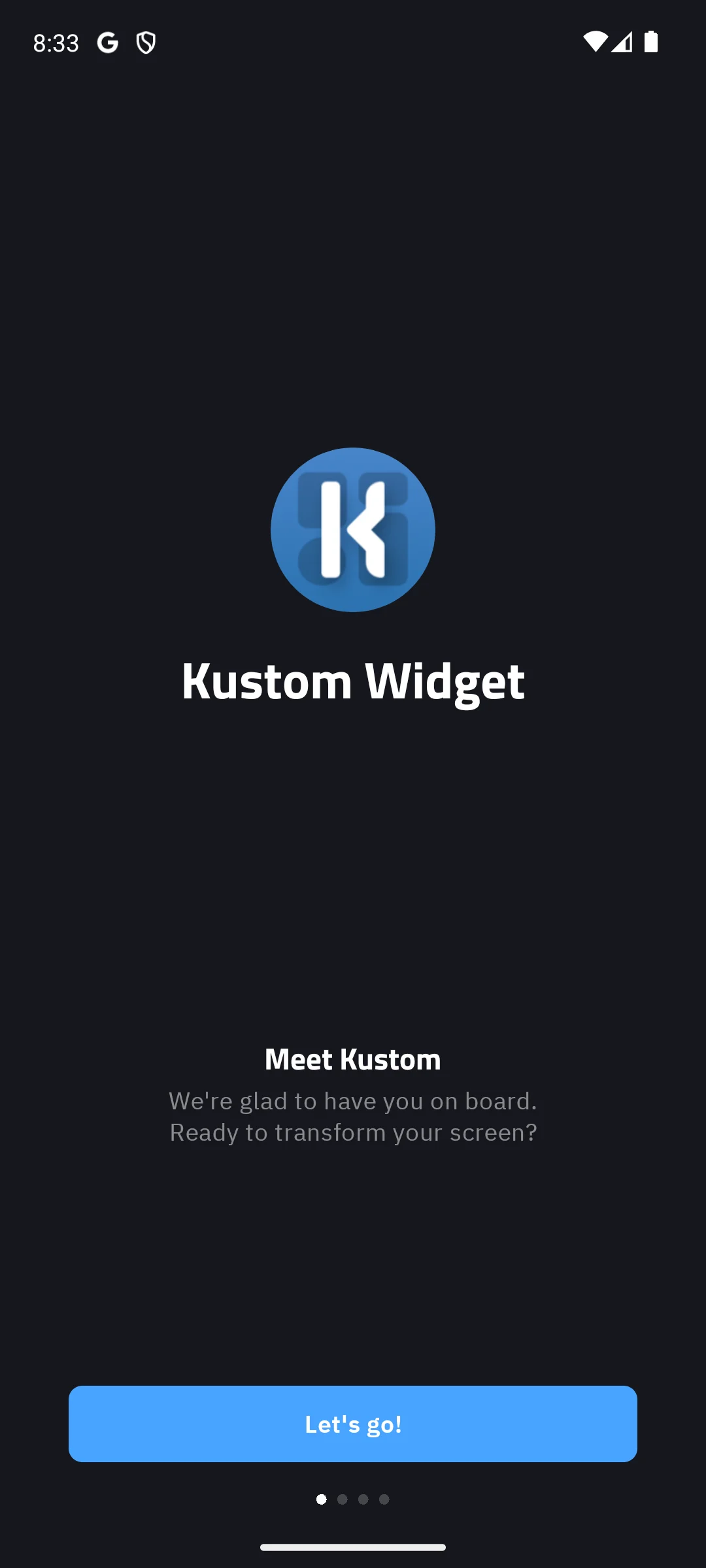
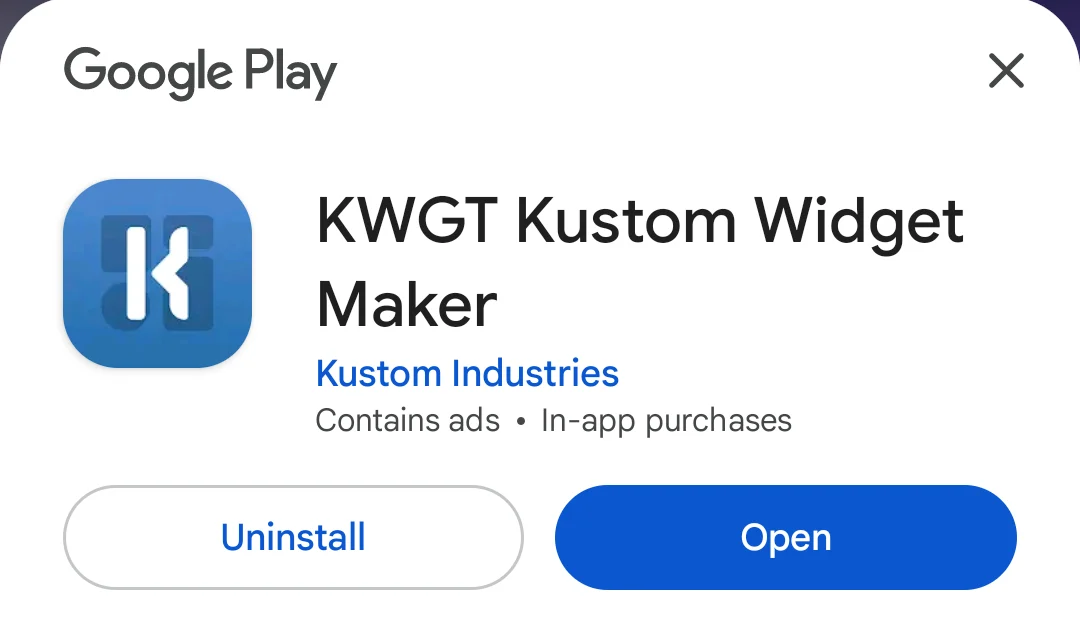
Our own emulator captures of KWGT, taken 18 August 2026 and shown below, are its first run introduction screen, headed Meet Kustom, and its Google Play app card, on which the Contains ads and In-app purchases labels sit under the developer name.
Skip this if. Skip this if what you want is a finished clock rather than an editor, because the name on this listing is Kustom Widget Maker.
Choosing between them. Choose it over the DIGI listings when the clock has to be built to your own design, and a DIGI listing over it when the clock just has to be up and readable.
Clock on the idle screen
Rating 4.4 from 259,648 reviews · Installs 10,000,000+ · Free to install, with in-app purchases USD 0.99 to USD 99.99 per item · Developer Firehawk · Version 3.2.0.1 · Minimum Android 6.0 · Listing updated 16 June 2025 · Data Safety: may share data types with third parties, no data collected, data encrypted in transit, data cannot be deleted · Contains ads: Yes · checked 1 September 2026
Google Play listing · 4.4 (259,648) · read 1 September 2026
Always On AMOLED answers a different question from the rest of this page: it puts a clock on the screen while the phone is idle, not on the home screen, so no launcher hosts it and nothing here is a widget in the sense the other four are. It is rated 4.4 from 259,648 reviews, the largest review sample here, on 10,000,000+ installs, and it is free to install. Three things at the door: its listing carries the Contains ads label, in-app purchases run USD 0.99 to USD 99.99 per item, and the listing has not been updated since 16 June 2025.
Read this first. Its Data Safety section declares two lines that sit oddly together: This app may share these data types with third parties
and No data collected
. Both are in the same section of its Google Play listing, read 20 August 2026. They are reported here as declared, rather than resolved into whichever one sounds better. Two costs of leaving a screen lit come from the developer rather than from us. The same description sells settings against both, Auto movement - avoid AMOLED burn-in
and Automatic rules - preserve battery using predefined rules
, and its own product page, read 20 August 2026, heads a section Save Battery Intelligently
. That Firehawk built controls against screen burn-in and battery drain is the developer's own signal that both are real here. Neither is measured by us, and the controls are settings the reader has to switch on.
An app that paints the screen while the phone is idle has to keep running to do it, which is exactly what manufacturer battery management interferes with. Firehawk answers part of that on the listing itself, and repeats it word for word on the developer’s own page for the app, both read 20 August 2026: For Xiaomi devices, you will need to access the Security App
and grant it Display pop-up window permission and Show on Lock screen
. That is a per make instruction for a display that does not appear, and it is more than the KWGT listing carries. Where it stops is the general case: no source we read publishes anything from this developer about keeping the app exempt from Android battery optimization, or about whitelisting it, which is the subject Kustom gives a whole documentation page to. The same description also sets out what the app asks for and why, which is the check the setup section below recommends: The app needs camera permission to toggle the flashlight
, The app needs phone permission to recognize incoming calls, dismiss the always on screen, and show the incoming call screen
, and The app needs permission to modify system settings to change the brightness of the lock screen
. Its listing names one battery tool as well, offering Greenify integration - start Greenify automatically when locking the screen to save battery
, and Greenify is one of the tools Kustom’s documentation names as a cause of widgets not updating. Those are two different apps and two different sources, and neither says anything about the other; the pair is printed here because a reader running Greenify has now met it twice on one page. Firehawk describes the app on its own Google Play listing as Get an always on display on your device!
, read 20 August 2026. For phones that have the feature built in, our guide to customizing the always-on display on Android covers the setting itself.
Skip this if. Skip this if what you want is a widget on the home screen, because this one works on the idle screen instead.
Choosing between them. Choose it over the four listings above only when the clock is wanted while the phone sits idle, and any of them over it when the home screen is the screen you look at.
The gesture is the same on most phones. Press and hold an empty part of the home screen, open Widgets, find the app you installed or the built-in clock collection, and drag the style you want onto a free spot. Then use the resize handles: a widget left at its default size is what usually crowds the icons around it. Removing one later is the same gesture in reverse, press and hold, then drag it to Remove.
Two things decide whether that works, and neither is in the widget's styling. The first is the Android release: three of these five listings state a minimum of Android 8.0, Always On AMOLED states 6.0, and Material You Widgets states 12, so a phone below 12 cannot install that one at all. The second is the launcher, which hosts the widget and tells it how big it is. Kustom is the developer here that writes this down most plainly, and its KWGT FAQ, read 20 August 2026, says that with sizing left on automatic the app follows the launcher's instructions and may resize in a weird manner depending on how good launcher is in giving this information
. DIGI Clock Widget's own description makes the milder version of the same point, that the steps for adding the widget may differ from device to device of by device manufacturer
, and adds that when the widget is missing from the list entirely the thing to try is restarting the device.
The third thing is the one that catches people weeks later, when the clock has been sitting there quietly going stale. Manufacturer battery management can stop a widget updating, and every claim this page makes about that comes from the developers themselves, set out app by app in the sections above. What none of them can tell you is how far your own phone goes. For that there is dontkillmyapp.com, an independent tracker that Kustom's own documentation refers readers to; read on 20 August 2026, it puts Huawei, Xiaomi, OnePlus and Samsung at the top of its list and says these makers prefer battery life over proper functionality of your apps
. Look your make up there before you blame the widget.
Before paying for any of them, four things are worth reading on the listing itself: the price and whether in-app purchases sit behind it, the Contains ads label, the Data Safety section, and the stated Android minimum. The first three are in the table above and in each app's own fact line, read 20 August 2026. One more thing worth checking is what a widget asks for: a clock that wants location is usually asking for live weather, and a plain clock has no reason to want contacts or files. Always On AMOLED is the one listing here that runs that check for you, setting out in its own description why it asks for the camera, the phone and the modify system settings permissions; those three are quoted in its section above.
The rest of the home screen matters as much as the clock on it. Our guides to the best launcher apps for Android and to a minimalist home screen with Niagara cover the layout a clock sits in, and the wider category is in the Android personalization hub.
Usually because something on the phone stopped the app running in the background, and on this page it is the developers themselves who say so. Kustom publishes a page stating that Android is very aggressive with background services and that its app relies on them for updating the clock, so it needs either an always visible notification or an exemption from battery optimization. Both DIGI listings tell readers to exclude the widget from task killers to resolve time freezing. Material You Widgets names the USE_EXACT_ALARM permission and a foreground service for the same reason, and Google's own behaviour change note for Android 14 says that permission is granted on install, so there is nothing for the reader to switch on there. For Always On AMOLED, Firehawk publishes a Xiaomi specific instruction to grant the app pop-up and lock screen permissions, but no source we read carries anything from that developer about keeping the app exempt from Android battery optimization, or about whitelisting it. Each of those is quoted and linked in that app's own section, and the independent tracker dontkillmyapp.com ranks how far your particular make goes. Checked 20 August 2026.
Three of the five state a minimum of Android 8.0: DIGI Clock Widget, DIGI Clock Widget Plus and KWGT. Always On AMOLED states Android 6.0, the lowest floor here. Material You Widgets states Android 12, the highest, so a phone below that cannot install it, although the heading of its own description says it works on all Android devices. The Android minimum is only the first gate. The second is the launcher, which hosts the widget and decides how it is sized, and Kustom says in its own FAQ that with sizing left on automatic a widget may resize oddly depending on how good the launcher is at reporting size. Checked 20 August 2026.
Three of the five are free to install: DIGI Clock Widget, KWGT Kustom Widget Maker and Always On AMOLED. All three carry the Contains ads label on their listings. The other two are paid before they open, DIGI Clock Widget Plus at USD 3.49 and Material You Widgets at USD 0.89, and neither of those two listings carries an advertising label. Free does not mean nothing further is sold: KWGT lists one in-app purchase at USD 6.99 an item, which its listing describes as the upgrade that removes advertising, and Always On AMOLED lists in-app purchases up to USD 99.99 per item. Checked 20 August 2026.
It is a label the developer declares for the listing, and Google Play shows it beside the app. It says advertising is part of the app. It does not say where the ads appear, how often they appear, or whether some purchase takes them away. On this page the label is read off each listing and printed in that app's own fact line, as declared. Where a listing itself says a purchase removes the advertising, as the KWGT listing does, that is stated in its section rather than assumed from the label. Checked 20 August 2026.
Material You Widgets is the one here whose Data Safety section declares no data shared with third parties; the other four declare that they may share data types with third parties. It is not a clean win, because the same section on that listing declares that data is not encrypted, while the other four declare data encrypted in transit. Always On AMOLED declares both that it may share data with third parties and that no data is collected, and this page reports that pair as it is declared rather than deciding which line wins. KWGT is the only one of the five whose section says deletion can be requested. Checked 20 August 2026.
Always On AMOLED is the entry here for that: it paints a clock while the phone is idle rather than on the home screen. It is free to install, its listing carries the Contains ads label, and that listing has not been updated since 16 June 2025. Ignore the lock screen steps in the DIGI Clock Widget Plus description: they are written for Android 4.2 devices, and the same listing states a minimum of Android 8.0, so no phone it supports can follow them. On phones that ship a built-in always-on display, the same thing is usually reachable from the display settings without any app; that is general guidance rather than a figure from any listing on this page. Checked 20 August 2026.
Checked 20 August 2026: all five Play listings were re-read, and every rating, review count, install band, price, in-app purchase range, ads label, Data Safety line, version and Android minimum now carries the date it was read. The decision table was rebuilt. Its old second column, headed Best for, repeated word for word the verdict line already printed under each heading and so decided nothing. In its place are two columns sourced at each developer rather than at the store blurb: the Android release the app needs, and what that developer itself says when the clock stops refreshing. Every cell in the second is quoted and linked in that app's own section. The old Third-party sharing column goes with it; those declarations survive in full in each app's fact line and in the Data Safety answer of the FAQ. One cell in the new column was wrong when it was first written, and correcting it is the largest change in this pass. Always On AMOLED's cell carried the line Nothing on the subject in anything we read, and its section said neither the listing nor the developer's own product page addressed a display that fails to appear. Both descriptions end with a per make instruction: on Xiaomi devices the app has to be given the pop-up window and show on lock screen permissions in the Security App. The cell now carries that, and only the narrow absence is claimed, which is that no source we read publishes anything from this developer about keeping the app exempt from Android battery optimization, or about whitelisting it. Two further things that developer publishes, and this page had not, are now in its section because they are costs the reader takes on: Auto movement against AMOLED burn-in, and Automatic rules to preserve battery. Material You Widgets is now read against the platform note by permission name. Its description names the USE_EXACT_ALARM permission for timely and accurate updates. An earlier draft of this pass set that beside Google's Android 14 note and told readers the permission is denied by default and has to be granted by hand on a recent phone. That rule is about SCHEDULE_EXACT_ALARM, a different permission described in the same note, which says the one this developer names is granted on install, so the instruction was withdrawn before it shipped. The section now names both permissions, links the note, and prints the condition Google attaches to the one this app names: it is the permission calendar and alarm clock apps should declare, and an app cannot publish with it in the manifest unless it qualifies under Google's policy language. The second KWGT screenshot was described in its alt text and its caption as the app's Google Play listing. It is the Google Play app card, carrying the Contains ads and In-app purchases labels, and it is described as that now; the file, the gallery and the provenance caption are unchanged. Figures moved on the run day and the old ones are named here: DIGI Clock Widget was printed as 4.6 from 176,216 reviews and now displays 4.6 from 176,236; DIGI Clock Widget Plus 9,271 reviews, now 9,272; Material You Widgets 5,654, now 5,688; KWGT 50,412, now 50,557; Always On AMOLED 257,473, now 258,053. One claim is withdrawn, and the reason first given for withdrawing it was wrong. DIGI Clock Widget Plus was called the highest rated listing on this page. Google Play displays 4.6 against both DIGI listings on the run day, so a reader checking the two sees the same number twice and a ranking they cannot verify from the listings; the page states both scores instead. That is not a refutation. The precise values behind those displays, read from each listing's own structured data today, still separate them: 4.60 for the paid build against 4.55 for the free one. Two claims carried over from the previous pass were re-derived rather than trusted, and both stand: the 40 or more fonts named in DIGI Clock Widget's description, and the update to Android 16 compatibility, which both DIGI What's new sections attribute to version 3.6.0, a version number the page now states. Three findings come from the listings themselves. Material You Widgets heads its description with a claim that it works on all Android devices while the same listing states a minimum of Android 12, the highest floor of the five. DIGI Clock Widget Plus, a paid listing updated 4 May 2026, still carries a description written for Honeycomb, Ice Cream Sandwich and Jelly Bean, and lock screen steps for Android 4.2 that no phone meeting its own Android 8.0 minimum can follow. DIGI Clock Widget's description claims compatibility with Android 11 on a listing whose minimum is Android 8.0. The How we verify box was rewritten: it previously described the app being placed on our own Android emulator and opened, and a body paragraph and a con bullet repeated that framing. All three are gone under the standing rule of verified, not tested, and so is a sentence beside the DIGI screenshots that reported a choice made in front of the consent dialog. The quick answer capsule was rebuilt with them: its best free sentence offered the Contains ads label as the reason for the pick, which is a drawback rather than a ground, and leaned on the sentence before it to say whose app it was, so it did not stand up when lifted out alone. It now names the app as its own subject, gives the score and the review count behind the pick, and states that listing's whole price reality, the ads label and the in-app purchases as well as the free install. Every screenshot is carried through untouched: the four image files, the six figures and the eight image tags this page held before this pass are all still on it, each inside the section it depicts, and the KWGT gallery still sits ahead of the anchor that opens the Always On AMOLED section, because that block ends by opening the next one. The seo title and the meta description were rewritten around the refresh question, and the page title names what each app needs to keep ticking rather than only what it costs.