
Updated September 2026 · every app listing re-read on 1 September 2026, refreshing 2 review counts
Always-on display is a manufacturer feature before it is an app category. This page takes the setting first, sourced to the two vendors that publish it, then the two Play apps for phones whose own screen has no such setting. Where a menu name is not published by a vendor, it is labelled as guidance rather than dressed up as an address.
The always-on display keeps a small part of the screen lit while the phone is locked and idle. Most setups show the time, the date, the battery level and the icons of waiting notifications. It stays deliberately dim, which is the point: the time is readable across a desk without the screen waking and lighting the room.
Two things separate it from an ordinary lock screen. It runs while the phone is asleep rather than only when the screen is tapped, and on some phones the clock it draws is the same clock the lock screen uses. Samsung publishes that about its own recent releases, quoted further down; where a maker publishes nothing, read it as guidance. Either way it is worth knowing before hunting through menus, because the setting wanted is often filed under the lock screen rather than under anything named always-on display.
The feature belongs to the phone maker, and both makers say where it stops. Samsung publishes on its own Always On Display support page, read 20 August 2026, that AOD is not available when a Power saving mode is turned on
and that Always On Display is not available on the Cover screen for the Galaxy Z Flip series
. Google publishes on its own Pixel lock screen help page, read the same day, that the option to show the lock screen wallpaper on the always-on display is marked available on the Pixel 10 Pro and Pixel 10 Pro XL only. A page that gave one address for all phones would be wrong about most of them.
Where a phone has no such setting, the fallback is a third-party app, and that is a different kind of thing rather than the same feature bought cheaply. The two in the table below are the ones this page links. Both are free to install and both listings carry the Contains ads label.
Your phone's built-in always-on display setting is our best overall and best free pick because Google and Samsung both document it, read 20 August 2026, with no price and no ads label.
Always On AMOLED is our older-phone pick because its listing, read 20 August 2026, states the lower minimum, Android 6.0, and is free with a Contains ads label.
AOD Flow is our current-listing pick because its listing was updated 24 May 2026 and is free with a Contains ads label.
Data checked: 3 September 2026.
Read the menu names here as a guide, not as a fixed address. They move between Android releases and manufacturer skins. Where a name below is quoted, it is quoted from the vendor's own support page with the date it was read; where it is not quoted, it is guidance. When a name is missing on the phone in your hand, the search box at the top of Settings finds it faster than scrolling does.
On a Pixel, the only Settings path Google publishes on its own lock screen help page, read 20 August 2026, sits inside a block Google itself scopes to two handsets. That block opens with an Important note saying the feature it describes is available only on the Pixel 10 Pro and the Pixel 10 Pro XL, and the steps under it are for showing the lock screen wallpaper on the always-on layer rather than for the feature as a whole. Those steps begin Open your phone’s Settings app
and run through the display and touch menu to a submenu Google names Always-on display
. On any other Pixel that address is guidance here rather than something Google publishes, which is why the search box at the top of Settings is the reliable way to find it.
The clock itself is styled from the lock screen rather than from the always-on menu. Google's steps, on the same page and marked by Google as applying to Android 16 and higher, are to touch and hold an empty space on the home screen, tap the wallpaper and style entry, swipe right to Lock screen
, then tap Clock
, where the settings offered are Style
, Color
and Size
. Google publishes no statement on that page that the always-on clock and the Pixel lock screen clock are one clock, so treat the lock screen as the place to start rather than as a documented equivalence; Samsung does publish such a statement about its own recent releases, and it is quoted further down. The same page also documents a Dynamic clock
switch, which it describes as making the clock size change based on the lock screen content.
On a Galaxy phone the feature has its own entry in Settings. Samsung's own Always On Display support page, read 20 August 2026, gives the path as Settings, then Lock screen and AOD
, then Always On Display
, and notes that Settings can be searched for the name directly. The same page carries Samsung's own caveat about everything below it: Available screens and settings may vary by wireless service provider, software version, and device model.
That is the manufacturer saying what this page would otherwise only be asserting.
Underneath that switch is the menu that decides when the screen lights up at all. Samsung calls it When to show
and publishes five options for a Galaxy device running One UI 6.1: Auto
, which it describes as showing the display all the time unless the phone detects a dark area or a pocket; Always
, shown continuously whenever the phone is locked; Tap to show
, which appears for a short time after the screen is tapped; As scheduled
, on hours you set; and For new notifications
, shown briefly when one arrives. Anyone who wants an always-on display without it lit all night wants one of the last three.
Where the clock style lives depends on the One UI release, and Samsung publishes both halves on the same page. Its settings list says that on Galaxy devices running One UI 6.0 and lower you can customize the clock type and color
from the always-on display menu itself, and that On Galaxy devices running One UI 6.1, the AOD will use the same clock as the Lock screen.
A note higher up the same page puts the boundary a step earlier, saying it of Galaxy phones running One UI 6 or later
. Those two lines do not quite agree with each other, and both are printed here rather than resolved into whichever is tidier. If the layout on the phone matches neither, the release is usually the reason.
Beyond the clock, both makers put a little more on the layer, and the support pages say what, and on which phones. Samsung's support page, read 20 August 2026, lists Show music information
and scopes it to devices running One UI 6.1 and lower, Show Now bar
and scopes it to the Galaxy S25 and other devices on One UI 7.0, and Show Lock screen wallpaper
and Erase background
, both scoped to the Galaxy S24 and the Galaxy S25. Four settings, three different device scopes, on one page, since the last two share one: that is what the phrase varies by model looks like when the manufacturer writes it down. On a Pixel the published extras sit on the lock screen the always-on layer follows: notification behaviour, lock screen shortcuts, device controls and a Now Playing entry, all documented on the same Google page read the same day.
Tap behaviour is worth setting on purpose, and here the published names help. On a Galaxy, the Tap to show
option above leaves the screen dark until it is tapped, which suits a phone that spends the day face up on a desk. On a Pixel, Google files Tap to check phone
and Lift to check phone
on the same page under a heading about choosing when notifications show, next to a third switch it names Wake screen for notifications
. Google publishes nothing on that page tying those three to the always-on layer, so checking them before the always-on setting, when the screen seems to light up on its own, is guidance here rather than a documented diagnosis.
The always-on display is one layer of how a phone looks. The lock screen and home screen around it are covered in our guide to the best launcher apps for Android, and the wider category sits in the Android personalization hub.
This page prints no battery number, and that is deliberate. Nothing here measures anything, and no source we read publishes a figure for what an always-on layer costs on a given phone. What can be shown is the one power statement a manufacturer does publish: Samsung's own support page, read 20 August 2026, says AOD is not available when a Power saving mode is turned on
. A feature the maker switches off to save power is a feature that costs some.
The panel sets the floor, and it decides which screens can run this at all. Google publishes on its own Pixel screen page, read 20 August 2026, that OLED (organic light-emitting diode) screens are used in most premium smartphones
and that Pixel phones have OLED screens
. Firehawk, the developer of one of the two apps below, explains the approach on its own site, read the same day: Most of the screen stays black except for a few pixels.
On an OLED or AMOLED panel those black pixels are simply not lit. On an LCD panel the backlight sits behind the whole screen, so anything kept visible keeps the whole backlight lit, and an always-on display is rare on LCD phones for that reason. Neither vendor page we read states the LCD half as a rule, so read it as guidance: when a specification sheet does not say OLED or AMOLED, the panel is usually an LCD, and a clock kept lit all day is an expensive thing to ask of one. No source we read publishes a per-panel measurement, so this page puts no number on the difference either.
Burn-in. Two primary sources address it, and each is scoped to its own maker's hardware. Samsung's support page, read 20 August 2026, states The AOD feature will not cause screen burn-in. This is automatically prevented on devices because the AOD image is slightly repositioned on the screen over time.
That is Samsung about Samsung. Google's own Pixel screen page, read the same day, explains that when the same image stays on your screen for a long time at a high brightness, it can affect the colors or cause burn-in
, and its published list of steps for helping a Pixel screen avoid burn-in ends with one that speaks straight to the two apps below: Don't install apps that promise to reduce burn-in.
Both listings below do promise something of that kind, and each entry prints that promise as the developer claim it is, beside Google's advice rather than on its own. No source we read publishes a measurement of burn-in from a third-party always-on app, so nothing here asserts one in either direction; Google's line is quoted because it is the platform maker's advice, not because anything here measured it.
What an app can and cannot do. An app is not the manufacturer's setting, and Android files the permission both apps need under risk rather than under setup. Its own tapjacking risk documentation, read 20 August 2026, carries a section headed Specific risks, and lists there Risk: android.Manifest.permission.SYSTEM_ALERT_WINDOW
, of which it says The SYSTEM_ALERT_WINDOW permission allows an app to create a window shown on top of all apps
. The step a reader meets as a setup screen is filed on that page as a mitigation, in Android's own words: On Android 6 (API level 23) and higher, users have to explicitly grant the permission for the app to create an overlay window.
Granting it is therefore not a formality, and it is worth weighing against what each listing declares about data: both Data Safety sections here declare that the app may share data types with third parties and that data cannot be deleted. Whether an app can reach the same low-power layer the manufacturers use is not something any source we read publishes, and this page does not assert it either way.
If battery life across the whole phone is the question rather than this one layer, our roundup of the best battery saver apps for Android covers the rest of it.
The two apps below are for phones with no always-on setting of their own. Both listings were read on 20 August 2026, and what they cost has the same shape on both: free to install, an advertising label on the listing, and in-app purchases behind it. Neither one is a privacy pick, and the entry for each says why.
For an older Android release
Always On AMOLED is the entry for an older phone, because its listing states the lower minimum of the two here, Android 6.0. It is free to install, its listing carries the Contains ads label, and in-app purchases run $0.99 to $99.99 per item. The blunt part is the age of the page it is all read from: that listing was last updated 16 June 2025, 14 months before this check and the older of the two dates on this page.
Rating 4.4 from 259,648 reviews · Installs 10,000,000+ · Free to install · In-app purchases $0.99 to $99.99 per item · Developer Firehawk · Version 3.2.0.1 · Minimum Android 6.0 · Listing updated 16 June 2025 · Data Safety: may share data types with third parties, no data collected, data encrypted in transit, data cannot be deleted · Contains ads: Yes · checked 1 September 2026
Google Play listing · 4.4 (259,648) · read 1 September 2026
Read this first. Its Data Safety section declares two lines that sit oddly together: This app may share these data types with third parties
and No data collected
. Both are in the same section of its Google Play listing, read 20 August 2026. They are reported here as declared, rather than resolved into whichever one sounds better.
Firehawk describes the app on its own Google Play listing as Get an always on display on your device!
. On its own site the same developer explains what the technique depends on, in one sentence that is worth reading before buying anything: firehawk.ai says Most of the screen stays black except for a few pixels.
That is a statement about the panel, not about the app, and it is the same premise the manufacturers build their own version on.
The same listing is one of the five compared in our guide to clock widgets for personalization, where it is the entry that draws on the idle screen rather than on the home screen. Its own listing also claims burn-in work of its own, listed there as Auto movement
against AMOLED burn-in. That is the developer's claim about its own app, printed here as a claim, and it sits against Google's own advice for a Pixel screen, quoted higher up on this page: Don't install apps that promise to reduce burn-in.
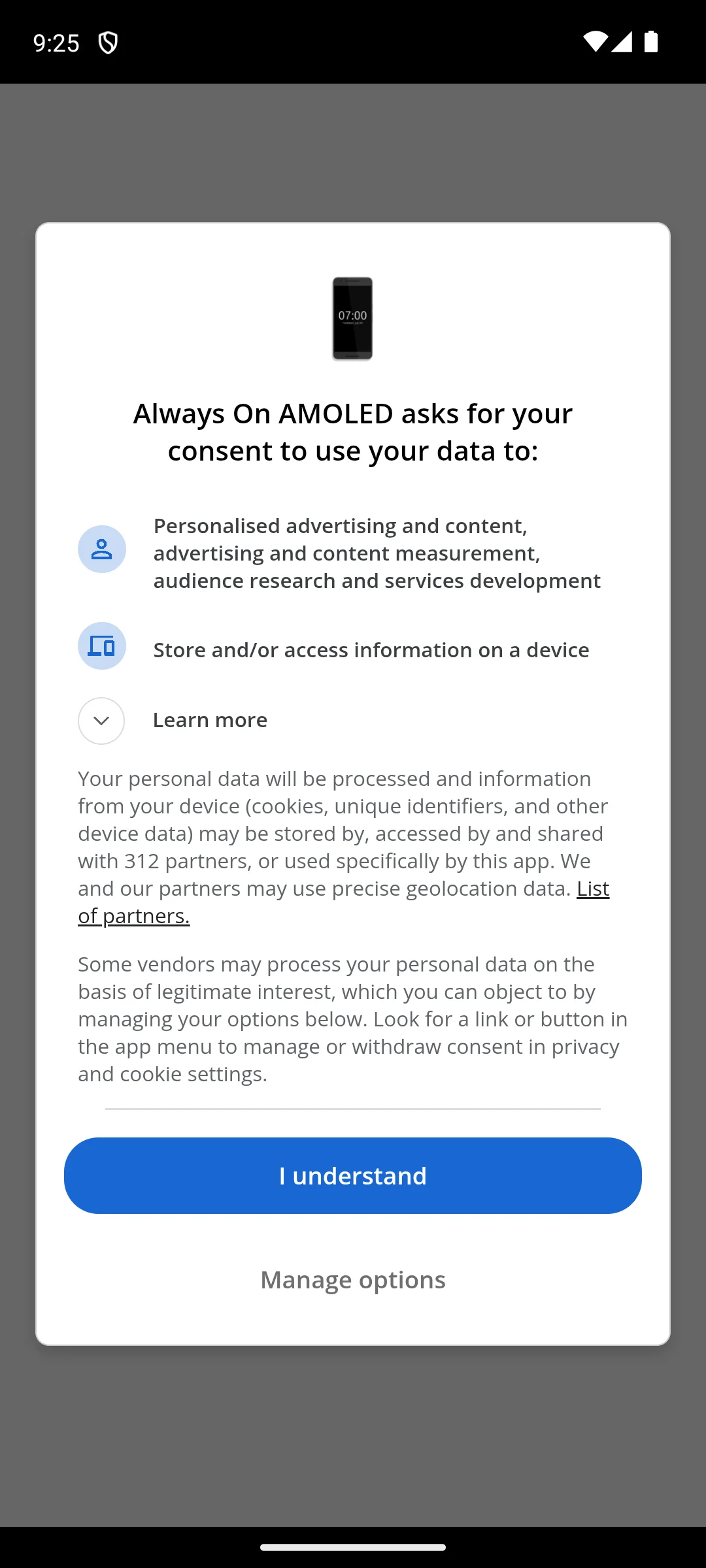
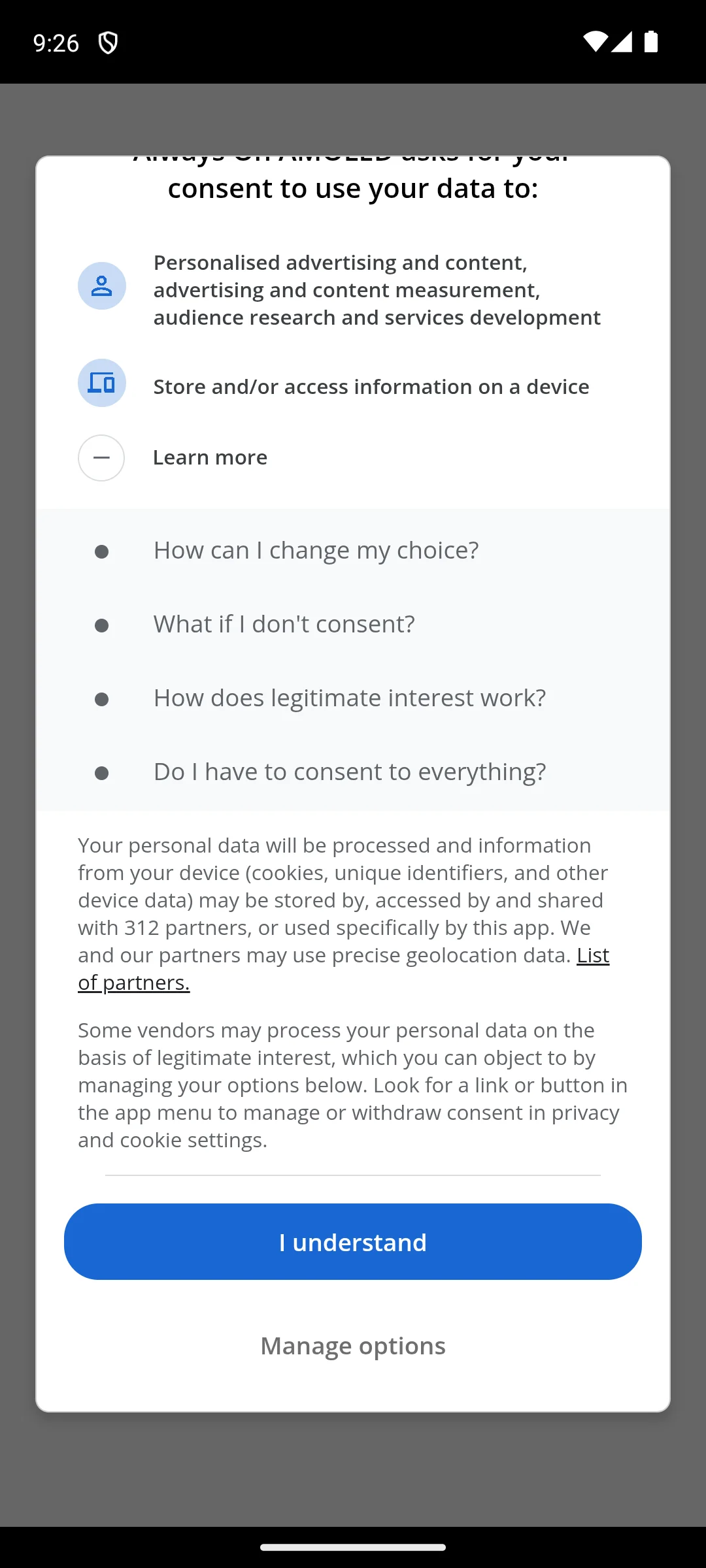
The captures below are our own, taken on 18 August 2026, and they show the screen this app puts in front of everything else. It is a consent dialog. It asks for consent to personalised advertising and content, advertising and content measurement, audience research and services development, and to storing or accessing information on the device. It states that personal data may be shared with 312 partners, and that the app and its partners may use precise geolocation data. Nothing behind that dialog is shown here, and nothing on this page describes what is behind it.
Skip this if. Skip this if the phone already has an always-on setting of its own, because that setting arrives with neither an advertising label nor a list of in-app purchases behind it.
Choosing between them. Choose it over AOD Flow when the phone is on an older Android release, because this listing states the lower minimum of the two; choose AOD Flow when a listing kept current matters more.
For a listing kept current
AOD Flow is the entry for anyone who wants the more recently maintained of the two listings: its own was updated 24 May 2026, three months before this check. It is free to install, its listing carries the Contains ads label, and in-app purchases run $1.99 to $23.99 per item. The blunt part is the evidence behind the score: its 4.3 rests on 6,466 reviews, and it needs Android 7.0, the higher floor of the two.
Rating 4.3 from 6,466 reviews · Installs 1,000,000+ · Free to install · In-app purchases $1.99 to $23.99 per item · Developer Androxus · Version 1.3.4 · Minimum Android 7.0 · Listing updated 24 May 2026 · Data Safety: may share data types with third parties, may collect data types, data encrypted in transit, data cannot be deleted · Contains ads: Yes · checked 1 September 2026
Google Play listing · 4.3 (6,466) · read 1 September 2026
Read this first. Two documents from the same developer do not agree. The Data Safety section on its Google Play listing declares that the app may share data types with third parties and that it may collect data types. The developer's own home page at androxus.com says of its apps Your data stays yours. We don't collect personal information or track user behavior.
Both were read 20 August 2026. The store declaration is the one made to Google on a form, the site line is a marketing page covering thirteen apps, and neither is resolved into the other here.
Androxus describes the app on its own Google Play listing as Interactive clock styles, notifications, and music control on AMOLED display
. The same listing claims burn-in work, described there as burn-in prevention techniques tailored for AMOLED and OLED displays. That is the developer's claim about its own app. No source we read publishes a measurement of it, and none is asserted here; Google's own advice for a Pixel screen, quoted higher up, runs the other way: Don't install apps that promise to reduce burn-in.
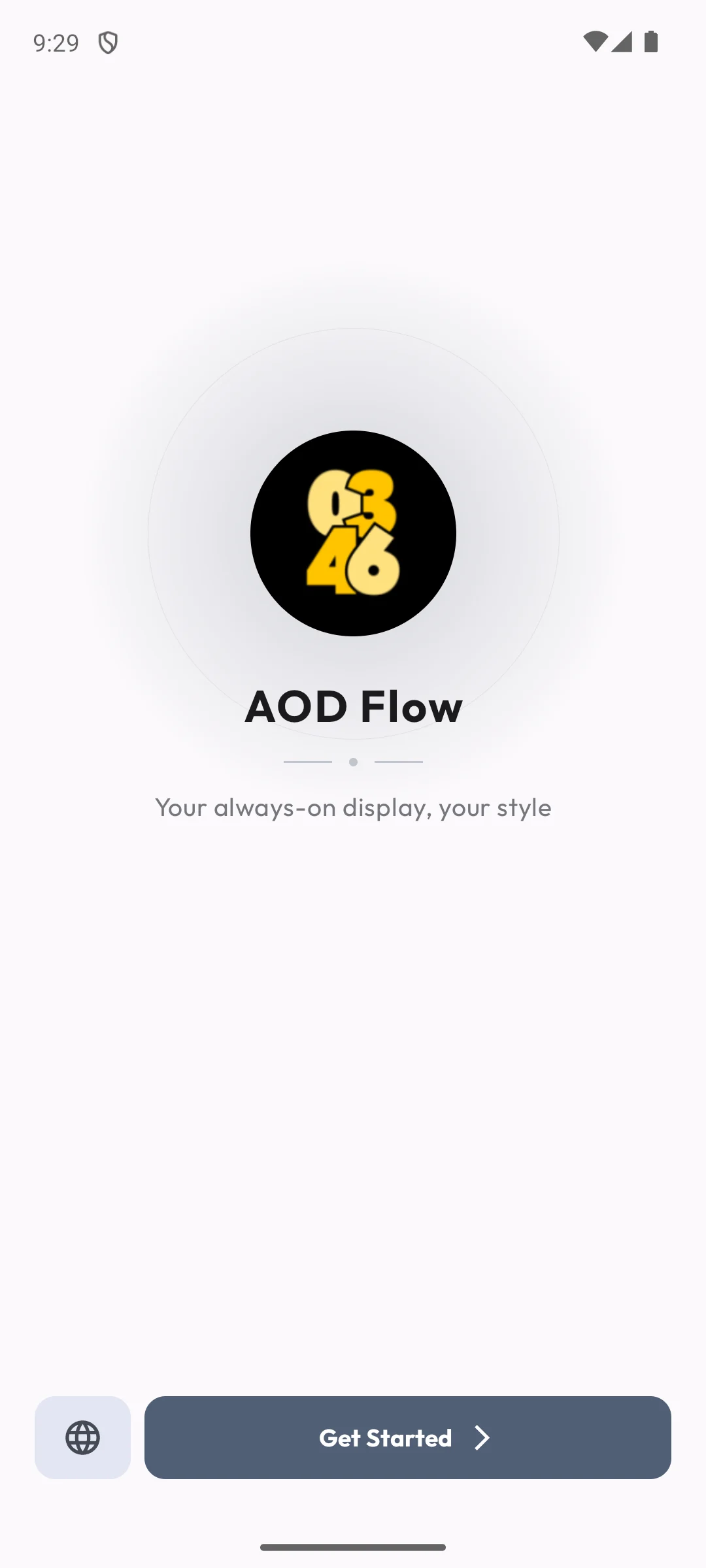
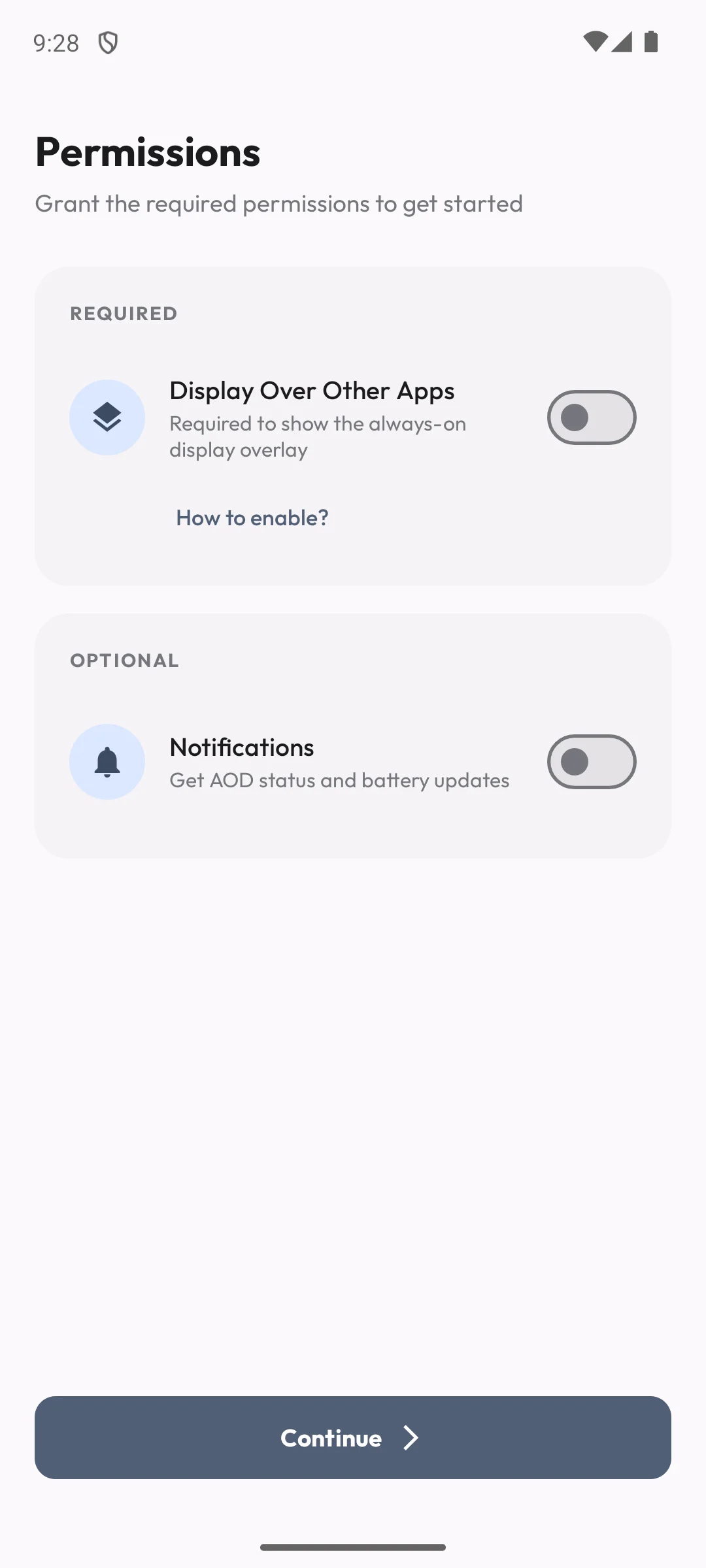
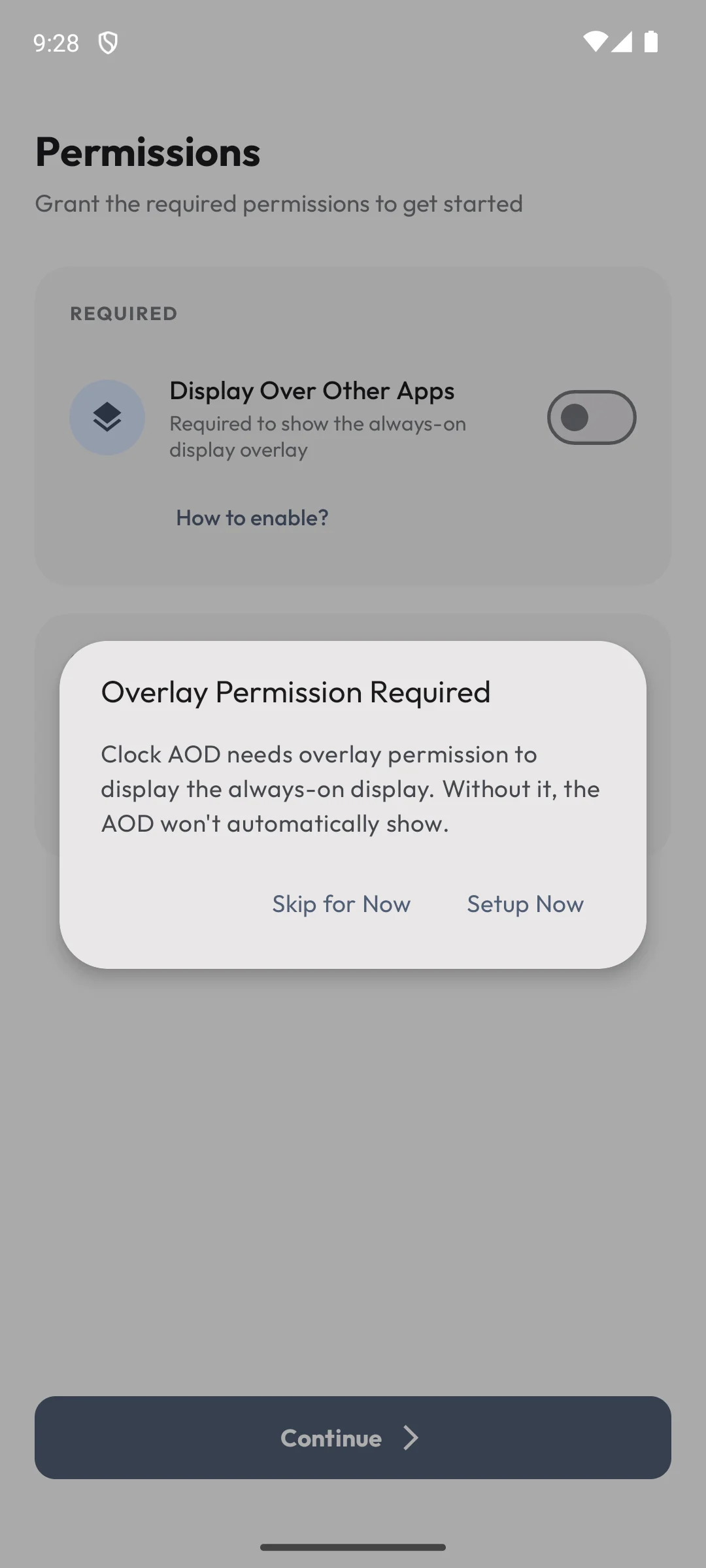
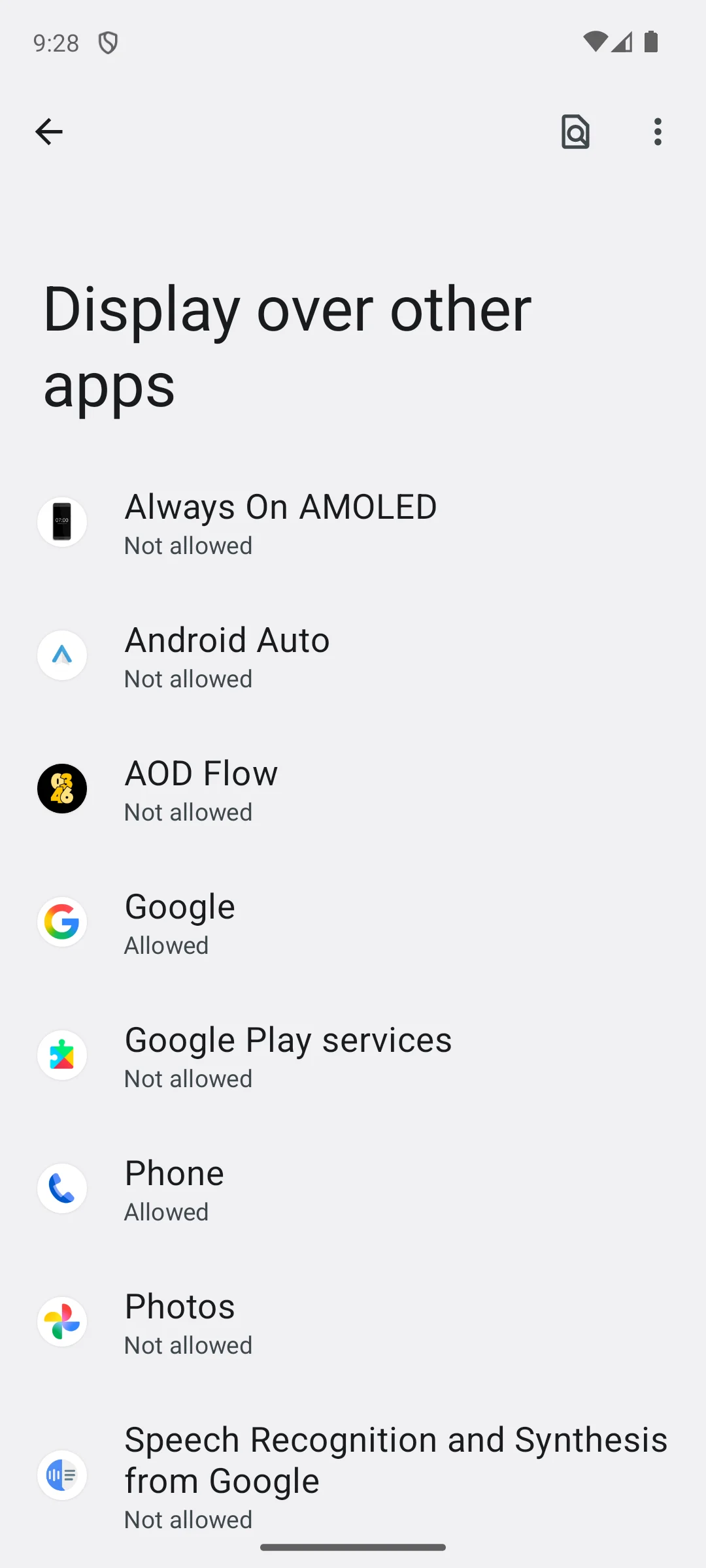
The four captures below are our own, taken on 18 August 2026, and they show the setup path in the order the app presents it: a first run screen, a permissions screen that marks Display over other apps as required, in the app's own words to show the always-on display overlay, and notifications as optional, a prompt stating that the always-on display will not show automatically without that permission, and the Android settings screen the prompt leads to, where both apps named on this page appear under Not allowed.
Skip this if. Skip this if the phone runs an Android release older than the minimum stated on this listing, which is the higher of the two minimums here.
Choosing between them. Choose it over Always On AMOLED when the more recently updated listing is what you want, and the other way round when the phone is too old to meet this minimum.
It is a manufacturer feature, so the answer is set by whoever built the phone. Samsung publishes it for Galaxy phones and tablets, with two exceptions on its own support page: it is not available on the cover screen of the Z Flip series, and it is not available while a Power saving mode is on. Google publishes a Settings path for Pixel, but inside a block its own help page scopes to the Pixel 10 Pro and the Pixel 10 Pro XL, and the submenu it names there is Always-on display. On a phone from a maker that publishes neither, the two apps on this page are the fallback, and both of their listings carry the Contains ads label. One thing to weigh before that: Google publishes that Pixel phones have OLED screens, and the developer of one of these apps explains the technique depends on most of the screen staying black. A panel that cannot leave those pixels dark gets no such saving, which is guidance here rather than a figure anyone publishes. Checked 20 August 2026.
This page puts no number on it, because nothing here measures anything and no source we read publishes a figure for a given phone. The one power statement a manufacturer does publish is Samsung's, that the feature is not available while a Power saving mode is turned on. The part under your control is the number of hours the layer is lit, which is what the schedule option and the tap to show option are for. Checked 20 August 2026.
Two primary sources address it, and each covers its own maker's hardware rather than the whole category. Samsung's support page states that the AOD feature will not cause screen burn-in, and that this is automatically prevented because the AOD image is slightly repositioned on the screen over time. That is Samsung about Samsung phones. Google's Pixel screen page says that when the same image stays on the screen for a long time at a high brightness it can affect the colors or cause burn-in, and its own list of steps for avoiding burn-in ends with the advice not to install apps that promise to reduce it. Both apps on this page do claim burn-in work of their own on their own listings, and those are printed here as developer claims beside Google's advice. No source we read publishes a measurement of burn-in from a third-party always-on app. Checked 20 August 2026.
Samsung publishes the answer twice on the same page and the two lines do not quite agree. Its settings list says that on One UI 6.0 and lower you can customize the clock type and color from the always-on display menu, and that on One UI 6.1 the always-on display uses the same clock as the lock screen. A note higher up the same page puts that boundary at One UI 6 or later instead. Both are printed here rather than resolved. The path to the feature itself, as Samsung gives it, is Settings, then Lock screen and AOD, then Always On Display. Checked 20 August 2026.
Use the menu that decides when it shows rather than the switch that turns it on. On a Galaxy phone Samsung calls that menu When to show and publishes five settings for a device running One UI 6.1: Auto, Always, Tap to show, As scheduled, and For new notifications. As scheduled lets you set the hours, and Tap to show keeps the screen dark until it is tapped. On a Pixel, the lock screen help page we read publishes no schedule for the always-on layer and no instruction for turning it off, so the display settings on the phone in your hand are the place to look, and the names there vary by release. Checked 20 August 2026.
Both are free to install, and both listings carry the Contains ads label, so neither is free of advertising. Both also sell in-app purchases: $0.99 to $99.99 per item on the Always On AMOLED listing, and $1.99 to $23.99 per item on the AOD Flow listing. An in-app purchase range is a range and nothing more: it does not say what any one item unlocks. Checked 20 August 2026.
Neither one is a clean choice. Both Data Safety sections declare that the app may share data types with third parties, and both declare that data cannot be deleted. AOD Flow adds that it may collect data types, while its developer's own home page says the opposite about its apps, and both of those documents are printed in its entry rather than resolved into each other. Always On AMOLED declares, in the same section, both that it may share data with third parties and that no data is collected, and both of those lines are printed exactly as that listing declares them. A phone with its own always-on setting avoids the question, since no third-party app is involved. Checked 20 August 2026.
Checked 20 August 2026: both Play listings were re-read and every rating, review count, install band, price, in-app purchase range, ads label, Data Safety line and listing date now carries the date it was read on this pass.
The page's main claim is not a store figure but a menu path, and until this pass it was sourced to nothing at all. Every menu name that can be sourced is now quoted from Google's own Pixel help page or Samsung's own Always On Display support page, both read on the date above and both linked in the sentence that uses them, and every name neither vendor publishes is labelled as guidance. Google's Pixel path now carries Google's own scope: Google publishes it inside a block marked as applying to two handsets only, and for the lock screen wallpaper option rather than for the feature as a whole. Two of the answers below were corrected the same way. The claim that the always-on clock and the lock screen clock are one clock on a Pixel is withdrawn, because Google's page does not say it; Samsung does say it about its own recent releases, and Samsung is quoted instead.
The AOD Flow listing's rating fell by a tenth between the two passes, so the earlier claim that both listings carried an identical rating is withdrawn and the two are printed separately. The review counts moved on both listings as well, from 6,388 and 257,568 to the figures now in the table. The Always On AMOLED listing is now described as 14 months old rather than as more than a year. Samsung's own page lists five options under When to show, where the previous pass printed four choices, and all five are now named as Samsung names them, scoped to the release Samsung scopes them to. That page states the clock style boundary in two places that do not quite agree, at One UI 6.1 in its settings list and at One UI 6 or later in a note above it, and both are printed instead of one being chosen. Samsung's own caveat that available screens and settings vary by carrier, software version and device model is quoted in place of the same warning in our words. One count taken from that page was wrong here: its four extra settings carry three device scopes, not four, because two of them share one.
Burn-in and battery are handled as the hardware claims they are. The page still prints no battery number, a decision re-derived on this pass rather than inherited. Burn-in was described here as having a single primary source scoped to one maker, and that is withdrawn: Google publishes one as well, and its own list of steps for avoiding burn-in on a Pixel screen ends with the advice not to install apps that promise to reduce burn-in, which speaks directly to both apps here. Both sources are now quoted, and each app's burn-in promise is printed beside Google's advice rather than on its own. The paragraph on which screens can run the feature at all had been cut from this page while the heading and the jump link still promised it; it is restored, with the OLED half sourced to Google's own Pixel screen page and the LCD half labelled as guidance. The Android page behind the overlay permission was called security documentation with its framing dropped; it is Android's tapjacking risk page, which files that permission under Specific risks and files the explicit user grant as a mitigation, and it is now described the way Android describes it.
The decision table was rebuilt. Its old second column repeated the verdict line printed under each heading and decided nothing, and its advertising column held two identical cells because both listings carry the label; both are gone, and the columns that replace them are the minimum Android version, the listing date, the Data Safety declarations, the purchase range and the rating with its sample size, all of which separate the two entries. That both listings carry the ads label is stated in the table lead rather than mimed by a dead column. The Data Safety column prints each listing's sharing line beside its collection line, because a collection-only cell read as a privacy verdict it cannot support.
Two testing claims are withdrawn. The How we verify box carried a tier, labelled Installed and examined, that asserted personal use of these apps on our own emulator, which the rule here forbids in every channel, and both app entries opened the same way; all of it now describes what the captures show. That box also claimed that no figure on this page was drawn from a capture, which was not true of two of the con lines or of the figure 312, and it now makes the narrower claim that is true. A new entry answers whether the always-on display causes burn-in.
The six screenshots are unchanged: both galleries carried across byte for byte, every image URL identical, and all six serving on the public site on the date above. The social image declared in this page's settings was not unchanged, and it was wrong: it printed 4.4 over the caption the rating of both apps, the claim this pass withdraws, above a read date of 15 August 2026. It was regenerated on the date above from the table as it now stands, so its middle tile reads 4.4 / 4.3 over the two app ratings and its read date matches the rest of the page. Its address is untouched.