
Updated September 2026 · the backup app the prep step names now carries its own dated listing figures, and the two update routes sit in one table
Updating Android is usually a two-minute job, but the menu has moved around over the years and the words on screen confuse people. There is the Android version itself, the monthly security patch, and a third thing called the Google Play system update. They are not the same, and your phone might be quietly getting one while never getting another. This guide shows you exactly where to look, how the path differs on Samsung, and the part nobody tells you: at some point your phone stops getting new versions for good, and there is no clean way around that.
Before you chase an update, see where you stand. On a stock Android phone like a Pixel, open Settings, tap About phone, then tap Android version. That one screen shows you three lines that matter: the Android version number, the Android security update date, and the Google Play system update date.
Write down or remember those dates. The security update date tells you how current your protection is. If it says something from over a year ago, your phone has probably stopped getting patches, which is a bigger deal than missing the latest features.
On a Samsung Galaxy, the layout is a little different. Open Settings, tap About phone, then Software information. You will see the One UI version, the Android version underneath it, and the security patch level. Samsung wraps Android in its own skin called One UI, so a phone might say One UI 8 and Android 16, for example. The One UI number is Samsung's, the Android number is Google's underneath.
Do the prep first, set out in full under "What to do before you tap install" below: get on Wi-Fi, get the battery to at least 75 percent or plug it in, make sure you have free storage, and back up if this is a major version jump. Then go to Settings, then System, then Software update (older phones may call it System update). Tap Check for update. If something is waiting, you will see a Download and install button. Tap it and let it run.
The download happens in the background, so you can keep using the phone. When it is ready, you get a prompt to restart and finish the install. The restart is where the actual upgrade happens, and the screen may sit on the boot animation for a few minutes. That is normal. Do not pull the battery or force a restart during this part.
Most security patches and Play system updates install on their own without you doing anything. The big yearly version jump, like moving from one Android version to the next, is the one you sometimes have to go and fetch yourself.
Samsung puts updates in their own menu. Do the same prep first: Wi-Fi, battery at 75 percent or plugged in, room to spare in storage, and a backup before a major version jump. Then open Settings and tap Software update, near the bottom of the list. Tap Download and install, which is the button that checks for a new build (on some carrier builds it reads Check for system updates or Check for software updates instead). If a new build is available, follow the prompts to download and then install on restart.
While you are in that menu, look at Auto download over Wi-Fi. With it on, your Galaxy quietly grabs updates whenever you are on Wi-Fi and just asks you to confirm the install. It is a sensible thing to leave on. There is also Schedule software updates, which lets you set the install to happen overnight so the restart does not interrupt you.
These three get mixed up constantly, so here is the plain version of each.
Why this matters: a phone that no longer gets new Android versions can still receive security patches and Play system updates for a while. Those keep it reasonably safe. So do not panic just because the version number is not the latest.
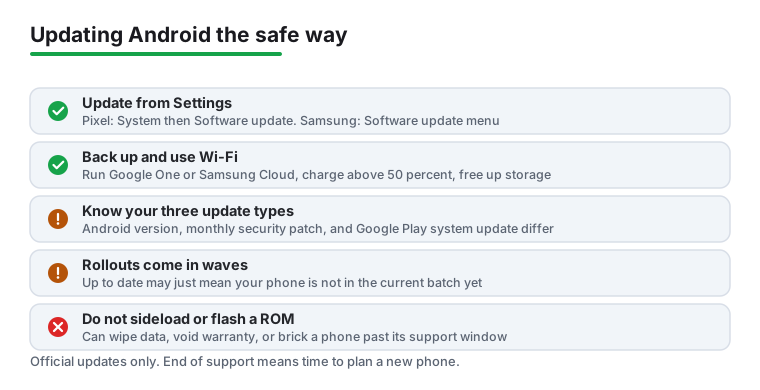
A few minutes of prep saves you a headache. Connect to Wi-Fi first. A full version update can be a couple of gigabytes, and you do not want that eating your mobile data. Charge the phone to at least 75 percent, the level Google's own update page asks for before you start, or just plug it in. An update that dies halfway because the battery ran flat is the kind of thing that can leave a phone in a bad state.
Check your storage too. If the phone is nearly full, the update may refuse to download because it needs room to unpack the files. Clear some photos or apps if you are tight on space.
Back up before a major version jump. Open Settings, search for Backup, and make sure Google One backup (or Samsung Cloud on a Galaxy) has run recently. Updates almost never wipe your data, but almost never is not never, and a recent backup means a bad install costs you nothing.
The backup to confirm before a major version jump on a Pixel or stock phone
4.1 stars from 909,478 reviews · 1,000,000,000+ installs · free to install · in-app purchases $0.89 to $199.99 per item · updated on the store 5 September 2026 · by Google LLC · Contains ads: No · checked 5 September 2026
Google Play listing · 4.1 (909,478) · read 5 September 2026
This is the Google One backup the prep step above tells you to check before a major version jump on a Pixel or stock Android phone. Its listing, read 5 September 2026, shows it free to install with no Contains ads label, at 4.1 stars from 909,478 reviews on 1,000,000,000+ installs; the in-app purchases of $0.89 to $199.99 per item are the paid storage plans, which only matter once the free allowance is full. The bluntest con is on its data safety card: the app may share data types with third parties, alongside an independent security review.
On a Samsung Galaxy the same job runs through Samsung Cloud, which has no Google Play listing, so no rating, price or ads label can be quoted for it here.
This is the part that surprises people. Phones do not get Android updates forever. The maker decides how many years of support a model gets, and once that window closes, Check for update will keep telling you the system is up to date even though newer Android versions exist. The phone is not broken. It has simply reached the end of its update life.
The newer flagships have long windows now. Samsung's own security update policy, read 6 September 2026, promises up to seven years of security updates for recent Galaxy devices. Google's own Pixel update page, read the same day, says Pixel 8 and later get seven years of OS and security updates. Older or cheaper phones get far less, sometimes two or three years, and budget models from smaller brands can be even shorter.
If your phone is a few years old and stuck, that is expected behaviour. You can keep using it safely for a while on security patches, but once those stop too, that is the real signal it is time to think about a new phone.
When people learn their phone will not officially get the next Android version, they sometimes go looking for a way to force it. You will find forum threads about unlocking the bootloader and flashing a custom ROM to put a newer Android on an unsupported phone. Be careful here.
Unlocking the bootloader usually wipes everything on the phone and can void your warranty. Flashing the wrong build, or one that is not made exactly for your model, can leave the phone unable to start at all, which people call bricking. Many of these community builds are based on early or beta code and are not as stable as an official release, so you trade missing features for random crashes and broken sensors.
For a phone you rely on every day, it is not worth it. The official update from Settings is the only route most people should use. If your phone has reached the end of support, the honest answer is to keep it patched as long as you can and plan to replace it, not to gamble it on an unofficial build.
If Check for update says you are current but you know a new version exists, give it time. Big rollouts go out in waves over days or weeks, so your phone may simply not be in the current batch yet. Checking ten times a day will not move you up the queue.
If the download stalls, confirm you are on a stable Wi-Fi connection and have enough free storage, then restart the phone and try again. A plain restart clears up a surprising number of stuck updates. If it still refuses after that and the date is recent, your model has most likely hit the end of its support window, and no amount of retrying will change that.
Open Settings, tap About phone, then tap Android version on a Pixel or stock phone. On a Samsung Galaxy, go to Settings, About phone, then Software information. That screen shows your Android version, your One UI version on Samsung, and your security patch date.
The Android version is the whole yearly operating system release, and it brings new features. The security patch is a smaller monthly fix that closes safety holes. A phone can keep getting security patches even after it stops getting new Android versions.
It is a way for Google to update certain core parts of Android directly through Google Play, without waiting for your phone maker. It mostly handles behind-the-scenes fixes. You will see its date on the same About phone screen, and it often differs from your security patch date.
Two reasons. Either the new version is still rolling out in waves and has not reached your phone yet, or your model has reached the end of its update support and will not get newer versions at all. Check how many years of updates your model was promised to tell which it is.
You do not strictly need it, but you should use it. A full version update can be a couple of gigabytes, which is a lot of mobile data. Connect to Wi-Fi, and either charge the battery to at least 75 percent, the level Google's own update page asks for, or plug the phone in before you start.
Technically yes, by unlocking the bootloader and flashing a custom build, but it is not worth it for a daily phone. It can wipe your data, void the warranty, and even leave the phone unable to start. Stick to official updates and replace the phone when support truly ends.
On a Pixel or stock Android phone it is Google One, the backup this guide tells you to check in Settings before a major version jump. Its Google Play listing, read 5 September 2026, shows it free to install with no Contains ads label, at 4.1 stars from 909,478 reviews, with the paid storage plans sold as in-app purchases of $0.89 to $199.99 per item. On a Galaxy the backup runs through Samsung Cloud, which has no Play listing, so no rating, price or ads label can be quoted for it.
Checked 5 September 2026: the guide named Google One as the backup to run before a major version jump without linking it or quoting a figure from its listing, and had no table and no dated line. Google One now carries a fact line read today: free to install, no Contains ads label, 4.1 stars from 909,478 reviews on 1,000,000,000+ installs, with the paid storage plans sold as in-app purchases of $0.89 to $199.99 per item, on a data safety card that says data may be shared with third parties. Samsung Cloud, named beside it for Galaxy phones, is not on Google Play, so no rating, price or ads label is quoted for it and it stays a plain mention. The Google One mention in the prep step now links to its card. The FAQ question that opened with Can I, about a newer Android version than my phone officially supports, is withdrawn in that wording and re-asked in the second person, as are the other first person questions. No app was removed and no route was changed.
 Signs of Android Malware and How to Remove ItSecurity & Privacy