
Updated September 2026 · four permission tools now carry their own dated listing figures, the status bar indicator section was corrected, and the FAQ moved to the second person
Every app you install asks for something. Some of it makes sense. A camera app wants the camera. A maps app wants your location. But a lot of apps ask for more than they need, and once you tap Allow, that access tends to stay on until you go looking for it. The good news is that Android gives you a single place to see and change all of it, plus a few tools that quietly clean up after apps you forgot you had. This is how to use them, what each setting actually does, and which permissions are worth being paranoid about.
There are two ways into permissions, and they answer different questions.
If you want to see what one specific app can do, go to Settings > Apps, pick the app, then tap Permissions. You will see what it has access to and what it has been denied.
If instead you want to ask "which apps can use my microphone?", you want the Permission Manager. On most phones that is Settings > Security & Privacy > Privacy > Permission Manager. The wording shifts a little by brand. Samsung and some others tuck it under a slightly different menu, and you can usually just type "permission" into the Settings search bar to jump straight there.
The Permission Manager groups everything by the type of access rather than by app. Tap Camera, for example, and you get a list split into apps that are allowed, apps that may ask, and apps that are denied. It is the fastest way to spot the app that has no business reading your contacts.
Reading every grant on the phone from one list
4.1 stars from 563 reviews · 100,000+ installs · free to install · in-app purchases $2.49 to $5.99 per item · updated 17 August 2026 · by darken · Contains ads: No · checked 5 September 2026
Google Play listing · 4.1 (563) · read 5 September 2026
The one-screen version of the Permission Manager, with the Special Access grants folded in. Its Google Play listing, read 5 September 2026, says it "lists all permissions in a single location, giving you a bird's eye view of app permissions", with two views: "You can either view all permissions an app requests, or view all apps that request a permission." Free to install with no Contains ads label and in-app purchases of $2.49 to $5.99 per item, on a data safety card that declares no data collected and no data shared with third parties. The blunt con is the sample: 4.1 stars from 563 reviews is the smallest review count on this page.
For the sensitive permissions, location, camera and microphone, you are not stuck with a simple yes or no. Tap one of these inside an app's permission screen and you get a short list of choices. They matter, so here is what each one really does.
For location there is one more switch worth knowing. Use precise location can be turned off, which hands the app a rough, area-level fix instead of your near-exact spot. A weather app or a news app does not need to know which room you are in. Approximate is plenty.
Settings can tell you what an app is allowed to do. The Privacy Dashboard tells you what it actually did. Find it at Settings > Security & Privacy > Privacy > Privacy Dashboard.
It opens on the last 24 hours and draws a simple chart of how many apps touched each sensitive permission. Tap Camera, Microphone or Location and you get a timeline: which app, and roughly when. A Google Play system update in late 2024 added a 7-day view, reached through the three-dot menu in the corner, so you can spot a pattern rather than a single moment.
This is where you catch the surprises. An app you only open to read the news showing up in the microphone timeline at 3am is a real signal. Maybe it is harmless background behaviour, maybe it is not, but at least now you can go revoke it and see if anything breaks.
A 24-hour access timeline on a phone that has none built in
4.4 stars from 3,924 reviews · 100,000+ installs · free to install · in-app purchases $0.99 to $134.99 per item · last updated 3 September 2021 · by Rushikesh Kamewar · Contains ads: No · checked 5 September 2026
Google Play listing · 4.4 (3,924) · read 5 September 2026
Only for a phone below Android 12, which has no dashboard of its own. Its Google Play listing, read 5 September 2026, says the app "has simple and clear timeline view of accesses to location, microphone and camera" and describes itself as bringing the Android 12 dashboard to older devices, with a permission icon in the corner when a permission is in use. Free to install with no Contains ads label; the in-app purchases of $0.99 to $134.99 per item are what the listing calls donations. The best rated app on this page at 4.4 stars from 3,924 reviews, and the oldest listing on it.
Read this first. Its listing has not been updated since September 2021, and the app runs through the Accessibility service, the very grant this guide tells you to treat as a stop sign. The listing's own explanation is that the service reads usage "without having the direct access to camera or microphone". Weigh that before you grant it, and remove the grant when you retire the app.
You do not always have to dig into a menu. Android shows a small indicator in the top corner of the screen the moment an app reaches for a sensor.
If you swipe down from the top while a dot is showing, you can tap it to see exactly which app is responsible. Seeing the green dot light up when you have not opened anything that should need the camera is one of the clearest warnings your phone gives you. Do not ignore it.
Camera, microphone and location indicators on Android 8 to 11
4.1 stars from 17,368 reviews · 1,000,000+ installs · free to install · in-app purchases $0.99 to $79.99 per item · updated 16 September 2025 · by IJP · Contains ads: Yes · checked 5 September 2026
Google Play listing · 4.1 (17,368) · read 5 September 2026
The indicator for phones that predate Android's own, and one source of orange and blue dots on an Android phone. Its Google Play listing, read 5 September 2026, says it "adds the same iOS 14 style indicators (few pixels light up as a dot) to the top right (default) corner of your screen whenever any third-party App uses your phone's camera/microphone/GPS location", on Android 8 and up, painted "green for camera access, orange for microphone access and blue for GPS location" by default. The most installed app on this page at 1,000,000+ installs and 4.1 stars from 17,368 reviews, free to install, with the Contains ads label on its listing and in-app purchases of $0.99 to $79.99 per item. Its data safety card says data is not encrypted and the app may collect some data types.
Read this first. It works through the Accessibility service, the grant this guide tells you to refuse to anything without a clear reason, and per its listing it also needs the location permission to watch GPS use. Here the reason is stated on the listing, but the trade-off is the one this page describes: an Accessibility service can read the screen. Grant it only on a phone below Android 12, where there is no indicator otherwise.
Permissions you granted a year ago for an app you no longer open are pure risk with no benefit. Android handles this for you if you let it.
The feature is called auto-revoke, and it works on basically every modern phone (Android 6.0 and up). If an app sits unused for around three months, the system pulls back its permissions, stops it running in the background, and clears its temporary files. The next time you open the app, it simply asks for what it needs again.
You can check or change this per app. Go to Settings > Apps, pick the app, and look for Pause app activity if unused. It is usually on by default. There is a genuine tradeoff here worth flagging. For an app you rarely open but still rely on, say one you use once a season, having its permissions and notifications quietly switched off can be annoying. If an app keeps losing access and you actually want it to keep running, turn this toggle off for that one app rather than disabling the whole safety net.
Most permissions are low drama. Two are different, because they hand over far more control than they sound like, and scammers know it.
The first is Accessibility. It exists to help people who need screen readers, voice control or Braille support, and it grants an app the ability to read what is on your screen and tap and swipe on your behalf, across every other app. In the wrong hands that means reading your banking app, approving prompts, and grabbing one-time codes as they arrive. Banking trojans lean on this constantly.
The second is Display over other apps, sometimes shown as "Draw over other apps." It lets an app float a window on top of everything else. Useful for a chat bubble. Dangerous when a fake login screen is laid over your real banking app to harvest your password. Security researchers flagged overlay attacks as one of the most common fraud patterns of the past couple of years.
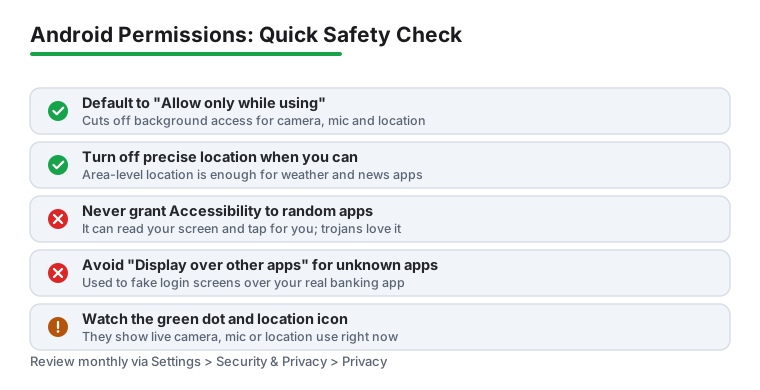
The rule is simple. A wallpaper app, a flashlight, a game or a QR scanner has no reason to ask for either of these. If something you sideloaded pushes hard for Accessibility, treat that as a stop sign. Review the accessibility services list under Settings > Accessibility, where phones label it Installed apps or Downloaded services, and the overlay list under Settings > Apps > Special app access > Display over other apps.
Google has been tightening the screws here, which is worth understanding so the warnings make sense. When you sideload an app (install it from outside the Play Store) and it tries to switch on Accessibility, Android blocks the toggle and shows a restricted setting dialog. You have to dismiss that and dig into the app's info page to override it. The friction is deliberate. It exists to make you stop and think.
In 2026, the limits went further. On phones with Advanced Protection Mode turned on, only apps whose main purpose is accessibility can use that API at all. That is strong protection, but it has a real cost: some password managers and automation apps that legitimately used Accessibility for autofill or shortcuts stop working under that mode. If you depend on one of those tools, that is the tradeoff to weigh before flipping Advanced Protection on.
You do not need to obsess over this. A quick pass once a month keeps things tidy. Here is a routine that covers the important ground without turning into a chore.
That is the whole job. The settings have not gone anywhere since last time, so after the first pass it is mostly just confirming nothing odd crept in.
Seeing which trackers an app carries as well as its permissions
4.0 stars from 1,358 reviews · 100,000+ installs · free · no in-app purchases · last updated 9 September 2024 · by Exodus Privacy · Contains ads: No · checked 5 September 2026
Google Play listing · 4.0 (1,358) · read 5 September 2026
The audit tool for the monthly pass above. Its Google Play listing, read 5 September 2026, says "Exodus helps you to know which trackers and permissions are embedded in apps installed on your device", using reports downloaded from the Exodus Privacy platform app by app, and that it is "developed by the French non-profit organization Exodus Privacy". Free with no in-app purchases and no Contains ads label, at 4.0 stars from 1,358 reviews, the lowest rating on this page. The blunt con: the listing has not been updated since September 2024, and its data safety card says the app may collect some data types and that data cannot be deleted.
Usually it loses one feature, not the whole app. Deny a photo app the camera and you can still browse your gallery. Some apps put up a prompt asking you to grant access before a specific function runs. If an app flatly refuses to open without a permission that has nothing to do with what it does, that is a reason to be suspicious, not to give in.
The Permission Manager controls what apps are allowed to do, grouped by permission type. The Privacy Dashboard is a log of what they actually did in the last 24 hours, or 7 days if you expand it. Use the Dashboard to spot a problem, then jump to the Permission Manager to fix it.
That is the auto-revoke feature for unused apps. If you have not opened an app for roughly three months, Android pulls its permissions and pauses it to reduce risk. Open the app again and it asks for what it needs. If a specific app keeps losing access and you want it left alone, turn off Pause app activity if unused for that one app in its settings.
It means an app is using your camera or microphone right now. Swipe down and tap it to see which app. If you did not open anything that should need the camera or mic, treat the dot as a warning and check that app's permissions.
Accessibility and Display over other apps. Both give an app far more reach than the name suggests, and both are heavily abused by malware to read your screen or fake a login window. Grant them only to apps that genuinely need them, like a real screen reader, and never to something you sideloaded that has no clear reason to ask.
For most, yes. Turn off precise location and the app gets an area-level fix, accurate to within a few kilometres, instead of your near-exact position. A weather app, a news app or a store finder works fine on that. Keep precise location for navigation, ride-hailing and fitness tracking where it actually matters.
Not on Android 12 and later. The Permission Manager, the Privacy Dashboard and the green indicator are built in and cover everything in this guide. An app earns its place for a view Settings does not give you: Permission Pilot lists every permission of every app on one screen, free to install with no ads label at 4.1 stars from 563 reviews, and Exodus shows the trackers inside each app, free with no ads label at 4.0 stars from 1,358 reviews, both on listings read 5 September 2026. On Android 8 to 11, which have no indicator of their own, Access Dots adds one, but it runs through the Accessibility service and its listing carries the Contains ads label.
Checked 5 September 2026: the guide walked through Android's own permission screens and named no app, so the four tools that show the same information in other ways are now linked, each with a fact line read today: Permission Pilot at 4.1 stars from 563 reviews, Privacy Dashboard at 4.4 stars from 3,924 reviews on a listing last updated in September 2021, Access Dots at 4.1 stars from 17,368 reviews with the Contains ads label, and Exodus at 4.0 stars from 1,358 reviews on a listing last updated in September 2024. The status bar section was corrected to match Android and the sister guide on checking what an app can access: the heading The green, orange and blue dots now names the green dot and the location icon; the line An orange or green mic icon appears specifically when the microphone is on. is withdrawn because Android uses one green indicator for the camera and the microphone and the orange dot is an iPhone convention; and the line A blue dot or location icon shows up when an app is pulling your location. is withdrawn because Android shows a status bar icon for location rather than a coloured dot. Both colours are what Access Dots paints by default, per its listing. The FAQ questions moved to the second person and one question on whether a permissions app is needed at all was added.