
Updated for 2026
Whether you lean on Google Maps or Waze for the daily drive, or you run a dedicated Garmin unit on the dash for long trips, the right Android app makes time behind the wheel feel a lot calmer. This hub gathers the navigation and auto tools worth knowing about, including GPS that holds a signal, a compass you can trust on a hike, phone trackers for peace of mind, and car launchers that put what you need within easy reach. Each guide below points you to the apps worth a closer look.
Navigation and auto apps are the tools you reach for the moment you start moving. In practice they fall into a few clear groups, and most people end up using one from each. Turn-by-turn navigators (Google Maps, Waze) get you from A to B and warn you about traffic. Offline and outdoor mapping apps (Organic Maps, OsmAnd) keep working when you lose signal on a back road or a trail. Compass and GPS utilities tell you exactly where you are and which way you face. Car launchers and dashboard apps redesign your screen for driving, with big tap targets and quick access to music and directions. Phone and vehicle trackers help you find a misplaced device, keep an eye on family, or remember where you parked.
It helps to think less about categories and more about the job you are hiring an app to do. For a daily commute you want live traffic and clear lane guidance so you pick the right lane before the exit, not on top of it. For a long road trip you want offline regions saved in advance, plus fuel or charging stops along the route. For trail and outdoor use you want offline topographic maps, readable GPS coordinates, and a compass you can calibrate. For comfort in the car you care about ergonomics: whether the app runs on your head unit or only on the phone screen, and how well voice control works so your hands stay on the wheel. And for finding things, you want to locate a parked car, a lost phone, or a family member without a fight to set it up. Once you name the job, the right group of apps usually picks itself.
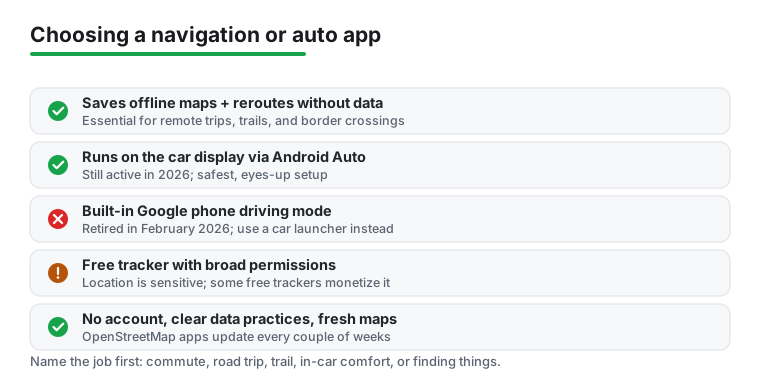
The right choice depends on how and where you drive, but a few things matter in almost every navigation or auto app:
It pays to know how a navigation app actually makes money, because that tells you how it treats your data. The common models are free with ads, ad-free open source funded by donations and volunteers, a companion app that comes with hardware you bought, and subscription. Each one points your incentives in a different direction.
Location is the most sensitive thing any of these apps touch. It is a record of where you live, work, worship, and sleep. Trackers and ad-supported navigators have the strongest reason to retain that data and, in some cases, sell it, because location is what they monetize. That does not make every free app shady, but it does mean you should look closer when an app is free and asks for constant background location.
A few habits keep you on the safer side. Prefer apps that are clear about what they collect, that work fully offline, and that do not require an account. For trackers, insist on consent from everyone being tracked rather than quietly watching a family member. Weigh a one-time purchase against a subscription: paying once for an app with no ads can be cheaper and cleaner over time than a free app that earns its keep from your data. Remember that a free tracker often monetizes location, so the price you do not pay in cash you may pay in privacy. If privacy is your priority, the OpenStreetMap-based options like Organic Maps and OsmAnd are the clearest example of the no-ads, no-tracking approach.
Every app in this category is checked against its store listing and the developer's own documentation, not chosen from a spec sheet. We check signal lock, rerouting, offline behavior, permissions, and battery drain. There is no paid placement here. We also re-check our picks as Google retires features, the way it pulled the phone driving mode in 2025, so a recommendation never quietly points you at something that no longer works. If an app annoyed us or quietly hoovered up data, it did not make the list.
For most people, Google Maps covers it: you can download a region in advance and it will reroute offline. If you want fully open-source maps with no account and detailed offline support, Organic Maps and OsmAnd are strong free choices built on OpenStreetMap data. Whichever you pick, download your area while you still have Wi-Fi.
They can. Continuous GPS plus a bright screen is one of the heaviest things a phone does. To cut the drain, use the app's driving or battery-saver mode, lower screen brightness, download maps offline so the radio is not constantly fetching tiles, and keep a car charger handy on long trips.
The legitimate ones are, but read the permissions first. A tracker needs location and often background access, which is normal. Be cautious with free trackers stuffed with ads, since some monetize your location data. For family use, prefer apps that are transparent about what they collect and require consent from everyone being tracked.
Mostly, once it is calibrated. The magnetometer drifts near metal, magnets, and speakers, so do the figure-eight calibration motion when the app asks, move away from your car or laptop, and cross-check against a direction you already know before relying on it for hiking or off-road navigation.
Not anymore. Google retired the phone-screen driving mode in 2025, so there is no built-in Google driving mode to fall back on now. If your car has a screen, use Android Auto on the car display, which is still active and is the safer option. If your car has no screen, install a car launcher with large buttons instead.