
Updated September 2026 · both apps now carry their own dated listing figures, and the two routes sit in one table
A toll setting is two settings: one for this trip, one for every trip. This shows both in each app, where the toll prices appear, and the case where neither app will keep its promise.
Before you tap anything, get clear on what you want. There is a real difference between avoiding a toll on a single route and telling the app to dodge tolls forever. If you are taking a one-off trip to the airport and want to skip the express lane, set it per trip. If you commute the same way daily and never want to pay, set it as a default so you do not have to think about it again.
Both apps support both modes, but they live in different places. The per-trip toggle shows up after you pick a destination. The always-on preference lives in settings. Mixing them up is the most common reason people think the feature is broken, so keep the distinction in mind as you go.
Seeing the toll price before you go
3.2 stars from 19,540,529 reviews · 10,000,000,000+ installs · free to install · no in-app purchases listed · by Google LLC · Contains ads: Yes · checked 3 September 2026
Google Play listing · 3.2 (19,540,529) · read 3 September 2026
Google Maps is the one most people already have, and it does the job in two places: a per-trip toggle under Route options, and a permanent one in Navigation settings. It is free with nothing sold inside, and its listing carries the Contains ads label. The blunt con: at 3.2 stars from 19,540,529 reviews it is the lowest rated app this site covers, and avoid tolls is a preference it will override when the alternative is far worse.
Open Google Maps, tap the blue Directions button, and enter your start and destination. Before you hit Start, tap the three-dot menu in the top right and choose Route options (older builds label it Options). Turn on Avoid tolls. You can also flip on Avoid highways and Avoid ferries on the same screen. Tap back, and Google Maps recalculates a toll-free route if one is available.
This change applies to the current route only. Next time you open Maps, the toggle is off again unless you set the default described below. If you mostly use the built-in app for driving but want a fuller picture of your options, our roundup of GPS navigation apps for Android walks through how Maps stacks up against the alternatives.
To skip tolls on every drive, tap your profile picture, go to Settings, then Navigation settings, and scroll to Route options. Turn on Avoid tolls there. From that point Maps will prefer toll-free routing on future trips without you touching the per-trip menu.
One thing worth knowing: this default also carries over to Android Auto and CarPlay, since the head unit reads the same account preference. So setting it once on your phone covers your car screen too.
Google Maps shows estimated toll prices on the route card in the United States, India, Japan, and Indonesia, covering roughly 2,000 toll roads. When you compare routes, you will see a small toll amount on the cards that include a paid road. The estimate factors in things like whether you have a toll pass and the typical payment method, so it is a usable ballpark rather than an exact figure.
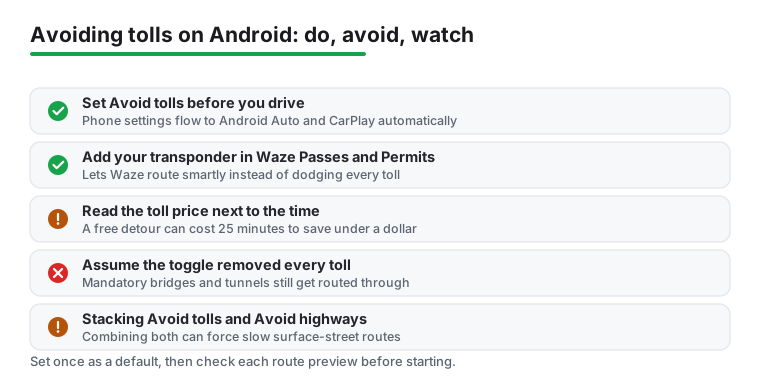
This matters because sometimes the toll-free route costs you 25 extra minutes to save 90 cents. Seeing the price next to the time lets you make that call yourself instead of avoiding tolls on principle. If saving money on the road is the goal, pairing this with the apps in our guide to gas and efficiency apps for Android Auto gives you a clearer view of the real cost of each route.
Drivers who own a pass or transponder
4.3 stars from 8,913,178 reviews · 500,000,000+ installs · free to install · no in-app purchases listed · by Waze · Contains ads: Yes · checked 3 September 2026
Google Play listing · 4.3 (8,913,178) · read 3 September 2026
Waze puts the toggles where you are already looking, on the route screen, and it is the only one of the two that knows about the transponder in your windscreen: add it under Passes and Permits and routing changes to match. It is free with nothing sold inside, and its listing carries the Contains ads label. The blunt con: the ads are in the app as well as on the listing, and they arrive while you drive.
Waze handles this in two spots. For one trip, pick your destination and tap View routes. You will get quick toggles to avoid toll roads and ferries right there, plus a View all navigation settings link if you also want to skip freeways, unpaved roads, or difficult junctions.
For an always-on setting, tap the menu button, choose Settings, then Navigation. Use the toggles for toll roads, ferries, highways, unpaved roads, and difficult junctions. These stick until you change them, so set them once and Waze respects them on every route.
If you own a transponder or a regional pass, Waze can use it. In Settings, go to Navigation, then Passes and Permits, and tap the plus next to the passes you hold. Waze then knows which toll roads you can use at a discounted or prepaid rate and plans around that instead of treating every toll as something to dodge.
This is the step most people skip, and it is the one that makes the routing actually match your situation. A road that is expensive cash but cheap with a transponder should not be avoided the same way, and adding your pass tells Waze that.
On Android Auto, Waze lets you adjust this on the car screen: tap Route Options, then Navigation Settings, and use the toggles for toll roads, ferries, and freeways. Changes you make there apply to future drives automatically.
Google Maps is a little different on Android Auto. The reliable approach is to set your avoid-tolls preference in the phone app beforehand, because that account-level setting flows to the head unit. Avoiding a toll for one specific journey from the car screen alone is not really supported, so handle the per-trip case by starting navigation on your phone and then connecting. If you log business miles, getting the route right before you pull out also keeps your records clean, which is easier with one of the free mileage tracking apps running alongside.
Here is the part the how-to posts gloss over. Turning on avoid tolls is a preference, not a guarantee. Both Google Maps and Waze will still route you through a toll when there is no reasonable free alternative. Mandatory toll bridges and tunnels are the classic example: if the only way across the water is a paid crossing, the app cannot conjure a free one, and it will quietly route you through it.
You will also hit this in areas with limited road choices or where avoiding the toll adds an unreasonable detour. So check the full route before you start, look at the road labels and the time estimate, and do not assume the toggle did its job. For more ways to plan around situations like this, the navigation and auto hub collects the rest of our Android driving guides in one place.
Because avoid tolls is a preference rather than a rule. When the toll free alternative is far longer or effectively impossible, both apps route you through the toll anyway and show it on the card. Checked 3 September 2026.
Yes. The preference belongs to your account and the app, not the screen, so a setting made on the phone applies in the car. Waze also exposes the toggles on the car screen itself. Checked 3 September 2026.
They are estimates from toll authority pricing, covering roughly 2,000 toll roads in a handful of countries, and they do not know about your transponder discount or a local exemption. Treat them as a guide to compare routes. Checked 3 September 2026.
It tells Waze which transponders and regional passes you hold, so it can route you through lanes and roads that only make sense with one. It is under Settings, then Navigation. Checked 3 September 2026.
Yes, and that is the setting most people want. In Maps it is Route options before you start; in Waze the toggles sit on the route screen. Neither changes your permanent preference. Checked 3 September 2026.
Just tolls, in most cases. Avoiding highways as well can add a great deal of time on a long drive, and the two settings are independent in both apps. Checked 3 September 2026.
Checked 3 September 2026: the guide walked through both apps and linked neither, with no rating, no install band and no dated line. Google Maps and Waze now carry a fact line read from their own listing, a store link, a decision table row and three pros and three cons. The figure that stands out: Google Maps rates 3.2 stars from 19,540,529 reviews on the United States storefront, a full point below Waze, and both listings carry the Contains ads label.
 SwiftKey vs Gboard: Which Keyboard Wins on Your Android Phone?Personalization
 How to Download Offline Maps on AndroidNavigation & Auto