
Updated for 2026
Updated September 2026 · every app listing re-read on 1 September 2026, refreshing 1 review count and 1 listing date
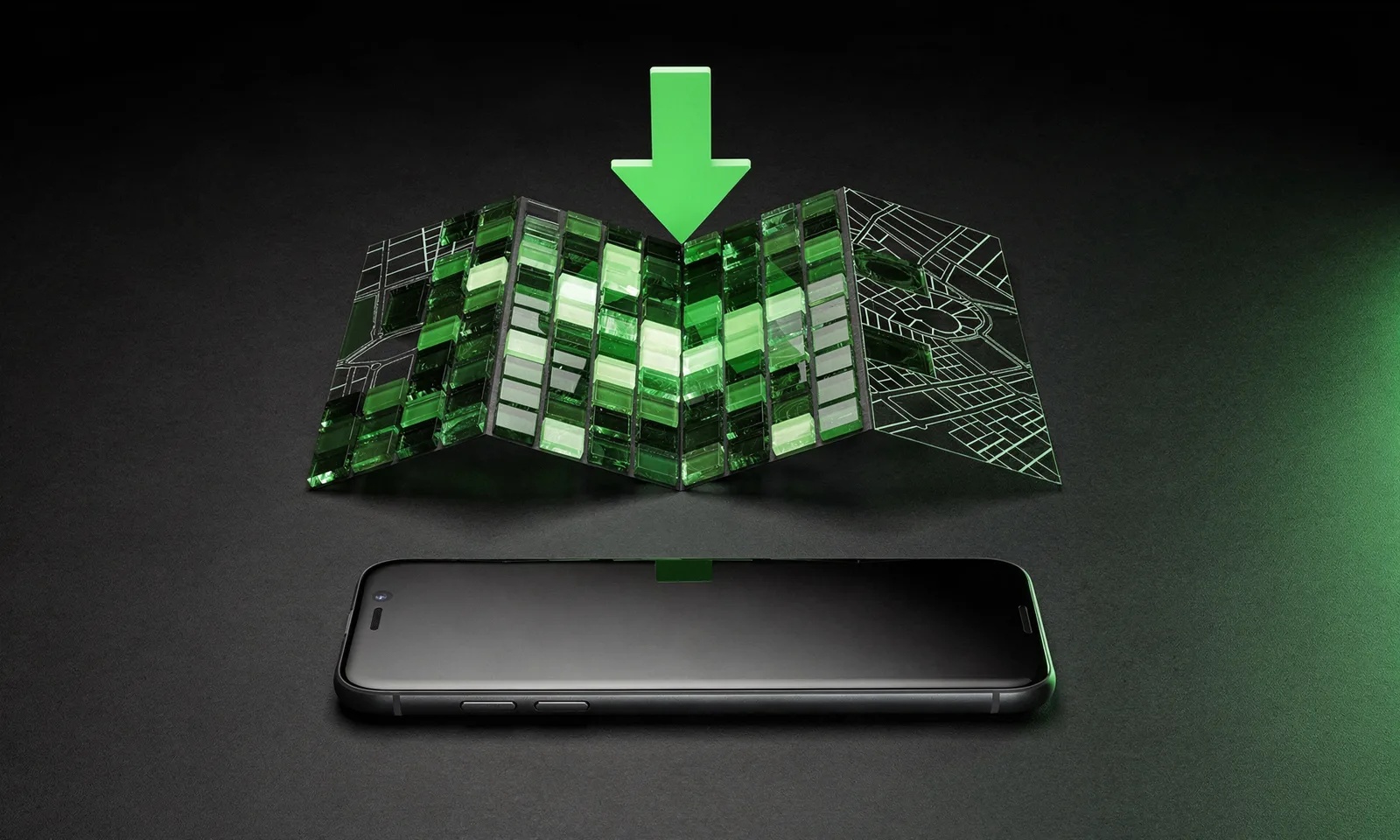
If you are heading somewhere with patchy signal, a national park, a long stretch of motorway, a foreign city before you buy a SIM, you can save a chunk of the map to the phone first. Once it is downloaded, Google Maps will route you with spoken turn-by-turn directions even in airplane mode, because the GPS chip keeps working without any data connection. Setup takes about a minute on Wi-Fi.
What follows is where the buttons are, how storage works, what Google actually says about maps expiring, and the things that simply stop working once you are offline. That last part is the half most guides skim, and it is the half that matters at a junction.
Download the area on Wi-Fi before you leave, because a saved map plus GPS gives you spoken driving directions in airplane mode. Draw the box over the whole route, because Google only routes offline if the entire journey sits inside it. Do not expect traffic or walking directions, because Google lists both as unavailable. Refresh before you travel. Data checked: 3 September 2026.
The fast route
Google Maps · 3.2 stars from 19,541,307 reviews · 10B+ installs · free, contains ads, no in-app purchases · Play listing updated 2 September 2026 · Play listing · checked 3 September 2026
This is the fast route when you already know roughly where you are going. Google's own instructions are: make sure you are "connected to the internet and signed in to Google Maps," then "search for a place, like San Francisco. In the placesheet, swipe right. Tap More, Download offline map, Download."
Maps shows a shaded box of what it will save and the file size before you commit. The box is generous: searching a city usually grabs the whole metro area plus the roads leading out of it, which is often all a weekend needs. Let it finish before you leave Wi-Fi.
When you want the whole corridor
When you want to control the exact region, for instance a whole route between two cities rather than one town, use the manual selector. Google's steps: "Tap your profile picture or initial, Offline maps. Tap Select your own map. Adjust the map according to the area you want to download. Tap Download."
You get a rectangle you can pinch to zoom and drag to reposition, and the download size updates live as you resize. One area can run from a few hundred megabytes to well over a gigabyte for a large region, so do this on Wi-Fi. You can save several separate areas and they all live together on that same Offline maps screen, where you can also rename them: "Select a map. At the top right, tap Edit. Rename the map. Tap Save."
Choose before you download, not after
By default maps save to internal storage. If your phone takes a microSD card and space is tight, you can point downloads at the card instead, through Google's path: "Tap your profile picture or initial, Settings, Offline maps, Download preferences."
Two conditions Google states, and the second one catches people out. The card has to be set up the right way: "If your device is on Android 6.0 or higher, you can only save an area to an SD card that's set up for portable storage." And switching where maps are saved does not move what you already have. Google puts it plainly: "You can save maps on your device or an SD card. If you change the way you save maps, you have to download the map again." So pick your storage location before you download a big batch, not after.
Same app, one hardware difference
Offline maps live inside the Google Maps app rather than the operating system, so the steps are identical on a Pixel and on a Galaxy. The profile picture is top right on both, and Offline maps sits in the same place.
The difference is hardware, not software. Samsung's mid-range and budget lines often still include a microSD slot, which makes the storage option above genuinely useful. Pixels have no slot at all, and neither do many recent flagship Galaxy models, so on those the SD card setting gives you nothing and internal free space is the only constraint that matters. Check what you have before saving a large region.
Only if the whole route sits inside your downloaded area
Here is the rule that trips people up, and Google states it directly: your offline maps "can guide you to your destination as long as the entire route is within the offline map."
Read that as a hard boundary, because it is one. If your journey runs off the edge of your saved box, even briefly, Maps needs data to work out the part it cannot see. So when you save a route, cover the whole corridor rather than the two endpoints. This is the single most common reason offline navigation fails on the day, and it is entirely avoidable the night before.
Positioning comes from the phone's GPS, which needs no SIM and no Wi-Fi. That is why a phone in airplane mode still shows the blue dot moving along the road. Pair that with a downloaded area and you get real turn-by-turn driving directions, spoken aloud the same way an online route is. If you are weighing this against dedicated tools, our roundup of GPS navigation apps for Android compares how several handle offline use.
Google states both are unavailable offline
Offline maps are a driving tool. Several things go dark the moment you lose signal, and it is better to know now than at a confusing junction. Google names them in one sentence: "When you're offline, transit, bicycling, or walking directions are unavailable. If you're offline when you drive, you can't get traffic info or alternate routes."
A note on lane guidance, the visual that shows which lane to take for an exit: an earlier version of this page said it stops working offline. Google does not say that anywhere in its offline documentation, so we no longer claim it either way. Assume the essentials work and the live layers do not.
For getting your bearings on foot when the map itself will not load, a simple compass app can be the difference between a confident turn and a wrong one, and offline weather apps cover the other thing you lose out of signal.
What Google actually publishes
Downloaded areas do not last forever, and this is where almost every guide, including an earlier version of this one, states a confident number. Google does not publish one.
What Google does document is the refresh behaviour: "You must update the offline maps you've downloaded on your phone or tablet before they expire. When your offline maps expire in 15 days or less and you're connected to Wi-Fi, Google Maps tries to update the area automatically."
So 15 days is the point at which Maps starts trying to refresh an area by itself, not how long a map lasts. We searched Google's offline maps page and five other Google Maps help pages, and that sentence is the only expiry figure Google gives anywhere. Numbers like 30 days or a year circulate widely, and this page carried two of them at once, in different sections. Neither is something Google states, so neither appears here now.
The practical habit does not depend on knowing the exact figure. Open Offline maps, tap the area and update it manually the night before you travel, on home Wi-Fi. That way you leave with current data whatever the underlying period turns out to be. The same screen lets you rename areas or delete ones you no longer need to claw back storage.
Where Google Maps stops being enough
Google Maps offline is plenty for most road trips. If you spend real time off-grid, though, hiking, overlanding or on the water, the driving-only limit and the rectangular boxes start to chafe, and the missing walking directions become the whole problem rather than a footnote.
Purpose-built navigation apps and hardware store topographic detail, trails and routes that Google Maps does not carry offline, and they are designed around the assumption that there will be no connection rather than treating it as a fallback. We cover that ground in our look at Garmin's Android GPS tools. For the wider category, including the everyday things like avoiding tolls, start at our navigation and auto hub.
Google does not publish a total lifetime, which is why you will see conflicting answers everywhere. What Google does state is the refresh rule: "when your offline maps expire in 15 days or less and you're connected to Wi-Fi, Google Maps tries to update the area automatically." Figures like 30 days or a year are not Google's. The reliable habit is to refresh manually before you travel. Checked 19 August 2026.
Yes, for driving, with spoken directions and no data connection. The condition is absolute: Google says offline maps guide you "as long as the entire route is within the offline map." If any part of the journey falls outside your saved box, Maps needs data to work out that section, so draw the box over the whole corridor rather than the endpoints.
No. Google is explicit: "If you're offline when you drive, you can't get traffic info or alternate routes." So no jam warnings, no rerouting around incidents, and no coloured traffic lines. You get the route and the turns, which is what the tool is for.
No. Google lists all three together: "When you're offline, transit, bicycling, or walking directions are unavailable." Only driving routes calculate offline. If part of your trip is on foot in an unfamiliar city, work that section out before you leave Wi-Fi, or carry a compass app for basic orientation.
On phones with a slot, yes, through Settings, Offline maps, Download preferences. Two conditions from Google: on Android 6.0 and higher "you can only save an area to an SD card that's set up for portable storage," and changing the location does not migrate what you already have, because "if you change the way you save maps, you have to download the map again." Set it before downloading.
Yes, and this is the part that surprises people. Positioning comes from the phone's GPS receiver, which needs no SIM and no Wi-Fi, so the blue dot keeps moving with the phone fully offline. Combined with a downloaded area, that is enough for complete spoken driving directions.
Anywhere from a few hundred megabytes to well over a gigabyte for a large region. Maps shows the size before you commit and updates it live as you resize the box, so you can trade coverage against space while you choose. Download on Wi-Fi, and check your free storage first if your phone has no SD slot.
For road trips, no, it is more than enough. If you are hiking, overlanding or boating, the driving-only limitation becomes the whole problem rather than a footnote, and purpose-built apps carry topographic detail and trails that Google Maps does not store offline. That is a different category of tool rather than a better version of this one.
Checked 19 August 2026: this page gave three different answers to its own central question. The section heading said maps expire in 15 days, the body of that same section said "the old 30 day limit is long gone" and that Google "now keeps them for about a year," and the FAQ said "about 30 days from download." Checking Google's own offline maps page and five other Google Maps help pages found only one expiry figure anywhere: "when your offline maps expire in 15 days or less and you're connected to Wi-Fi, Google Maps tries to update the area automatically." That is the auto-refresh trigger, not a lifetime, and Google publishes no total period. The page now says exactly that, and states plainly that the 30-day and one-year figures are not Google's. One further claim has been removed: that lane guidance stops working offline, which Google does not say. Everything else held up and is now quoted rather than paraphrased, including the rule that offline routing works only when "the entire route is within the offline map," Google's list of what is unavailable offline, the requirement that an SD card be "set up for portable storage" on Android 6.0 and higher, and the warning that changing where maps are saved means "you have to download the map again." A capability table, an "Our answer" capsule, a dated verification box and this changelog are new, and the page carries external sources for the first time.
 Offline Weather Apps on Android: Stay Informed Without InternetTools & Utilities