
Updated for 2026
Updated: July 16, 2026. New: step-by-step how-to guides for this category.
Getting organized on Android should feel effortless, not like another chore. We checked these notes, calendar, scanner, planner, and email apps against their store listings and the developers' own documentation, looking at what each one actually does, what it costs, and how actively it is maintained. Whether you want to capture a quick idea, scan a receipt on the go, or finally keep a habit going, the guides below point you to the app that fits how you actually work.
Productivity apps are the tools that help you capture, plan, and finish what matters. On Android that usually breaks down into a few familiar types: note-takers and second-brain apps for ideas and reference, calendars and planners for time, to-do and task managers for what needs doing, document and receipt scanners for paper you want to keep, and email clients that tame a busy inbox. Some apps try to do all of it; most do one job well. The right pick depends less on the longest feature list and more on the one workflow you repeat every single day.
It is tempting to look for a single app that does everything, but the five sub-types in this category are genuinely different jobs, and they rarely live well under one roof. Knowing which one you are actually shopping for saves you from installing the wrong tool and blaming yourself when it does not stick.
A note app makes a poor task manager because it has no real sense of due-versus-done; a task manager makes a poor notebook because long-form text has nowhere to live. Pick the app for the job you do most, and let a second app cover the next-most-common job rather than forcing one tool to stretch.
Each sub-type has its own tell for quality, and a generic feature list will not surface it. Judge each one on what it is actually for.
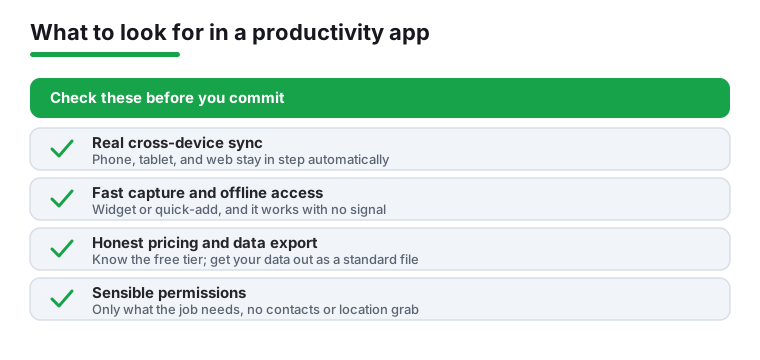
Productivity apps see a lot: your schedule, your contacts of who you are meeting, the documents you scan, the contents of your inbox. That makes permission hygiene and data handling worth a few minutes before you commit.
Scope the permissions to the job. A to-do app does not need your contacts, location, or call logs; a scanner needs the camera and little else. Android lets you decline anything that does not match the app's purpose, and grant it later only when a feature actually asks. For apps that want media access, use Android's selected-access option, which lets you hand over only the specific photos or files an app needs rather than your whole library. If an app refuses to work unless you grant broad access it has no business with, treat that as a reason to look elsewhere.
Know where your data goes. Some apps keep everything on the device; others sync to the maker's cloud, which is convenient but means your notes and scans live on someone else's servers. Neither is wrong, but you should know which one you are choosing. If the data is sensitive, prefer apps that are clear about cloud-versus-local storage, offer encryption, and do not bury the answer. Local-only apps trade easy sync for the assurance that nothing leaves your phone.
Be careful what you scan. Receipts are low stakes; IDs, passports, contracts, and bank statements are not. Those deserve an app with a clear, readable privacy policy and a stated stance on what happens to uploaded images, not a free scanner bankrolled by trackers and ads. If you cannot tell where a scanned document is stored or whether it is shared, do not feed it your most sensitive paperwork.
The quiet cost of any free app is lock-in: the more you put in, the harder it is to leave. Export is the exit ramp, and a few standard formats keep your data portable. For notes, look for Markdown or plain text, which open anywhere and will still be readable years from now. For scans, PDF is the universal choice. For calendars, ICS (the iCalendar standard) imports and exports cleanly across Google Calendar, Outlook, Apple Calendar, and almost everything else. For tasks and events, CSV is the common lowest denominator. An app that exports to these formats respects your ownership; one that only exports to its own format, or not at all, is quietly betting you will never leave. Confirm export before you pour hundreds of notes or a year of receipts into anything.
Every app in this category was checked against its store listing and the developer's own documentation, with attention to permissions, pricing, ads and how actively it is maintained. We accept no paid placement and no sponsored rankings.
Pair it with: a PDF editor app to fix, sign, or annotate the documents you scan; a file manager app to keep those PDFs and exports organized where you can find them; and an office suite app for the times a note needs to become a real document or spreadsheet.
For most people a free app is plenty. The features that genuinely matter day to day, fast capture, reminders, and basic notes, are usually free. Paid tiers tend to unlock unlimited devices, larger attachments, or advanced sync. Use the free version for a few weeks first; only upgrade once you hit a wall you actually feel.
A note app is for capturing and keeping information: ideas, meeting notes, reference material, scanned documents. A task manager is built around things that need doing, with due dates, reminders, and a sense of done versus not done. Some apps blend both, but if your core need is remembering to act on things, choose a task manager; if it is keeping and finding information, choose notes.
A plain notes app is a digital notebook: you write things down and find them again with search. A second-brain app adds linking between notes, backlinks, tags, and sometimes a graph view, so related ideas connect into a web you can navigate rather than a flat list. The trade-off is complexity. If you mostly jot and retrieve, a simple notes app is faster and less fussy; if you are building up interconnected knowledge over months and want to see how ideas relate, the linking features earn their keep. Many people start with plain notes and only move up when a flat list stops scaling.
Be careful. A scan of an ID, passport, contract, or bank statement is sensitive, and a free scanner funded by ads and trackers is not where that should go. Before scanning anything sensitive, check the app's privacy policy for a clear statement on whether scans are uploaded, where they are stored, and whether they are shared. Prefer an app that processes scans on the device or is explicit about its cloud handling and encryption. For routine receipts the stakes are low; for documents that could enable identity theft, choose the app on its privacy stance, not its price.
Often, yes. Plenty of apps include free sync across your phone, tablet, and the web; others reserve it for a paid tier or cap the number of devices. A common free route is an app that syncs through a cloud drive you already use, so your data rides along with storage you have. Check before you commit: confirm whether sync is free, how many devices it covers, and whether it is automatic or manual. If sync is the one feature you cannot live without, make that the deciding factor rather than an afterthought.
Look for an export option before you commit. The safest formats are Markdown or plain text for notes, PDF for scans, and a standard calendar (ICS) or CSV for tasks and events. Apps that only export to their own format, or not at all, make switching painful, so treat a clear export feature as a sign the app respects your data.
Match permissions to the job. A scanner reasonably needs the camera; a to-do app does not need your contacts, location, or call logs. Be wary of free apps that request broad access unrelated to their function, especially if they are ad-supported. You can deny most permissions in Android settings and grant them only when a feature actually needs it, and for media you can use Android's selected-access option to share only specific files rather than your whole library.