
Checked 27 September 2026
Samsung Notes is the pick on Galaxy phones, Microsoft OneNote the free one everywhere, MyScript Notes the ink-to-text specialist. Our answer, the free pick and the table ↓
Checked 27 September 2026: Noteshelf 3 and Notability added; two apps without a US Play listing removed; every listing re-read
Full logTwelve Android handwriting apps, compared on price and ads, whether ink turns into text, and the rating, with Samsung Notes the pick where it is preinstalled.
Samsung Notes is our pick for most people because on 27 September 2026 its listing showed 4.8 stars from 15.1M reviews, 1B+ installs, no ads label and nothing to buy, and it is preinstalled on Galaxy hardware. Proofed 27 September 2026
Microsoft OneNote is our free pick everywhere because on 27 September 2026 its listing showed 4.6 stars from 1.50M reviews, no ads label and no in-app purchases. Proofed 27 September 2026
MyScript Notes (formerly Nebo) is our pick for turning ink into editable text because on 27 September 2026 its listing showed 4.7 stars from 38.3K reviews, no ads label and in-app purchases from $1.99 to $29.99. Proofed 27 September 2026
Data checked: 27 September 2026.
Not the right tool? If you type more than you write, see Best Notes Apps for Android; if notes turn into sketches, Best Drawing Apps for Android; to digitise paper first, Best Scanner Apps for Android.
Every fact on this page was read from the app’s own Google Play listing on a stated date: rating and review count, install band, price and the in-app purchase range, the Contains ads label, the Data Safety section, and the developer’s own description where it settles something the store fields cannot. Where an app has been withdrawn, is locked to a region we cannot reach, or sits behind a consent dialog we would have to accept advertising tracking to pass, we say so plainly rather than guess. Nothing here rests on our own use of the apps, and we re-check this page quarterly, cutting any app whose listing goes stale or disappears.
Galaxy S Pen
Samsung Notes is the best overall: free, preinstalled on Galaxy hardware, no ads or in-app purchases, with low-latency S Pen ink and built-in handwriting-to-text. The blunt con: it is Samsung-only, and the listing has not updated since 23 September 2025 (Play Store, checked 27 September 2026).
Pros: free with zero monetisation · reliable ink-to-text · PDF annotation and audio recording. Cons: Samsung devices only · sync needs a Samsung account · listing idle since September 2025.
Skip it if you write on anything other than a Galaxy. Choose Samsung Notes over MyScript Notes inside the Samsung ecosystem; choose MyScript when text conversion is the whole point.
↑ Back to the comparisonInk to text
MyScript Notes (formerly Nebo) turns handwriting into clean, editable text better than anything on Android, math and diagrams included. Free to start, no ads; the honest con: serious use needs the paid unlock, $1.99 to $29.99 in-app (Play Store, checked 27 September 2026), and it wants an active stylus.
Pros: best ink-to-text engine · exports Word and PDF · lifetime unlock option. Cons: limited free tier · weak with finger writing · 1M+ installs, a small base.
Skip it if your notes stay as ink. Choose MyScript Notes over Squid when you need typed text out; choose Squid for paper-style ink and budget PDF filling.
↑ Back to the comparisonBudget tablets
Squid turns any cheap tablet into infinite paper and stays fast doing it. Core writing is free with no ads; the blunt cons: no handwriting-to-text at all, and PDF import sits behind the paid tier, $1.00 to $14.99 in-app (Play Store, checked 27 September 2026).
Pros: vector ink scales cleanly · quick on low-end tablets · fully offline, no account. Cons: no ink-to-text · PDF import is paid · no built-in cloud sync.
Skip it if keyword search matters to you. Choose Squid over Microsoft OneNote for offline paper-like ink on a budget tablet; choose OneNote when notes must reach a laptop.
↑ Back to the comparison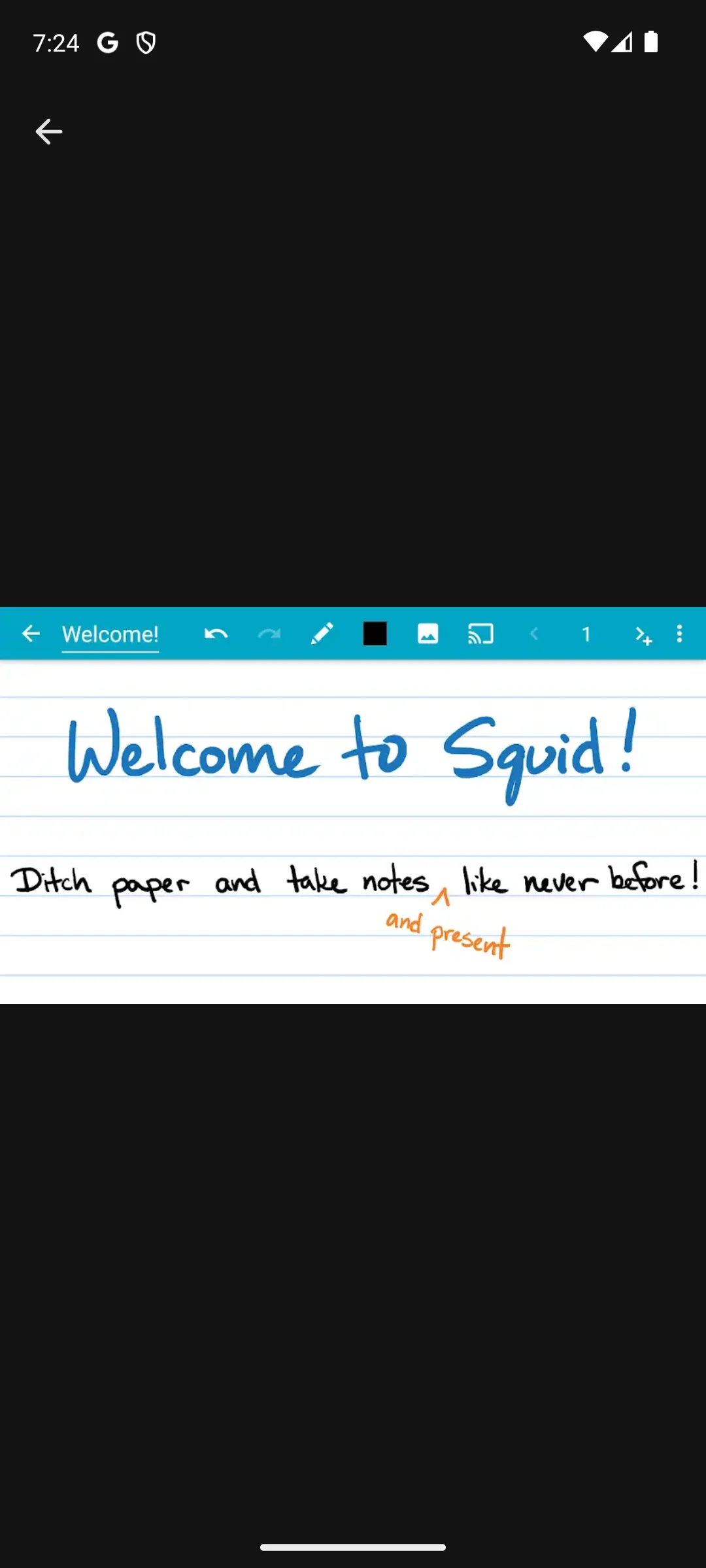
Microsoft 365
Microsoft OneNote is the best free pick: no ads, no cost, and handwritten pages sync to Windows, iOS and the web. The con: a Microsoft account is mandatory (Play Store, checked 27 September 2026), and Microsoft's own OneNote for Android handwriting guide describes the lasso only for moving and resizing ink, with no ink-to-text step (read 27 September 2026).
Pros: free, generous OneDrive storage · mixes typed and handwritten notes · syncs to Windows, iOS and the web. Cons: no ink-to-text step in Microsoft's Android help · account required · big notebooks sprawl.
Skip it if you never need notes off your tablet. Choose OneNote over Samsung Notes when notes must open on a Windows laptop or a non-Samsung phone; choose Samsung Notes when you never leave Galaxy hardware.
↑ Back to the comparisonSigning docs
Xodo is for signing and marking up documents, not keeping notebooks. Viewing, annotating and signing PDFs is free with no ads; the ceiling: heavier editing hides behind in-app purchases up to $109.99 (Play Store, checked 27 September 2026), and ink stays annotation, never text.
Pros: free signing and highlighting · steady with large files · from PDF specialist Apryse. Cons: pushy subscription upsell · no conversion · overkill for plain notes.
Skip it if what you really want is a notebook. Choose Xodo over Penly for one-off contracts and forms; choose Penly for a planner you live in daily.
↑ Back to the comparisonDigital planners
Penly is the digital-planner pick: PDF templates, hyperlinked planners and paper-like ink for a one-time $4.79, no subscription, no ads (Play Store, checked 27 September 2026). Its listing also names automatic handwriting to text and Google Drive sync between Android devices (Play Store, checked 27 September 2026). The cons: no free trial and a small user base, 3.77K reviews (Play Store, checked 27 September 2026). The developer's own Play listing promises: "We offer refunds for any reason within 7 days."
Pros: one-time purchase · hyperlinked planner tools · 7-day any-reason refund. Cons: no trial · English-only per the listing · planner tools take learning.
Skip it if you refuse to pay unseen. Choose Penly over Squid to plan and journal on a tablet; choose Squid when you want a free page to scribble on.
Planning without a stylus? See 12 Best Planner Apps for Android: Where Each Free Tier Stops.
↑ Back to the comparisonQuick notes
Google Keep is the fastest handwritten capture on a phone you already own: free, no ads or in-app purchases, 4.7 stars from 2.59M reviews (Play Store, checked 27 September 2026). It is also the shallowest tool here: tiny canvas, no PDF support, no handwriting-to-text. Capture, not a notebook.
Pros: preinstalled on most Androids · instant Google sync · genuinely free. Cons: tiny drawing canvas · no PDF or ink-to-text · notes live in Google's cloud.
Skip it if you keep long-form handwritten notes. Choose Keep over Concepts for ten-second captures; choose Concepts when your notes become diagrams.
↑ Back to the comparisonVisual planners
Concepts blurs writing into sketching on an infinite vector canvas: write, then zoom forever without losing crispness. The free tier is capable and ad-free; the cons: the full brush set needs a subscription or packs, $1.99 to $29.99 in-app (Play Store, checked 27 September 2026), and it is a drawing tool first.
Pros: vector ink, endless zoom · great for mind maps · offline, no account. Cons: subscription for the full toolset · no ink-to-text · steepest learning curve here.
Skip it if you write more than you draw. Choose Concepts over GoodNotes for visual thinking; choose GoodNotes for orderly notebooks.
↑ Back to the comparisonTablet notebooks
Noteshelf 3 is the notebook pick for anyone who would rather pay once than subscribe: templates, PDF markup and audio recording in a free app whose listing sells Premium as a one-time fee, with in-app purchases of $9.99 to $12.99 (Play Store, checked 27 September 2026). The blunt con: handwriting recognition and unlimited notebooks both sit behind that Premium unlock, and the app needs Android 11 or later (Play Store, checked 27 September 2026).
Pros: handwriting to text with Premium, per the listing · one-time Premium fee, per the listing · Google Drive sync plus backup to Drive, OneDrive, Dropbox or WebDAV. Cons: recognition and unlimited notebooks need Premium · Android 11 or later only · data safety says data can't be deleted.
Skip it if your tablet runs Android 10 or older. Choose Noteshelf 3 over GoodNotes when you would rather pay once than subscribe; choose GoodNotes when your notebooks already live in Goodnotes on an iPad.
↑ Back to the comparisonLectures with audio
Notability is the lecture pick: handwritten notes, PDF markup and a voice recorder that its listing says syncs to the moment you write, on Android, Apple devices and the web (Play Store, checked 27 September 2026). The blunt con: the free tier stops at 5 notes, and handwriting recognition, live transcripts, sync and unlimited notes need the subscription, with in-app purchases of $2.49 to $99.99 (Play Store, checked 27 September 2026).
Pros: recordings linked to your handwriting · searches handwriting, transcripts and PDFs · also on the web and Apple devices. Cons: 5-note free cap · recognition, transcripts and sync are subscription-only · Android listing only since 28 July 2026, with 2.76K reviews (Play Store, checked 27 September 2026).
Skip it if you will not pay a subscription. Choose Notability over Noteshelf 3 for recorded lectures you will pay to have transcribed; choose Noteshelf 3 to pay once.
↑ Back to the comparisoniPad switchers
GoodNotes on Android is not the iPad app, and its rating shows it: 3.7 stars from 36.2K reviews, the lowest of the twelve apps here (Play Store, checked 27 September 2026). The templates, notebooks and handwriting search are here, but its listing says unlimited notebooks need a subscription after a 7-day free trial, with in-app purchases of $0.49 to $99.99 (Play Store, checked 27 September 2026).
Pros: familiar for iPad switchers · handwriting search · listing updated 19 August 2026 (Play Store, checked 27 September 2026). Cons: 3.7-star Android rating · three-notebook free cap · trails the iPad version.
Skip it if you expect iPad parity. Choose GoodNotes over Joplin for polished notebooks; choose Joplin when owning your data outranks polish.
↑ Back to the comparisonPrivacy
Joplin is the privacy pick: open source, free, no ads, with end-to-end encrypted sync to a cloud you choose. Cons up front: handwriting goes into drawings inside a note rather than into the note text, a tool Joplin's own drawing tool guide says is built into the mobile app (read 27 September 2026); setup takes effort, and it sits at 3.9 stars from 7.13K reviews (Play Store, checked 27 September 2026). The developer's own encryption guide is explicit: "End-to-end encryption (E2EE) is a system where only the owner of the data (i.e. notes, notebooks, tags or resources) can read it."
Pros: end-to-end encrypted sync · plain Markdown files · fully offline. Cons: handwriting lives in drawings, not text · fiddly setup · 500K+ installs, a small base.
Skip it if you want ink-first simplicity. Choose Joplin over Noteshelf 3 when open source and encrypted sync matter most; choose Noteshelf 3 when you want ink turned into text and will pay its one-time Premium unlock.
↑ Back to the comparisonNotes written, so which drawing app is built for real sketches?
Our answer there: Infinite Painter, whose listing showed 4.5, the no ads label and purchases from $1.99 to $9.99, listing read 27 September 2026.
See it against 10 rivalsMatch the app to your pen: an active stylus, S Pen or USI, brings pressure and palm rejection; fingers and rubber tips suit casual capture only. Need your words back out? Pick an app that converts: MyScript Notes and Samsung Notes do, and the Penly and Noteshelf 3 listings name handwriting to text as a feature (Play Store, checked 27 September 2026); Microsoft's OneNote for Android help describes no ink-to-text step. Marking up forms? Confirm the app exports a standard PDF, not just its own format. And before committing an archive, check export to PDF or images: that is your insurance against lock-in. Writing happens on your device in every app here; notes only leave it when you enable cloud sync.
We re-verify this category monthly. Get the monthly diff by email (form below the questions)
A stylus helps a lot, but it is not strictly required. On a phone you can write short notes with a fingertip, and apps like Google Keep and Squid work with a fingertip. For real note taking an active pen, such as an S Pen or a USI stylus on a compatible tablet, makes the experience far more natural thanks to pressure sensitivity and palm rejection.
MyScript Notes (formerly Nebo) is the standout for that. Its handwriting recognition is fast and accurate across messy styles, and it converts whole paragraphs with a double tap. Samsung Notes also converts handwriting, and the Penly and Noteshelf 3 listings name handwriting to text as a feature (Play Store, checked 27 September 2026). OneNote's Android help page describes no ink-to-text step, so do not pick it for conversion. If converting to typed text is your main goal, start there and keep your letters reasonably separated for the best results.
Many of the best ones are free or have a usable free tier. Samsung Notes, OneNote, Google Keep, Xodo, and Joplin cost nothing for everyday handwriting. MyScript Notes offers a one time lifetime purchase or a subscription, while Penly uses a one time purchase, which we generally prefer over subscriptions. A few, such as GoodNotes, Squid, and Concepts, keep advanced features behind a subscription or paid plan.
Yes, several apps here are built for exactly that. Xodo and Squid let you import a PDF and write or sign on top of it, then export the marked up file. Samsung Notes and Penly also handle PDF annotation well. That covers filling in forms and worksheets by hand without needing to print anything.
No, not just from writing. The ink is drawn on your device and stays there, and on most modern apps handwriting recognition also runs locally. Notes only leave your device if you turn on cloud sync to share them across your phone, tablet, and computer. If you prefer, keep sync off and back up with local export, or choose an app like Joplin that offers end to end encrypted sync to a cloud you control.
Only if you let it happen, so check the export options before you commit. A good app lets you export notes as PDF or image files, or in a portable format, for a single page or a whole notebook. As long as you can get a standard PDF or image out, you can back up your work and move to another app later without losing it. Treat export as your insurance policy.
Squid, Joplin and Concepts all run fully offline and never ask you to sign up. Samsung Notes also works offline; a Samsung account is only needed if you want sync. Google Keep and OneNote are the opposite case: both require an account because notes live in your Google or Microsoft cloud.
Same brand, not yet the same app. Goodnotes' Play listing gives 3 August 2023 as its release date, and the free tier is capped at three notebooks, with a subscription beyond that. Core inking and notebook organization are there, but the Android version still trails the iPad one on advanced features, so test the free tier before committing your archive.
On a Samsung Galaxy Tab with an S Pen, Samsung Notes: its Play listing showed no ads label and nothing to buy on 27 September 2026. On any other Android tablet, OneNote is the free choice, and Noteshelf 3 is the notebook pick: its listing sells Premium as a one-time fee, its in-app purchases run $9.99 to $12.99 and it needs Android 11 or later (Play Store, checked 27 September 2026). On a budget tablet, Squid works offline with no account, per its listing.
Yes, with Gboard, Google's keyboard. Google's Gboard Help page says you can handwrite words on your keyboard to enter text once a handwriting layout is added, and notes that handwriting is not available in all languages (read 27 September 2026). Gboard's Play listing showed 4.5 stars, 10B+ installs, no ads label and nothing to buy on 27 September 2026. The separate Google Handwriting Input app returned 404 on the US Play Store the same day.
Checked 27 September 2026: every listing re-read on the US Play Store. Added Noteshelf 3 and Notability. Notein left the ranking: its US listing returns 404, and its developer's site cites a trademark-related issue. INKredible left the ranking: its listing returned 404 again on 27 September 2026, so it can no longer be installed from Play. Corrected OneNote's ink-to-text cell (Microsoft's Android help describes none), Penly's (its listing names automatic handwriting to text) and Joplin's drawing tool (built into the mobile app, per Joplin's docs); repaired a garbled GoodNotes rating sentence; ratings moved for MyScript Notes to 4.7, GoodNotes to 3.7 and Joplin to 3.9, and the Concepts table cell to 4.4. Checked 3 September 2026: every listing re-read. INKredible’s listing returns 404, so its last-read figures are kept as history, and Notein was read on the UK storefront, where it is listed and the US catalogue is not. Checked 6 August 2026: prices, ratings, review counts and ads labels re-read from the Play Store listings for all 12 apps; no apps replaced.