
Updated September 2026 · both apps now carry their own dated listing figures, the free plan caps are sourced to the developers' own pages, and three prices the listing does not publish were withdrawn
This is Evernote and OneNote compared side by side for Android tablets, on the jobs people actually use them for: meeting notes, shopping lists scribbled with a stylus, recipes clipped off the web. They are not the same kind of app at all, and one of them has quietly become hard to recommend for free.
Installing is the boring part. Find Evernote or Microsoft OneNote in the Play Store, tap install, and you are running in under a minute. Evernote drops you on a sign up wall right away; you need a free account before you can save anything. OneNote rides on a Microsoft account, so if you already sign into Outlook or a work Office login, you are basically in before you start.
The first launch is where they part ways. Evernote shows you one tidy feed of notes. OneNote opens straight into notebooks, sections, and pages, which looks busier until your library grows. One setting changes the whole experience on a tablet: flip it to landscape and turn on the side navigation panel in both apps, and the screen reads like a tablet instead of a giant phone.
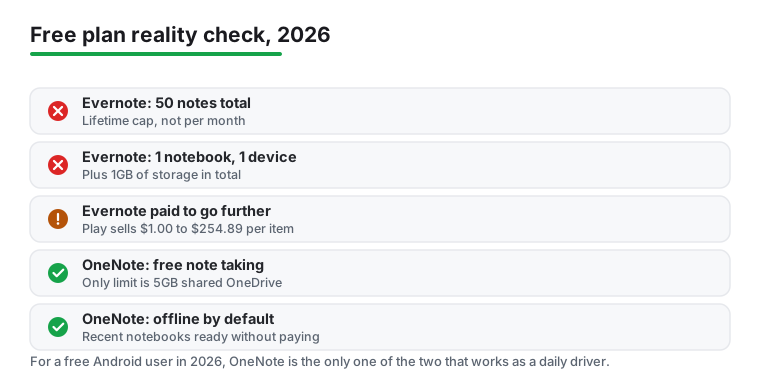
Evernote sells itself as one searchable pile. Notes live in notebooks, notebooks carry tags, and the search is fast. Text recognition inside photos means a single word printed on a photographed receipt is enough to surface it weeks later, and that search is the feature the app is built around. Here is the catch nobody mentions up front: that searchable pile only helps if you can actually fit your notes into it, and the free plan now stops you at 50 notes total, per Evernote's own plan comparison read 20 August 2026 (the details sit under free tiers below). The whole pitch is really a pitch for the paid plan.
OneNote works like a blank canvas. Tap anywhere on a page and type, drop a box in the margin, paste an image and write around it. It feels like a paper notebook with real tabs. For study notes or planning a project, it is the calmer one to organize. For grab it and find it later, Evernote is quicker. Both do checklists, voice notes, and web clipping fine, though Evernote's Web Clipper is still the cleaner of the two.
This is the part most tablet owners buy a stylus for, and it is where the two apps differ most. OneNote wins, and it is not close: ink is a first-class layer on its pages, typed text and handwriting sit on the same page without the layout fighting each other, and neat printing converts to typed text, while rushed cursive converts less reliably.
Evernote's handwriting is usable for a quick annotation or a signature, but it still treats ink like an object you dropped onto the page rather than a real layer you can write across freely. If you got an Android tablet mainly to handwrite lectures, diagrams, or class notes, OneNote will feel like a notebook. If you mostly type and only sketch now and then, Evernote will not slow you down.
Read this part before you commit, because it decides everything. Evernote's free plan in 2026 is brutal. Evernote's own plan comparison, read 20 August 2026 for our productivity apps guide, puts the free plan at 50 notes total, one notebook, one synced device and 1GB of storage; the Play listing publishes none of those caps. Hit 50 notes and you simply cannot make another one until you delete or pay. Evernote's own plan comparison, read 6 September 2026, lists offline notes as a feature but caps the free plan at 50 notes in one notebook on one synced device, which is the limit that bites first. So the free tier is not a notes app you live in; it is a short trial that runs out. The paid plans are sold as in-app purchases of $1.00 to $254.89 per item on the Play listing read 5 September 2026, which also carries the Contains ads label; the per-plan monthly and yearly prices are not on the listing and are not quoted here.
OneNote is the opposite story. The note taking itself is free, and its Play listing, read 5 September 2026, shows no in-app purchases and no advertising label. The only ceiling is the 5 GB of OneDrive that Microsoft's own storage quota page, read 20 August 2026 for the same guide, gives an account without a subscription, shared with files, photos and mail attachments, and plain text barely touches it. Pages packed with photos and audio will chew through it over months, but you will write a long time before that bites. Put plainly: for a free Android user in 2026, OneNote is not just the roomier option, it is the only one of these two that works as a daily driver without paying. On permissions, both ask for storage, microphone, and camera. None of that is unusual, but decline the microphone if you never record. You can grant it later the moment a feature needs it.
Search-first typing, with a capped free plan
3.5 stars from 1,847,589 reviews · 100,000,000+ installs · free to install · in-app purchases $1.00 to $254.89 per item · listing updated 1 September 2026 · developer shown as Evernote by Bending Spoons · Contains ads: Yes · checked 5 September 2026
Google Play listing · 3.5 (1,847,589) · read 5 September 2026
The listing, read 5 September 2026, settles the free question before any feature does: Evernote is free to install, carries the Contains ads label, and sells its plans as in-app purchases of $1.00 to $254.89 per item, at 3.5 stars from 1,847,589 reviews, the lower score of the two by a wide margin. Its own plan comparison, read 20 August 2026, caps the free tier at 50 notes on one device. Choose it over OneNote only if search across typed and photographed notes matters more than ink; skip it if you expect a free notes app.
Handwriting, and a free daily driver
4.6 stars from 1,493,641 reviews · 1,000,000,000+ installs · free · no in-app purchases · listing updated 30 August 2026 · by Microsoft Corporation · Contains ads: No · checked 5 September 2026
Google Play listing · 4.6 (1,493,641) · read 5 September 2026
The listing, read 5 September 2026, shows what this page argued all along: free, no in-app purchases, no advertising label, 4.6 stars from 1,493,641 reviews on 1,000,000,000+ installs, and a data safety card that says no data shared with third parties. The ceiling sits in the account rather than in the app: Microsoft's own storage quota page, read 20 August 2026, gives an account without a subscription 5 GB of OneDrive, shared with files, photos and mail attachments. Choose it over Evernote for handwriting or for a free daily driver; skip it if you will not use a Microsoft account, because the app runs on one.
A few small habits help. In Evernote, use tags, not a pile of notebooks. You only get one notebook on free anyway, and even on paid a handful of notebooks plus consistent tags beats nested folders for finding things. Pin the notes you open daily, and add the home screen widget so a new note is one tap from your launcher.
In OneNote, sketch out a few notebooks with clear sections before you pour content in. Reorganizing later is more of a chore than it should be. Use Sticky Notes and the quick capture shortcut for throwaway thoughts so your main notebooks stay clean. In both, turn on dark mode for late night writing, and set the app passcode if you keep anything private in there.
The verdict is short. Install OneNote if you handwrite, want something free and roomy, or already live in a Microsoft account. Install Evernote if fast capture and strong search matter more to you than ink, and be honest with yourself that it is effectively a paid product now; the free tier runs dry at 50 notes. Both cost nothing to try, so put both on for a week and notice which one you reach for without thinking.
If neither fits, Android has plenty more. Google Keep is great for quick color coded cards, Notion suits people who want notes and databases in one place, and Joplin is the pick if you want open source and control of your own data. All three listings were live on Google Play when read on 5 September 2026. Start with our best notes apps for Android guide, browse the wider productivity apps hub, and if you are coming from an iPhone, read migrating your Apple Notes easily. If you also want to scan documents, Android handles that natively now through Google Drive's built in scan or Google Lens, so you do not need a separate app for most jobs.
For a tablet, OneNote. Ink is a first-class layer on its pages, and its Play listing, read 5 September 2026, shows a free app with no in-app purchases and no advertising label, so the free version works day to day. Evernote is faster for search and quick capture, but its own plan comparison, read 20 August 2026, caps the free tier at 50 notes. If handwriting is your reason for buying a tablet, start with OneNote.
OneNote is free: its Play listing, read 5 September 2026, shows no in-app purchases and no advertising label, and the ceiling is the 5 GB of OneDrive that Microsoft gives an account without a subscription, per its own storage quota page read 20 August 2026. Evernote is free to install, but its own plan comparison, read the same day, caps the free plan at 50 notes total, one notebook, one synced device and 1GB of storage, and its listing carries the Contains ads label. The paid plans are sold as in-app purchases of $1.00 to $254.89 per item on that listing; the per-plan monthly and yearly prices are not published there.
Yes, but not the way old guides describe. Microsoft retired its official Evernote to OneNote Importer back in September 2022 and never replaced it, so do not count on a first party tool. The working path now is to export your Evernote notes as .enex files and import those into OneNote, or use a third party converter. Expect some cleanup afterward, especially with complex tables and attachments.
Both let you read and edit offline, then sync when you reconnect. OneNote keeps recent notebooks available offline by default. Evernote's own plan comparison, read 6 September 2026, lists offline notes on its free plan, so what limits you on the road is the free cap of 50 notes in one notebook on one synced device rather than the feature itself.
Yes. Its Google Play listing, read 5 September 2026, carries the Contains ads label, and the developer shown on Play is Evernote by Bending Spoons. The listing sits at 3.5 stars from 1,847,589 reviews on 100,000,000+ installs, and its data safety card says the app may share data types with third parties. OneNote's listing, read the same day, shows no advertising label and says no data shared with third parties.
Checked 5 September 2026: the page named both apps and linked neither, with no ratings, no ads labels, no table and no dated line. Both now carry fact lines read today. Evernote's listing corrects the page in three places: it carries the Contains ads label, which the page never mentioned; the developer shown on Play is Evernote by Bending Spoons; and the paid plans are sold as in-app purchases of $1.00 to $254.89 per item, so the line Paid starts at Starter, about $8.25 a month billed yearly at $99, and climbs to Advanced at $249.99 a year is withdrawn, along with the same three prices in the FAQ, because no listing publishes them. The free plan caps are now sourced to Evernote's own plan comparison as read on 20 August 2026 for our productivity guide: 50 notes, one notebook, one device and 1GB of storage. The line Roughly 1GB of uploads a month, and a 200MB cap per note is withdrawn, because that page states storage rather than monthly uploads and no per-note cap was read. OneNote's 5 GB ceiling is sourced the same way to Microsoft's storage quota page. Google Keep, Notion and Joplin now link their listings, all live on 5 September 2026. Eight claims about our own use are withdrawn: Here is what actually happened; One thing changed my whole experience on the tablet; A receipt I photographed in March surfaced weeks later; the thing I missed most every time I left the app; so I pushed it hard with a basic active pen; palm rejection held up with my hand flat on the glass; A few small habits paid off; and The inking and palm rejection feel right with a stylus. One FAQ question moved to the second person, one was added on ads and the developer, and the tips heading moved to the present tense. The rating gap deserves saying plainly: OneNote 4.6 stars from 1,493,641 reviews against Evernote's 3.5 from 1,847,589.
 Best Notes Apps for AndroidProductivity