
Updated September 2026 · the three landing apps now carry their own dated listing figures in one table, and one claim about Evernote was corrected by its listing
Leaving an iPhone for Android feels great until you remember where your life actually lives, in Apple Notes. Recipes, gift lists, half written ideas, that one password hint you can never recreate. The good news is you do not have to abandon any of it, and most of the panic you read online is overblown. Here is what to do, what to skip, and how to land everything safely on Android.
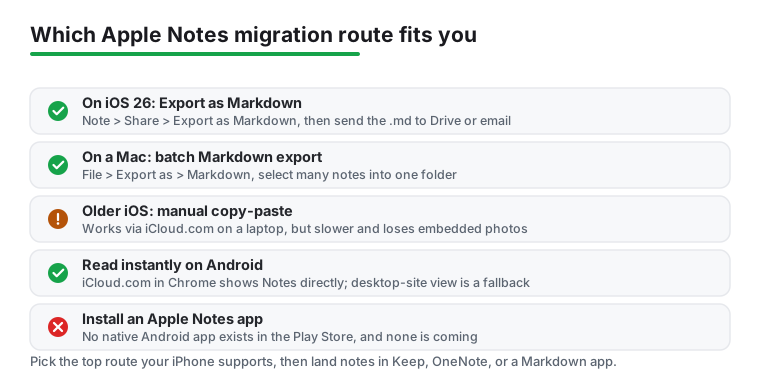
There is no Apple Notes app in the Play Store, and there never will be. Apple keeps Notes locked inside its own world. So the job is not installing an app, it is getting your notes out of iCloud and into something Android can open.
Two things make that easy now. iCloud runs in any browser, so you can read and edit every note from your new phone today. And if your old iPhone is on iOS 26, Apple finally added a real export button, covered below. Whatever route you take, do not delete a single note off the iPhone until the move is done and you have spot checked it. Keep that device around for a couple of weeks as your safety net.
Need your notes in your pocket right now? Open Chrome on the new phone, go to iCloud.com, and sign in with your Apple ID. Notes usually shows up directly on the mobile site these days. If it does not, tap the three dot menu and switch to the desktop site, then the Notes tile appears. That is a fallback now, not a required step.
From there you can scroll your folders and read or edit anything, live. Keep this bookmarked for the first couple of weeks while the bigger import settles. It is cramped on a small screen and it needs a connection, but nothing is lost at this stage. Just do not treat the browser as the finish line. You want those notes inside a proper Android app for offline access and decent search.
If your iPhone is on iOS 26, this is the part that changed everything. Open a note, tap Share, and choose Export as Markdown. You get a.md file you can AirDrop to a Mac, email to yourself, or drop into Google Drive. On a Mac it is File > Export as > Markdown, and you can select a batch of notes and export them all into one folder at once. Then open those files in any Markdown capable Android app, or paste them into Keep or OneNote. Markdown keeps your headings, lists and links intact, which is more than plain copy and paste ever managed.
Not on iOS 26 yet? Then it is the old manual route, and it is fine, just slower. Sign in to iCloud.com on a laptop where copy and paste actually behaves, open Notes, and work one folder at a time. For a few important notes, select the text, copy, paste into your Android app. For a big library, share notes individually from the iPhone Notes app to Gmail or Drive so attachments come along. One thing to expect: a recipe note with a photo of the finished dish pastes as text with an empty gap where the image should be. Markdown export handles that better, plain copy does not.
Where your notes land matters as much as how they get there. Three are worth considering, and they suit different people.
Google Keep is the easy landing spot. It syncs with the Google account already on your phone, opens instantly, and its Grab image text feature pulls words out of a photo, handy if you are screenshotting old notes rather than exporting them. OneNote is the pick if your notes run long and structured, since its notebooks and sections map cleanly onto Apple folders. It also lets you password protect individual sections with biometric unlock, which is worth knowing if you keep anything sensitive in there. Fair warning: forget that password and even Microsoft cannot recover the section, so write it down somewhere safe. The third home is a Markdown app, which pairs neatly with the iOS 26 export above and keeps your text in plain files you actually own.
Set up whichever you choose before you start exporting, so you have a clear destination. Our wider best notes apps for Android roundup breaks each one down, and for the heavyweight comparison there is the Evernote versus OneNote showdown. Evernote is still on the Play Store, updated there on 1 September 2026, but its listing, read 5 September 2026, carries the Contains ads label and sells in-app purchases of $1.00 to $254.89 per item, and its own plan comparison, read 6 September 2026, caps the free tier at 50 notes in one notebook on one synced device, so do not count on it for a big free archive. Where each of the three stands on the Play Store today is in the table above and the cards below.
Short notes, lists and the Google account already on the phone
4.7 stars from 2,555,092 reviews · 1,000,000,000+ installs · free · no in-app purchases · updated on the store 31 August 2026 · by Google LLC · Contains ads: No · checked 5 September 2026
Google Play listing · 4.7 (2,555,092) · read 5 September 2026
The landing spot for most people leaving Apple Notes, because the Google account is already on the phone and Keep opens with nothing to set up. Free, no in-app purchases and no Contains ads label on a listing read 5 September 2026, at 4.7 stars from 2,555,092 reviews, the best score on this page. The blunt con: labels stand in for folders, so a deep Apple Notes folder tree flattens on arrival, and long structured notes are better off in OneNote.
Long, structured notes in notebooks and sections
4.6 stars from 1,493,641 reviews · 1,000,000,000+ installs · free · no in-app purchases · updated on the store 30 August 2026 · by Microsoft Corporation · Contains ads: No · checked 5 September 2026
Google Play listing · 4.6 (1,493,641) · read 5 September 2026
The landing spot when notes run long and structured, because notebooks and sections map onto Apple folders the way Keep's labels do not. Free, no in-app purchases and no Contains ads label on a listing read 5 September 2026, at 4.6 stars from 1,493,641 reviews. The blunt con: it is a heavier app than Keep for a shopping list, and a password-protected section is gone for good if the password is lost, as the section above warns.
Not for a free archive
3.5 stars from 1,847,589 reviews · 100,000,000+ installs · free to install · in-app purchases $1.00 to $254.89 per item · updated on the store 1 September 2026 · developer Evernote by Bending Spoons · Contains ads: Yes · checked 5 September 2026
Google Play listing · 3.5 (1,847,589) · read 5 September 2026
Still on the Play Store and updated there on 1 September 2026, but not a landing spot this page recommends for a free archive. Its listing, read 5 September 2026, carries the Contains ads label, sells in-app purchases of $1.00 to $254.89 per item, and sits at 3.5 stars from 1,847,589 reviews, the lowest rating on this page, on a data safety card that says data may be shared with third parties.
A handful of small things cause nearly all the trouble. Worth flagging.
Attachments are the big one. Photos and sketches embedded in a note rarely survive plain copy and paste, so either use the iOS 26 Markdown export or share image heavy notes straight from the iPhone Notes app to Drive. Formatting is the second. Checklists usually make it into Keep and OneNote intact, but complex tables can flatten, so eyeball your fussiest notes after they move. Third, account access. Signing into iCloud on the web sends a verification code to your trusted Apple device, which is exactly why you keep the old iPhone nearby. And your new app will ask for storage or photo permissions when you import images. That is normal, allow it. None of this is hard. It just rewards a slow folder by folder pass over one frantic dump at midnight.
Move in batches by folder so you can see progress and never lose your place. Do your daily-driver notes first, the shopping list and the work stuff, so the things you actually reach for are ready immediately and the dusty archive can trickle over later. Rename folders as you go if the old structure no longer fits how you use the phone now.
Once everything is across, open a dozen random notes on Android and confirm they look right, then leave the originals sitting in iCloud for a month before you clean house. Cheap insurance. And if you are rebuilding your whole setup after the switch, the Productivity hub and the paperless scanning guide are sensible next stops for getting documents and notes living together on Android.
No, and there is not likely to be one. Apple keeps Notes inside its own ecosystem. The way around it is iCloud in a browser, which lets you read and edit your notes on your Android phone, then move them into an app like Google Keep or OneNote for everyday offline use.
If your iPhone is on iOS 26, open a note, tap Share, and choose Export as Markdown, then send the file to yourself by Drive or email and open it in your Android app. On a Mac it is File > Export as > Markdown, and you can export a batch at once. If you are on an older iOS, copy and paste through iCloud on the web works, just share image heavy notes directly to Drive so the photos come along.
Checklists usually carry over fine into Keep and OneNote. Embedded photos and sketches are the weak point with plain copy and paste. The Markdown export in iOS 26 handles attachments better, and if you are on an older iOS, share image heavy notes straight from the iPhone Notes app to Google Drive instead of copying text.
For most people Google Keep is the simplest. It syncs with the Google account already on your phone and opens instantly. If your notes are long or heavily structured, OneNote handles notebooks and sections better, and it can password protect sections if you keep anything private in there.
Not right away. Keep the old iPhone handy and leave the originals in iCloud for at least a month. Once you have opened a good sample of notes on Android and confirmed they look right, then clean up the originals.
Not on their Play Store listings, read 5 September 2026. Google Keep is free with no in-app purchases and no Contains ads label, at 4.7 stars from 2,555,092 reviews, and Microsoft OneNote is free with no in-app purchases and no Contains ads label, at 4.6 stars from 1,493,641 reviews. Evernote is the exception on this page: its listing carries the Contains ads label and sells in-app purchases of $1.00 to $254.89 per item.
Checked 5 September 2026: the page named three landing apps and linked none, with no ratings, no ads labels, no table and no dated line. All three now carry fact lines read today, and the numbers say the two recommended homes are also the two best rated: Google Keep at 4.7 stars from 2,555,092 reviews and Microsoft OneNote at 4.6 stars from 1,493,641 reviews, both free with no in-app purchases and no ads label, against Evernote at 3.5 stars from 1,847,589 reviews. Evernote's Play listing publishes no note cap, so the cap is sourced where our Evernote versus OneNote showdown sources it: Evernote's own plan comparison, read 6 September 2026, caps the free tier at 50 notes in one notebook on one synced device. The listing itself publishes the Contains ads label and in-app purchases of $1.00 to $254.89 per item, and the page says that too. Seven first-person lines are withdrawn: I did this exact move on a Pixel, dragging a few hundred notes across; Here is what worked; which I will get to; nothing felt lost on day one; One warning from experience; My wider; and caused nearly all my headaches. The four FAQ questions written in the first person now read in the second person, and one FAQ item on ads and prices was added.
 Signs of Android Malware and How to Remove ItSecurity & Privacy