
Updated September 2026 · both apps now carry their own dated listing figures, every claim about our own use of the app is withdrawn, and the free versus Pro line is corrected by AVG's own description
If your Android phone has been feeling sluggish or you just tapped a link you immediately regretted, a free antivirus app is a sensible safety net. AVG AntiVirus and Security is one of the most downloaded options on the Play Store, at 100,000,000+ installs on a listing read 5 September 2026, and the setup is a few taps. Here is how to get it running and what to actually expect once it is.
Setup is short, and the longest part of it is the first scan. Open the Google Play Store, tap the search bar, and type AVG AntiVirus. The listing you want is AVG AntiVirus and Security from AVG Mobile, the developer name its Play listing shows on 5 September 2026, with the blue and white shield icon. A few similar-sounding apps sit nearby in the results, so glance at the developer name before you tap anything.
Press Install and let the download finish. The first time you open it, AVG runs a short welcome flow and asks whether you want to sign in with a Google or AVG account. You can skip that entirely and use the app without an account. It then offers to run an initial scan. AVG's own description on its Play listing, read 5 September 2026, puts the scanner's scope in its own words: "Scan apps, games, settings, and files in real-time". After that you land on the home screen with a large Scan button, and protection is already live. No reboot, no settings to flip first.
A free on-demand scanner with an upsell built in
4.6 stars from 7,824,660 reviews · 100,000,000+ installs · free to install · in-app purchases $0.99 to $119.99 per item · needs Android 10 or later · listing updated 25 August 2026 · by AVG Mobile · Contains ads: Yes · checked 5 September 2026
Google Play listing · 4.6 (7,824,660) · read 5 September 2026
The app this guide installs. Its listing, read 5 September 2026, settles what this page used to leave vague: it is free to install with in-app purchases of $0.99 to $119.99 per item, it carries the Contains ads label, and its data safety section says the app may share app activity, app info and performance, and device or other IDs with third parties. The rating is strong, 4.6 stars from 7,824,660 reviews on 100,000,000+ installs. The bluntest con is the tier line: the listing's own description groups Call Guard and SMS Guard under Scam Guardian Pro, so scam call and text blocking is a paid feature, not the free extra older guides describe.
The malware scanner is the reason most people open AVG, and it is the part worth caring about. You can scan on demand, and the free version also checks new apps as you install them, so a bad download gets flagged before it settles in. False alarms matter more than they sound, because an antivirus that nags you constantly is one you stop trusting. On detection there is an independent number: the AV-TEST Android round of May 2026 certifies AVG at 6 of 6 for protection, the result our best antivirus apps for Android roundup carries; the lab page was read for that roundup rather than on this pass.
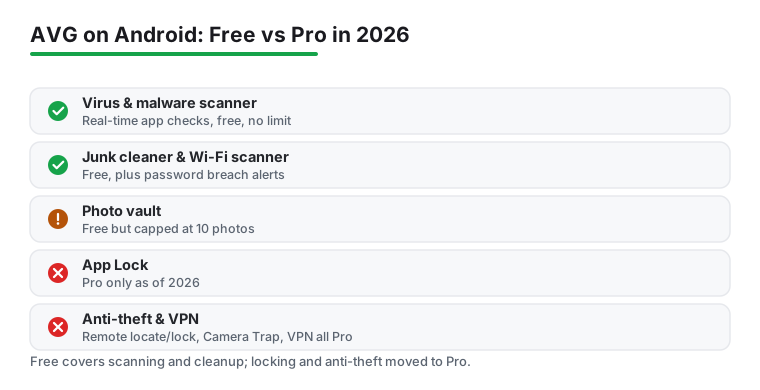
Around the scanner, AVG's listing description, read 5 September 2026, names a handful of extras: a junk cleaner, a Wi-Fi scanner that checks the network you are on, which is the kind of thing you only think about once you are already connected at a cafe, Hack Alerts that warn you if an email address of yours turns up in a known breach, an App Permissions advisor, a photo vault and App Lock. What the description does not do is draw the free line for most of them. Two things it does say. It groups Call Guard and SMS Guard, the scam call and text blocking, under the heading Scam Guardian Pro, so that pair is a paid feature rather than a free extra. And it lists app lock and photo vault under what AVG AntiVirus FREE 2026 delivers, where this guide's earlier text had placed App Lock, the photo vault beyond a small cap, and the anti-theft tools behind Pro; the description mentions no anti-theft feature at all. Where the description and this guide disagreed, the description wins here, so expect an upgrade prompt on whatever the free tier does not include rather than a fixed list of it.
A few small settings changes make the app easier to live with. One thing worth knowing up front: this guide's earlier text placed scheduled scans, where the app runs on its own at a set time, behind the Pro paywall, and AVG's listing description, read 5 September 2026, does not mention scheduling at all, so do not count on an overnight-scan toggle on the free tier. The description does say the scanner works in real-time, so a bad download gets checked without you doing anything. For older apps and files, the simple free habit is to tap the Scan button yourself every week or two.
One tip you may have seen on older guides is to switch on App Lock for your banking and messaging apps. Whether that costs anything is one of the points where the sources disagree: this guide's earlier text said App Lock had moved behind the Pro paywall, while AVG's listing description, read 5 September 2026, lists app lock among what AVG AntiVirus FREE delivers. If the toggle asks you to upgrade, that is your answer. A free habit nobody disputes is to run the Wi-Fi scanner before you do anything sensitive on a network you do not know, like banking from a hotel. It takes seconds. While you are tidying things up, glance at the notification settings early. AVG can be chatty, and turning down the promotional alerts while leaving the real security warnings on makes it a much calmer app to keep around.
Like any security app, AVG asks for a fair amount of access, and it helps to know why before you tap allow. It wants storage access so it can scan files and photos, and on recent Android versions it asks to read your installed apps so it can check them. Both are reasonable for what the scanner does. One request the listing explains in its own words: "This app uses Accessibility Service API to protect the visually impaired and other users against phishing attacks and malicious websites via Web Shield feature", per AVG's description on its Play listing, read 5 September 2026. The heavier requests, location and device administrator rights, are not tied to any feature the listing describes: its description names no anti-theft or find-my-phone feature at all. On the free tier you can decline those and lose nothing, because the scanner does not need them. The data safety section on the same listing, read 5 September 2026, says the app may collect location and personal info among other data types, and may share app activity, app info and performance, and device or other IDs with third parties.
The honest annoyance is the steady push toward AVG Pro. The listing, read 5 September 2026, is free to install, carries the Contains ads label and sells in-app purchases of $0.99 to $119.99 per item, so the free version is the ad supported one by design, and the upgrade prompts, for the VPN, Scam Guardian Pro and an ad free interface, are how it is funded. Which of App Lock and the anti-theft tools sit behind Pro is exactly where this guide and the listing's description disagree, as the features section explains.
AVG is not your only option, and the right pick depends on what you want from it. Its closest sibling is Avast One, listed on Play as Avast One: Antivirus, Security. The two now sit under the same owner, Gen Digital, alongside Norton and Avira, and share a detection engine, so the differences that matter are the ones on the two listings, set out in the card below. If you already run AVG on a laptop, keeping the same brand on your phone makes the dashboards familiar. For a wider look, our roundup of the best antivirus apps for Android lines AVG up against Bitdefender, Norton, and a few lighter options.
It also helps to remember what a scanner does not do. It guards against bad apps and files, but it does nothing for your privacy on public Wi-Fi, and that is where a VPN comes in. A separate VPN covers that. If you want a free place to start, see our notes on the free Star VPN for Android, or browse the best VPN apps for Android for a fuller shortlist. The wider security and privacy hub covers the rest.
The same engine with a fuller bundle around it
4.6 stars from 7,276,643 reviews · 100,000,000+ installs · free to install · in-app purchases $0.99 to $139.99 per item · needs Android 10 or later · listing updated 4 September 2026 · by Avast Software · Contains ads: Yes · checked 5 September 2026
Google Play listing · 4.6 (7,276,643) · read 5 September 2026
Listed on Play as Avast One: Antivirus, Security, this is the sibling the page compares AVG to, and its listing, read 5 September 2026, is close to AVG's on every line: free to install, the Contains ads label, a data safety section that says data may be shared with third parties, and 4.6 stars from 7,276,643 reviews on 100,000,000+ installs. Its in-app purchases run higher, $0.99 to $139.99 per item. Its description names the antivirus, Scam Guardian, SecureLine VPN and Cleanup as the four parts of one app, and groups Call Guard and Safe SMS under Scam Guardian Pro, the same split AVG draws.
Free to install, with a paid tier behind it. Its Play listing, read 5 September 2026, carries the Contains ads label and sells in-app purchases of $0.99 to $119.99 per item, so the free tier is funded by ads and upgrade prompts. The listing's description names the scanner, junk cleaner, Wi-Fi scanner, Hack Alerts, App Permissions advisor, photo vault and App Lock as features, and groups Call Guard and SMS Guard under Scam Guardian Pro. It does not publish a free versus Pro split for the rest, so where this guide and the listing disagree on App Lock and the photo vault, the app's own upgrade prompt is the final word. Checked 5 September 2026.
This page does not rest on our own use of the app, so there is no timing of ours to quote. What the listing, read 5 September 2026, supports: AVG's own description says the scanner works in real-time, and the heavy work is a full scan, which on the free tier you start yourself, so running it while the phone is on the charger sidesteps the battery cost. The junk cleaner can also free up storage. Checked 5 September 2026.
Sticking to the Play Store lowers your risk a lot, but it is not airtight. The odd bad app slips through review, and threats arrive through links, downloads, and messages too. An on-demand scanner gives you a fast way to double-check anything that feels off, and for a lot of people that is reason enough to keep one on the phone.
Each one maps to a feature. Storage access lets it scan files and photos, and app access lets it see what is installed so it can check it. The bigger asks, location and device administrator rights, belong to the anti-theft features that find and lock a lost phone, which the listing's description does not mention, so on the free tier you can decline them and the scanner still works normally. The data safety section on its Play listing, read 5 September 2026, says the app may collect location and personal info among other data types, and may share app activity, app info and performance, and device or other IDs with third parties. Checked 5 September 2026.
They share an engine under Gen Digital, so the choice comes down to the two listings, both read 5 September 2026. AVG AntiVirus and Security sits at 4.6 stars from 7,824,660 reviews with in-app purchases of $0.99 to $119.99 per item; Avast One sits at 4.6 stars from 7,276,643 reviews with in-app purchases of $0.99 to $139.99 per item. Both are free to install, both carry the Contains ads label, and both say in their data safety sections that data may be shared with third parties. Avast One's description names the VPN and Cleanup as parts of the bundle, so it is the fuller free download; AVG is the one this guide walks through. Checked 5 September 2026.
Checked 5 September 2026: the page named AVG and Avast, linked neither, and carried no ratings, no ads label, no in-app purchase range, no table and no dated line; both listings now sit in a table and in dated cards. AVG's own listing description corrected the page twice. It groups Call Guard and SMS Guard under Scam Guardian Pro, so the words plus scam call and text blocking, which listed them as free extras, are withdrawn. It lists app lock and photo vault under what AVG AntiVirus FREE 2026 delivers and never mentions anti-theft or scheduling, so these lines are withdrawn: "on the free tier it only protects up to 10 photos", "App Lock and the full anti-theft toolkit, the remote locate and lock features, are also Pro now", "App Lock moved behind the Pro paywall, so on the free tier there is nothing to enable", "Older guides still list App Lock and anti-theft as free, which they no longer are", "The photo vault is free up to 10 photos" and "App Lock and the full anti-theft tools that locate and lock a lost phone are now Pro only". The undated install figure is replaced by the listing's 100,000,000+ band; the download size line It is around 60MB is withdrawn because no listing publishes it; and the lab claim with the same 6 out of 6 for performance and usability is withdrawn because only the protection certification is carried by our roundup. Claims about our own use of the app are withdrawn: we wanted to see whether the setup is as painless as it looks; Setup took us under five minutes; which is what we did; We let it, and on our device it worked through every installed app plus the main storage folders in about 90 seconds; Across two weeks it never once cried wolf on a legitimate Play Store app; Our impression lines up with the lab numbers; A few small changes made the app better to live with; which takes about a minute; occasionally flags something worth knowing; The ads are not aggressive, but they are there; their scan results feel almost identical in practice; We tend to run AVG alongside a separate VPN for that reason; In our two weeks the everyday impact was small; and which helped our older test phone feel a touch quicker rather than slower. The figures worth stating plainly: AVG at 4.6 stars from 7,824,660 reviews and Avast One at 4.6 stars from 7,276,643 reviews, both with the Contains ads label.