
Updated September 2026 · every Android app named here now carries its own dated listing figures, and the four sit in one table
Going paperless sounds tidy until you are standing over a pile of receipts, warranty cards, and your kid's permission slips wondering where to start. A lot of people search for Scanner Pro on Android because they read about it somewhere, so let us clear up the first thing right away: the app called Scanner Pro, the one made by Readdle, is an iPhone and iPad app and has never had an Android version. If you are on a Pixel, Samsung, Motorola, or anything else running Android, you cannot install that exact app no matter how hard you look. The good news is you do not need it. The tools that get you fully paperless are already on your device or a free download away. This is the honest version of what works, how to set it up, and where to watch your money and your private data.
Let us not waste your time. Scanner Pro by Readdle is an Apple only app. As of 2026 it runs on iPhone and iPad through the Apple App Store. There is no official Android build, and Readdle's own support pages say the same. If you go hunting on the Google Play Store for "Scanner Pro" you will find apps using that name, but they are made by other developers and have nothing to do with the Readdle one. Some are decent. Some are thin wrappers around a camera with a paywall bolted on. The name is not a guarantee of anything on Android, so do not assume the app you downloaded is the one people rave about on iPhone.
Here is why this matters for going paperless. The workflow you want, which is fast capture, clean edges, searchable text, and a tidy PDF, does not depend on one brand. Several Android apps do all of that, and one of the strongest options is already sitting on most phones without you installing a single thing. So rather than chasing a name that does not exist on your platform, we are going to walk through what actually works on Android in 2026, set it up properly, and give you the same paperless result.
If you want to share files with someone who uses Scanner Pro on an iPhone, that is easy. They export a standard PDF and you open it on Android like any other PDF. The file format is universal, so the only thing locked to iOS is the app itself, not the documents it makes.
Free scanning with searchable text and no watermark
4.3 stars from 10,820,632 reviews · 10,000,000,000+ installs · free to install · in-app purchases $0.99 to $1,024.00 per item · by Google LLC · Contains ads: No · checked 3 September 2026
Google Play listing · 4.3 (10,820,632) · read 3 September 2026
The scanner most people already have. Drive is free to install, carries no Contains ads label, and its in-app purchases are Google One storage plans rather than a scanning paywall: nothing in the scan, edge detection, PDF or text search is gated behind them. The listing figures below are for Drive as a whole, because the scanner is a feature of it rather than a separate app.
Before you install anything, open Google Drive. If you are on Android, it is very likely already there, and it has a built in document scanner that quietly became one of the better options in 2026. Tap the plus button, choose Scan, and point your camera at a page. It detects the edges, corrects the angle, and saves the result straight to Drive as a PDF. No extra download, no separate account, no watermark.
Google overhauled this scanner through 2025 and into 2026. On phones with enough memory, roughly 8 GB of RAM or more, the heavy work runs on the device itself, so it is quick, works without a signal, and your pages are not shipped to a server just to find the edges. The newer version adds batch scanning, so you flip through a stack without tapping the shutter for each page, tries to swap a blurry frame for a sharper one, and flags duplicate pages so you do not scan the same sheet twice.
The part that makes paperless stick is search. Drive runs text recognition, the thing people call OCR, on what you scan and on PDFs you upload. Within a few minutes the words inside the document become searchable from the Drive search bar. So you scan a receipt, forget about it, and three months later you type the store name and it surfaces. That is the whole reason to go paperless in the first place, and you get it for free if you already use a Google account. The honest catch is storage. A free Google account gives you 15 GB shared across Drive, Gmail, and Photos, so a heavy scanner will eventually bump into that ceiling and you may want a paid Google One plan.
Whichever app you land on, the setup decisions you make on day one save you a mess later. Start by scanning one throwaway document, like an old utility bill, just to see how the app behaves before you commit your filing cabinet to it. Hold the phone roughly parallel to the page, give it decent light, and let auto capture do the work. Most Android scanners detect the edges and snap once the frame is steady. If you would rather stay in control, switch auto capture off in the settings and press the shutter yourself. Leaving it on suits receipts; turning it off suits anything with fussy edges, like a folded warranty card.
Pick your default file format and save location before you scan a hundred things. PDF is the right choice for almost everything because it keeps multi page documents together and opens on any device. Use the image format only when you want a single photo, like a business card you plan to crop. If you sync to a cloud account, set the folder now so your scans are not scattered around.
The single biggest quality lever is lighting. A dim desk lamp angled across the page gives cleaner results than a bright overhead light that throws hard shadows. If a scan looks muddy, move the paper before you blame the app. The black and white or document filter cleans up shadows and makes handwritten notes readable, but turn it off for color documents like ID cards so they stay natural.
Rename files as you go. It is tempting to batch scan twenty documents and sort them later, but later never comes. Type a quick name right after each scan, like "2026 car insurance," and group things into folders by year or category so search has less to wade through. For double sided documents, scan the front of every page first, then flip the whole stack and scan the backs, then reorder inside the app. And before you export a batch, scroll through the pages once. Catching a blurry page in the app is painless. Catching it after you have shredded the original is not.
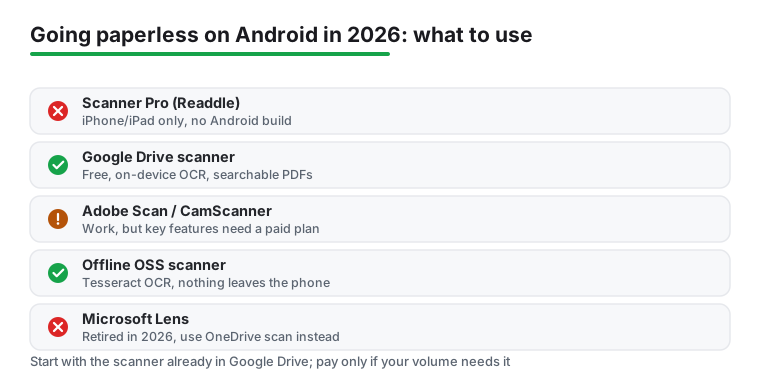
If the built in Drive scanner is not enough, two paid names are worth knowing, plus one option for people who care most about privacy.
Adobe Scan is a polished free download that turns your camera into a scanner and saves to Adobe's cloud. It does the edge detection and PDF building well, and it has solid text recognition. The honest limit: Adobe documents a five page cap on free text recognition per document, fine for a receipt and frustrating for a long contract, lifted to 100 pages on a subscription. Its listing, read 3 September 2026, is free to install with no Contains ads label and in-app purchases of $1.99 to $69.99 per item. So Adobe Scan is a good free scanner and a paid OCR tool, and you should know which side of that line your documents fall on before you rely on it.
CamScanner is the high volume veteran, still on Google Play in 2026 and still popular, at 4.6 stars from 5,043,458 reviews across 500,000,000+ installs read 3 September 2026, and it is the only app here whose listing carries the Contains ads label. It leans hard on cloud sync and works well if you want everything mirrored across devices. The trade off is that the genuinely useful tools, like batch OCR and clean exports, tend to sit behind a subscription, and the free tier can stamp a watermark on your pages. It is a capable app, just go in knowing the paperless workflow you actually want may cost a few dollars a month. Its power user tricks are covered in the guide to CamScanner hacks for Android.
If you would rather keep everything off the big clouds, look at an open source offline scanner. There are Android apps that run OCR entirely on your device using the Tesseract engine, producing searchable PDFs without ever sending a page to a server. The text recognition is not always as sharp as Adobe's or Google's, and the interface is plainer, but nothing leaves your phone. For tax documents, medical records, and anything with bank numbers, that peace of mind is worth the rougher edges.
One app to stop waiting for: Microsoft Lens, once a favorite free scanner on Android, was retired in early 2026. Microsoft began retiring Lens in September 2025, blocked new installs that October, and scanning inside the app stopped working for good in early 2026. If an old article points you to it, that advice is out of date. Microsoft now folds scanning into the free OneDrive app instead, so if you live in the Microsoft world, scan from OneDrive, where multi page scanning is available to everyone at no cost.
Clean captures when the document is short
4.6 stars from 3,030,855 reviews · 100,000,000+ installs · free to install · in-app purchases $1.99 to $69.99 per item · by Adobe · Contains ads: No · checked 3 September 2026
Google Play listing · 4.6 (3,030,855) · read 3 September 2026
A free download with no Contains ads label, and the polish you would expect from Adobe on edge detection and PDF building. The line to know before you rely on it is the text recognition: Adobe documents a five page limit per document on the free tier, lifted to 100 pages on a subscription, and the in-app purchases on its listing run $1.99 to $69.99 per item.
Cloud sync across devices, if you pay
4.6 stars from 5,043,458 reviews · 500,000,000+ installs · free to install · in-app purchases $0.49 to $399.99 per item · by INTSIG Information Co.,Ltd · Contains ads: Yes · checked 3 September 2026
Google Play listing · 4.6 (5,043,458) · read 3 September 2026
Still on the store and still popular, at 4.6 stars from 5,043,458 reviews across 500,000,000+ installs. It is the only app on this page whose listing carries the Contains ads label, and its in-app purchases have the widest spread here, $0.49 to $399.99 per item. That combination is the trade: heavy cloud sync and batch tools, paid for by advertising and subscriptions.
Multi page scanning for anyone already in Microsoft 365
4.6 stars from 7,274,808 reviews · 5,000,000,000+ installs · free to install · in-app purchases $0.99 to $129.99 per item · by Microsoft Corporation · Contains ads: No · checked 3 September 2026
Google Play listing · 4.6 (7,274,808) · read 3 September 2026
Microsoft Lens is gone, and this is where its scanning went. OneDrive is free to install with no Contains ads label, and Microsoft documents multi page scanning as available to everyone at no cost inside it. The in-app purchases on the listing are Microsoft 365 storage plans, $0.99 to $129.99 per item, not a scanning paywall.
Every scanner needs camera access. That part is non negotiable, because the app is useless without it. Beyond that, an app will ask for storage or photo access when you import an existing image or save exports to your phone. That is a reasonable ask, and you can decline the photo permission if you only ever capture fresh documents with the camera. Be wary of any scanner that demands contacts, location, or your call log, because none of that has anything to do with scanning a page.
Now the part that matters most. Your scans hold sensitive details: bank numbers, addresses, signatures, medical notes. If an app syncs to a cloud, decide consciously whether you want financial paperwork sitting in someone else's data center or staying on the device only. Keep the most sensitive scans local and only sync harmless material like recipes and manuals. A free scanner that makes its money from data is not really free, so read what the app says it does with your files before you feed it your tax return.
The other honest catch is money. The most convenient features across nearly every scanner, full OCR, batch export, no watermark, tend to sit behind a subscription or a one time unlock. Go in knowing the paperless workflow you want might cost a few dollars a month, or might be completely free if Google Drive's built in scanner covers you. Push the free tier before you pay.
For the wider view, including budget and no frills options, browse our pillar on the best scanner apps for Android. If your real goal is changing documents rather than just storing them, pair a scanner with a dedicated editor from our roundup of free Android PDF editors, since many people run a scanner plus an editor rather than hunting for one app that does both. And our Android productivity apps hub ties the whole paperless toolkit together. The short version: skip the search for an app that does not exist on your phone, start with the scanner you already have in Google Drive, and add a paid tool only if your volume demands it.
No. Scanner Pro, the app made by Readdle, is an iPhone and iPad app only, and as of 2026 there is no official Android version. If you search Google Play for "Scanner Pro" you will find apps with that name from other developers, but they are not the same app. For Android, the place to start is the document scanner already built into Google Drive, which is free and saves searchable PDFs.
For most people it is the scanner built into Google Drive: it detects edges, corrects the angle, builds multi page PDFs and runs text recognition so scans become searchable, free and with no watermark, on a listing that reads 4.3 stars from 10,820,632 reviews, 3 September 2026. Adobe Scan is another free download, though Adobe documents a five page cap on free text recognition per document. CamScanner is capable but its listing carries the Contains ads label and the paperless tools sit behind a subscription.
Yes. Google Drive runs OCR automatically on what you scan, so within a few minutes the words inside the document become searchable from the Drive search bar. Adobe Scan and CamScanner also include OCR, though some of it sits behind a paid tier. Clear, well lit scans give the most accurate text recognition, so good lighting matters more than the app you choose.
No. Microsoft began retiring Lens in September 2025, blocked new installs that October, and scanning inside the app stopped working for good in early 2026. If an older guide points you to it, that advice is out of date. Microsoft now puts scanning inside the free OneDrive app, where multi page scanning is available to everyone at no cost, so use OneDrive instead if you prefer the Microsoft tools. Its listing reads 4.6 stars from 7,274,808 reviews, 3 September 2026.
Keep anything with bank numbers, signatures, or medical details on your device or in an app that does on device OCR rather than syncing it to a cloud you do not control. Google Drive's scanner runs on device on newer phones, and there are open source offline scanners that never send a page to a server. Decline any permission a scanner does not need, like contacts or location.
Only CamScanner. Of the four Android apps named here, its listing is the one carrying the Contains ads label, read 3 September 2026. Google Drive, Adobe Scan and Microsoft OneDrive carry none, and their in-app purchases are storage plans or subscriptions rather than advertising.
Checked 3 September 2026: the guide named four Android apps and gave figures for none of them, with no store links, no dated line and no table. Google Drive, Adobe Scan, CamScanner and Microsoft OneDrive now each carry a fact line read from their own listings, a store link and three pros and three cons, and the four sit in one table. Two claims about our own use are withdrawn, We left it on for receipts and We got cleaner scans from a dim desk lamp, along with We dug into its power user tricks. The retirement dates for Microsoft Lens disagreed between the body and the FAQ, so the FAQ now follows the body. The figure worth knowing: CamScanner is the only one of the four whose listing carries the Contains ads label, and its in-app purchases run $0.49 to $399.99 per item.