
Updated September 2026 · four permission viewers now carry their own dated listing figures, and the FAQ was re-read against the body
You install an app to scan a receipt, and three weeks later it still has your microphone, your contacts and your location. That happens more than people think. The good news is that Android ships with the tools to see exactly what every app can reach, and to take most of it back in a couple of taps. This guide walks you through where those controls live in 2026, how to read them, and the one routine that keeps your phone honest without breaking the apps you actually use.
Start with the Permission Manager. On most phones running current Android you get there by opening Settings > Security & privacy > Privacy > Permission manager. The exact wording shifts a little by brand. Samsung, Pixel and Motorola all keep it under Security & privacy now, but if you cannot find it, pull down the search bar at the top of Settings and type "permission manager" directly.
Inside, permissions are grouped by type rather than by app: Camera, Microphone, Location, Contacts, Photos and videos, Body sensors, SMS, Phone, Calendar and a handful of others. Tap any one and you see two lists, the apps you have allowed and the apps you have denied. This is the fastest way to answer a specific worry. If you are wondering "which apps can hear me?", open Microphone and read the allowed list. Anything there that has no business listening, you change.
Reading every grant on the phone from one screen
4.1 stars from 563 reviews · 100,000+ installs · free to install · in-app purchases $2.49 to $5.99 per item · updated 17 August 2026 · by darken · Contains ads: No · checked 5 September 2026
Google Play listing · 4.1 (563) · read 5 September 2026
The single-screen answer to "which apps can hear me". Its Google Play listing, read 5 September 2026, says it "lists all permissions in a single location, giving you a bird's eye view of app permissions", with an Apps tab that shows every permission one app has requested and a Permissions tab that shows every app requesting one permission, Special Access grants included. Free to install with no Contains ads label and in-app purchases of $2.49 to $5.99 per item, on a data safety card that declares no data collected and no data shared with third parties. The blunt con is the sample: 4.1 stars from 563 reviews is the smallest review count on this page.
The Permission Manager tells you what an app can do. The Privacy Dashboard tells you what apps actually did. Find it at Settings > Security & privacy > Privacy > Privacy dashboard.
It opens on a donut chart covering the last 24 hours, broken out by Location, Camera and Microphone, with a count of how many apps touched each. Tap a category and you get a timeline showing which app accessed it and when. Android 12 introduced this 24-hour dashboard; on recent versions with current Play updates you can switch to a 7-day view, which is more useful for catching an app that wakes up your location once a night. If you see a flashlight app pinging your GPS at 3 a.m., that is your signal to go revoke it.
Treat the dashboard as a checkup, not a one-time fix. Apps update, and an update can ask for new access you never reviewed.
A 24-hour access timeline on a phone that has none built in
4.4 stars from 3,924 reviews · 100,000+ installs · free to install · in-app purchases $0.99 to $134.99 per item · last updated 3 September 2021 · by Rushikesh Kamewar · Contains ads: No · checked 5 September 2026
Google Play listing · 4.4 (3,924) · read 5 September 2026
For a phone below Android 12, which has no dashboard of its own. Its Google Play listing, read 5 September 2026, says the app "has simple and clear timeline view of accesses to location, microphone and camera" and describes itself as bringing the features of the Android 12 dashboard to older devices, with an indicator in the corner when a permission is in use. It is free to install with no Contains ads label, and the in-app purchases of $0.99 to $134.99 per item are what the developer calls donations. The best rated app on this page at 4.4 stars from 3,924 reviews, and the oldest listing on it.
Read this first. Its listing has not been updated since September 2021, and the app works through an Accessibility service, the very grant this guide tells you to police further down. The developer's own explanation is that the service reads usage without direct access to the camera or microphone.
You do not have to dig through Settings to catch an app red-handed. Look at the top-right of your status bar. A green dot means an app is using your camera right now (and it also shows when the camera and microphone are in use together). The same green indicator covers the microphone too; tap it to see exactly which sensor is in use. (An orange dot and a hollow location arrow are iPhone conventions, not Android ones.)
When the indicator appears, swipe down and tap it. Android names the app that is using the sensor. Since the indicator counts access as active if it is running or less than five seconds old, you will sometimes see it flash after you close a camera, which is normal. What is not normal is a note-taking app showing the green dot while it sits in the background. That is worth investigating.
Camera, microphone and location indicators on Android 8 to 11
4.1 stars from 17,368 reviews · 1,000,000+ installs · free to install · in-app purchases $0.99 to $79.99 per item · updated 16 September 2025 · by IJP · Contains ads: Yes · checked 5 September 2026
Google Play listing · 4.1 (17,368) · read 5 September 2026
The indicator for phones that predate it. Its Google Play listing, read 5 September 2026, says it "adds the same iOS 14 style indicators (few pixels light up as a dot) to the top right (default) corner of your screen whenever any third-party App uses your phone's camera/microphone/GPS location", on Android 8 and up. It is the most installed app on this page at 1,000,000+ installs and 4.1 stars from 17,368 reviews, free to install, with the Contains ads label on its listing and in-app purchases of $0.99 to $79.99 per item. Two things to weigh: it runs as an Accessibility service, and its data safety card says data is not encrypted and the app may collect some data types, while the same listing's description says the service does not gather any data. The card wins here.
When you tap a permission for a single app, you get a set of choices that matter more than most people realize:
For photo and video access you will also see a "Select photos" option that hands over only the images you pick instead of your whole library. Use it for any app that just needs one picture for a profile.
Android quietly cleans up after you. If you have not opened an app in a few months (the system uses a window of around 90 days), it automatically resets that app's permissions and clears its temporary files. The next time you launch it, the app has to ask again. This is on by default for apps targeting modern Android.
You can confirm it per app: open Settings > Apps, pick the app, and look for "Pause app activity if unused." Keep it on for almost everything. The one exception is a background tool you rely on but rarely open, say a tasker automation or a smart-home bridge, where a permission reset would silently break it. Turn the toggle off for those few, and leave the rest alone. If you would rather just remove dead weight entirely, a good cleaner app can surface apps you have not touched in months so you can uninstall instead of merely revoking.
Most permissions only matter for one feature. Two are different, because granting them hands over far more control than their names suggest.
Accessibility. An app with an Accessibility service can read everything on your screen and tap things for you. That is exactly why banking trojans and stalkerware beg for it, often dressed up as a "speed booster" or "screen filter." Genuine uses exist, screen readers, password managers that autofill, automation tools, but the list of apps that legitimately need it is short. Check it at Settings > Accessibility > Installed apps (wording varies; some phones list it under Downloaded services). If something is there that you do not recognize, turn it off. Google has tightened this over recent releases, blocking sideloaded apps from gaining accessibility access through Restricted Settings, and Android 17's Advanced Protection Mode limits the API to verified accessibility tools only. Even so, the toggle is yours to police.
Display over other apps. This lets an app draw on top of whatever else is running, the mechanism behind chat-head bubbles, but also behind overlay attacks that fake a login screen over your bank. Review it at Settings > Apps > Special app access > Display over other apps. Allow it for the few apps where you clearly see the overlay (a messenger bubble, a screen recorder) and deny the rest.
If you want a second layer beyond Android's own controls, a reputable antivirus app will flag apps that quietly request accessibility or overlay access, and an app lock adds a gate in front of anything sensitive even when permissions are tidy.
Seeing which trackers an app carries as well as its permissions
4.0 stars from 1,358 reviews · 100,000+ installs · free · no in-app purchases · last updated 9 September 2024 · by Exodus Privacy · Contains ads: No · checked 5 September 2026
Google Play listing · 4.0 (1,358) · read 5 September 2026
The tracker view, from a non-profit. Its Google Play listing, read 5 September 2026, says "Exodus helps you to know which trackers and permissions are embedded in apps installed on your device", using reports downloaded from the Exodus Privacy platform app by app. Free with no in-app purchases and no Contains ads label, at 4.0 stars from 1,358 reviews, the lowest rating on this page. The blunt con: the listing has not been updated since September 2024, and its data safety card says the app may collect some data types and that data cannot be deleted.
Pulling a permission is not free. Cut camera access from a banking app and the check-deposit scanner stops. Deny location to a ride app and you have to type your pickup spot by hand every time. Block contacts on a messenger and it cannot show you who is already on the service. None of this damages your phone, but it does change how the app behaves, and the app rarely explains why a feature went dark.
So the realistic approach is not "deny everything." It is "match the permission to what the app is for, and prefer the narrowest option that still works." When a feature breaks after you tighten a setting, you will usually know which one to loosen, because you just changed it. The fixes for more cluttered or sluggish phones, by contrast, live over in our wider tools and utilities guides.
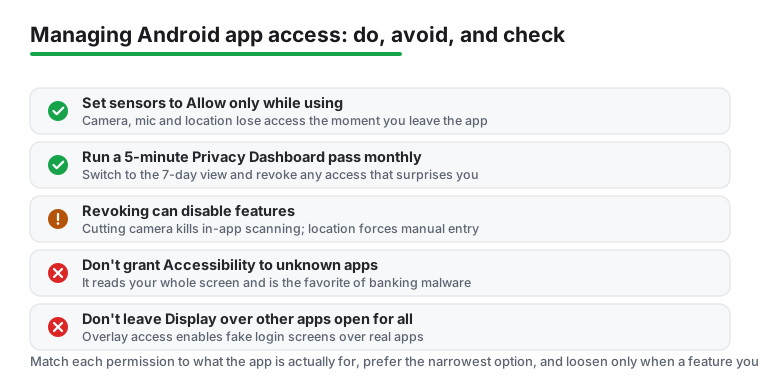
Set a recurring reminder and run the same short pass once a month:
Five minutes, once a month, and your phone stops leaking access you forgot you handed out. That beats a single heroic cleanup you do once and never repeat.
Go to Settings > Security & privacy > Privacy > Permission manager. The wording differs slightly by brand, so if you cannot find it, use the search bar at the top of Settings and type "permission manager."
The Permission Manager shows what each app is allowed to access. The Privacy Dashboard shows what apps actually accessed, on a timeline covering the last 24 hours, or 7 days on recent versions with current Play system updates (the 24-hour dashboard arrived in Android 12). Use the manager to set policy and the dashboard to catch surprises. Checked 5 September 2026.
A green dot means an app is using your camera or your microphone right now. Android does not use an orange dot; that is an iPhone convention. Swipe down and tap the indicator to see which sensor is in use and which app is responsible. A brief flash after closing the camera is normal; a background app showing it is not. A phone below Android 12 has no built-in indicator at all, which is the gap Access Dots fills. Checked 5 September 2026.
That is the auto-revoke feature. If you do not open an app for around 90 days, Android resets its permissions and clears its temporary data, so it must ask again next launch. You can turn it off per app under Settings > Apps > the app > Pause app activity if unused, which is worth doing only for rarely-opened background tools you depend on.
Accessibility, followed by Display over other apps. An accessibility service can read your screen and act on your behalf, which is exactly what banking malware wants. Only grant it to tools that clearly need it, such as screen readers or password autofill, and review the list under Settings > Accessibility regularly.
It can disable specific features. Removing camera access stops in-app scanning, removing location forces manual entry, removing contacts hides the people already using the service. Nothing harms your phone, and you can re-enable a permission at any time if a feature you want goes missing.
Permission Pilot lists every permission every installed app has requested, in one place, and can be read the other way round as every app that requests one permission; its listing, read 5 September 2026, shows 4.1 stars from 563 reviews, free to install with in-app purchases of $2.49 to $5.99 per item and no ads label. Exodus adds the trackers embedded in an app, from the non-profit Exodus Privacy, free with no in-app purchases and no ads label at 4.0 stars from 1,358 reviews, on a listing not updated since September 2024. On a phone below Android 12, the Privacy Dashboard app by Rushikesh Kamewar and Access Dots bring the usage timeline and the indicator dot that those phones lack. Checked 5 September 2026.
Checked 5 September 2026: the guide walked through Android's own permission screens and named no app that shows the same information, so the four viewers that do are now linked, each with a fact line read today: Permission Pilot at 4.1 stars from 563 reviews, Privacy Dashboard at 4.4 stars from 3,924 reviews on a listing last updated in September 2021, Access Dots at 4.1 stars from 17,368 reviews with the Contains ads label, and Exodus at 4.0 stars from 1,358 reviews on a listing last updated in September 2024. Two FAQ answers contradicted the body and were corrected. The answer on the status bar indicator said An orange dot flags microphone use, and a small arrow shows location reads. and now agrees with the body: Android shows one green indicator for the camera and the microphone, and the orange dot is an iPhone convention. The same section's heading, The green and orange dots, and what they mean live, now names the green dot only. The answer on the dashboard said 7 days on Android 15 and later (the 24-hour dashboard arrived in Android 13) and now matches the body, which says the dashboard arrived in Android 12. The FAQ questions moved to the second person, and one question on which app shows what another app can access was added.
 How to Move From iPhone to Android Without Losing AnythingProductivity
 How to Back Up Your Android Phone the Right WayTools & Utilities