
Updated September 2026
Updated September 2026 · the four apps the move runs through now carry their own dated listing figures, and the order of the job sits in one table
Changing phones feels like packing for a move, and the worry is always the box left behind. The good news in 2026: almost everything that matters comes across, and the parts that do not are easy to plan for once you know where they hide. This guide goes through it in order, with the exact taps to make on both phones, including the one step most people forget. Set aside an unhurried hour, keep both phones charged above 80 percent, and have your old passcode handy. Nothing here is technical; it just needs doing in the right sequence.
A little setup now saves a lot of confusion later. Do these on your old iPhone first.
One decision up front: keep your old iPhone switched on and nearby for at least a week. It is your safety net for verification codes and for the iMessage step below.
This step causes the most grief, so do it early. On an iPhone, Apple routes messages from other iPhone users through iMessage, the blue-bubble system. Switch phones without turning that off and Apple keeps delivering those messages to a phone that no longer speaks iMessage. The sender sees it go through. You never get it. People assume you are ignoring them.
The fix is simple. While you still have the iPhone in hand with a SIM in it, do this:
If you have already wiped or sold the iPhone, use Apple's web tool instead. Go to the official Deregister iMessage page, find the section for people who no longer have their iPhone, enter your number, request a code, and type in the code you receive by text. Allow a few hours for Apple's servers to release your number. To confirm it worked, ask a friend with an iPhone to text you and check the bubble turns green, not blue.
Android phones run a guided setup the first time you turn them on, and that wizard does the heavy lifting. The flow is the same across brands, with small wording differences.
Google's full list of what moves and what does not lives on its support site: Copy apps and data from an iPhone to a new Android device. It is worth a glance before you commit.
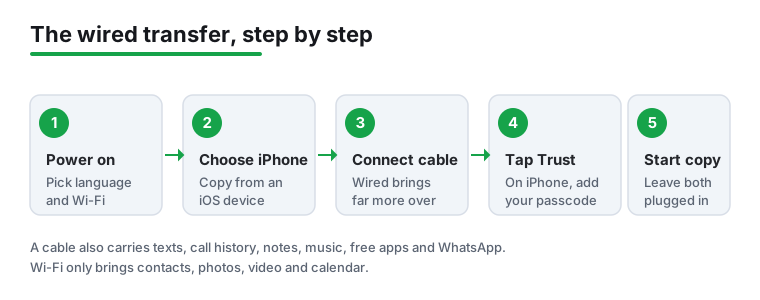
The cable transfer on a Pixel or a stock Android phone
4.0 stars from 1,251,308 reviews · 10,000,000,000+ installs · free · no in-app purchases · by Google LLC · Contains ads: No · checked 4 September 2026
Google Play listing · 4.0 (1,251,308) · read 4 September 2026
This is the app behind the copy-your-data step in setup, and on a Pixel it can also be opened later from the app list. Free, no in-app purchases, no Contains ads label, read 4 September 2026. Its 4.0 stars from 1,251,308 reviews is the honest signal on this page: people meet it once, on a stressful day, and rate it on whether the cable held.
The tool you use depends on the phone you bought.
Google Pixel. Pixels use Google's Android Switch system, built into setup; just follow the wizard. A bonus on Pixel 9 and newer (including the Pro, Fold, and A models): you can run Android Switch after setup, any time, even without your old phone present, by opening it from your app list. Pixel also detects WhatsApp during an iPhone import and offers to bring the chats over by cable, which we return to below.
Samsung Galaxy (One UI). Samsung phones use Smart Switch, preinstalled. You will see it during setup, or open it later from Settings, then Accounts and backup, then Bring data from old device. It can pull from iCloud (contacts, calendar, notes, call history, bookmarks) as well as by cable. Per Samsung's guidance, iTunes music and videos do not come from iCloud, and notes transfer only if they were stored in iCloud rather than just on the iPhone. See the official Smart Switch support page.
Other brands like OnePlus, Xiaomi, and Motorola each have a similar first-run importer, and all accept Google's Android Switch flow too. When in doubt, the Google method works on nearly any modern Android phone.
Pulling from iCloud as well as from the phone
3.9 stars from 529,163 reviews · 1,000,000,000+ installs · free · no in-app purchases · by Samsung Electronics Co., Ltd. · Contains ads: No · checked 4 September 2026
Google Play listing · 3.9 (529,163) · read 4 September 2026
Preinstalled on Galaxy phones, and the only route here that can pull contacts, calendar, notes, call history and bookmarks straight from iCloud rather than from the handset. Free, no in-app purchases, no Contains ads label, read 4 September 2026. At 3.9 stars from 529,163 reviews it is the lowest rated app on this page, which is worth knowing before you rely on it for a one-shot move.
If all your pictures live on the iPhone itself, the cable transfer grabs them. The catch is iCloud. Many people have Optimize iPhone Storage switched on, which keeps only small previews on the device and the full-size originals in iCloud. Those full files do not come across in the phone-to-phone copy. You have two clean options.
Option A, the direct route. Apple offers an official service that copies your iCloud photo library straight to Google Photos. Sign in at privacy.apple.com, choose Request to transfer a copy of your data, then sign in with your Google Account and follow the prompts. Apple verifies it is really you, and the copy takes roughly three to seven days, with an email when it is done. Your originals stay safely in iCloud; nothing is deleted. Both companies document this: Google's instructions and Apple's instructions.
A few things do not survive this copy: shared albums, smart albums, and the video portion of Live Photos (you keep the still frame). Only the most recent edit of each photo comes over, and transferred albums arrive renamed with a "Copy of" prefix.
Option B, the manual route. Install the Google Photos app on Android, sign in, and let it back up. Then download originals from iCloud at icloud.com and add them. Once your library is settled, our roundup of the best gallery apps for Android can help you pick how you browse it day to day.
Receiving a full-size library from iCloud
4.4 stars from 53,920,630 reviews · 10,000,000,000+ installs · free · no in-app purchases · by Google LLC · Contains ads: No · checked 4 September 2026
Google Play listing · 4.4 (53,920,630) · read 4 September 2026
The destination for the one part of the move that catches everyone: photos that live in iCloud rather than on the phone. Apple's own transfer service copies the library here, and this app is free with no in-app purchases and no Contains ads label, read 4 September 2026. What it does not solve is the quota: the library lands in the same 15 GB pool as Gmail and Drive.
WhatsApp keeps its own backups, so it sits outside the normal transfer. There is now an official way to move your full chat history, including media, from iPhone to Android. It needs a cable and a little patience.
Two firm rules. First, you must use the exact same phone number on both phones; there is no way around this. Second, WhatsApp call history and peer-to-peer payment messages do not transfer by any method. Everything else, the conversations and shared photos, comes through.
Moving years of chats with the media intact
4.6 stars from 242,782,579 reviews · 10,000,000,000+ installs · free to install · in-app purchases $0.40 to $199.99 per item · by WhatsApp LLC · Contains ads: No · checked 4 September 2026
Google Play listing · 4.6 (242,782,579) · read 4 September 2026
The best rated app in this group, 4.6 stars from 242,782,579 reviews, and the one with its own transfer that sits outside everything else. It is free to install with no Contains ads label; the in-app purchases on the listing, $0.40 to $199.99 per item read 4 September 2026, are business features rather than anything a switcher needs. The move needs a cable, the same phone number on both sides, and a fresh Android phone.
Here is a tidy trick that prevents future headaches: route contacts through your Google Account so they live in the cloud and follow you to any future phone. The transfer tools copy contacts for you, but if anything looks incomplete, do this on the iPhone before you put it away:
Now your iPhone pushes those into Google, and your Android phone, already signed into the same Google Account, pulls them down within a minute or two. Email is the easy part: install Gmail, Outlook, or whatever you used, sign in, and your mail is there. If you want to compare the options before settling, see the best email apps for Android. Apple Notes deserve special mention because they are a common sticking point; we wrote a focused walkthrough on migrating your Apple Notes that covers the iCloud-versus-on-device trap.
Plenty of newer phones have no SIM tray, so your number lives as an eSIM, a digital SIM stored in software. Moving it is the one part that is not automatic, because iPhone and Android handle eSIM differently and cannot pass it directly to each other.
What happens instead: your carrier issues a new eSIM profile for the Android phone. In practice that means one of three things.
Two cautions. If your old number was on a physical SIM, you may be able to convert it to eSIM, but not every carrier allows that. And if your Android phone has no eSIM hardware, ask the carrier for a physical SIM card instead. Either way, plan a short window where your number might be inactive, and do not destroy the old SIM until calls and texts work on the new phone.
Knowing the gaps before you hit them means nothing feels like a loss later.
None of this is dramatic once you expect it. The pattern holds throughout: anything tied to your Google Account flows freely, anything locked to Apple's world needs a deliberate hand-off.
The big move is done. Spend a few minutes over the first week making the phone yours.
Give yourself a few days. Muscle memory takes about a week to catch up, and after that the phone simply feels like yours.
Only if you skip one step. Turn off iMessage on the old iPhone (Settings, then Apps, then Messages) or use Apple's online deregister tool before relying on the new phone. Once your number is released, texts from iPhone users arrive as normal green-bubble messages. Allow a few hours for the change to take full effect.
Yes, the full history and shared media transfer through WhatsApp's official tool, using a cable and the exact same phone number on both phones. The only things left behind are your WhatsApp call log and any peer-to-peer payment messages, which no method can carry over.
The main phone-to-phone copy ranges from a few minutes to a couple of hours depending on how many photos and apps you have. The separate iCloud-to-Google-Photos transfer is the slow one, taking three to seven days because Apple processes it on its servers. Plan the photo transfer a few days before you stop using the iPhone.
The transfer tools from Google, Samsung, and Apple are all free. The only possible costs are re-buying a few paid apps that do not offer a free Android version, and, rarely, a carrier fee if they have to issue a new physical SIM rather than an eSIM. Most people spend nothing beyond the new phone itself.
You almost always need the carrier involved, because an iPhone eSIM cannot pass directly to Android. Start in your carrier's app or website; many let you self-activate with a QR code you scan under Settings, then Network and internet, then SIMs. If self-service is not offered, a short call or store visit sorts it out. Keep the old SIM until calls and texts work on the new phone.
On a Pixel 9 or newer you can open the Android Switch app any time and run the import after the fact. On Samsung, open Smart Switch from Settings, then Accounts and backup. On other phones, the cleanest option is a factory reset (Settings, then System, then Reset options) so you get the first-run wizard back, but only do that before you have added anything you care about.
Android Switch on a Pixel or stock Android phone, and Samsung Smart Switch on a Galaxy. Both are free with no in-app purchases and no ads label, read 4 September 2026, and both are rated below the apps they move data into: Android Switch sits at 4.0 stars from 1,251,308 reviews and Smart Switch at 3.9 stars from 529,163 reviews. WhatsApp runs its own transfer separately, and photos held in iCloud need Apple’s own copy service into Google Photos.
Checked 4 September 2026: the guide walked through four apps without linking any of them or quoting a single figure from their listings, and had no table and no dated line. All four now carry fact lines read today. The numbers are worth seeing side by side, because the two apps that actually perform the transfer are the two worst rated of the four: Android Switch at 4.0 stars from 1,251,308 reviews and Samsung Smart Switch at 3.9 stars from 529,163 reviews, against WhatsApp at 4.6 and Google Photos at 4.4. All four are free and none carries the Contains ads label.
 How to Transfer Files Between Android and a PCTools & Utilities
 How to Back Up Your Android Phone the Right WayTools & Utilities