
Updated September 2026
Updated September 2026 · the three cloud apps now carry their own dated listing figures, and the nine routes sit in one table
Getting files off your Android phone and onto a computer (or the other way around) sounds like it should take one cable and ten seconds. Sometimes it does. Other times Windows refuses to see the phone, the Mac shows nothing, or you have 4,000 photos and no idea how to grab them all at once. This guide walks through every reliable method: a plain USB cable, cloud storage, Google's Quick Share, and several wireless options. It also covers the single most common headache, a phone that simply will not show up, and how to fix it without losing anything. None of these methods erase your data, but we will flag the few moments where a wrong tap could overwrite a file so you can avoid them.
For most people, a USB cable is the quickest and most dependable way to move files. When you plug an Android phone into a computer, it does not behave like a simple USB stick. Instead it uses a system called MTP (Media Transfer Protocol), which lets the phone share files while still running its own apps in the background. The catch is that the phone almost always starts in a locked-down charging mode, so you have to tell it to allow file transfer.
Once you select File transfer, the phone shows up on the computer as a drive you can browse. Your camera photos and videos live in the DCIM folder. Screenshots, downloads and app files sit in their own folders such as Pictures, Download and Documents.
Data-safe tip: copying files from the phone is completely safe. Dragging files onto the phone is also safe unless a file with the same name already exists, in which case the computer will ask whether to replace it. Read those replace prompts before clicking yes so you do not overwrite something you wanted to keep.
Windows has built-in support for Android phones, so you usually do not need to install anything.
To grab every photo at once, open the DCIM folder, press Ctrl + A to select all, and copy them to a folder on your desktop. Large video transfers over MTP can be slow and the progress bar sometimes appears to freeze near the end. Give it time before assuming it failed.
Windows 11 also offers a Phone Link app (called Link to Windows on the phone) that mirrors recent photos and lets you drag them across wirelessly. It is convenient for a handful of recent pictures but is not built for moving thousands of files or large videos.
macOS does not read Android phones over USB out of the box, so plugging a phone into a Mac usually does nothing visible. The traditional fix is Google's free Android File Transfer utility.
A few honest caveats. Android File Transfer is old and can be temperamental on the latest macOS versions, sometimes refusing to connect or quitting unexpectedly. If it will not cooperate, the cloud and wireless methods below work identically on a Mac and are often less frustrating. Some newer Samsung phones also work with Samsung's own desktop software, and for moving just photos, AirDrop-style wireless apps or simply uploading to Google Photos and downloading on the Mac can be the path of least resistance.
Cloud storage is the most flexible method because it works between any phone and any computer, in either direction, with no cables and no driver headaches. You upload from the phone and download on the computer. It is also a quiet backup, which is a nice side benefit.
The main limits are storage space (free tiers fill up fast with video) and upload speed on slow connections. For one or two large 4K videos, a USB cable is usually faster. For documents, photos and sharing across several devices, the cloud wins on convenience.
Files of any kind, in either direction, with no cable
4.3 stars from 10,820,553 reviews · 10,000,000,000+ installs · free to install · in-app purchases $0.99 to $1,024.00 per item · by Google LLC · Contains ads: No · checked 5 September 2026
Google Play listing · 4.3 (10,820,553) · read 5 September 2026
On most Android phones it is already installed, and the same account opens in any browser on the computer, which is the whole appeal. Its listing, read 5 September 2026, is free to install with no Contains ads label; the in-app purchases, $0.99 to $1,024.00 per item, are storage plans rather than anything the transfer needs. The limit is the free quota it shares with Gmail and Photos.
Landing files straight into a folder on a Windows PC
4.6 stars from 7,278,775 reviews · 5,000,000,000+ installs · free to install · in-app purchases $0.99 to $129.99 per item · by Microsoft Corporation · Contains ads: No · checked 5 September 2026
Google Play listing · 4.6 (7,278,775) · read 5 September 2026
The best rated of the three cloud apps here, 4.6 stars from 7,278,775 reviews, and the one that lands files straight into a folder on a Windows PC that is already signed in. Free to install with no Contains ads label, read 5 September 2026; the in-app purchases, $0.99 to $129.99 per item, are Microsoft 365 storage plans. On a Mac it is just another cloud app.
Getting the whole camera roll onto a computer
4.4 stars from 53,927,553 reviews · 10,000,000,000+ installs · free · no in-app purchases · by Google LLC · Contains ads: No · checked 5 September 2026
Google Play listing · 4.4 (53,927,553) · read 5 September 2026
The route for the 4,000-photo problem this page opens with: back up once from the phone, then download from the browser on the computer. Free, no in-app purchases, no Contains ads label, read 5 September 2026. It is a copy rather than a move, so nothing leaves the phone until you delete it there, and it shares the same Google quota as Drive.
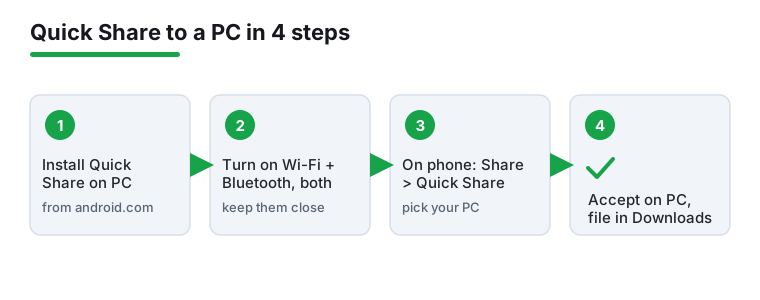
Google's Quick Share (formerly Nearby Share) sends files directly between devices over Wi-Fi and Bluetooth, with no internet or cable needed. There is an official Quick Share for Windows app (formerly Nearby Share for Windows) that lets your PC receive files straight from the phone, which is genuinely handy.
This method is great for a few files at a time and avoids cables entirely. It is currently a Windows tool, so it does not have an official Mac version. Speeds depend on the Wi-Fi connection between the two devices, but for photos and documents it is fast and painless.
Beyond cloud and Quick Share, a few wireless tricks cover situations where the others fall short.
Whichever wireless method you pick, prefer your own trusted Wi-Fi network rather than public Wi-Fi, since some of these methods briefly expose your phone's storage on the local network.
A phone that refuses to appear on the computer is the most common complaint, and it is almost always one of a handful of simple causes. Work down this list in order.
If the phone charges but never offers a File transfer option no matter what you try, the charging port may be damaged or dirty. In that case the cloud and wireless methods let you get your files off safely without a cable at all, which is reassuring if you are trying to rescue data from a failing phone.
There is no single best method, only the best one for your situation. A quick guide:
Whatever you choose, copying files to a computer never deletes them from the phone, so you can always experiment safely. The only moment to slow down is when a transfer asks to replace an existing file, because that is the one action that can overwrite something. Read the prompt, and you are fine.
Because the phone defaults to charging-only mode for security. You have to tell it to allow data. Unlock the phone, pull down the notification shade, tap the USB notification, and choose File transfer (also called MTP). If there is no such notification, check Settings > Connected devices > USB . If it still does not appear, the cable may be charge-only, so try a known data cable.
macOS cannot read Android phones over USB on its own. Install Google's free Android File Transfer from android.com , plug the phone in, set it to File transfer mode, and drag files in the app window that opens. If that app misbehaves on newer macOS versions, upload your files to Google Drive or Google Photos from the phone and download them on the Mac instead.
Yes. Several ways: upload to a cloud service like Google Drive or OneDrive and download on the computer, use Quick Share (Nearby Share) to send straight to a Windows PC over Wi-Fi and Bluetooth, run a Wi-Fi file server from a file manager app, or simply email a single file to yourself. Wireless is also the best route when a phone's charging port is broken.
No. Copying always leaves the originals on the phone. Files are only removed if you specifically choose to cut, move, or delete them. The one moment to be careful is when a transfer asks whether to replace a file that already exists, since saying yes overwrites the existing version. Read those prompts before confirming.
A USB cable in File transfer (MTP) mode is fastest for large batches. Connect the phone, open the DCIM folder, select everything (press Ctrl + A on Windows), and copy it to a folder on the computer. Large video transfers over MTP can crawl near the end, so be patient before assuming it failed. The cloud is more convenient for sharing but slower for big files and can use a lot of data.
Effectively yes. Google merged its Nearby Share feature into Quick Share , so on most modern Android phones the share option is now labeled Quick Share. There is an official Quick Share app for Windows (formerly Nearby Share for Windows) that lets your PC receive files directly. It is currently a Windows tool with no official Mac version.
For mixed files, Google Drive: it is already on the phone and needs only a browser on the computer, free to install with no ads label, read 5 September 2026. For a Windows PC already signed into a Microsoft account, OneDrive lands the file in a local folder, at 4.6 stars from 7,278,775 reviews. For the camera roll, Google Photos, free with no in-app purchases. All three share a free quota, so a large video still moves faster over a cable.
Checked 5 September 2026: the guide walked through nine routes with no table, no dated line and no figures for the three cloud apps it recommends. Google Drive, Microsoft OneDrive and Google Photos now carry fact lines read today, a store link and three pros and three cons, and the nine routes sit in one table that jumps to each. Nothing in the steps changed; the Mac section already said that Android File Transfer was discontinued in 2024.
 How to Move From iPhone to Android Without Losing AnythingProductivity
 How to Block Ads on Android Without Rooting (2026)Security & Privacy