
Updated September 2026
Which Android backup tool protects your apps, photos, WhatsApp chats, files and settings, and what you still need to check by hand before you reset, sell or lose the phone.
Updated September 2026 · all four backup tools now carry their own dated listing figures, and the coverage table is readable on a phone
Android backup is not one switch: four tools protect four different layers, and the gaps between them are where people lose things. This guide sets all four up, then says plainly what none of them covers.
Last updated: 3 September 2026. Every app named here was re-read from its own Google Play listing on that date, and this guide was reviewed for current Android backup, Google One, Google Photos, WhatsApp and Samsung Smart Switch behaviour. Backup options vary by phone brand, Android version, region and account settings, so always check the backup screen on your own device before wiping, selling or trading in a phone.
If you only have a few minutes, turn on Google One device backup, turn on Google Photos backup, set WhatsApp backup to daily, and copy important Downloads, Documents, and SD-card files to a computer or USB-C drive before any reset or trade-in. Also check authenticator apps, banking apps, wallet apps, and notes apps separately because some of them do not restore cleanly from a standard Android backup.
Apps, settings, SMS and call history
4.1 stars from 908,729 reviews · 1,000,000,000+ installs · free to install · in-app purchases $0.89 to $199.99 per item · by Google LLC · Contains ads: No · checked 3 September 2026
Google Play listing · 4.1 (908,729) · read 3 September 2026
Google One carries the device backup every other tool on this page assumes you already have: apps and app data, contacts, call history, SMS, Wi-Fi passwords and settings. The app is free with no Contains ads label, and the in-app purchases on its listing are storage plans from $0.89 to $199.99 per item rather than a backup paywall. The blunt con: at 4.1 it is the lowest rated Google app here, and app data coverage depends on what each developer opted into.
If you do nothing else, do this. Every Android phone signed in to a Google account gets free device backup through Google One. It quietly saves your apps and app data, call history, contacts, device settings, SMS text messages, and Wi-Fi passwords to the cloud. When you set up a new phone and sign in, Android offers to restore all of it.
The first backup can take a while and is best done on Wi-Fi while charging. After that it runs automatically, usually overnight when the phone is idle, charging, and connected to Wi-Fi. You can confirm the last backup time on the same screen.
This backup counts against the same storage pool as Gmail, Drive, and Photos. A free Google account includes 15 GB shared across all of them. Device backups are usually small, but if your storage is full the backup will stop, so keep an eye on it. You can review your plan at one.google.com and read Google's own walkthrough on the Android Help site.
Photos and videos
4.4 stars from 53,903,239 reviews · 10,000,000,000+ installs · free to install · no in-app purchases listed · by Google LLC · Contains ads: No · checked 3 September 2026
Google Play listing · 4.4 (53,903,239) · read 3 September 2026
Google Photos is the one that saves the data most people would actually miss. Turn backup on once and every new picture and video is copied to your account, on any phone. It is free to install, nothing is sold inside the app itself, and its listing carries no Contains ads label. The blunt con: the free tier shares the same 15 GB as Gmail and Drive, so a heavy library eventually needs a storage plan.
Your photos are usually the data you would miss most, and they need their own backup. Google Photos handles this. Once you turn on backup, every new picture and video is copied to your Google account automatically, and you can see them on any device or at the Photos website.
Photos backup also uses your shared 15 GB free quota, so heavy shooters often need a paid Google One plan. Learn more on the Google Photos Help pages.
Deleting a photo on your phone after it has backed up will, after a sync, also remove it from the cloud. They are mirrored, not separate. If you want a permanent archive that does not change when you tidy up your phone, periodically download an export of your library using Google Takeout and keep it on a computer or external drive. That is your true safety net.
Delete vs Free up space: deleting a photo from your Google Photos library is different from using Free up space. Free up space removes backed-up local copies from the device while keeping them visible in Google Photos. Normal deletion can remove the item from your Google Photos library too, so read the confirmation screen carefully.
Chat history and media
4.6 stars from 242,679,994 reviews · 10,000,000,000+ installs · free to install · in-app purchases $0.40 to $199.99 per item · by WhatsApp LLC · Contains ads: No · checked 3 September 2026
Google Play listing · 4.6 (242,679,994) · read 3 September 2026
WhatsApp chats sit outside the Android backup entirely: the app runs its own backup to Google Drive and you have to switch it on inside the app. It is free to install with no Contains ads label, and its in-app purchases are business features rather than a backup tier. The blunt con: the backup is tied to one phone number and one Google account, so restoring on a different number leaves the history behind.
This trips up a lot of people: WhatsApp chats are not included in your normal Android or Google Photos backup. WhatsApp manages its own backup to Google Drive, and you have to set it up inside the app.
Two things worth knowing. First, WhatsApp lets you turn on end-to-end encrypted backups with a password or 64-digit key. This is more private, but if you lose that password or key, no one, including WhatsApp, can recover your chats. Write it down somewhere safe. Second, WhatsApp backups only restore to the same phone number and the same Google account. Check the current details at WhatsApp's official help center. Other chat apps differ: Signal uses a local encrypted backup file you must move yourself, while Telegram keeps most chats in its own cloud automatically.
Storage tip: WhatsApp videos can make backups much larger. If your Google storage is almost full, exclude videos or clean up large chats before relying on the next automatic backup.
Galaxy to Galaxy, and local copies
3.9 stars from 528,965 reviews · 1,000,000,000+ installs · free to install · no in-app purchases listed · by Samsung Electronics Co., Ltd. · Contains ads: No · checked 3 September 2026
Google Play listing · 3.9 (528,965) · read 3 September 2026
Smart Switch is worth the install when both phones are Samsung, or when you want a full copy on a PC rather than in a cloud account. It carries home screen layouts and some settings Google skips. It is free with nothing sold inside and no Contains ads label. The blunt con: at 3.9 it is the lowest rated app on this page, and outside the Samsung to Samsung case it duplicates work Google already does.
Phone makers add their own backup and transfer apps on top of Google's. These are most useful when you are moving to a new phone from the same brand, because they can carry over things Google misses, such as home screen layouts, certain settings, and some app data.
On Samsung Galaxy phones, Smart Switch can back up to a microSD card, to a computer, or transfer directly to a new Samsung device by cable or Wi-Fi.
A practical tip: manufacturer transfer tools shine the day you switch phones, but they are not a substitute for an ongoing automatic cloud backup. Use Google One and Google Photos for the always-on safety net, and use Smart Switch or its equivalents for the one-time big move.
Cloud backups are convenient, but a copy you physically hold has real advantages: it does not depend on a subscription, it is not limited by upload speed, and it survives a forgotten password or a locked-out account. The downside is that it only protects you up to the moment you made it, so you have to remember to do it.
Remember that dragging folders only gets your files: photos, videos, documents, and downloads. It does not capture app data, text messages, call logs, or system settings, so a local copy is a companion to cloud backup, not a replacement for it.
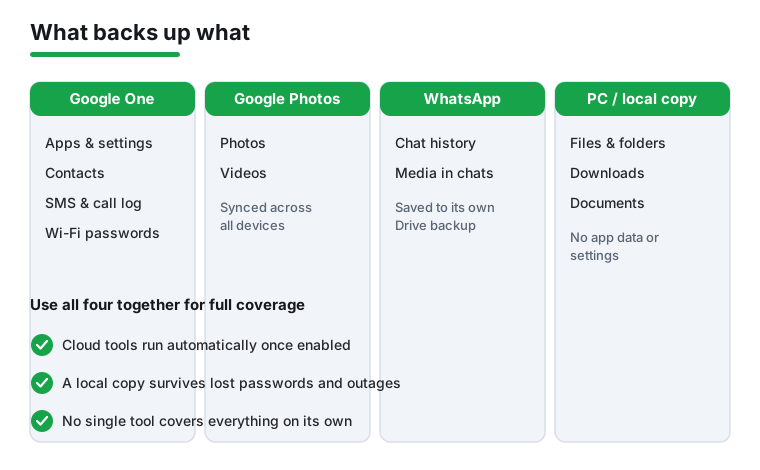
Because backups are spread across several tools, it is easy to assume something is protected when it is not. Here is the reality.
If any of these matter to you, handle them deliberately before you wipe or trade in a phone. For authenticator apps in particular, turn on their own backup or save your recovery codes somewhere safe first.
Before you wipe a phone, spend five minutes checking the things that are easiest to lose.
Restoring is mostly the reverse of backing up, and most of it happens during the new phone's first-time setup. Take your time and stay on Wi-Fi.
Apps will download in the background after setup finishes, so give it time on Wi-Fi.
Install Google Photos, sign in, and your library appears automatically because it lives in the cloud. There is no separate import step.
If you backed up with Smart Switch, open it on the new Samsung phone and choose Restore, then point it at your SD card, your PC backup, or the old device.
You do not have to factory reset to try again on most settings. Apps and photos will still sync once you sign in, but a full Google One device-data restore is offered mainly during initial setup. If it matters, it can be cleaner to reset and run setup again. Google documents the current restore steps on the Android Help site.
You do not need to think about backups every day. Set the automatic tools once, then check in occasionally.
The principle behind all of this is simple. Cloud tools give you convenience and automatic, always-on protection. A local copy gives you independence from accounts, passwords, and the internet. Use both, and a lost or broken phone becomes an inconvenience instead of a disaster.
Only once device backup is on. Open Settings, then Google, then Backup, and check the date of the last backup. It covers apps and app data where the developer supports it, contacts, call history, SMS, Wi-Fi passwords and settings. Photos are a separate switch in Google Photos. Checked 3 September 2026.
Because WhatsApp runs its own backup to Google Drive and it is off until you set it. Open WhatsApp, then Settings, Chats, Chat backup, and choose a daily schedule. Decide there whether to include videos, because that is the setting that decides if your media comes back. Checked 3 September 2026.
Nothing to start. Google One device backup is free with a Google account, and Google Photos backup is free within the 15 GB shared with Gmail and Drive. Google One sells storage plans, listed at $0.89 to $199.99 per item on its listing read 3 September 2026, and you only need one when the shared quota fills. Checked 3 September 2026.
Not if backup finished first. A photo that has been backed up stays in your Google Photos library after you remove the local copy. Confirm the item shows as backed up before deleting anything, and remember that deleting from inside the Photos app removes it from the cloud too. Checked 3 September 2026.
The usual gaps: WhatsApp chats without their own backup, authenticator app seeds, many banking and wallet apps, files sitting in Downloads or on an SD card, and app data from developers who did not opt in. Copy those manually before a reset. Checked 3 September 2026.
No. Free up space removes local copies of pictures that are already backed up, leaving the cloud copy intact. Deleting a photo inside Google Photos removes it everywhere. The two buttons sound similar and do very different things. Checked 3 September 2026.
Yes, before any reset or trade-in. Neither Google One nor Google Photos covers loose files reliably. Copy them to a computer or a USB-C drive, or upload them to Drive, and check the copy opens before you wipe the phone. Checked 3 September 2026.
Only for two cases: moving between two phones of the same brand, where it carries layouts and settings Google skips, or making a full copy on your own PC. Otherwise it duplicates what Google already does, and at 3.9 from 528,965 reviews it is the lowest rated tool on this page. Checked 3 September 2026.
Checked 3 September 2026: the guide named four backup tools and linked none of them, and its coverage table was a bare table with no wrapper, which is clipped and unreachable on a phone. All four now carry a dated fact line, a store link and three pros and three cons, the table is the wrapped decision table with an anchor per tool, and the hero subtitle no longer carries an em dash. The figures worth knowing: Samsung Smart Switch is the lowest rated tool here at 3.9 from 528,965 reviews, and Google One, the one this page tells you to switch on first, sits at 4.1.
 How to Move From iPhone to Android Without Losing AnythingProductivity
 How to Actually Free Up Storage on AndroidTools & Utilities