
Updated September 2026
Updated September 2026 · all four services now carry their own dated listing figures, and the free tiers sit in one table
Photos are the files people actually grieve for, and most phones hold the only copy. This guide switches on automatic backup, explains the cap that quietly stops it, and sets up a second copy that survives an account problem.
The backup that runs itself
4.4 stars from 53,904,069 reviews · 10,000,000,000+ installs · free to install · no in-app purchases listed · by Google LLC · Contains ads: No · checked 3 September 2026
Google Play listing · 4.4 (53,904,069) · read 3 September 2026
Google Photos is where almost everyone should start: it is already on the phone, it uploads in the background, and the library opens in any browser. It is free to install and nothing is sold inside the app itself, with no Contains ads label on its listing. The blunt con: the free storage is 15GB shared with Gmail and Drive, so the day it fills, backup stops silently and the photos taken after that are in one place again.
For most people Google Photos is the obvious starting point. It is already on the phone, it backs up quietly in the background, and you can reach your photos from any browser. Here is how to switch it on, current as of 2026:
While you are in that Backup menu, sort out three settings so it behaves the way you want. Back up device folders lets you include folders beyond your camera roll, such as screenshots or images saved from chat apps. Backup quality decides how much space each photo eats, which we will get to in a moment. Mobile data backup controls whether it uploads over cellular or waits for Wi-Fi; if your data plan is small, leave this off so backups happen on Wi-Fi only.
Once it is on, leave it. The app uploads new photos whenever the phone has a connection and a moment to spare. You can confirm it is working by tapping your profile picture, where a status line tells you if everything is backed up or still in progress.
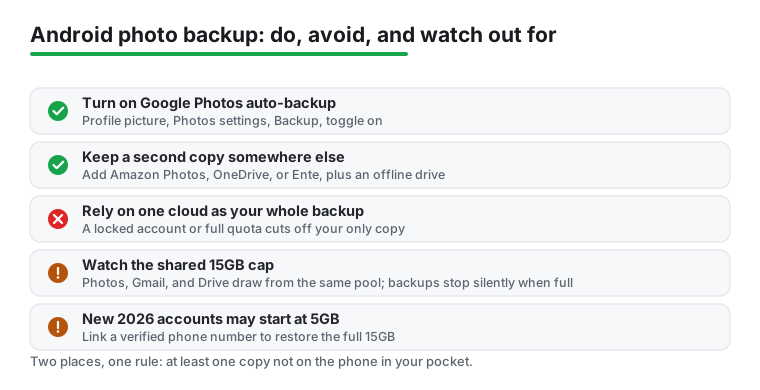
Here is the part that catches people out. Your free Google storage is 15GB, and it is not 15GB just for photos. It is shared across Google Photos, Gmail, and Google Drive together. Years of email with attachments, a few large files in Drive, and a growing photo library all draw from the same pool. People set up backup, forget about it, and a year later it has silently stopped because the bucket is full.
There is also a 2026 wrinkle worth knowing. Google began testing a change where new accounts in some regions start with only 5GB by default and have to link a verified phone number to unlock the full 15GB, as 9to5Google reported in May 2026. Existing accounts that already show 15GB are not affected, so if you have had your account a while you still have the full allowance. But if you set up a fresh Google account this year and see only 5GB, that is why, and adding a phone number in your account settings restores it.
To see where you stand, tap your profile picture in Google Photos and look at the storage readout, or visit your storage page in a browser. When backups stop, the app does not shout about it, so it pays to glance at this now and then.
Inside the Backup menu, Backup quality offers two choices, and the one you pick decides how quickly you burn through that shared 15GB.
Storage saver (Google renamed this from the old "High quality" a few years back) compresses photos down to about 16 megapixels and videos to 1080p. For phone shots that look at on a screen or print at ordinary sizes, the difference is hard to spot, and it cuts the space each photo uses by a large margin. A 16MP image still prints cleanly at sizes most people ever order.
Original quality keeps every file exactly as your camera captured it. That matters if you shoot RAW, record 4K video, or want to crop heavily later. The catch is that originals fill 15GB quickly, especially with video.
A practical middle path: use Storage saver for everyday photos and keep Original only if you genuinely need it. If the cap still pinches, paid storage through Google One starts at $1.99 per month (or about $19.99 a year) for 100GB, as listed on the Google One plans page. Note that Google has been folding these tiers into its Google AI branding during 2026, so the label at checkout may read differently than you expect even though the storage is the same.
This is the caveat nobody mentions when they tell you to "just use Google Photos." Having your photos in one cloud feels safe, but it leaves you exposed in ways that have nothing to do with your phone breaking.
Accounts get locked. A wrong password guess too many times, a payment card that expires, a policy flag you did not see coming, and suddenly you cannot reach a single photo. It is rare, but when it happens to your only copy, it is total. A cloud account is also still one place, and the old backup rule has not changed: a real backup means your photos live in at least two separate places, ideally with one of them not tied to the phone in your pocket.
So treat Google Photos (or any single service) as your convenient first copy, not your whole plan. The fix is simple and the rest of this guide covers it: add a second destination, or keep a local copy on a computer or drive. You do not need to fuss over it daily; you just need two copies to exist.
Google Photos is not the only option. The three services below each have their own section with dated figures, and there is a fourth route that involves no cloud at all.
Local copies. The most durable backup involves no cloud at all. Plug the phone into a computer and drag your camera folder over, or use a file manager to copy photos to an SD card or external drive. It is manual, so set a monthly reminder, but a copy on a drive in a desk survives any account problem.
Prime members, full resolution
4.7 stars from 1,105,215 reviews · 50,000,000+ installs · free to install · in-app purchases $0.99 to $11.99 per item · by Amazon Mobile LLC · Contains ads: No · checked 3 September 2026
Google Play listing · 4.7 (1,105,215) · read 3 September 2026
Amazon Photos is the strongest second copy for anyone already paying for Prime, because photo storage at full resolution is included at no extra cost, with 5GB for video on top. It is free to install with no Contains ads label, and its listing sells storage from $0.99 to $11.99 per item. The blunt con: the unlimited part is a Prime benefit, so it disappears the moment you stop paying for Prime.
A mirror alongside Microsoft 365
4.6 stars from 7,274,052 reviews · 5,000,000,000+ installs · free to install · in-app purchases $0.99 to $129.99 per item · by Microsoft Corporation · Contains ads: No · checked 3 September 2026
Google Play listing · 4.6 (7,274,052) · read 3 September 2026
OneDrive earns its place as a quiet second copy, especially for anyone already inside Microsoft 365: switch on camera upload and it mirrors the camera roll into storage you already pay for. It is free to install with no Contains ads label, and its in-app purchases are storage plans from $0.99 to $129.99 per item. The blunt con: the free tier is 5GB, which a modern camera roll fills in weeks.
Privacy, and nobody else holding the key
4.3 stars from 2,650 reviews · 100,000+ installs · free to install · in-app purchases $0.99 to $24.99 per item · by Ente · Contains ads: No · checked 3 September 2026
Google Play listing · 4.3 (2,650) · read 3 September 2026
Ente is the pick when the point is privacy: photos are encrypted on the phone before they leave it, so the service cannot read them. It is free to install with no Contains ads label, and its listing sells plans from $0.99 to $24.99 per item. The blunt con: it is by far the smallest service here at 2,650 reviews and a 100,000+ install band, so it is a young project rather than an established one.
You do not need to overthink this. Here is a setup that satisfies the two-place rule and then mostly looks after itself:
That is it. Two copies running on their own, plus an offline copy you refresh now and then. If you ever delete something by accident, you have options too, which we cover in the guide on how to recover deleted photos on Android.
A backup is only useful if it keeps running, and the usual reason it stops is that storage filled up. A little housekeeping keeps things flowing.
Clear out duplicates and screenshots you no longer need before they pile up; a good gallery app makes it easy to spot and bulk-delete the junk. Empty Gmail of giant old attachments, since those eat the same 15GB. And if you shoot a lot, point your camera app toward sensible resolution settings so you are not backing up enormous files you will never need at full size.
For more on managing your photos and video end to end, from capture to backup to sharing, the photo and video apps hub pulls the related guides together in one place.
The goal here is boring on purpose. Set the backups, keep a bit of breathing room in your storage, and the next time your phone takes a swim, your photos are already somewhere else, waiting for you.
No, and this is the thing that catches people. The 15GB is shared across Google Photos, Gmail and Google Drive, so a full mailbox eats the space your photos need. Checked 3 September 2026.
Some newer accounts and some regions start at a smaller free allowance. Check the storage page for your own account rather than assuming 15GB, then decide whether a second service or a paid plan is needed. Checked 3 September 2026.
Storage saver for almost everyone: it compresses slightly and stretches the same quota much further. Original quality is worth it only if you edit heavily or print large, and then a paid plan is part of the deal. Checked 3 September 2026.
Not really. One account is a single point of failure: a lockout, a mistaken deletion that syncs, or a full quota all leave you with one copy or none. Pair it with a second service or a local copy. Checked 3 September 2026.
Amazon Photos if you already pay for Prime, since photo storage is included at full resolution. Ente if privacy matters more, though at 2,650 reviews it is a much smaller service. OneDrive makes a tidy mirror at 5GB free. Checked 3 September 2026.
Only if you let it. In the backup settings, restrict uploads to Wi-Fi for both photos and video, and the app waits until you are on a network that does not cost you. Checked 3 September 2026.
Checked 3 September 2026: the guide recommended four services and linked none of them, with no rating, no install band and no dated line anywhere. All four now carry a fact line read from their own listing, a store link, a decision table row with the free tier, and three pros and three cons. One first person aside was withdrawn. The figures that shape the advice: Amazon Photos rates highest at 4.7 stars, and Ente, the privacy pick, is by far the smallest at 2,650 reviews and a 100,000+ install band, which is worth knowing before you trust it with the only second copy.
 Google Play Store Not Working or Won't Download AppsTools & Utilities