
Files by Google is the pick, Cx File Explorer the free one with nothing to buy, Root Explorer the choice for a rooted phone. Our answer, the free pick and the table ↓
Checked 3 September 2026: no pick changed; the three picks re-read 3 September, the other nine stand as read on 7 August
Files by Google is our best overall pick because its listing, read 3 September 2026, rates 4.50 stars, is free and carries no ads label.
Cx File Explorer is our best free pick because its listing, read 3 September 2026, rates 4.76 stars and is free with nothing to buy.
Root Explorer is our rooted phone pick because its listing, read 3 September 2026, sells it once at 4.99 USD with no ads label.
Data checked: 3 September 2026.
Released in August: Pile, a tag-based document manager, read in the best new apps guide.
Ratings, review counts, install bands, prices and store badges below were read from Google Play on 3 September 2026 and drift over time.
Most people
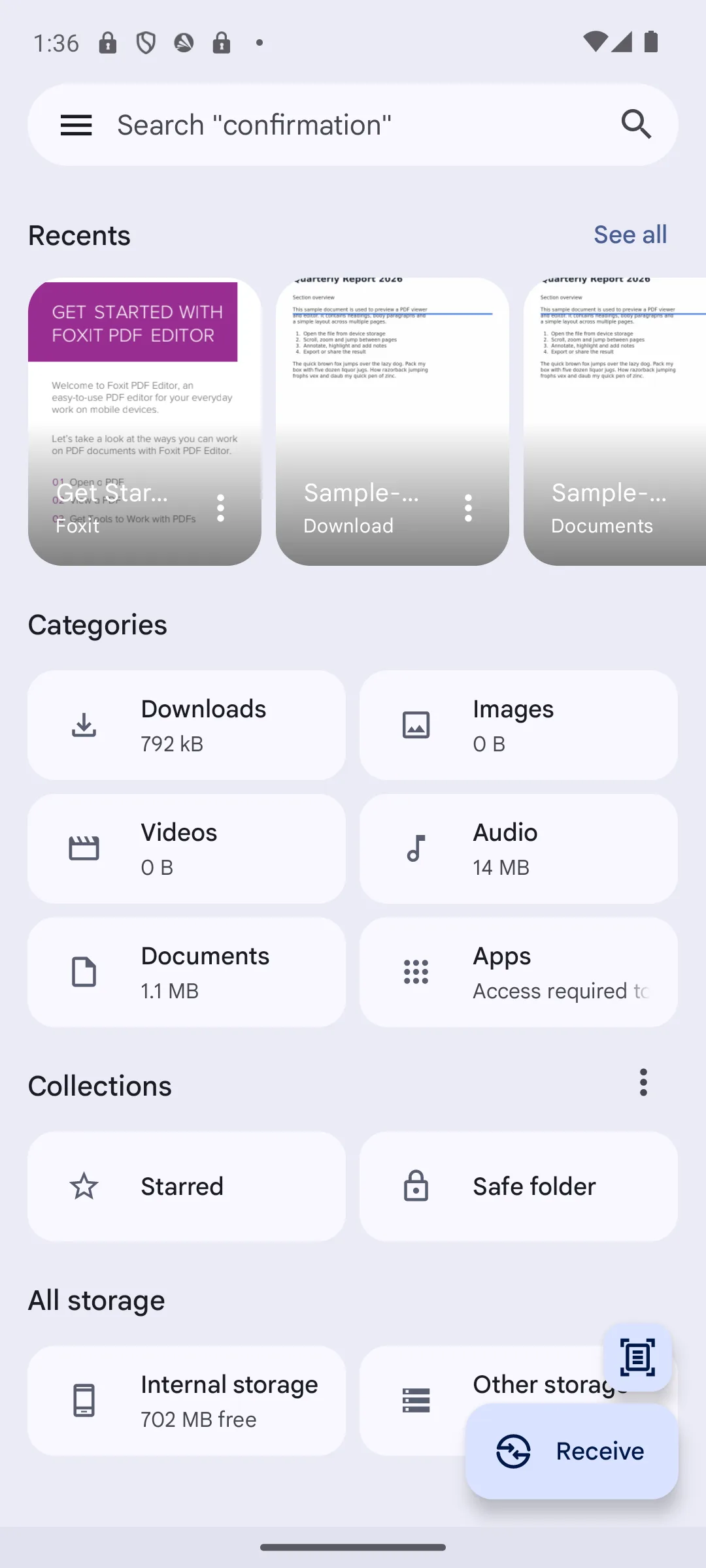
Files by Google is the safe default: free, with no Contains ads badge and no in-app purchases badge on 7 August 2026, and a Clean tab that reclaims space without a paywall. The blunt limit is reach, because its own description offers cloud backup and Quick Share but names no SMB, FTP or WebDAV.
Skip it if you need to browse a NAS or FTP server. Choose it over Cx File Explorer if you want the plainer tool from a named company and never touch network shares.
↑ Back to the comparisonCloud + polish
Solid Explorer is the most complete manager here and the entry whose listing changed. On 7 August 2026 it carries both a Contains ads badge and in-app purchases from 0.99 to 22.99 USD, so the clean paid-app framing this page used no longer matches the store.
Skip it if you want a manager with no ads badge; FX and Cx File Explorer still qualify and this one no longer does. Choose it over X-plore if you prefer a modern Material layout to a file tree.
↑ Back to the comparisonPrivacy, no ads
FX File Explorer has the cleanest funding model on this page: no Contains ads badge and a single 2.99 USD in-app purchase, read from its own badge row on 7 August 2026. The blunt problem is age, because its listing was last updated 9 April 2023, more than three years ago.
Skip it if you want an app that still gets updates. Choose it over Total Commander if you would rather pay 2.99 USD once than see the ads Total Commander now carries.
↑ Back to the comparisonPower per KB
Total Commander is free with no in-app purchases badge at all, which is rare here, and the trade is visible: its listing carries a Contains ads badge on 7 August 2026. The developer still ships, dating the current build on his own page as "What's new in Total Commander 3.62 (February 15, 2026)" at ghisler.com/android.htm.
Skip it if you want networking to work the moment you install. Choose it over FX File Explorer if you would rather tolerate ads than pay anything at all.
↑ Back to the comparisonTinkerers
MiXplorer keeps its place because nothing on Play replaced it, but be clear about the evidence. It is not on Google Play, and the XDA thread that is its only source returned HTTP 403 to our request on 7 August 2026, so we publish no rating, no install count and no price for it today.
Skip it if you want verifiable numbers before installing. Choose it over Total Commander only if you are comfortable sideloading from a forum.
↑ Back to the comparisonNewcomers
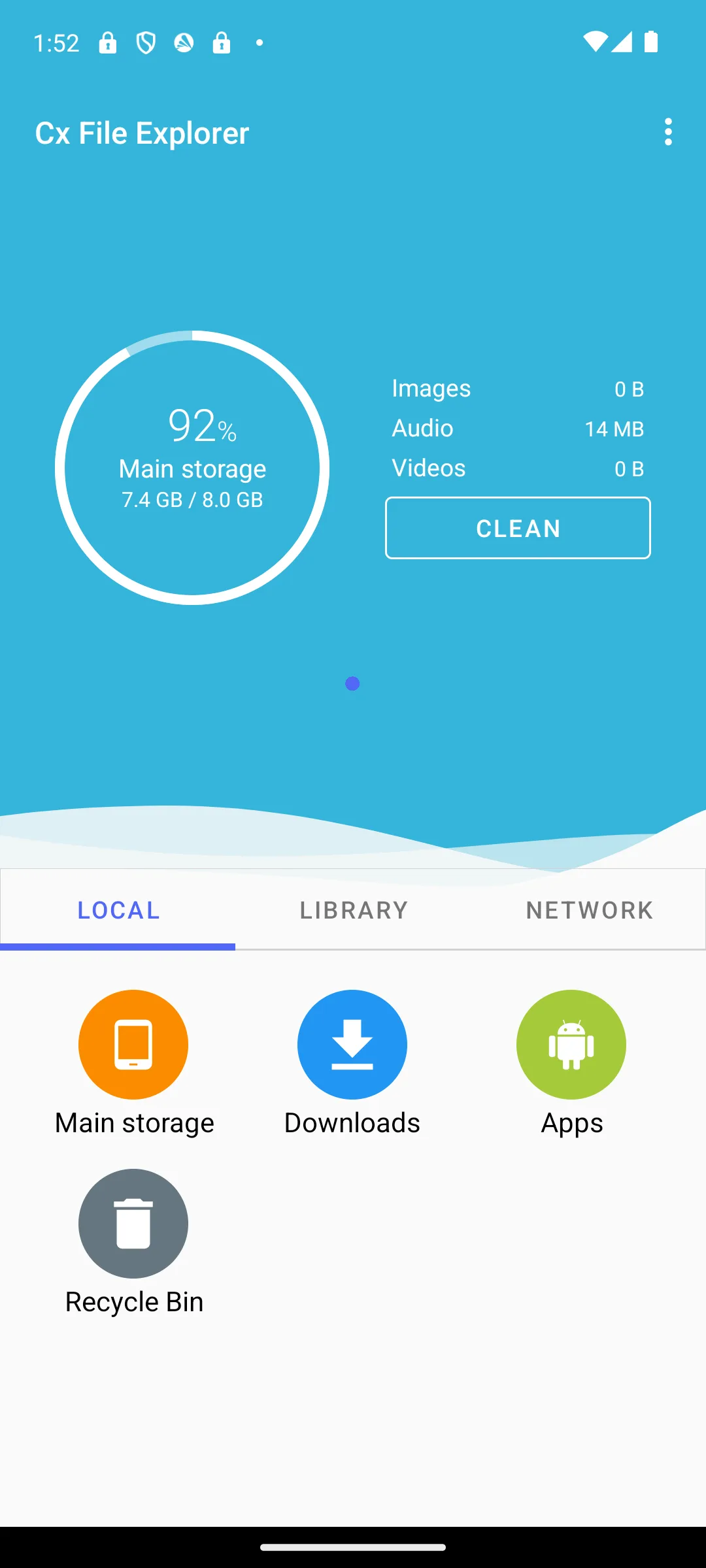
Cx File Explorer holds the highest rating on this page, 4.76 from 347,970 ratings, and on 7 August 2026 its listing shows neither a Contains ads badge nor an in-app purchases badge, which makes it the strongest genuinely free pick. The bluntest con is provenance: the developer field reads only Cx File Explorer, with no company behind it.
Skip it if you need a named, established developer behind an app holding all-files access. Choose it over Files by Google if you need SMB, FTP or WebDAV, which the Files by Google description does not list.
↑ Back to the comparisonOpen source fans
Material Files is free with no ads badge and nothing to buy, and its developer sums it up in one line: "An open source Material Design file manager, for Android 5.0+." (github.com/zhanghai/MaterialFiles, read 7 August 2026). The blunt problem is the store, where the listing has not been updated since 30 June 2024.
Skip it if you want an app that visibly ships on Play rather than only on GitHub. Choose it over Amaze File Manager if you want the same open source stance at 4.38 instead of 3.59.
↑ Back to the comparisonBudget phones
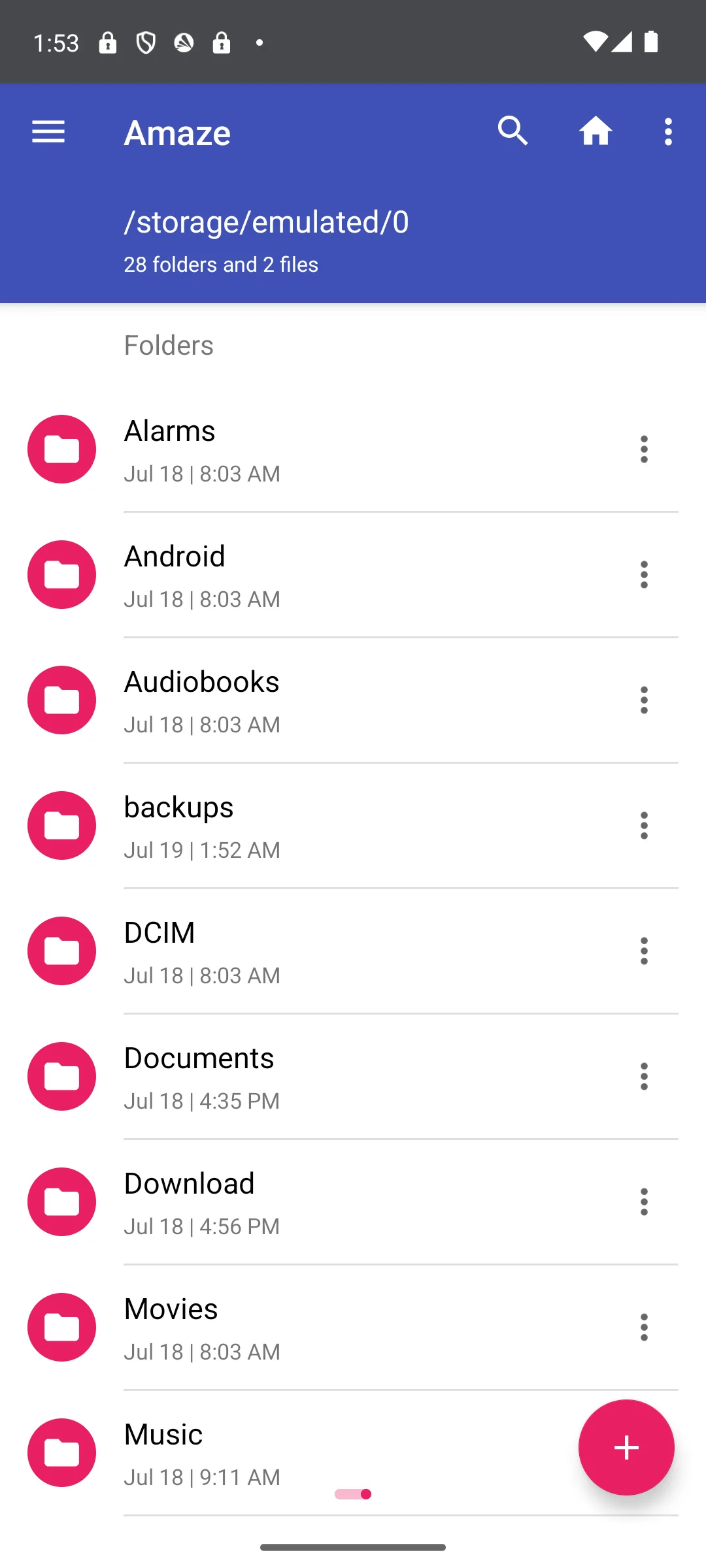
Amaze File Manager is the small open source option that still gets attention, updated 30 July 2026 with no Contains ads badge. This page used to call it simply free; the listing shows in-app purchases from 1.00 to 16.99 USD. The blunt number is 3.59 from 12,841 ratings, the lowest here.
Skip it if a rating under 3.6 puts you off. Choose it over Material Files if you want an open source manager whose listing is still being updated in 2026.
↑ Back to the comparisonPower users
X-plore File Manager copies straight between two cloud accounts, and at 4.37 from 256,836 ratings it is well liked. It is not mostly free in the way this page implied: on 7 August 2026 the listing carries a Contains ads badge and in-app purchases from 1.70 to 17.00 USD.
Skip it if ads are a dealbreaker, because the badge is on the listing. Choose it over Solid Explorer if copying directly between two cloud accounts matters more than a modern layout.
↑ Back to the comparisonSpace cleanup
ASTRO File Manager is free and, as this page already said, carries no Contains ads badge; on 7 August 2026 it carries no in-app purchases badge either. Two things changed: the listing is now published by ST Pulse and has added Cleaner to the app name, and the store page has not been updated since 19 February 2025.
Skip it if you need network shares rather than cloud accounts. Choose it over Files by Google if you want the storage breakdown and duplicate cleanup alongside your browsing.
↑ Back to the comparisonRooted phones
Root Explorer is the only paid entry here: 4.99 USD up front on 7 August 2026, with no ads badge and no in-app purchases behind it. That buys full read and write access to the whole file system on a rooted phone. The blunt part is the audience, because on an unrooted phone it does little the free picks do not.
Skip it if your phone is not rooted. Choose it over X-plore if you do root work and would rather pay once than see the ads X-plore carries.
↑ Back to the comparisonClassic 2-panel
Ghost Commander is the classic two panel manager, and F-Droid still carries it: version 1.64.2b4 was added 15 December 2025 under the GNU General Public License v3.0 only, free with nothing to buy and no ads. The catch is visibility, because it is not on Google Play, so there is no rating or install count to weigh it against the rest of this list.
Skip it if you want a store rating to look at first. Choose it over Amaze File Manager if you want a two panel layout with no in-app purchases of any kind.
Android already includes a Files app that browses folders, deletes, moves downloads and frees a little space. You outgrow it when you need archives, an SMB or FTP share, bulk renaming, or a real storage breakdown. Match the tool to that short list rather than to the longest feature list, and read how each app is funded: a Contains ads badge or an in-app purchase range tells you who pays for development, and four of the twelve here are free with neither.
A file manager needs broad access to do its job, so the permission is not a red flag by itself. On modern Android it is called All files access, known to developers as MANAGE_EXTERNAL_STORAGE, and it lets an app see and change almost everything in your shared storage: documents, downloads, photos and the folders other apps create. Android puts it behind a separate toggle in settings for exactly that reason.
Grant it only to a manager you trust. Read the permission list on the store page, be cautious of any app that demands all-files access for a simple job, prefer a reputable or open source name, and remember the built in Files app avoids the question entirely. You can revoke the grant any time under special app access in settings; Google's overview is a calm place to start: Android. The table at the top of this page sorts all twelve on price, ads, root and network, every cell read 7 August 2026, and a tidy file manager pairs well with your productivity apps and a good PDF reader.
Many phones ship with a built in Files app, and for light use that is enough. Once you work with archives, connect to a network drive over SMB or FTP, or move a lot of files at once, a dedicated manager helps. Files by Google covers the simple end for free, while Solid Explorer and X-plore cover the network end, though both of those now carry ads on their listings.
Every app here except MiXplorer has a public Play listing from a named developer, and MiXplorer is distributed through a forum thread that returned an HTTP 403 error to us on 7 August 2026. Before installing any file manager, read its permission list and the data safety section on the store page, and be careful with any app that asks for all files access to do something simple.
Solid Explorer and X-plore list the widest coverage. Both name SMB, FTP and SFTP servers plus Google Drive, OneDrive and Dropbox in their store descriptions, and X-plore transfers directly between two cloud accounts. Both listings also carry a Contains ads badge and in-app purchases as of 7 August 2026, so neither is free in practice. Cx File Explorer covers the same protocols with no ads badge.
On 7 August 2026, Files by Google, Cx File Explorer, Material Files and ASTRO File Manager all show no Contains ads badge and no in-app purchases badge on their Play listings. FX File Explorer shows no ads badge but lists one in-app purchase at 2.99 US dollars, and Ghost Commander is free on F-Droid. Solid Explorer, Total Commander and X-plore all carry the ads badge.
No. Only Root Explorer is built for rooted phones, and it costs 4.99 US dollars up front. Solid Explorer, Total Commander, Material Files, Amaze and X-plore mention optional root support in their store descriptions, and all of them run normally without it, so you can ignore that feature if it does not apply to you.
All files access, known to developers as MANAGE_EXTERNAL_STORAGE, lets an app see and change almost everything in your shared storage. A file manager genuinely needs broad access to do its job, so the permission is not a red flag on its own. Grant it only to a file manager you trust, such as a reputable or open source app, be wary of any app that demands it for simple tasks, and review or revoke it any time in your phone settings.
For a lot of people, yes. Android includes a built in Files app that handles browsing, deleting, moving and basic cleanup, and it avoids the question of broad storage permissions entirely. You only outgrow it when you need archives, network or cloud browsing, bulk operations, or detailed storage analysis. If none of those describe you, the built in tool is a sensible choice.
 Best Cleaner Apps for AndroidTools & Utilities