
Updated September 2026 · all four apps now carry their own dated listing figures, and ten claims about our own use of them were withdrawn
Everyone has Maps, Gmail, and Chrome. The apps here are the ones Google ships without much fuss, the ones that never show up in an ad. A few are honestly worth your storage. Below is the short version of which ones are worth your storage and which to skip, read from their Play Store listings and Google's own documentation.
Most of these are not preinstalled, so you have to go and get them. The cleanest way is to open the Play Store and search for each app by name: Files by Google, Google Keep, Google Lens, Arts & Culture. Tap Install, wait a few seconds, and the icon shows up in your drawer.
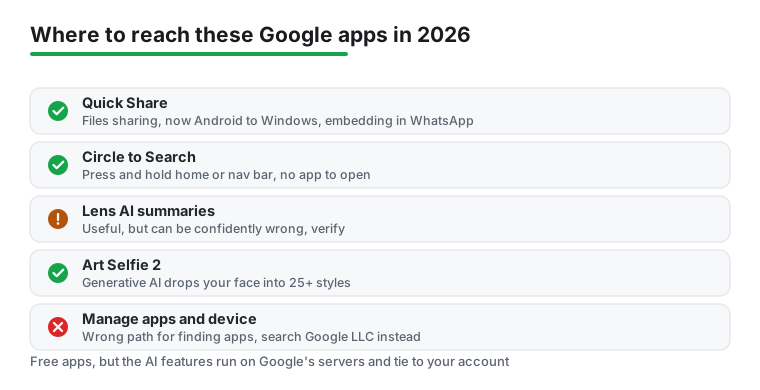
If you would rather browse Google's full catalog in one place, search the Play Store for the developer, "Google LLC," and you get a long list that runs well past the apps that came on your phone. Skip the "Manage apps and device" screen for this. That one is for tidying up what you already have, not for finding anything new. Everything in this guide is free on its own listing: all four carry no in-app purchases and no Contains ads label, read 5 September 2026. If you like digging around for under-the-radar tools, the roundup of 10 Android apps you have never heard of goes well with this one.
If you install one thing from this guide, make it Files by Google. On the surface it is a plain file manager. It earns its spot on the Clean tab, which scans for junk, duplicate photos, old screenshots, and downloads you forgot you had, then clears them in a couple of taps. There is also a Safe folder you can lock behind a PIN, for scans of a passport or the odd tax document, so they stay out of the main gallery.
The sharing side is the part that changed, and the old wording on a lot of guides is now wrong. The phone-to-phone transfer in Files runs on Quick Share. Google folded its old Nearby Share into Quick Share back in 2024, so it is one system now instead of two competing ones, and it reaches past Android. You can send a file straight to a Windows PC with the Quick Share app installed, no cable and no cloud round trip in between. In 2026 Google also started building Quick Share into other apps, beginning with WhatsApp, so you can hand off a file inside a chat without jumping to a separate share sheet. One honest caveat: that in-app rollout is staged by manufacturer, so whether you see the WhatsApp version yet depends on your phone.
The first install: storage cleanup and phone-to-phone sharing
4.5 stars from 9,022,878 reviews · 5,000,000,000+ installs · free · no in-app purchases · listing updated 17 August 2026 · by Google LLC · Contains ads: No · checked 5 September 2026
Google Play listing · 4.5 (9,022,878) · read 5 September 2026
The first install on this page, and the one the rest of the guide leans on. Free, no in-app purchases and no Contains ads label on a listing read 5 September 2026, at 4.5 stars from 9,022,878 reviews and 5,000,000,000+ installs, the widest reach of any app here. The bluntest con sits on its own data safety card: it says data cannot be deleted, and it is the only one of the four listings to say so.
Google Lens points your camera at something and tells you what it is. Aim it at a plant and it names the species, hold it over a foreign menu and it translates on screen, sit it on a math problem and it works through the steps. Worth updating, though: you mostly do not need the standalone Lens app anymore. The same engine lives in the Google app and in Photos, and the quickest access point now is Circle to Search. Press and hold the home button or nav bar, circle anything on screen, and it searches that, no app to open. In 2026 this side got smarter. Lens and Circle to Search now tie into Google's AI Mode, so they can break down several objects in one photo at once, write a short summary instead of just a list of links, and run a basic "is this AI generated?" check. It is not perfect, and the summaries can be confidently wrong, so treat them as a starting point, not a verdict.
Google Keep is the sticky-note app that does more than the name suggests. Notes sync across devices as you type, checklists make a grocery run painless, and location reminders can nudge you when you actually walk into the shop. You can pin a note and tag it with a color, which is what stops a shopping list from drowning under work scraps. Keep got a real refresh through 2025 and into 2026: the new Material 3 look, a redesigned quick-capture widget, and a desktop web app you can install like a normal program. Search improved too, reaching into typed text, the text inside images, your handwriting, and audio transcripts, not just note titles.
Arts & Culture is the quiet surprise. It is a free window into thousands of museums, with artwork scanned at a resolution high enough to zoom into brushstrokes for far too long. The old selfie feature is still there, the one that matches your face to a lookalike portrait, but the headline now is Art Selfie 2. That one uses generative AI to drop your face into a set of historical and artistic scenes, an explorer on Everest, a muse in Monet's garden, a medieval knight, each with a short note on the era behind it. It is a gimmick, but a fun one, and the museum browsing underneath is the real reason to keep the app.
Camera search, if your phone has no Circle to Search
4.7 stars from 2,858,768 reviews · 1,000,000,000+ installs · free · no in-app purchases · listing updated 5 August 2025 · by Google LLC · Contains ads: No · checked 5 September 2026
Google Play listing · 4.7 (2,858,768) · read 5 September 2026
The standalone app is the one this page says you mostly no longer need, and its listing agrees in its own way: read 5 September 2026, it was last updated on the store on 5 August 2025, the oldest of the four, while the same engine ships inside the Google app, Photos and Circle to Search. It is still free with no in-app purchases and no Contains ads label, at 4.7 stars from 2,858,768 reviews on 1,000,000,000+ installs.
Quick notes and lists that sync as you type
4.7 stars from 2,554,698 reviews · 1,000,000,000+ installs · free · no in-app purchases · listing updated 31 August 2026 · by Google LLC · Contains ads: No · checked 5 September 2026
Google Play listing · 4.7 (2,554,698) · read 5 September 2026
The notes app, and the freshest listing on this page: updated on the store on 31 August 2026 and read 5 September 2026, free with no in-app purchases and no Contains ads label, at 4.7 stars from 2,554,698 reviews on 1,000,000,000+ installs. The con is structural rather than on the card: every note lives in your Google account, so the sync that makes it useful is also the account tie-in the permissions section describes.
Museum browsing, with the selfie gimmick on top
4.2 stars from 56,138 reviews · 10,000,000+ installs · free · no in-app purchases · listing updated 25 June 2026 · by Google LLC · Contains ads: No · checked 5 September 2026
Google Play listing · 4.2 (56,138) · read 5 September 2026
The niche pick, and the smallest listing here by a wide margin: 10,000,000+ installs and 4.2 stars from 56,138 reviews, the lowest rating of the four, read 5 September 2026. It is free with no in-app purchases and no Contains ads label, and the museum browsing is the reason to keep it; Art Selfie 2 is the gimmick on top. The con the listing cannot show you is storage: high-resolution downloads add up fast.
A few small settings make these better day to day. In Files by Google, turn on Smart Storage so it clears already-backed-up photos when space runs low, which keeps the Clean tab from ever getting urgent. In Keep, long-press a note to pin it and lean on color labels so the important stuff floats above the noise.
For anything Lens used to do, reach for Circle to Search instead. The press-and-hold gesture beats hunting for an app icon, and it works on whatever is already on screen, a photo a friend sent, a product in a video, a word you do not know. If your phone supports it, that one shortcut saves several trips into the Google app. Both Keep and Files also offer home-screen widgets that surface your latest items, which save a tap on the way in.
These are Google apps, so the usual bargain applies. Lens and Circle to Search need to see your screen or camera to do anything, and Files asks for storage access, both fair for what they do. The thing to watch is the account tie-in. Several of these feed activity back to your Google account, and the AI features in particular send what you search to Google's servers to get answered. If that sits badly with you, open your account's activity controls and switch off whatever you do not want logged. Most core features work without that, but the smart stuff leans on the cloud by design. All four data safety cards, read 5 September 2026, say no data is shared with third parties; the Files by Google card is the only one that says data cannot be deleted.
The downsides are mild but real. Some of these apps, and some newer Lens and Quick Share features, are not available in every country or on every phone yet, so your Play Store may not show all of it. Arts & Culture eats storage fast if you download many high-resolution images. And Files, polish aside, is a basic file manager once you step past the cleaning tools, so if you move and rename files all day you will want something with more under the hood.
If Google's quieter shelf left you wanting more, the Play Store is full of small developers doing interesting work. The method for turning them up is in the guide to finding new apps on the Play Store, which teaches the search tricks and the vetting checks rather than naming single titles. For where to actually find and vet new apps without getting burned, the best app store apps for Android pillar walks through the stores worth trusting. And if you just like a good utility, the tools and utilities hub collects more of the same.
Yes. Files by Google, Keep, Lens, and Arts & Culture are all free to download and use, and all four listings, read 5 September 2026, show no in-app purchases and no Contains ads label. A few offer optional cloud storage upgrades tied to your Google account, but you can ignore those. The AI-powered features in Lens and Circle to Search are free too, though they run on Google's servers rather than fully on your phone.
Phone makers pick which Google apps to preinstall, and most ship only the core set like Maps and Gmail. The smaller ones are left for you to add from the Play Store, which is part of why they fly under the radar. The easiest way to find the rest is to search the Play Store for the developer name, "Google LLC."
Start with Files by Google. It helps the widest range of people, since it cleans up storage, finds duplicate files, and shares things phone to phone through Quick Share without going over the internet. Its listing, read 5 September 2026, shows 4.5 stars from 9,022,878 reviews on 5,000,000,000+ installs, and Quick Share now reaches Windows PCs too, not just other Android devices.
Mostly yes. Files by Google in particular was built to run well on older and lower-end phones. Some of the newer tricks, the AI breakdowns in Lens, Circle to Search, and a few Quick Share features, need a more recent Android version and a capable phone, and a handful are still rolling out by region and device.
No. All four listings, read 5 September 2026, are free to install with no in-app purchases and no Contains ads label, and all four data safety cards say no data is shared with third parties. The ratings are not equal: Google Keep and Google Lens sit at 4.7 stars, from 2,554,698 and 2,858,768 reviews, Files by Google at 4.5 stars from 9,022,878 reviews, and Google Arts and Culture at 4.2 stars from 56,138 reviews, the lowest of the four.
Checked 5 September 2026: the page named four Google apps and linked none, with no ratings, no ads labels, no table and no dated line. All four now carry fact lines read today, and the listings contradicted nothing the page said about price or ads: every one is free with no in-app purchases and no Contains ads label. Ten claims about our own use are withdrawn: the one I actually open every day, I freed just over 3 GB in about five minutes, where I park scans of my passport, On two phones in the same room it was quick, none of it asked me for money, I did not expect to lean on, saved me a tap more often than I expected, more of what I have put through real use, On the test phone it freed several gigabytes, and none of them asked me for payment. The count of Art Selfie 2 scenes is withdrawn too, because no listing read today publishes it. Two facts worth stating plainly: the Google Lens listing was last updated on 5 August 2025, and the Files by Google data safety card is the only one of the four that says data cannot be deleted.