
Checked 27 September 2026
PDFgear is the free pick with nothing to buy, Adobe Acrobat Reader the one for reading and signing, Foxit the professional editor behind a paywall. Our answer, the free pick and the table ↓
Checked 27 September 2026: no pick changed since 18 August; 3 ratings fell 0.1 and all 10 review counts moved; Microsoft's listing renamed; Desygner PDF Editor added
Full logEleven Android PDF editors, weighed on the one question that decides it: can you change the words already in the file, and what does that cost. Every editing answer comes from the vendor rather than from us.
PDFgear is our best free Android PDF editor because it is the only one of the eleven listings here that carries no advertising label and sells nothing at all, and its developer states that exported files carry no watermark, with the real limit that it edits text only in searchable PDFs rather than scans. Proofed 27 September 2026
Adobe Acrobat Reader is our pick for reading, filling and signing because its own listing files all three under free to use features and it rates 4.5 across the largest review base of the true editors here, though the same listing files text editing under paid features and carries the Contains ads label. Proofed 27 September 2026
Foxit PDF Editor is our pick for professional work because its own manual heads the relevant section Add and Edit Text Objects, Subscription Required, which is the clearest statement of a paywall any vendor on this page makes. Proofed 27 September 2026
Data checked: 27 September 2026.
Every rating, review count, install figure, price, purchase range and advertising label on this page was read from each app's own Google Play listing on the date printed in that app's own fact line in the United States storefront, reached through that app's own store link. The editing column is established separately, in a fixed order: the vendor's own help centre, manual or plan comparison first, then the vendor's own listing description, and nothing else. Review sites and user reviews are not sources for it. Where the two vendor sources disagree, this page states the disagreement rather than choosing the friendlier reading, and where a vendor documents nothing, the page says that instead of guessing. The screenshots are our own emulator captures, dated in their captions. We re-check this page quarterly.
Most people
4.5 stars, 7,995,920 reviews · 500,000,000+ installs · free to install · in-app purchases $0.99 to $299.99 per item · by Adobe · Contains ads: Yes · checked 27 September 2026
Google Play listing · 4.5 (7,995,920) · read 27 September 2026
Adobe Acrobat Reader is the pick for reading, filling and signing, all of which its listing puts under a heading reading Free-to-use features. Changing the words themselves is not there. The listing is titled Adobe Acrobat Reader: Edit PDF on 27 September 2026, yet it files text editing under Paid features, in its own words: With our PDF editor, edit text and images directly in your document
. The blunt con is the second one: its listing carries the Contains ads label.
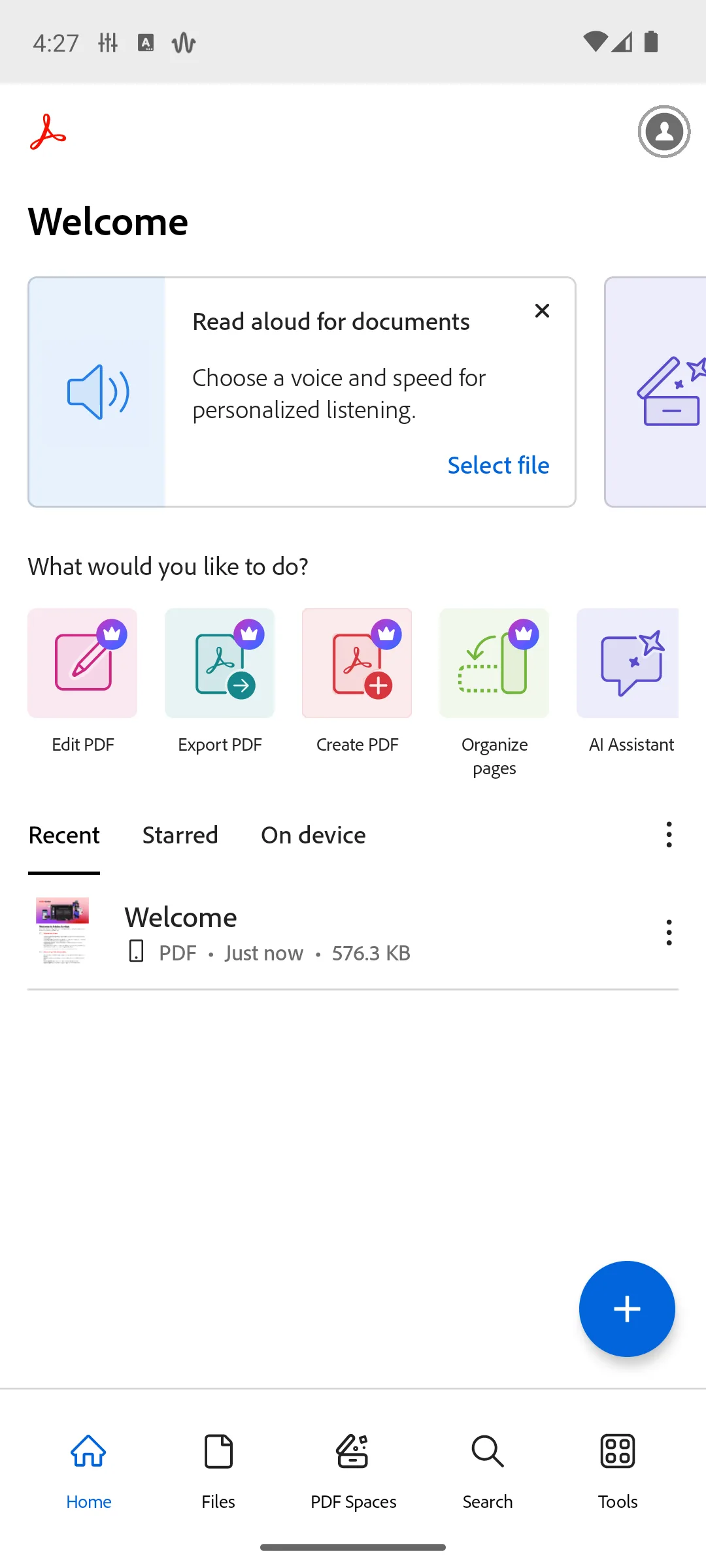
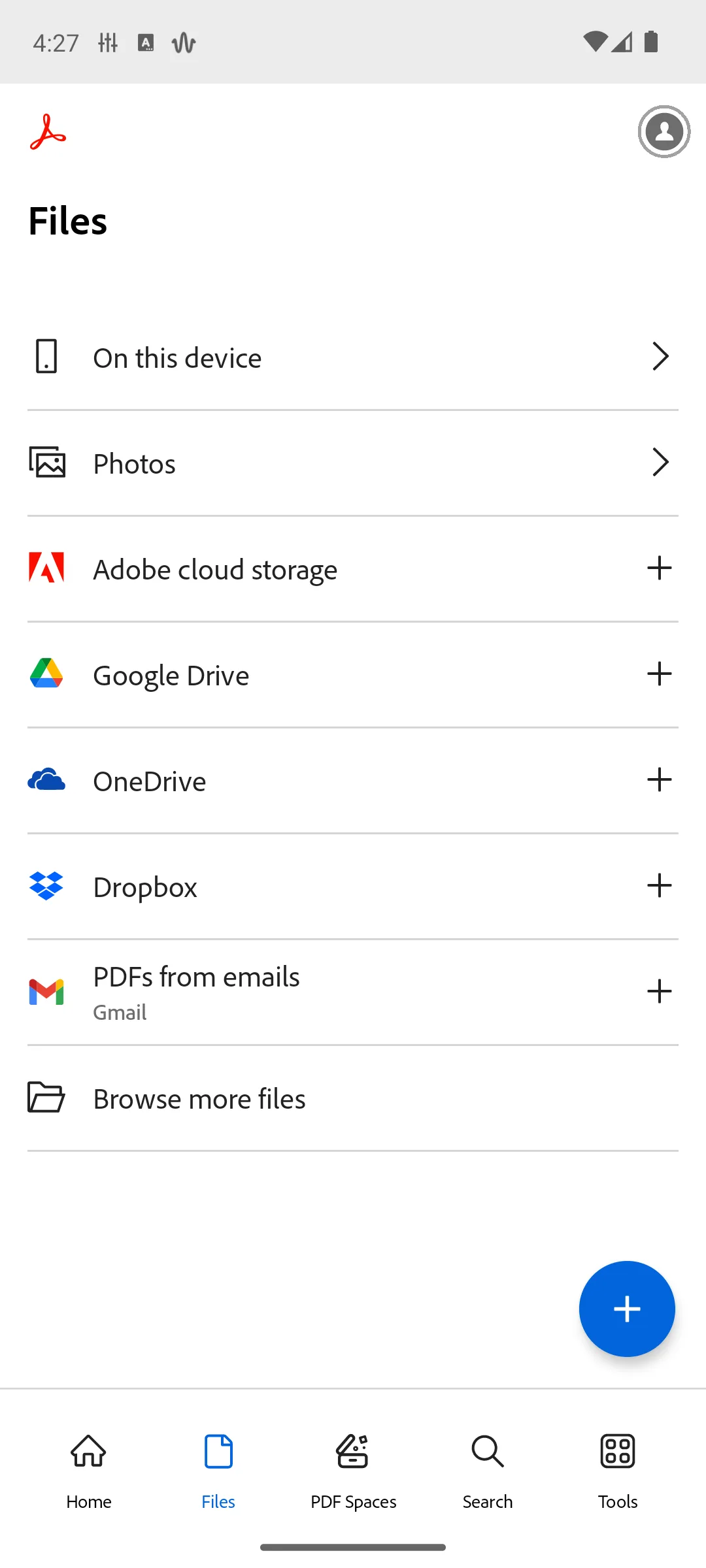
Our own capture above shows the split without needing a word of explanation: the Edit PDF, Export PDF, Create PDF and Organize pages tiles all carry the premium crown, and the free tools do not. One thing this page used to state and can no longer source: it named a monthly price for Acrobat Premium. Adobe's own pricing and help pages could not be opened from here on 18 August or on 27 September 2026, and the only figure we can stand behind is the in-app purchase range on the listing itself. Adobe also documents nothing about what the adverts on the listing are, or whether paying removes them.
Pros: free fill, sign, annotate and Liquid Mode reading, all named as free on the listing itself; the largest install base of the true editors here; a 7 day free trial of the paid features, documented on the listing. Cons: no text editing at any free tier: the listing files it under Paid features; the listing carries the Contains ads label, and Adobe documents nothing about what those adverts are; a purchase range up to $299.99 per item on the listing read 27 September 2026, second only to Desygner PDF Editor on this page.
Skip it if you need to rewrite words without paying, which PDFgear does free. Choose Acrobat over Xodo for uncapped free filling and signing. For a form, How to Fill Out a PDF Form on Android separates real fields from flat scans.
↑ Back to the comparisonReading and markup
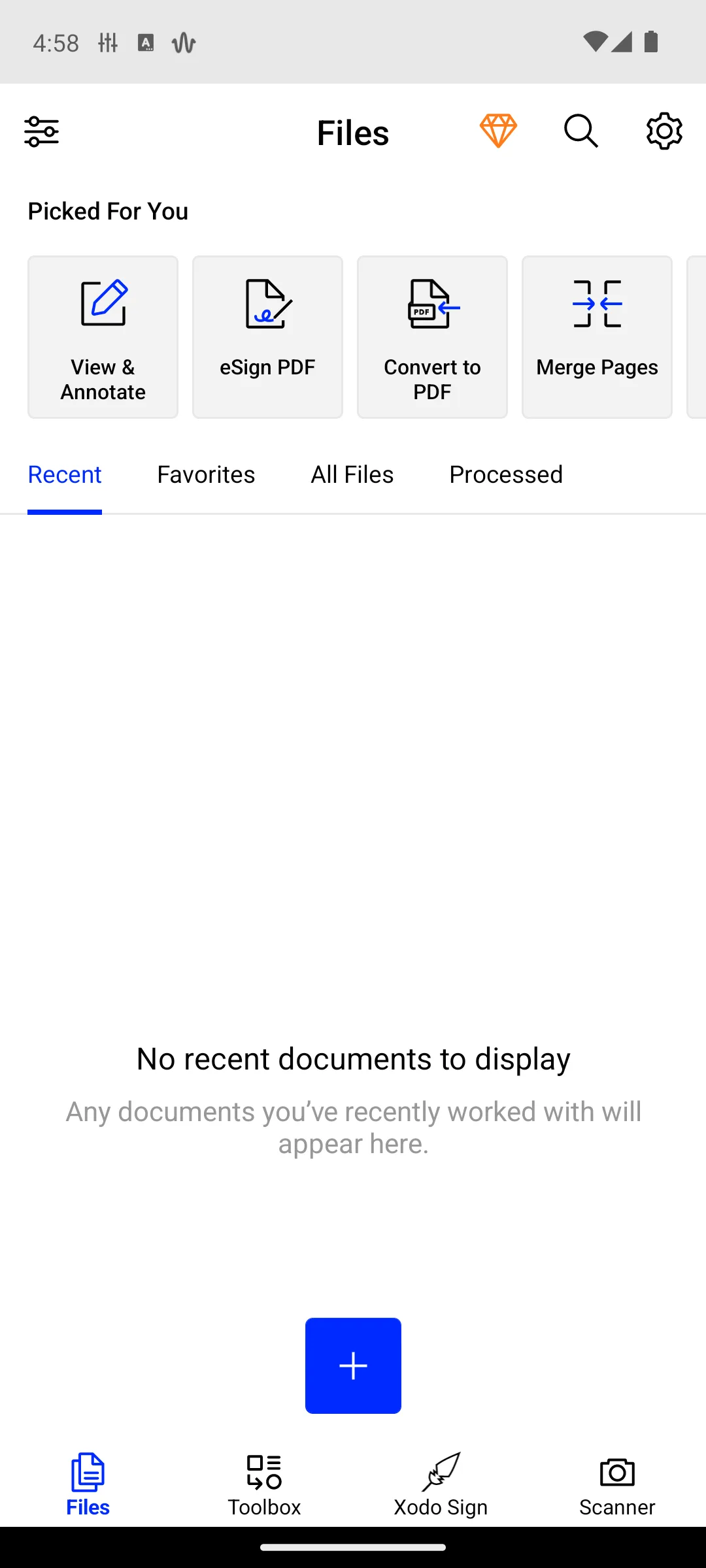
4.2 stars, 475,690 reviews · 10,000,000+ installs · free to install · in-app purchases $2.99 to $109.99 per item · by Apryse Software Inc. · Contains ads: No · checked 27 September 2026
Google Play listing · 4.2 (475,690) · read 27 September 2026
Xodo is quick and its listing carries no advertising label, which is the honest reason to pick it for reading and markup. The blunt con is that Xodo documents no true in place text editing on Android at all. Xodo's own help centre publishes an article titled How to edit PDF text (Premium)
, and the method it documents is not a text tool: redact the old text, lay a Free Text annotation over the gap, then flatten it.
Corrected on this update. Two corrections this page owed you. Its Android listing lists adding or editing text as a plain feature with no paywall marking, so the listing and the help centre disagree, and this page now says so instead of picking the reading it prefers. And the line this page built a whole recommendation on, that everyone gets one free action a day, is real but is scoped on Xodo's own pricing page to Xodo Web tools. Applying it to the Android app was our error, and it is withdrawn.
What Xodo does document for the mobile subscription is an action cap without a published number: unlimited actions is listed as a premium item, and viewing and annotating stay free for personal use only. The tier is also no longer called Pro on Xodo's own pricing page, which sells a document suite that includes access to Xodo Mobile.
Pros: no advertising label on the listing, unlike four of the eleven here; quick, responsive markup that holds up on large image heavy files; the developer publishes step by step guides for its Android app, which several rivals here do not. Cons: no true in place text editing is documented for Android; the published method is redact and retype; the free tier has an action cap the developer never puts a number on; its own listing and its own help centre disagree about whether editing text is free.
Skip it if you need to change the words in a document rather than cover them. Choose Xodo over WPS Office for markup with no advertising label.
↑ Back to the comparisonAll in one office
4.3 stars, 5,992,954 reviews · 500,000,000+ installs · free to install · in-app purchases $0.05 to $264.99 per item · by WPS SOFTWARE PTE. LTD. · Contains ads: Yes · checked 27 September 2026
Google Play listing · 4.3 (5,992,954) · read 27 September 2026
WPS Office keeps documents, spreadsheets and PDFs in one app, and its free tier genuinely covers reading, annotating and signing. The price of that breadth is on its own listing, which carries the Contains ads label. The blunt con for a PDF reader is the paywall placement: on WPS's own comparison table the row reading Edit PDF text is blank in the free column and ticked in both paid ones, and the same holds for editing images, editing links and every PDF conversion row.
That comparison page states its prices apply to PC and Android, so this is not a desktop only paywall being read across. It is worth being precise about what free does cover: basic PDF features and a free PDF reader, in WPS's own wording. The same page, read 27 September 2026, lists No advertising among the paid WPS Pro+ benefits.
Pros: one app for documents, sheets and PDFs, with free reading and annotation; the developer publishes a feature by feature comparison of free against paid, which makes the paywall checkable; one of the two largest install bases on this page. Cons: the listing carries the Contains ads label; every PDF editing and conversion row is paid on the developer's own comparison; a wide purchase ceiling for what is, on the PDF side, a reader until you pay.
Skip it if you want a dedicated PDF tool rather than an office suite. Choose WPS over Foxit if you need documents and spreadsheets more than deep PDF work.
↑ Back to the comparisonPower users
3.9 stars, 211,724 reviews · 10,000,000+ installs · free to install · in-app purchases $0.99 to $139.99 per item · by Foxit Software Inc. · Contains ads: No · checked 27 September 2026
Google Play listing · 3.9 (211,724) · read 27 September 2026
Foxit is the professional pick, and it is refreshingly unambiguous about where the money starts. Its own mobile manual heads the relevant section Add and Edit Text Objects (Subscription Required)
, and describes editing existing text objects in a PDF file directly. The blunt con: at 3.9 stars on its Google Play listing, read 27 September 2026, it is the lowest rated app here, and the free tier opens, views and annotates only; that listing carries no advertising label.
Foxit documents nothing about watermarking free or trial output, so this page does not claim either way.
Pros: genuine in place text editing, documented by the developer in its own manual; OCR for scanned pages on the subscription; no advertising label on the listing. Cons: the lowest rating on this page; the free tier opens, views and annotates only; Foxit documents nothing about watermarking free or trial output.
Skip it if you edit a PDF twice a year. Choose Foxit over MobiPDF for subscription text editing on a listing with no advertising label; MobiPDF's listing carried the Contains ads label on 27 September 2026.
↑ Back to the comparisonMicrosoft users
4.5 stars, 9,235,813 reviews · 1,000,000,000+ installs · free to install · in-app purchases $0.49 to $199.99 per item · by Microsoft Corporation · Contains ads: Yes · checked 27 September 2026
Google Play listing · 4.5 (9,235,813) · read 27 September 2026
This entry is here because the package many readers still think of as the Office app now serves something else, and knowing that saves an install. Its Google Play listing, read 27 September 2026, is titled Microsoft Copilot and calls the app the AI built for work, and it mentions PDF exactly once, to say you can upload a PDF and ask questions about it. The blunt con is the simplest one on this page: it does not edit PDF text at any tier, and its listing carries the Contains ads label.
Corrected on this update. This page previously described it as a PDF companion that signs, annotates and converts photos or Word files into PDFs. That description belongs to the app this listing used to serve. It is withdrawn rather than softened, because the listing no longer supports it.
Pros: the largest install base on this page by a wide margin; it will answer questions about a PDF you upload, which nothing else here does; it ties into the Microsoft account you may already have. Cons: it does not edit PDF text at any tier; its listing carries the Contains ads label; the product under this listing has changed, so older advice about it is unreliable; its Data safety section, read 27 September 2026, says data is not encrypted.
Skip it if you came for a PDF tool at all. Choose PDFgear over it to change the words in a PDF at no cost, or Adobe Acrobat Reader to fill and sign.
↑ Back to the comparisonBalanced editing
4.1 stars, 36,603 reviews · 5,000,000+ installs · free to install · in-app purchases $0.99 to $129.99 per item · by Wondershare Technology (Hunan) Co.,Ltd. · Contains ads: No · checked 27 September 2026
Google Play listing · 4.1 (36,603) · read 27 September 2026
PDFelement is the approachable editor: text and image changes without hunting through menus, plus OCR on scans, and no advertising label on its listing. The blunt con is that its free tier is not a free tier. On Wondershare's own Android page the free column is headed Free Trial, and the row for editing text carries the value one day free trial rather than a tick.
Corrected on this update. This page used to call that cell free with a watermark, which describes the familiar bargain of editing forever and accepting a mark. That bargain is not on offer. The route without an account is capped at three days and runs on watching adverts, and Wondershare's FAQ on that same page, read 27 September 2026, states plainly that both the unregistered and the registered trial versions add a watermark to the file when you save it, and that OCR, compress and convert are unavailable in the registered trial. The only row on that comparison with an unqualified free tick is annotating.
That distinction is the one this page most needed to get right, because the vendor itself draws it: annotating is free, changing the words is not.
Pros: genuinely approachable text and image editing once you pay; OCR included in the paid plans rather than sold separately; no advertising label on the listing. Cons: editing existing text is time boxed to a trial, not free; both trial routes add a watermark on save, in the developer's own words; the smallest review base of the true editors here.
Skip it if you will not pay, since the free route expires in days rather than being capped. Choose PDFelement over Smallpdf for on device editing rather than cloud processing.
↑ Back to the comparisonOccasional use
4.4 stars, 124,373 reviews · 5,000,000+ installs · free to install · in-app purchases $7.99 to $119.99 per item · by Smallpdf AG · Contains ads: No · checked 27 September 2026
Google Play listing · 4.4 (124,373) · read 27 September 2026
Smallpdf is task first: pick compress, convert, merge or sign and it walks you through, which keeps a one off job genuinely quick. On editing it is blunt in its own words: its own page says direct text editing is a feature available with a Pro subscription. The blunt con for a free user is the cap: its Android listing says the app is free to use with one daily tool task.
Corrected on this update. This page used to say text editing worked via conversion. Smallpdf markets against exactly that: its own copy says four separate times that you edit text in PDFs directly, without converting to Word first. The cell described a workflow the vendor tells people to avoid, and buried the fact that the feature is paid.
The free tier does cover annotating, highlighting, drawing and form filling, which Smallpdf keeps as separate features from editing text. Files are processed on Smallpdf's servers for several tools, which is the thing to weigh before sending a contract through it; its Google Play listing, read 27 September 2026, says uploaded files are deleted one hour after processing unless saved, and prices Pro at $7.99 a month after a 7 day free trial.
Pros: guided flows that make a single chore fast; no advertising label on the listing; the developer publishes a plan by plan feature table, so the paywall is checkable. Cons: editing existing text needs the Pro subscription; the Android listing documents one free tool task per day; several tools upload your file to Smallpdf servers.
Skip it if your PDFs are sensitive, or you need more than one task a day. If the only job is a smaller file, How to Compress a PDF on Android Without Wrecking the Text names compressors that work on the phone. Choose Smallpdf over iLovePDF for guided single jobs; iLovePDF handles bigger batches.
↑ Back to the comparisonConvert and merge
4.6 stars, 343,842 reviews · 10,000,000+ installs · free to install · in-app purchases $5.99 to $46.99 per item · by iLovePDF · Contains ads: No · checked 27 September 2026
Google Play listing · 4.6 (343,842) · read 27 September 2026
iLovePDF packs merge, split, compress, convert, OCR and signatures into one tidy toolbox, with no advertising label and the joint highest rating on this page. It also does more than this page used to credit it with: iLovePDF's own Android post says its Content Editor lets you edit actual PDF text, and distinguishes that from tools that only add notes. The blunt con is volume: the free plan processes a limited number of documents.
One thing this page will not tell you, because iLovePDF does not: whether the Content Editor itself is free or paid on Android. The developer's two Android posts about it carry no pricing language at all, and its pricing table marks mobile access as not included on the free plan while listing the editing tool as available. Those two readings disagree, so the tier is left unstated rather than guessed.
Pros: the broadest toolset here in one app, and the cheapest paid range; its own Android documentation describes editing actual PDF text, not just annotation; the joint highest rating on this page, with no advertising label. Cons: the free plan caps how many documents you can process; the developer does not document whether the text editor is free or paid on Android; several tools process files on iLovePDF servers.
Skip it if you need a documented answer on price before you install. Choose iLovePDF over PDFgear for batch file chores; choose PDFgear to edit words with a documented price of nothing.
↑ Back to the comparisonFree text editing
4.6 stars, 46,559 reviews · 1,000,000+ installs · free to install · no in-app purchases · by PDF GEAR TECH PTE. LTD. · Contains ads: No · checked 27 September 2026
Google Play listing · 4.6 (46,559) · read 27 September 2026
PDFgear is the free pick, and it is the only listing of the eleven that carries no advertising label and sells nothing at all. The blunt con: PDFgear's Android page says the app edits existing text only in searchable or selectable PDFs, so a scan or a photo of a page has nothing to edit until OCR adds a text layer, and How to Make a Scanned PDF Searchable with OCR on Android covers three free ways to add one. That is the line between this being the answer and being the wrong tool.
The developer pitches it on its own site as A free PDF editor app for Android to read, summarize, edit, fill out, sign on, and organize PDFs
, and its Google Play listing, read 27 September 2026, says every function is free without limits such as a trial watermark or a page count. The other honest caveat is scale: this is the smallest install base on the page, so it has had the least exposure of anything here.
Pros: the only listing here with no advertising label and no in-app purchases at all; the developer states that exported files carry no watermark; the joint highest rating on this page. Cons: it only edits text in searchable PDFs, so a scanned page needs OCR elsewhere first; the smallest install base on this page; complex layouts can shift when text is edited, which is a general limit of on device editing.
Skip it if your PDFs are scans, or pixel accurate layout on dense contracts matters more than price. Choose PDFgear over MobiPDF to edit text free; choose MobiPDF for OCR.
↑ Back to the comparisonA few edits a month
4.4 stars, 183,477 reviews · 10,000,000+ installs · free to install · in-app purchases $2.99 to $999.99 per item · by Desygner Pty Ltd · Contains ads: No · checked 27 September 2026
Google Play listing · 4.4 (183,477) · read 27 September 2026
Desygner PDF Editor is the capped alternative to PDFgear: its Google Play listing, read 27 September 2026, carries no advertising label, describes changing words, font, size and color directly on the page, and says a free account includes 5 PDF edits and 20 PDF tool operations every month. The blunt con is in the same listing: editing text needs a free account, and editing PDF text in the full editor needs an internet connection.
Desygner's own PDF editor page, read 27 September 2026, says the basic plan edits PDFs for free and that its OCR lets you edit the text of a scanned document, which the listing calls Scan to text and says also needs a connection. Desygner documents nothing about whether free exports carry a watermark, so this page does not claim either way. Merging, splitting, compressing, signing and filling forms run on the phone and work offline, per the same listing.
Pros: real text editing documented on both its listing and its own site; OCR for scans in the same app; no advertising label, and its Data safety section, read 27 September 2026, says you can request that data be deleted. Cons: free text editing is capped at 5 edits a month and needs an account, per the listing read 27 September 2026; text editing and OCR need a connection; the widest purchase range on this page, up to $999.99 per item on the same listing.
Skip it if you edit more than a handful of PDFs a month without paying, or need to edit text with no connection. Choose Desygner over PDFgear when the PDF is a scan that needs OCR before its words can change; choose PDFgear for uncapped free edits on a searchable file.
↑ Back to the comparisonEveryday tools
4.4 stars, 179,063 reviews · 10,000,000+ installs · free to install · in-app purchases $4.99 to $149.99 per item · by MobiSystems · Contains ads: Yes · checked 27 September 2026
Google Play listing · 4.4 (179,063) · read 27 September 2026
MobiPDF, formerly PDF Extra, rounds out the list with comfortable everyday tools: signing, commenting, text edits and OCR. MobiSystems publishes a plan comparison, and on it the row covering editing text and images and reordering pages is crossed in the free column and ticked in the paid ones. The blunt con is that its listing carries the Contains ads label.
One row on that same comparison did not make it onto this page before and should have: printing without a watermark is listed as a paid feature. So the free tier marks what it prints, which is the kind of surprise that arrives at the worst moment.
Pros: text editing and OCR from one mid priced subscription; the developer publishes a plan by plan comparison, so the paywall is checkable; a comfortable reading experience across everyday tasks. Cons: the listing carries the Contains ads label; printing without a watermark is a paid feature on the developer's own comparison; editing sits behind the subscription, which the app pushes.
Skip it if you want free editing, which PDFgear provides. Choose MobiPDF over Acrobat if you want OCR and text editing on one mid priced subscription.
↑ Back to the comparisonMost apps sold as PDF editors on Android are annotators: they draw on top of the page without touching the words underneath, and the table's second column says which is which. If your PDF is really a photograph of a page, no text tool will help until the words are recognised. On their Google Play listings, read 27 September 2026, Foxit, Adobe Acrobat Reader, Desygner, PDFelement, iLovePDF, MobiPDF, Xodo, WPS Office and Smallpdf all name OCR; Foxit's listing sells it on subscription, Adobe's files it under paid features, and Wondershare's FAQ leaves it out of PDFelement's registered trial. PDFgear's Android page states plainly that it edits only searchable PDFs.
On privacy, the split is between apps that work on the phone and apps that upload. Smallpdf and iLovePDF process several tools on their own servers. For contracts, identity documents or medical letters, prefer an on device editor, and run a throwaway file through the share flow before trusting any app with the real one.
Start with Adobe Acrobat Reader for free reading, filling and signing. To change actual text at no cost and with no cap, PDFgear is the only one here that documents it, provided your file is searchable rather than scanned. For daily professional work, Foxit states its paywall most clearly and MobiPDF bundles OCR with editing. More options live in the free Android PDF editors roundup, the best scanner apps and the best office suite apps.
Edits saved, so which reader opens the finished file cleanly, with no ads in the way?
Our answer there: Xodo, whose Play listing showed no advertising label and a free install with in-app purchases from $2.99, listing read 27 September 2026.
See it against 11 rivalsYes, but only some apps do it and most of those charge. On this page the vendors that document real text editing are Foxit and MobiPDF on a subscription, PDFelement on a time limited trial, iLovePDF through its Content Editor, Desygner with 5 free edits a month on a free account per its listing read 27 September 2026, and PDFgear for free. Everything else annotates: it draws on top of the page without touching the words underneath. Check that a vendor documents content or text editing before you rely on it. Checked 27 September 2026.
PDFgear, if you mean changing the words at no cost. It is the only listing of the eleven here with no advertising label and no in-app purchases at all, and its developer states that exports carry no watermark. The limit to know first: it edits text only in searchable PDFs, so a scanned page needs OCR somewhere else. For free reading, filling and signing rather than editing, Adobe Acrobat Reader covers those on its own listing's free tier. Checked 27 September 2026.
Seven of the eleven apps here carried no Contains ads label on their Google Play US listings on 27 September 2026: Xodo, Foxit PDF Editor, PDFelement, Smallpdf, iLovePDF, PDFgear and Desygner PDF Editor, and of those only PDFgear also sells nothing at all. The other four carry the label: Adobe Acrobat Reader, WPS Office, Microsoft Copilot and MobiPDF. The label says an app contains advertising; it does not say what form it takes, and none of those four documents that. Checked 27 September 2026.
Partly. PDFgear's own Android page, read 27 September 2026, says the app edits and manages PDFs offline and that only its Copilot AI feature needs a connection. Desygner's listing, read the same day, says its page tools, signing and form filling work offline, while editing text in the full editor and scan to text need a connection. Foxit and PDFelement edit on the phone, checked 18 August 2026. Smallpdf and iLovePDF process a number of tasks on their own servers, so those need a connection and mean your file leaves the phone. For contracts, identity documents or anything medical, prefer an on device editor and try a throwaway file through the share flow before you trust an app with the real one.
Because Adobe files it that way. The listing has two headings, free to use features and paid features, and text editing sits under the second one while filling, signing and annotating sit under the first. The listing also documents a seven day free trial of the paid features. We are not quoting a monthly price here: Adobe's own pricing pages could not be opened on 27 September 2026, and the only figure we can stand behind is the purchase range on the listing itself. Checked 27 September 2026.
On its Google Play listing, read 27 September 2026, PDFgear shows no in-app purchases and no Contains ads label, and the developer's description says every function is free without limits such as a trial watermark or a page count. Its Data safety section on the same date says no data is shared with third parties and data is encrypted in transit. PDFgear's own article on the question, last updated 2 April 2024, says charging for advanced features is still under consideration with no timeline set. The practical limit is different: it edits text only in searchable PDFs. Checked 27 September 2026.
A scan is a picture of a page, so there is nothing to edit until OCR adds a text layer. On their Google Play listings, read 27 September 2026, Foxit, Adobe Acrobat Reader, Desygner, PDFelement, iLovePDF, MobiPDF, Xodo, WPS Office and Smallpdf all name OCR; Foxit's and Adobe's listings put it behind payment, and Wondershare's own FAQ says PDFelement's registered trial leaves it out. PDFgear's Android page says it edits only searchable PDFs, so run OCR first and then open the file there. Checked 27 September 2026.
Only up to a point. Google's own help pages, read 27 September 2026, document annotating a PDF with a finger or a stylus and filling in PDF forms in the Google Drive app, and marking up a PDF with a pen and a highlighter in Files by Google, which uploads the marked copy to Google Drive. None of those pages documents changing text already in the file, so for that you still need one of the editors above, such as PDFgear for free if the PDF is searchable. Checked 27 September 2026.
Checked 27 September 2026: all ten listings re-read on Google Play US. Three ratings fell by 0.1: Foxit PDF Editor to 3.9, PDFgear to 4.6 and WPS Office to 4.3, and every review count moved; the table, fact lines and rating badges agree on the 27 September read. The table had given PDFelement 4.2 against 4.1 in its own section; corrected to 4.1. Withdrawn: the con that Foxit's listing had not been updated in three months and was the oldest here, since the listing was updated on 28 August 2026. Renamed: the app at com.microsoft.office.officehubrow is titled Microsoft Copilot on its listing. Added: Desygner PDF Editor, whose listing documents 5 free PDF edits a month on a free account; Wondershare's statement that the registered trial also watermarks on save; Smallpdf's one hour file deletion; four questions on Google Drive and Files by Google, scanned PDFs, PDFgear's price and tablets. Replaced: the share image, which carried a testing claim and repeated the Copilot description retracted on 18 August. Removed: a link to a category hub.
Checked 18 August 2026: the editing column was re-established for all ten apps from each vendor's own documentation, and four cells changed. Xodo moved from Pro only, because Xodo documents no true in place text editing on Android at all: its own article is headed how to edit PDF text, Premium, and the method it gives is to redact the old text and lay an annotation over the gap. PDFelement moved from Free, watermarked, because Wondershare heads its free column Free Trial and gives editing text the value of a one day trial, with the no account route capped at three days of watching adverts. The only unqualified free row on that comparison is annotating. Smallpdf moved from Via convert, capped, because Smallpdf's own copy says four times that you edit text directly without converting, and its in product message reads that editing text is a Pro feature. iLovePDF moved from Light edits, capped, in the app's favour: iLovePDF's own Android post says its Content Editor edits actual PDF text. The tier is left unstated because the vendor does not publish one for mobile. Retracted as a scope error of ours: the line that Everyone gets 1 free action per day, which is real but is scoped on Xodo's own pricing page to its web tools, and which this page applied to the Android app and built a recommendation on. Retracted as unsourced: that Xodo, long a free favourite, now adds a watermark to shared or exported files, which no Xodo document we can open states; and the Acrobat Premium price given as about $10/month, which Adobe's own pages were unreachable to confirm. Retracted as out of date: the description of Microsoft 365 Copilot saying it signs, annotates and turns photos or Word files into PDFs. That listing now serves an AI assistant whose description mentions PDF once, to say you can upload one and ask questions about it. Retracted from the screenshot captions: captured in-app on Android 14, the phrase a sister page withdrew on 16 August as a claim about running the app. The captures are ours and now carry their date instead. Added: an advertising column, since four of the ten listings carry the label; MobiSystems' own row showing that printing without a watermark is a paid feature; and PDFgear's own limit that it edits text only in searchable PDFs. The page title also read Best Pdf Editor Apps for Android. The site's own standard names that exact miscasing as its example, so it is corrected.
 8 Free Android PDF Editors · Where Each One Stops Being FreeProductivity
 Office Suite Apps for Android: What Is Actually FreeProductivity
 Best Scanner Apps for AndroidPhoto & Video