
Updated September 2026
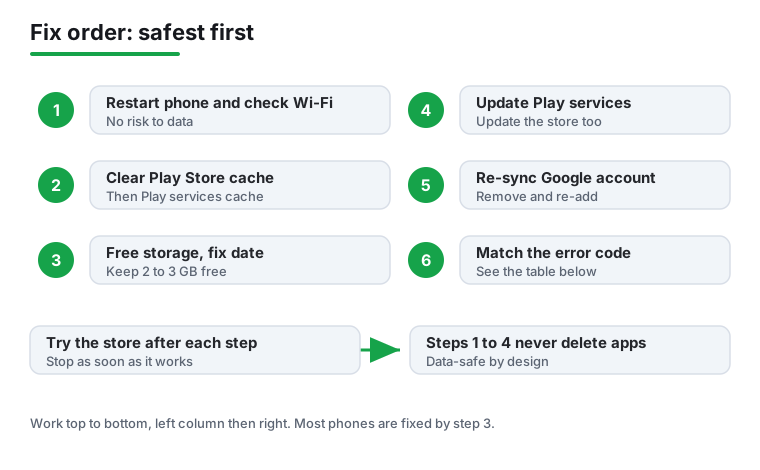
Updated September 2026 · the fixes now sit in one table in the order that solves the most cases, and the component they lean on carries its own dated figures
A Play Store that will not open, or hangs on Download pending, is almost always one of a handful of causes. This works through them cheapest first, and ends with the error codes and what each one points at.
Before you dig into Settings, run these fast checks. They resolve a surprising share of Play Store problems and take less than two minutes.
If none of that helps, work through the sections below in order.
A corrupted cache is the single most common reason the Play Store crashes, shows a blank screen, or hangs while loading. Clearing the cache is completely safe: it only removes temporary files, not your apps, downloads, or account. Always try cache first, and only clear data if cache alone does not work.
Clearing data is still safe for your installed apps and files, but it resets the Play Store itself: it will sign you back into your account, reset your settings (like download preferences), and rebuild its local index. You will not lose any installed apps. On the same Storage screen, tap Clear data (sometimes labeled Clear storage), confirm, then reopen the Play Store and sign in if prompted.
While you are here, repeat the exact same cache and data clearing for Google Play services and the Download Manager app (search for it in the Apps list). Google Play services is the background engine that powers downloads, so clearing its cache often fixes stuck installs. Google documents these steps on its official Google Play Help pages.
The Play Store needs free space not just for the app's final size but for the temporary download and the unpacking step. If your phone is nearly full, downloads fail silently or get stuck on Download pending, and you may see error code -504 or 919. A good rule of thumb is to keep at least 2 to 3 GB free.
After freeing space, restart the phone and retry the download. If a single large game still will not fit, you may simply not have room for it on this device.
This one catches people out constantly. The Play Store talks to Google's servers over a secure connection, and that handshake depends on your phone's clock being correct. If your date or time is wrong, even by a lot, the connection fails and the store may refuse to load or download at all, sometimes throwing a vague error connecting to the server message.
Reopen the Play Store afterward. If the time keeps drifting wrong after a restart, your phone's clock battery or firmware may need attention, but for almost everyone the automatic setting fixes it instantly.
Downloads, sign in and licence checks
4.3 stars from 44,563,102 reviews · 10,000,000,000+ installs · free to install · no in-app purchases listed · by Google LLC · Contains ads: No · checked 3 September 2026
Google Play listing · 4.3 (44,563,102) · read 3 September 2026
Google Play services is the background component the Store uses for downloads, authentication and licence checks, and a bad update to it breaks the Store without breaking anything else. It is free, carries no Contains ads label and sells nothing. The blunt con: you cannot reinstall it like an ordinary app, so the repair is to uninstall its updates and let the phone pull a clean copy.
Google Play services is a background component that the Play Store relies on for downloads, authentication, and license checks. If it is out of date or its update went bad, the store can misbehave even though it looks fine. You cannot fully uninstall Google Play services, but you can update it or roll back its updates.
If the problem started right after an update, on the Google Play services info screen tap the three-dot menu in the top corner and choose Uninstall updates. This reverts it to the factory version, and the phone will quietly pull the correct current version again in the background. Do the same check for the Play Store itself: open the Play Store, tap your profile picture, go to Settings > About and tap Update Play Store to force it to grab the latest version.
The Play Store is tied to a Google account. If that account's authentication token has gone stale, you can see errors like RH-01, RPC:S-5, or repeated sign-in loops. The reliable fix is to remove the account from the phone and add it back, which forces a fresh sign-in. This does not delete your account or any data stored in it: your apps, emails, and purchases all live on Google's servers and come straight back.
Before you remove the account, know your password. If two-factor authentication is on, have your second factor (your authenticator app or a trusted device) ready, or you may get locked out temporarily. You can review or recover your account at myaccount.google.com. Once you are signed back in, open the Play Store and let it re-sync, which can take a minute.
If apps sit forever on Download pending or a single update jams the whole queue, the download queue itself is stuck. Here is how to unblock it.
Go to the Play Store Settings > Network preferences > App download preference. If it is set to Over Wi-Fi only and you are on mobile data, large apps will wait. Change it to Over any network if you are happy to use data, or connect to Wi-Fi. Also check Auto-update apps here so background updates do not compete with the download you want right now. If a download still fails, clearing the Download Manager cache and data (from Settings > Apps) gives the queue a clean slate.
If the store shows a specific code, that points you to the fix. These are the ones you are most likely to meet.
For the official list and Google's own troubleshooting steps for each, see the Google Play Help Center. A general rule holds for almost all of these: clear cache, then data, fix storage and clock, and retry, before you touch your account.
If you have worked through every section and the Play Store still will not behave, a few heavier options remain. Try them in this order.
If even a factory reset does not fix it, the issue may be hardware or a carrier-level block, and it is worth contacting your phone maker's support.
No. It resets the Store app itself: your installed apps, purchases and library stay where they are. You will be signed back in automatically, and the Store rebuilds its cache on the next open. Checked 3 September 2026.
Usually a jammed queue or no room to unpack. Cancel every pending item, leave one, and retry; if it still hangs, free some storage and check the Store is not waiting for Wi-Fi under its network preference. Checked 3 September 2026.
The Store opens a secure connection to Google servers, and that handshake checks certificate validity against your clock. A clock that is days out makes valid certificates look expired, so the connection fails. Set date and time to automatic. Checked 3 September 2026.
Yes, with one caveat: know the password and any second factor before you start, because you will need them to sign back in. Photos, mail and purchases live on the account, not the phone, so nothing is lost by the removal itself. Checked 3 September 2026.
They point at different layers. The 4xx and 9xx download codes usually clear with the cache and data steps; 505 is an app compatibility conflict rather than a Store fault. The section above lists the common ones against their fix. Checked 3 September 2026.
Only as a last resort and only from the developer's own site. A sideloaded app does not update itself through the Store, and the Play Protect warning you will click past exists for a reason. Fix the Store instead where you can. Checked 3 September 2026.
Checked 3 September 2026: the guide worked through the fixes with no table, no capsule and no dated line, and named Google Play services without linking it. The fixes now sit in one decision table ordered by how many cases each solves against what it disturbs, and Play services carries a fact line read from its own listing: 4.3 stars from 44,563,102 reviews, free, no in-app purchases and no Contains ads label. Worth recording for anyone tempted to link it: the Play Store itself, com.android.vending, returns 404 on play.google.com, so it has no listing to cite.
 How to Speed Up a Slow or Laggy Android PhoneTools & Utilities
 Signs of Android Malware and How to Remove ItSecurity & Privacy