
Updated September 2026
Updated September 2026 · the steps sit in one table, and the two apps worth installing carry their own dated listing figures
A phone that hesitates when you open the camera, or stutters scrolling through photos, is annoying out of proportion to how small the problem usually is. The good news, in 2026 as much as ever: most slowdowns come from a handful of fixable causes, and almost none require buying anything or installing a special app. Below is the order I work through when a friend hands me their sluggish phone. Start at the top, stop when it feels quick again, and skip what does not apply. Where the steps differ between a Google Pixel and a Samsung Galaxy (which runs Samsung's One UI software), I have noted both paths.
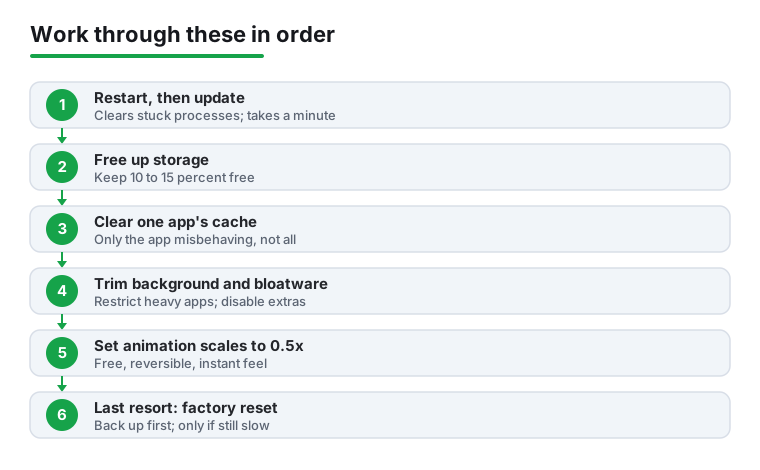
Check your free storage. Open Settings > Storage (on Samsung: Settings > Battery and device care > Storage). A nearly full phone is the single most common reason for lag, and the easiest to fix.
Check whether the phone is up to date. Go to Settings > System > System update (Samsung: Settings > Software update) and install anything waiting. Updates often include performance fixes, and a half-finished one in the background can itself cause stutter.
And the boring tip that works more often than it should: restart the phone. Phones left on for weeks accumulate stuck background processes; a reboot clears them in about a minute. If the lag only started today, try this first.
Android needs empty space to work in: it uses spare storage for temporary files, app updates, and shuffling data around. When free space drops below roughly 10 percent of the total, or under about 1 GB, the phone slows down noticeably. Aim to keep at least 10 to 15 percent free. On a 128 GB phone that means leaving 13 to 19 GB open.
Where the space usually goes, easiest wins first:
For a fuller walkthrough of clearing space in your Google account, see our guide on how to free up Google storage on Android. A good file manager app also makes the largest files easy to spot, and a capable gallery app can group duplicates and screenshots for you.
Moving video off the phone safely
4.4 stars from 53,920,626 reviews · 10,000,000,000+ installs · free · no in-app purchases · by Google LLC · Contains ads: No · checked 4 September 2026
Google Play listing · 4.4 (53,920,626) · read 4 September 2026
Video is where a phone's storage goes, and this is the app that gets it off the device without losing it. Free, no in-app purchases, no Contains ads label, read 4 September 2026. Back up first, then free up space, in that order: the Free up space action only removes what has already been copied, which is exactly why the order matters.
Finding the gigabytes without guessing
4.5 stars from 9,022,151 reviews · 5,000,000,000+ installs · free · no in-app purchases · by Google LLC · Contains ads: No · checked 4 September 2026
Google Play listing · 4.5 (9,022,151) · read 4 September 2026
The distinction this page keeps drawing is between a cleaner that promises speed and a tool that shows you what is using space. This is the second kind: free, with no in-app purchases and no Contains ads label on its listing, read 4 September 2026, at 4.5 stars from 9,022,151 reviews. Its Smart Storage is the setting worth knowing, and also the one worth understanding before you switch it on.
Cache is temporary data an app keeps so it loads faster next time, like saved thumbnails or a partly downloaded feed. Normally that helps. But when one app's cache gets corrupted or bloated, that app turns sluggish or starts misbehaving. Clearing it is a safe, targeted fix: it does not log you out, delete your messages, or remove the app, as Google notes in its Android storage help. The app just rebuilds the cache as you use it.
The key word is targeted: clear the cache of the one app giving you trouble, not everything at once.
Notice the second button right beside it, Clear storage or Clear data. That one is heavier: it wipes the app back to a fresh install, logs you out, and erases its local settings. Use it only if clearing the cache did not help and you are ready to sign in again. For example, if your bank app keeps freezing, Clear cache first; if it is still broken after a restart, then Clear storage and log back in.
Do not hunt for a button to clear every cache at once; there isn't one on modern Android, and that is fine. Wiping all caches just makes every app slow for a while as they rebuild.
Apps left running in the background sip battery and memory. Android manages this well on its own, but a few habits help on an older or lower-memory phone.
Restrict the heavy ones. In Settings > Apps, social media, store apps, and anything with a constant live feed tend to be hungriest. For an app you rarely use, set its battery usage to Restricted under App battery usage (on Samsung: Settings > Apps > [app] > Battery).
Let Android sleep apps you have forgotten. Android has a built-in feature, app hibernation, that if you have not opened an app in a few months (roughly 90 days) automatically pauses it: it revokes the app's permissions, stops its notifications, and clears its temporary files. It is on by default and worth leaving on. Samsung adds its own list under Settings > Battery and device care > Background usage limits > Sleeping apps, where you can park apps you want kept out of the background.
Skip the urge to force-close everything. Swiping every app out of the recents view all day does not speed things up. Android reloads those apps from scratch when you reopen them, which uses more power, not less. Reserve force-stopping for a single app that has clearly frozen.
Bloatware is the pre-installed apps you never asked for, often from the phone maker or a carrier. Some you can uninstall; others are baked in and can only be disabled, which stops them running and hides them from your app drawer. Both help. To remove or disable one:
One firm rule: do not disable anything with "Android," "System," "Google Play," or a framework label in the name, and skip anything you do not recognize. Disabling a core system component can stop other apps working or, rarely, leave the phone unable to boot. If unsure, leave it alone.
Samsung phones ship with more of these than a Pixel does, and the same Disable path works on One UI. A few Samsung apps such as Bixby offer neither Uninstall nor Disable in Settings; removing those needs a computer and the Android Debug Bridge tool, which is more involved than most people need. Disabling the obvious extras is plenty.
This one is free, reversible, and its effect is immediate. Android plays a small animation every time a window opens, closes, or switches. Speeding those up makes the whole phone feel snappier even though the hardware has not changed; you are not removing features, just shortening the transitions.
The setting lives in Developer Options, hidden until you switch it on:
At 0.5x the animations run twice as fast and the phone feels noticeably quicker. You can set them to Animation off for instant transitions, though that can feel abrupt; 0.5x is the sweet spot for most people. Despite the word "scale," these control speed, not size. To undo it, set all three back to 1x; nothing else in Developer Options needs touching.
Search the Play Store for "speed booster" or "RAM cleaner" and you will find dozens of apps promising to make your phone fast. Skip them all.
These apps claim to free up RAM (the phone's short-term working memory) by closing background apps. But Android is designed to keep recently used apps in spare RAM precisely so they reopen instantly. Empty RAM does you no good; it is wasted capacity. When a booster forcibly clears it, the phone just reloads those apps next time you need them, which uses more battery and can make multitasking slower, not faster. So at best these apps do nothing useful.
At worst they are dangerous. Security researchers and Google have repeatedly found that many "cleaner," "booster," and "battery doctor" apps are stuffed with intrusive ads, harvest your data, or carry malware; Trend Micro documented optimizer apps that quietly committed ad fraud and pulled down malware. Many also push fake "your phone is infected, clean now" pop-ups to scare you into installing more junk. Ignore those; they are not coming from Android.
The honest version of what those apps pretend to do is already built in, free and safe: Files by Google for clearing junk, the storage tools above, and on Samsung the built-in Device care. If you do want a third-party tool for tidying files, stick to well-reviewed, transparent options. Our roundups of cleaner apps and battery saver apps flag which are worth it, and a reputable antivirus app is a far better use of a slot than a memory booster.
Samsung's One UI bundles a useful maintenance hub. Open Settings > Battery and device care and tap Optimize now for a quick sweep: it closes background apps, clears some memory, deletes unnecessary files, and checks for malware. It is the legitimate, built-in version of a "booster," and Samsung describes it in its Device care support article. Running it occasionally does no harm.
You may also spot RAM Plus under Battery and device care > Memory. This borrows a chunk of your storage to act as extra, slower memory. It sounds like a speed feature, but on phones with 8 GB or more of real RAM (most recent Galaxy models) the benefit is usually negligible and can even be slightly negative, because storage is far slower than real memory. If your phone is recent and has plenty of RAM, leave RAM Plus off or at its lowest setting. This is one of the few cases where doing less is better.
If you have worked through everything above and the phone is still slow, a factory reset is the heavy-hitter. It wipes the phone back to how it left the shop, clearing years of leftover files and misbehaving apps, and often restores an older phone to near-new speed. But it erases everything on the device, so it is genuinely a last resort, and Google itself advises trying other fixes first.
Do it properly so you lose nothing:
When the phone restarts, sign in and choose to restore your backup. One caution: if the phone is years old and still slow after a reset, the limit is likely ageing hardware, especially a tired battery, and no software step will fully fix that.
No. Clearing an app's cache only removes temporary files it can rebuild, such as thumbnails and a cached feed. Your photos, messages, accounts, and settings stay put. The button to avoid if you want to keep your data is the separate Clear storage or Clear data button, which resets the app to a fresh install and does log you out.
Aim to keep at least 10 to 15 percent of your total storage free. Performance falls off sharply once free space drops under about 10 percent, or below roughly 1 GB. On a 128 GB phone, that means keeping 13 to 19 GB open. If you are constantly near the limit, move photos and videos to Google Photos and clear the Downloads folder.
No, and many are harmful. Android deliberately keeps recent apps in spare memory so they reopen instantly, so "freeing" that memory just forces the phone to reload them, using more battery. Many of these apps also carry ads, data harvesting, or malware. Use the free, built-in tools instead: Files by Google, your phone's storage settings, and on Samsung the Device care Optimize now button.
It is safe for clearly branded extras you recognize and do not use, like a duplicate browser or a promotional app. Open Settings, Apps, tap the app, then Uninstall if available or Disable if not. Do not disable anything with Android, System, or Google Play in the name, or anything you cannot identify, as that can break other apps or stop the phone booting.
No. Setting the three animation scales in Developer Options to 0.5x simply shortens the transition effects, so the phone feels faster. It does not stress the hardware or drain extra battery, and it is fully reversible by setting them back to 1x. Enabling Developer Options just to change these is harmless; you do not need to touch any other setting there.
Possibly. If a factory reset (after backing up) does not restore good speed, the limit is likely ageing hardware, most often a worn battery that throttles performance, or a chip that struggles with newer software. A battery replacement is far cheaper than a new phone and worth checking first. If the device is many years past its last security update, replacing it is the safer long-term call.
No. The two apps this page does name are tools rather than boosters: Files by Google at 4.5 stars from 9,022,151 reviews and Google Photos at 4.4 from 53,920,626, both free, both with no in-app purchases and no Contains ads label, read 4 September 2026. A booster that promises speed is fighting the memory management Android already does, and it usually pays for itself with advertising.
Checked 4 September 2026: the guide had no table, no dated line and no figures for the two apps it recommends, which matters here more than usual because the page spends a section warning about the app category those two sit next to on the store. Files by Google is at 4.5 stars from 9,022,151 reviews and Google Photos at 4.4 from 53,920,626, both free, both with no in-app purchases and no Contains ads label, which is exactly the contrast with the boosters. One claim about our own preference is withdrawn: This is my favourite, because it is free, reversible, and the effect is immediate.
 Signs of Android Malware and How to Remove ItSecurity & Privacy
 Android Battery Draining Fast: How to Find and Fix ItTools & Utilities