
Updated September 2026 · both apps behind this fix now carry their own dated listing figures, and one testing claim was withdrawn
You get in the car, your phone is in your pocket, and nothing happens. No map, no music, just the head unit sitting on its home screen. Wireless Android Auto is great when it works and quietly maddening when it doesn't. The good news is that most of these failures come down to a handful of causes, and you can work through them in about ten minutes. A bug that shipped in early 2026 also broke connections for a lot of people, and the fix for that is the easiest one on this list. Let's start there and work down.
In March 2026 Google confirmed a bug that broke Android Auto connections for a lot of Pixel and Samsung Galaxy owners. It hit both wired and wireless setups, and for some people it showed up right after a phone update or an Android Auto app update. If your wireless connection stopped working in 2026 and used to be fine, this is the most likely reason.
The fix shipped through the Play Store, so the first thing to do is make sure you are on the current version. Open the Play Store, tap your profile picture, go to Manage apps and device, and look for Android Auto under available updates. Update it, or open its Google Play listing and update from there. While you are there, update your phone's system software too, because some of the 2026 connection trouble was tied to the wider OS, not just the app.
If you are on a Samsung running One UI 8 or a recent Pixel, this step alone fixes a surprising number of cases. Restart the phone after updating, then try the car again before you change anything else.
The app itself: update it before touching anything else
4.1 stars from 6,202,532 reviews · 10,000,000,000+ installs · free · no in-app purchases · listing updated 5 September 2026 · by Google LLC · Contains ads: No · checked 5 September 2026
Google Play listing · 4.1 (6,202,532) · read 5 September 2026
This is the app the whole page is about, and its Google Play listing, read 5 September 2026, shows a build updated on 5 September 2026, which is the plainest reason to check for an update before touching a single toggle. Free, no in-app purchases, no Contains ads label, from Google LLC, on 10,000,000,000+ installs, with a data safety card that says no data shared with third parties. Its 4.1 stars from 6,202,532 reviews is the bluntest fact here, and switching apps is not an option, so the steps on this page are the whole answer.
Before you spend time troubleshooting, make sure wireless is even an option for your setup. Two things have to be true.
First, your phone needs Android 11 or newer. That has been the floor for wireless Android Auto for a while, and in 2026 it still holds. Older phones can do wired only. You can check under Settings, then About phone, then look for the Android version.
Second, and this is the one that trips people up, your car has to support wireless Android Auto specifically. Plenty of cars list Android Auto on the spec sheet but only support the wired version, where you have to plug in a USB cable. The fact that wired works does not mean wireless will. Check your car's manual or the manufacturer's site for the word wireless next to Android Auto. If your car is wired only, skip ahead to the adapter section, because that is your real answer.
One more practical point: wireless Android Auto runs the screen mirroring over 5 GHz Wi-Fi after a quick Bluetooth handshake. Your phone needs to support 5 GHz Wi-Fi, which nearly all modern phones do, but it is worth knowing that is the channel doing the heavy lifting.
Wireless Android Auto uses Bluetooth to start the connection and Wi-Fi to carry it. Both radios have to be on at the same time. People often have Wi-Fi switched off to save battery, or Bluetooth off out of habit, and then wonder why nothing connects. Open your quick settings panel and confirm both are on before you get in the car.
Next, check the Wireless Android Auto switch itself. Go to Settings, then Connected devices, then Connection preferences, then Android Auto. If you cannot find it, just type Android Auto into the Settings search bar, which is faster on most phones. Inside Android Auto settings there is a toggle for wireless. Make sure it is on. If it is greyed out or missing, that usually means your phone or car has not been recognized as wireless-capable yet, which the next step often fixes.
While you are in there, turn on Start Android Auto while locked. It lives under the start-up options. Without it, the connection can stall waiting for you to unlock the phone, which feels exactly like a failure to connect even though the link is fine.
If the app is updated and the toggles are right, stale Bluetooth pairing data is the next suspect. Over time the pairing profile between your phone and your car can get corrupted, especially after an update on either side. The cure is to wipe it on both ends and start clean. This fixes more wireless problems than any other single step.
Do it in this order:
After pairing, you should see a brief Connecting state while it hands off from Bluetooth to the 5 GHz Wi-Fi channel. That handoff usually takes ten to twenty seconds the first time. Give it a moment before deciding it failed.
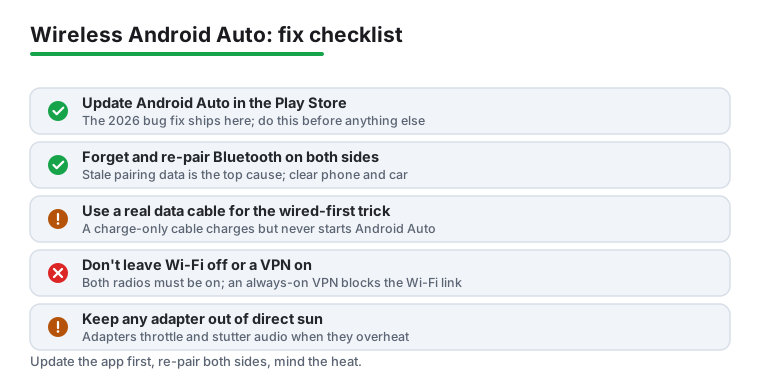
If it still will not move past Connecting, clear the app's stored data. Go to Settings, then Apps, then Android Auto, then Storage, and tap Clear cache. If that does nothing, tap Clear data as well. That resets your Android Auto preferences but does not delete anything you would miss, and it forces a fresh connection on the next try.
Here is an old trick that still works in 2026 and surprises people. If your car supports wireless but refuses to start a wireless session, connect once with a USB cable first.
Plug your phone into the car's Android Auto USB port with a good data cable. Let Android Auto launch on the screen the normal wired way. Once it is running, your phone and car have properly introduced themselves, and the phone now knows the car can do wireless. Unplug the cable, and on many setups the phone will offer to reconnect wirelessly, or it will simply do so the next time you start the car.
This works because the wired session completes the recognition step that wireless sometimes cannot do on its own, particularly right after you have forgotten and re-paired Bluetooth. Use a cable you know carries data, not just charging. A cheap charge-only cable will charge the phone and do nothing else, which sends you chasing the wrong problem.
A few background settings quietly block wireless Android Auto, and none of them announce themselves.
VPNs are a known troublemaker. An always-on VPN can interfere with the Wi-Fi Direct link the car needs. Try turning your VPN off, or set it to allow Android Auto, then test again.
Battery optimization is the other big one. If your phone is aggressively restricting Android Auto in the background, the connection can drop or never start. Go to Settings, then Apps, then Android Auto, then Battery, and set it to Unrestricted.
If you are on Android 16 with Advanced Protection Mode enabled, be aware it hardens USB and data behavior by default. That mostly bit wired users in 2026, who suddenly had to unlock the phone before it would connect, but it is worth knowing about if your setup started acting strangely after a recent system update. The settings reset themselves on some updates, so it is worth re-checking after each one.
If your car only supports wired Android Auto, no amount of toggling will give you wireless. The honest fix is a small adapter that plugs into your car's USB port and creates the wireless link for you. You connect your phone to the adapter over Wi-Fi, and the adapter feeds the car a wired-style signal it understands.
Two are worth knowing about. The Motorola MA1 is the only Google-authorized wireless Android Auto adapter, but it cannot be updated at all, so what you buy is what you keep. The AAWireless Two is the other common pick and has a companion app that pushes firmware fixes, which matters when Android Auto itself changes; that app's own listing figures are in the card below.
Here is the honest tradeoff. These adapters can overheat: the internal chip throttles when it gets too warm, and the usual symptom is stuttering audio on a hot day. Keep the adapter out of direct sun and away from a baking dash vent, and most of that goes away. An adapter is a fine fix for a wired-only car, just go in knowing it is a small computer that does not love heat.
Setting up and updating an AAWireless adapter in a wired-only car
4.3 stars from 19,889 reviews · 1,000,000+ installs · free · no in-app purchases · listing updated 21 May 2026 · by AAWireless · Contains ads: No · checked 5 September 2026
Google Play listing · 4.3 (19,889) · read 5 September 2026
Only relevant if you go the adapter route: this is the companion app that configures an AAWireless adapter and delivers its firmware updates, which is the difference the adapter section above turns on. Free, no in-app purchases, no Contains ads label, read 5 September 2026, at 4.3 stars from 19,889 reviews, the higher score of the two apps on this page. The blunt con sits on its data safety card, which says data may be shared with third parties, and the app does nothing at all without the hardware.
Most likely a bug Google confirmed in March 2026 that broke connections on many Pixel and Samsung Galaxy phones. The fix went out through the Play Store, so update the Android Auto app and your phone's system software, then restart the phone. That clears it for most people.
Yes. Wireless Android Auto needs Android 11 or newer, and that still holds in 2026. Your phone also needs to support 5 GHz Wi-Fi, which nearly all current phones do. Check your version under Settings, then About phone.
Many cars support only wired Android Auto even though the spec sheet just says Android Auto. The fact that a cable works does not mean wireless will. Check your manual for the word wireless. If it is wired only, a wireless adapter is the way to add it.
Yes, at the same time. Bluetooth starts the connection and Wi-Fi carries the screen over the 5 GHz band. If either is off, it will not connect. People often have Wi-Fi switched off to save battery and then assume Android Auto is broken.
Forget the Bluetooth pairing on both your phone and the car, restart the phone, then pair again from scratch. Stale pairing data causes more wireless failures than anything else. Deleting it on only one side is the usual reason this does not work, so clear both.
If your car is wired only and you want wireless, yes. The Motorola MA1 is Google-authorized but cannot be updated, while the AAWireless Two can receive firmware fixes through its companion app, AAWireless for Android Auto, free with no ads label on a listing read 5 September 2026. The catch is heat: keep the adapter out of direct sun, since these units can throttle and stutter audio when they overheat.
Android Auto itself, from Google LLC, which is free with no in-app purchases and no ads label, at 4.1 stars from 6,202,532 reviews on a listing read 5 September 2026 and updated on the store on 5 September 2026. Only if you go the adapter route does a second app enter: AAWireless for Android Auto, the free companion app for the AAWireless adapter, at 4.3 stars from 19,889 reviews read 5 September 2026, whose data safety card says data may be shared with third parties.
Checked 5 September 2026: the page named the two apps behind this fix, Android Auto and the AAWireless companion app, and linked neither, with no listing figures, no table and no dated line. Both now carry fact lines read today: Android Auto at 4.1 stars from 6,202,532 reviews, free with no ads label and updated on the store on 5 September 2026; AAWireless for Android Auto at 4.3 stars from 19,889 reviews, free with no ads label, on a data safety card that says data may be shared with third parties. One testing claim is withdrawn from the adapter section: In 2026 testing, some units started stuttering audio after about 45 minutes of continuous use on a hot day, together with its 45 minute figure, which no source backs. Two judgments from use are withdrawn: the words and it is reliable about the Motorola MA1, and the claim that the adapters feel close to wired, which stood in the adapter section and in the FAQ. Four FAQ questions moved from the first person to the second, one FAQ entry naming both apps was added, and the update step now links the Android Auto listing directly.
 How to Speed Up a Slow or Laggy Android PhoneTools & Utilities
 How to Move From iPhone to Android Without Losing AnythingProductivity
 How to Recover Deleted Photos on AndroidPhoto & Video