
Checked 27 September 2026
Open Camera is the pick and it is free, Camera FV-5 the paid one, Lens Buddy the timer for solo shots. Our answer, the free pick and the table ↓
Android camera apps compared on the thing a store listing will not settle on its own: whether the manual controls and the raw files in the feature list can be reached on the phone in your hand.
Where to start, and why:
One row per app, in the same order as the reviews below.
Checked 27 September 2026: the three picks hold; the ProCam X listing shows a 13 September update, and the Lens Buddy and B612 ratings moved
Full logRead the fifth column first: what your phone must allow, and whether raw is possible on it.
| App | Best for | Price | Ads label | What your phone must allow · raw | Rating (Play US, 27 September 2026) |
|---|---|---|---|---|---|
| Open Camera | Manual control | Free, nothing sold inside | Yes | Camera2 reporting LIMITED or FULL; the option is hidden on LEGACY only phones · raw: DNG files listed, under the same Camera2 heading | 4.0 |
| Google Camera (GCam) | Point and shoot | Free, nothing sold inside | No | A Pixel on Android 16 or newer, its listing says; every other phone needs a port · raw: its listing states nothing | 2.9 |
| Adobe Lightroom | Shoot and edit | Free core, purchases $0.49 to $499.99 | No | Android 14 with DNG capture support for HDR, its help centre says; the Play text names no camera · raw: a DNG or JPG capture toggle, documented by Adobe | 4.5 |
| ProCam X | Moving off auto | 4.99 dollars, one time | No | Android 6.0 on the listing itself, while its own note names 5.0 with camera2 enabled by your vendor · raw: DNG files listed, for the front camera | 4.2 |
| Camera FV-5 | Planned shots | 4.99 dollars, one time | No | A fully compliant Camera2 build; its own device database lists what each phone exposes · raw: true 16-bit DNG, asterisked to two phones from 2013 and 2014 | 4.2 |
| Footej Camera | Casual shooters | Free, purchases $0.99 to $99.99 | Yes | The camera 2 API, on devices that support the API, in its own words · raw: RAW format listed as a base feature | 4.5 |
| Lens Buddy | Solo selfies | Free, nothing sold inside | No | Nothing stated: its listing describes a timer, zoom and flash and no manual capture · raw: its listing states nothing | 4.8 |
| Snapchat | Fun AR lenses | Free, purchases $0.49 to $399.99 | Yes | Nothing stated: the listing names no condition of any kind · raw: its listing states nothing | 4.2 |
| B612 | Polished selfies | Free, purchases $0.99 to $69.99 | No | Nothing stated: the listing names no condition of any kind · raw: its listing states nothing | 4.0 |
| VSCO | Film aesthetic | Free basics, purchases $0.99 to $29.99 | No | Nothing stated: the listing names no condition of any kind · raw: it names four camera modes, Burst, Retro, Prism and DSCO, and no raw capture | 3.6 |
| Blackmagic Camera | Video with film controls | Free, nothing sold inside | No | A Samsung or Google Pixel phone, its developer's product page says; the listing adds that some features are device dependent · raw: its listing states nothing | 4.6 |
| Secure Camera | Privacy first | Free, nothing sold inside | No | Android 10 or newer; Night, HDR and Portrait only where the phone's vendor extensions exist, its listing says · raw: its listing states nothing | 4.0 |
| Pixtica | Tinkerers · no update since 21 August 2023 | Free, Pro from $1.25 to $4.99 | No | Your maker must let apps use manual controls, its listing warns · raw: offered when the device supports it, in its own words | 4.3 |
Open Camera is our best overall and best free pick because it costs nothing, carries a Contains ads label, and its help page (27 September 2026) ties manual control to Camera2 support.
Camera FV-5 is our paid pick because its listing (27 September 2026) shows a 4.99 dollar one time price, no ads label and no purchases.
Lens Buddy is our niche pick for solo shots because its listing (27 September 2026) shows a free timer camera with no ads label.
Data checked: 27 September 2026.
Manual control
100M+ installs · free, no in-app purchases · rated Everyone · by Mark Harman · Contains ads: Yes · checked 27 September 2026
Google Play listing · 4.0 stars from 287,827 reviews · read 27 September 2026.
Open Camera is the free manual cockpit on this page and nothing at all is sold inside it. The bluntest con is a label its own developer disputes: the Play listing carries Contains ads. What it exposes, ISO, shutter speed, focus, white balance and a level grid, it exposes only as far as the phone underneath it allows.
On that label, developer Mark Harman writes on opencamera.org.uk: "No third party ads in the app (I only run third party ads on the website)." The Play listing still carries the Contains ads label on 27 September 2026, while the description on that same listing repeats the developer's sentence word for word, so this page prints both rather than choosing between them.
What your phone must allow. Several other entries here state some hardware condition, and Open Camera is the one that names Android's own levels rather than gesturing at them. Its help page says the Camera2 setting appears only if at least one camera reports LIMITED or FULL support and that LEGACY only devices are not supported, and that DNG output is available only when Camera2 is in use. Its Play description adds that some features may not be available on all devices.
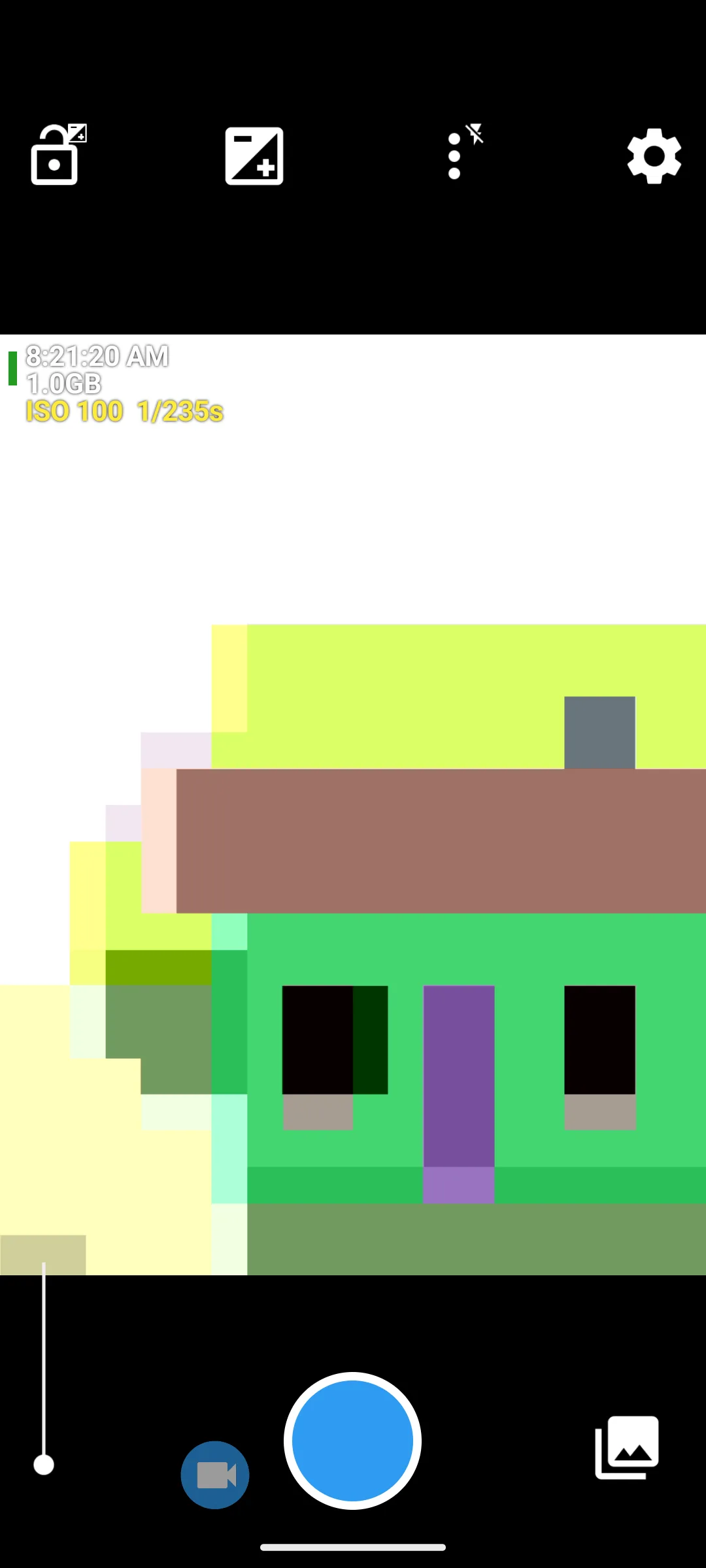
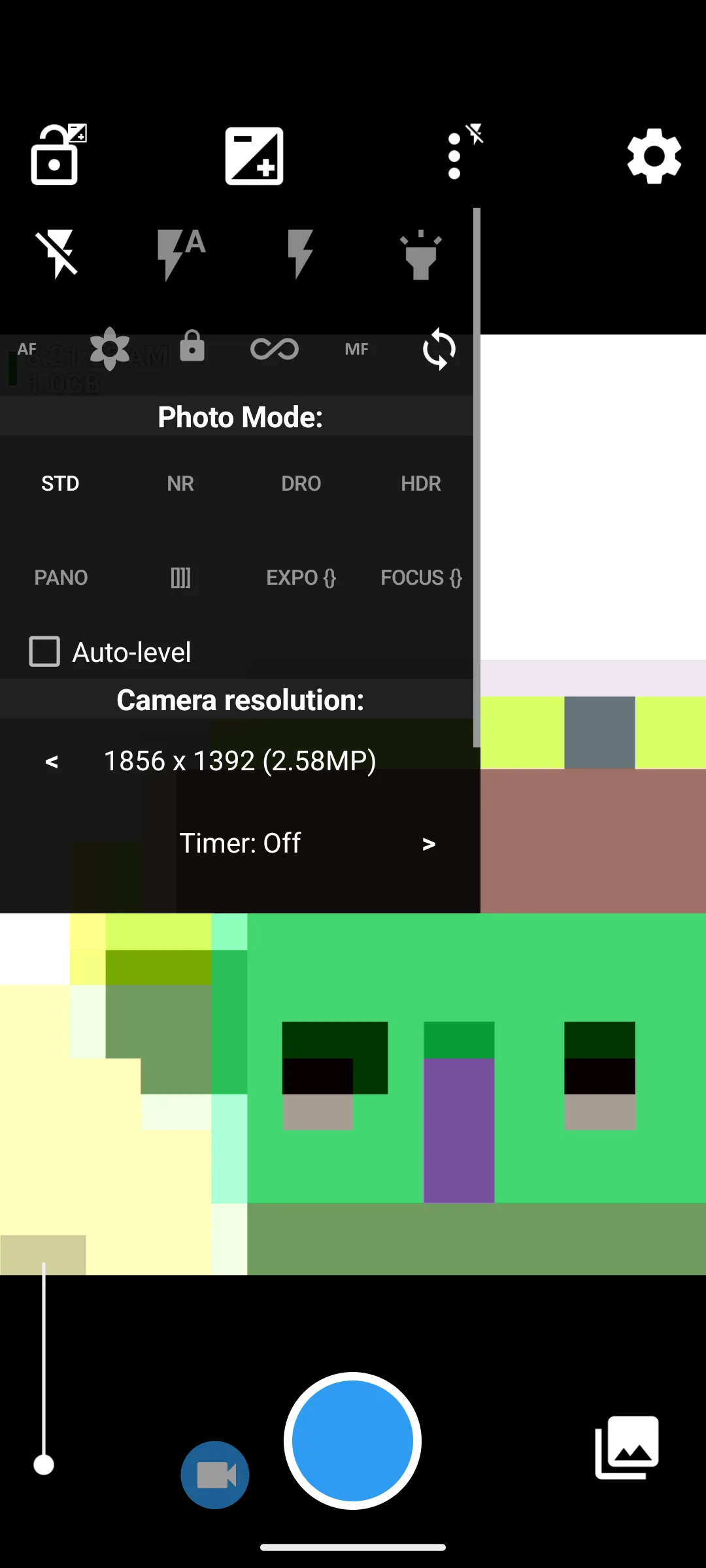
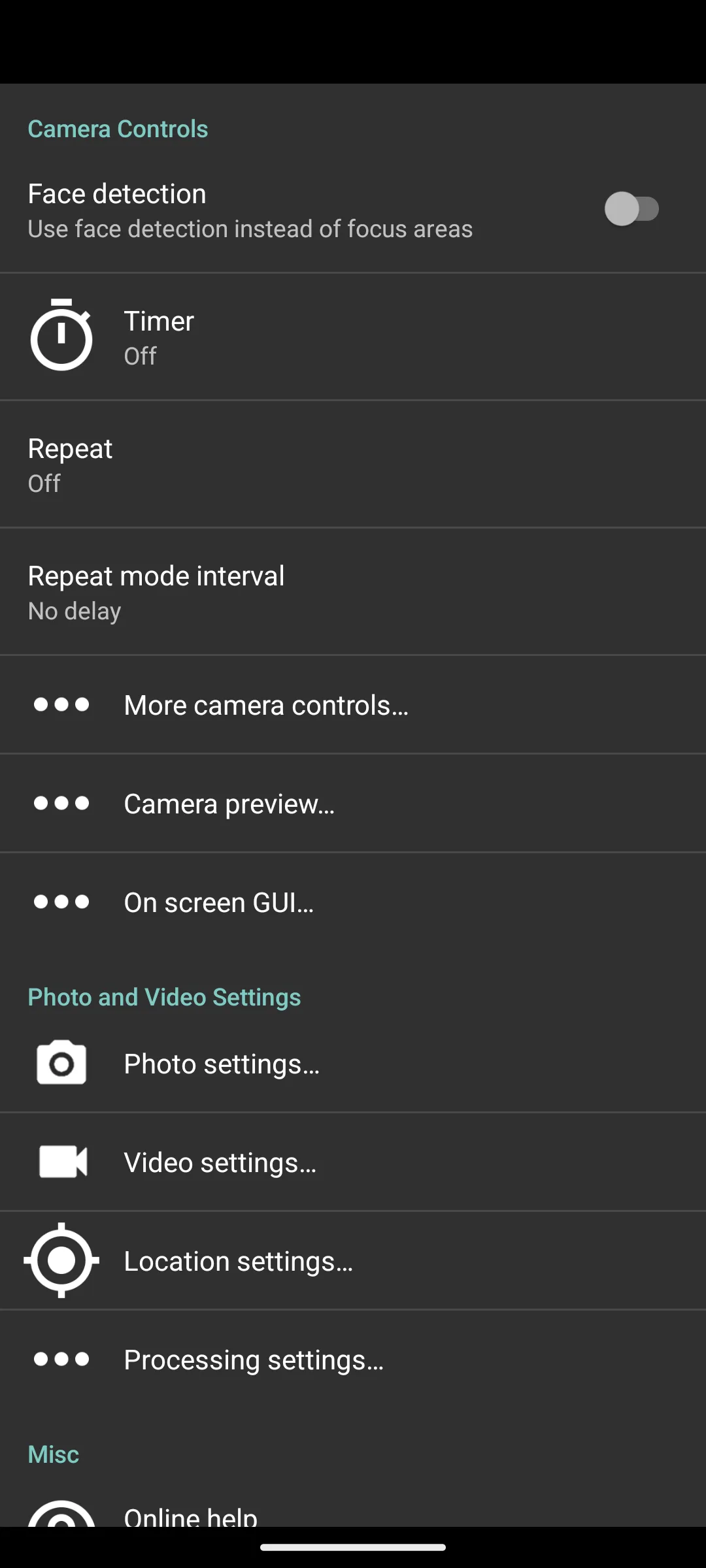
Skip this if you want beauty tools or a sticker library; B612 is built for that. Choose it over Camera FV-5 for manual control at no cost; choose FV-5 for a listing with no ads label and a device database to check first.
Point and shoot
listed on Google Play as Pixel Camera · free, no in-app purchases · rated Everyone · by Google LLC · Contains ads: No · checked 27 September 2026
Google Play listing · 2.9 stars from 514,445 reviews · read 27 September 2026.
On a Pixel this is the default for good reason, it costs nothing, and its listing, which is titled Pixel Camera on Google Play rather than Google Camera, carries no ads label and sells nothing inside. The bluntest con is that most readers cannot install it at all: the listing states the current version runs only on Pixel devices on Android 16 and above, and its 2.9 stars is the lowest score here.
The listing is the reason its install band reads 1+ rather than a real number, and it is why the low score is hard to read as a verdict on the software: a store page that almost nobody can install from collects a particular kind of review.
On features, the listing, read 27 September 2026, names Night Sight and Pro Controls for shutter speed and ISO, and says nothing about raw files.
What your phone must allow. For any other phone the route is a community port, a modified build of this app made by a third party. The GCam Hub index is where those builds are catalogued, and on 21 August 2026 the BSG pages there mark every recent build "android 11+", while the other modders' pages read the same day mark almost nothing, so the index as a whole settles no Android floor for you.
Skip this if your phone is not a Pixel on Android 16 or newer, which the Pixel Camera listing requires (Play US, read 27 September 2026); the port route and its six install steps are further down. Choose it over a third party app on a Pixel for everyday shots, since it is the camera the phone ships with; choose Open Camera when you want the DNG output its developer documents.
Shoot and edit
100M+ installs · free core, in-app purchases $0.49 to $499.99 · rated Everyone · by Adobe · Contains ads: No · checked 27 September 2026
Google Play listing · 4.5 stars from 3,663,612 reviews · read 27 September 2026.
Lightroom is the strongest editing pipeline on this page and the core app is free with no ads label, with in-app purchases from $0.49 to $499.99, and Adobe documents an in-app camera that captures DNG. The bluntest con is that its own Play description does not use the word camera once, so the store page a buyer reads settles nothing about capture and the answer only exists in the help centre.
That gap is a fact about the listing, not about the app. Adobe's camera workspace page, read 21 August 2026, describes the control as "File Format: Select to toggle between capturing photos in DNG format for advanced editing flexibility or JPG format for standard compressed output." Its Pro mode page, which states its own last update as 5 June 2026, documents shutter speed, ISO, white balance and manual focus on Android.
What your phone must allow. The one hardware condition Adobe states in numbers is for HDR capture: its HDR capture page, read 21 August 2026, limits it to Pixel 7, 8, 9 and Fold models on Android 14 or later, or other phones with at least 3 GB of RAM, Android 14.0 or later, ARM8 and DNG capture support. So this is the rare entry where the developer documentation, not the store page, is the thing worth reading.
Skip this if you want a camera first: Adobe documents its capture tools only in its help centre, and the Play description never mentions a camera. Choose it over VSCO when you want the DNG capture Adobe documents; choose VSCO when a preset look matters more than raw files.
Moving off auto
1M+ installs · 4.99 dollars, one time · no in-app purchases · rated Everyone · by Imagi Mobile · Contains ads: No · checked 27 September 2026
Google Play listing · 4.2 stars from 23,972 reviews · read 27 September 2026.
ProCam X is the clean paid step up from automatic: manual exposure, an intervalometer, burst shooting and 4K recording on supported devices, for 4.99 dollars once, with no ads label and nothing further sold inside. The bluntest con is that the manual controls, the reason to buy it, depend on the phone vendor: the listing marks manual ISO, manual focus and manual shutter speed as working only on supported devices with the camera2 API enabled (Play US, read 27 September 2026). The same listing shows an update dated 13 September 2026, still under version 1.29, the version number and release note it already showed when read on 21 August 2026.
What your phone must allow. Its listing states two different floors and this page prints both rather than choosing. The note at the end of the description says the manual features need a device on Android 5.0 or newer with the camera2 API switched on by the phone vendor, while the Requires Android field on the same listing reads 6.0 on 27 September 2026. Six is the one that decides whether Play will install it at all, so treat 6.0 as the real floor and the 5.0 note as the developer describing the API rather than the store. Its feature list marks manual ISO, manual focus and manual shutter speed with the same asterisk, and marks 4K recording as working on supported devices too. On a phone whose maker never enabled any of that, what is left is exposure lock, white balance and burst.
Skip this if your phone vendor never enabled camera2, since the manual half of it then disappears. Choose it over Camera FV-5 when you want 4K video, which its listing offers on supported devices; choose FV-5 for bracketing and a device database to check first.
Planned shots
500K+ installs · 4.99 dollars, one time · no in-app purchases · rated Everyone · by FGAE Apps · Contains ads: No · checked 27 September 2026
Google Play listing · 4.2 stars from 19,218 reviews · read 27 September 2026.
Camera FV-5 is the entry for deliberate, technical work: bracketing, an intervalometer, long exposures and 16-bit DNG, for 4.99 dollars once with no ads label and nothing sold inside. The bluntest con is that its published device data is going stale, since the database page read 27 September 2026 still says it was last updated on 16 December 2024.
No developer page read for this article states the constraint more plainly. The Camera FV-5 FAQ answers the request to add RAW capture like this: "Camera FV-5 already supports RAW capture, and we don’t have to implement anything, the device manufacturer has, and it has to enable it for third-party apps."
What your phone must allow. That is why this entry is the useful one even for readers who buy something else: camerafv5.com/devices/, read 27 September 2026, is a searchable database of 29,374 devices from 2,605 manufacturers and what each one exposes to an app. Two caveats sit beside it. The page states its own last update as 16 December 2024, and the listing asterisk that governs raw capture still names only the LG Nexus 5 and the Motorola Nexus 6, two phones from 2013 and 2014.
Skip this if you want to see what your phone allows before paying: Camera FV-5 Lite has a listing, read 27 September 2026, showing a free app with 10M+ installs, no ads label and no in-app purchases, and its description says it limits picture resolution and leaves RAW capture to the paid version. Choose it over ProCam X for bracketing and a database you can check first; choose ProCam X for 4K video on supported devices.
Casual shooters
10M+ installs · free, in-app purchases $0.99 to $99.99 · rated Everyone · by ZipoApps · Contains ads: Yes · checked 27 September 2026
Google Play listing · 4.5 stars from 160,091 reviews · read 27 September 2026.
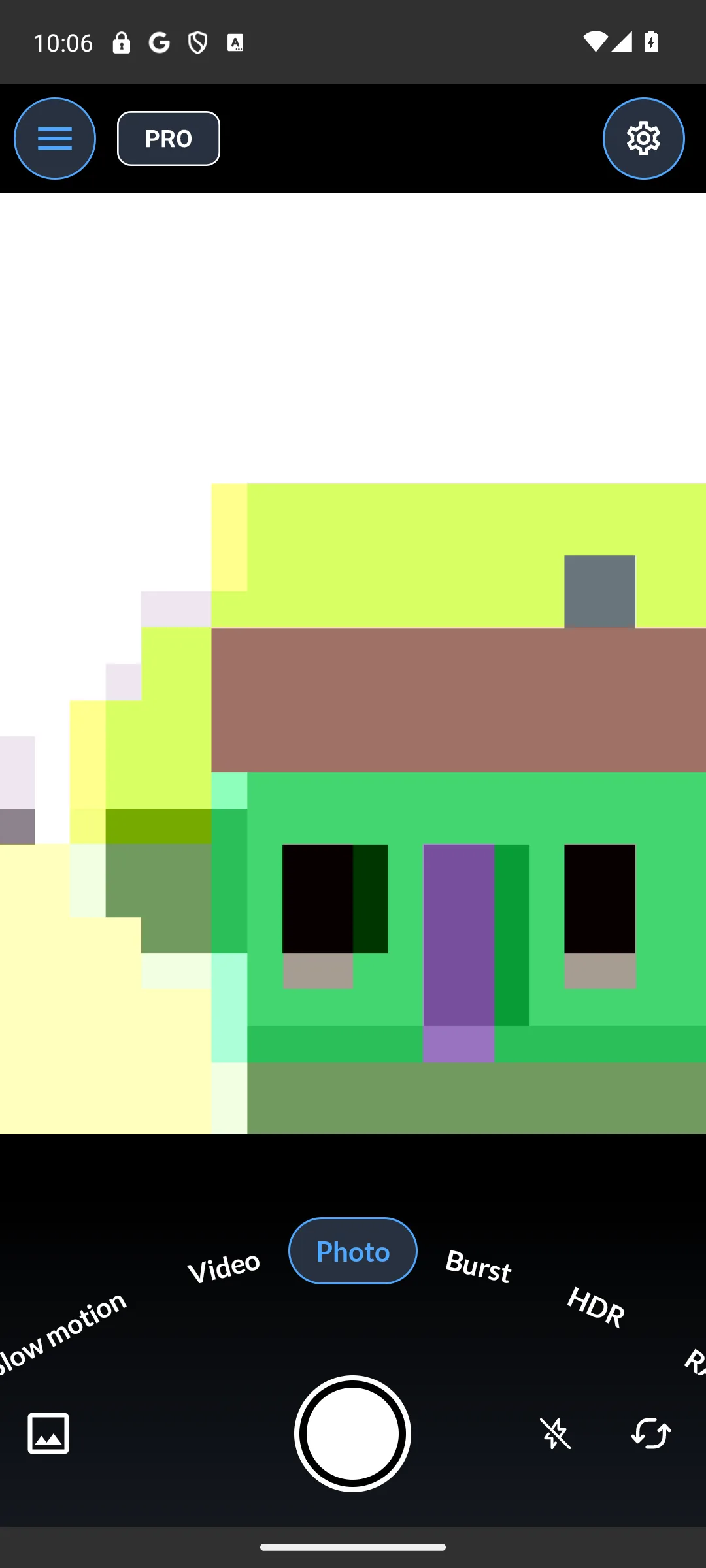
Footej sits between simple and serious, with a mode dial and a gallery built in so a burst can be reviewed straight away. It is free to install with a Contains ads label and in-app purchases from $0.99 to $99.99. The bluntest con is its Data Safety section, which declares that the app may share data with third parties and that data cannot be deleted.
The listing is also published by ZipoApps rather than the original developer, and the store page read 27 September 2026 names ZipoApps as the developer and links zipoapps.com for the privacy policy. A change of hands is not a fault on its own, but it is worth knowing before granting camera and storage access.
What your phone must allow. On what it needs from the phone, the description is short and unusually honest: the app utilizes Android camera 2 API on devices that support the API, and it marks HDR+ as a Pixel 2 feature. So the manual half of it arrives only where the vendor allows it, exactly as with the entries above.
Skip this if you record long clips for free: its Premium package, read 27 September 2026 on the Play listing, sells video max duration over 2 minutes. Choose Open Camera over it if you want nothing sold inside.
Solo selfies
500K+ installs · free, no in-app purchases · rated Everyone · by Lens Buddy Timer Camera · Contains ads: No · checked 27 September 2026
Google Play listing · 4.8 stars from 7,036 reviews · read 27 September 2026.
Lens Buddy fires a whole sequence of frames on a timer so you can move between poses with nobody holding the phone, and it is free with no ads label and nothing sold inside. The bluntest con is its reach: the listing claims no manual exposure and no raw capture at all, so it is a timer first and a camera second.
What your phone must allow. The absence of a hardware note here is not a gap. The listing describes a customisable timer, zoom and flash control and in-app rating of the shots, and asks nothing of the phone that a stock camera does not already do. Nothing about it depends on what your vendor enabled.
Skip this if you want manual exposure or raw files; the listing claims neither. Choose it over B612 when the phone has to shoot a pose sequence on its own; choose B612 when the look of the selfie matters more.
Fun AR lenses
1B+ installs · free, in-app purchases $0.49 to $399.99 · rated Teen · by Snap Inc · Contains ads: Yes · checked 27 September 2026
Google Play listing · 4.2 stars from 39,772,919 reviews · read 27 September 2026.
Snapchat opens straight into the camera and the lenses are the reason anyone uses it as one. It is free with a Contains ads label and in-app purchases from $0.49 to $399.99. The bluntest con is that it is a social network wearing a viewfinder: it is rated Teen, and its listing text claims no manual control and no raw output.
What your phone must allow. Nothing in the description asks anything of the camera hardware, which is another way of saying it does not try to reach past what Android hands every app. That is consistent with a listing that claims no raw output and no manual mode anywhere in its text.
Skip this if you want photo files to edit rather than messages to send: nothing in the listing claims manual control or raw capture. Choose it over B612 for AR lenses you share with friends; choose B612 for a selfie camera with no ads label.
Polished selfies
500M+ installs · free, in-app purchases $0.99 to $69.99 · rated Everyone · by SNOW Corporation · Contains ads: No · checked 27 September 2026
Google Play listing · 4.0 stars from 7,190,493 reviews · read 27 September 2026.
B612 is the selfie camera for people who want to look polished without learning an editor, and it is free with no ads label and in-app purchases from $0.99 to $69.99. The bluntest con is what the listing does not settle: nothing in the description read 27 September 2026 says whether a free save carries a watermark, so what a purchase removes is not written down anywhere readable.
What your phone must allow. Its real time filters and beauty tools preview before the shutter rather than after it, which is the reason to choose it over an editor. None of that reaches past the ordinary camera pipeline, so nothing here depends on what the phone vendor enabled.
Skip this if you want a camera for anything beyond faces: the description sells filters and beauty tools, not manual control. Choose it over Snapchat when you want a polished selfie with no ads label rather than a social feed.
Film aesthetic
100M+ installs · free basics, in-app purchases $0.99 to $29.99 · rated Teen · by VSCO · Contains ads: No · checked 27 September 2026
Google Play listing · 3.6 stars from 1,325,501 reviews · read 27 September 2026.
VSCO pairs a camera with the film style presets that made it famous, and the basics are free with no ads label and in-app purchases from $0.99 to $29.99. The bluntest con is the score: 3.6 stars across 1.33 million reviews, the lowest of the third party apps on this page.
What your phone must allow. On capture, the description names four camera modes, Burst, Retro, Prism and DSCO, and says nothing about raw files. That is a statement about the listing, not a claim that the app has no raw mode, which is why the column above reports what the listing states instead of printing a tick. VSCO's own site refused this check on 21 August 2026, answering 403 rather than a page, so the listing is the only VSCO document behind this row and a developer page may well say more.
Skip this if you want the whole preset library free: the description puts it behind an annual membership. Choose it over Adobe Lightroom when a look at capture matters more than raw files.
Video with film controls
1M+ installs · free, no in-app purchases · rated Everyone · by Blackmagic Design Inc. · Contains ads: No · checked 27 September 2026
Google Play listing · 4.6 stars from 14,577 reviews · read 27 September 2026.
Blackmagic Camera is the video pick on this page: its listing offers frame rate, shutter angle, white balance and ISO settings, and it is free with no ads label and nothing sold inside. The bluntest con is reach, because its developer's product page, read 27 September 2026, names Samsung and Google Pixel phones for the Android version, and the listing warns that some features are device dependent.
What your phone must allow. The listing's description names no device list, only that some features are device dependent and may not be available on your device. The product page, read 27 September 2026, lists H.264 and H.265 as its recording formats and keeps Apple ProRes to iPhone and iPad. Its Play record dates the first release to 3 June 2024, and the listing was last updated on 3 September 2026.
Skip this if you mostly take stills: Open Camera covers manual photo control wherever Camera2 allows it. Choose it over ProCam X for video on a Samsung or a Pixel, since it is free with nothing sold inside; choose ProCam X on other brands, where its listing offers 4K recording on supported devices.
Privacy first
10M+ installs · free, no in-app purchases · rated Everyone · by GrapheneOS · Contains ads: No · checked 27 September 2026
Google Play listing · 4.0 stars from 16,920 reviews · read 27 September 2026.
Secure Camera is the privacy pick on this page: free, no ads label, nothing sold inside, and a Data Safety section that declares No data collected and No data shared with third parties. The bluntest con is control, because its description, read 27 September 2026, offers exposure compensation and tap to focus, says further configuration will be provided in the future, and names no manual ISO, no manual shutter and no raw capture.
What your phone must allow. The listing requires Android 10 or newer, and its Night, HDR, Portrait and Face Retouch modes come from CameraX vendor extensions that it offers only on devices where they are available. On permissions, the description says the camera permission is the only one required, that photos and videos are saved through the Media Store API without storage permissions, and that location tagging is off by default. The description also says it strips EXIF metadata from photos by default, keeping only the orientation.
Skip this if you want manual exposure or raw files: Open Camera offers both wherever Camera2 allows it. Choose it over Open Camera when a listing with no ads label and EXIF stripped by default matters more than manual control.
Tinkerers
1M+ installs · free, in-app purchases $1.25 to $4.99 · rated Everyone · by Perraco Labs · Contains ads: No · checked 27 September 2026
Google Play listing · 4.3 stars from 5,259 reviews · read 27 September 2026.
Pixtica packs manual controls, live filters, time lapse and slow motion into one free app with no ads label, with a Pro unlock from $1.25 to $4.99. The bluntest con outweighs the whole feature list: the listing was last updated on 21 August 2023, 37 months before this page's 27 September 2026 read, so nobody has shipped anything for it in that time.
What your phone must allow. Its description attaches a condition to each hardware dependent feature, one by one. It warns that manual controls require the device manufacturer to allow apps to use them and not only the factory camera app, offers raw when the device supports it, offers slow motion when the device supports it, and needs a gyroscope for panorama. Four conditions on four features, stated by the developer.
Skip this if you need an app that still ships updates: its listing was last updated on 21 August 2023 (Play US, read 27 September 2026). Choose Open Camera over it for manual control on a listing that still ships updates.
Shots captured, so which editor cuts them together with a clean export?
Our answer there: CapCut, whose help centre itemises its watermark triggers, free, no ads label, buying to $669.99, listing read 20 August 2026.
See it against 11 rivalsYour phone decides what any app can reach. The sensor, the lens and the image pipeline do most of the work, and a third party app reaches them through Android's camera2 interface. Google's own CameraCharacteristics reference, read 21 August 2026, sorts every camera on every phone into levels: a LEGACY camera is described there as running in backward compatibility mode, a LIMITED one as not having enough capability to qualify as FULL, and a LEVEL_3 one as capable of raw data capture on top of FULL. On manual exposure the same page is blunt: FULL devices always allow an application to control exposure time and sensitivity, LEGACY devices never do, and LIMITED devices do only where the manual sensor capability is present.
That single paragraph explains most of the disappointment in this category. It is why a feature list on a store page is a description of what the app offers where the hardware allows it, and never a promise about the phone in your pocket. It is also why the fifth column of the table above exists, and why most developers here state a condition in their own words, Adobe only in its help centre, while four state none.
Google Camera, or GCam, is the app that gives Pixel phones their reputation, mostly through computational work like Night Sight and strong HDR. Because that work is software, the community produces GCam ports: modified copies built by third parties for other phones, and on some devices, especially in low light, a port genuinely improves photos. The limits are real too. A port is adapted to a model rather than built for it, results vary between phones and between builds, some features stay broken, and an update can change behaviour. The GCam Hub index that catalogues them puts it plainly on its own front page: Google Camera was not created to work on all phones, which is why there are so many developers and so many ports. Read 27 September 2026, BSG's page lists builds dated up to 26 September 2026, such as MGC_9.6.080_V50, and its newest 9.7.047 build, V30, is dated 23 September 2026. Read that index carefully before trusting any Android floor quoted for it, including ours: on 21 August 2026, BSG marked its recent builds "android 11+" and also listed older builds marked "android 6+", while the pages of the other modders it links, among them BigKaka, Arnova8G2 and Hasli, carried no Android marking at all on almost every entry. A port is also third party software you hand camera and storage access to, so where you get it matters; see the privacy section below.
The manufacturer answer on a Galaxy phone is Expert RAW, Samsung's own pro camera app. It is distributed through the Galaxy Store rather than Google Play, which is why it sits outside the ranking above: this page verifies Play listings, and there is no Play listing to verify. No Samsung page opened on 21 August 2026 would state its supported device list or its file format in readable text, so this page no longer states either. Check the Galaxy Store entry on your own phone, which is the place that answers for your exact model.
If you plan to edit, look for RAW capture, usually saved as a DNG file. A RAW file keeps far more of the sensor data than a finished JPEG, so shadows, white balance and highlights can be recovered afterwards; the trade is large, flat looking files that only reward people who open an editor later. Manual modes are the other reason to reach past the stock app: direct control of ISO, shutter speed, focus and white balance covers long exposures and matched series. Both are exactly the features the hardware levels above gate, so confirm your own model before paying for either. Start in auto, and add manual control when auto hits a wall.
A camera app is one of the more sensitive things you install, because it can watch through your lens and read what you have already shot. Android gives you clear ways to see and limit that, once you know where to look.
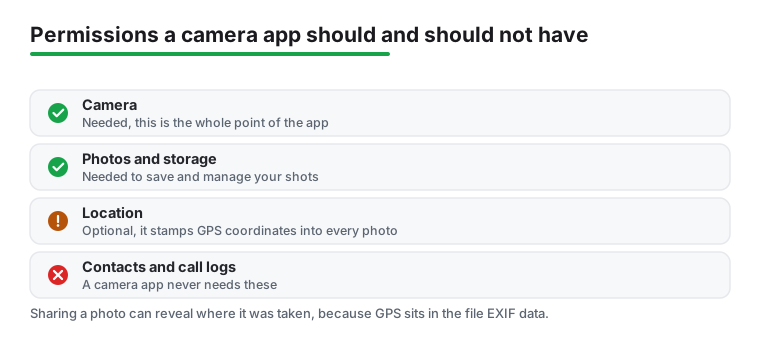
A camera app typically needs camera and storage access, and sometimes location. It does not need your contacts or your call logs; treat a request for those as a reason to pause, and How to Manage App Permissions on Android walks through the settings for revoking one. Android shows a small indicator when an app uses the camera or the microphone, and Android describes it, read 21 August 2026, as "green icons in the top right corner" · one colour for both, not a colour per sensor. If it appears when you are not knowingly shooting, investigate. The mechanism behind it is documented by the Android Open Source Project, which states, read 21 August 2026, that from Android 12 a microphone or camera use counts as active if the system marks it running or it is less than five seconds old.
Most photos carry hidden EXIF metadata: phone model, date and time, camera settings and, if the camera app has location permission and geotagging is on, the GPS coordinates of the shot. Sharing a photo can therefore reveal where it was taken even when nothing in the frame gives it away. The two defences are simple: strip the metadata before sharing, or turn off the camera app's location permission so the tag is never written at all. Android itself guards the first half: Google's own shared storage documentation, read 21 August 2026, states that an app targeting Android 10 or higher must declare the ACCESS_MEDIA_LOCATION permission and request it at runtime before it can read unredacted EXIF location out of your photos, and that it needs your explicit consent to get it. A further Android 11 change, covering apps that launch a third party camera by intent, is reported by 9to5Google, read 21 August 2026, rather than by any Google page read here. Your own camera app's location permission still decides whether photos get a GPS tag, so leave location off unless you want geotags. Of the apps above, Secure Camera says in its description that it strips EXIF from photos by default, and Open Camera's description lists an option to remove device EXIF metadata.
A port is a modified copy of Google Camera made by a third party, and you give it camera and storage access to do its job. A genuine port from a reputable maker can be perfectly safe and improve your photos; a malicious copy dressed up to look the same could abuse that same access. So install a port only from a source you trust, be wary of look alike downloads, and if a port asks for permissions a camera has no business wanting, do not install it. Keeping any camera app updated matters for the same reason: updates close security holes and tight permissions limit the damage if something goes wrong.
Pair it with: a photo editor, where Adobe Lightroom is the pick for RAW files; a gallery app to sort the keepers; a scanner app for documents and receipts; and a video editor for clips.
Every store figure here is read off the app's own Google Play listing on a stated date: rating and review count, the install band, the price and purchase range, the Contains ads label, the content rating and the Data Safety section. What each app needs from the phone is a separate claim from a separate document, the developer's own help page, FAQ or store description, linked and dated in the sentence that uses it. Where a listing and a developer page disagree, both are printed rather than reconciled. Nothing here rests on our own use of the apps, and the screen captures are our own.
We re-verify this category monthly. Get the monthly diff by email
Not always. Stock cameras are tuned for the hardware they ship on and are fine for quick shots. A third party app is worth it for one of four reasons: manual control the stock app withholds, raw files to edit later, a particular creative look, or stock processing that leaves quality on the table. If none of those describes you, the built in camera is the right answer.
Open Camera, for most people. It is free and open source with real manual controls, and it is the one entry whose developer names the exact Camera2 levels those controls need. One caveat to know first: its Play listing carries a Contains ads label, which its own description contradicts in writing. If the label rules it out, Secure Camera by GrapheneOS is free with no ads label and no in-app purchases on its Play listing, read 27 September 2026, though its description names no manual ISO, shutter or focus control. If you own a Pixel, the built in Pixel Camera is hard to beat and costs nothing either.
Almost always because the phone does not expose it, not because the app is broken. Android sorts each camera into levels, and manual exposure is guaranteed only on the full level; a legacy level camera never offers it and a limited one offers it only when the maker included the manual sensor capability. Raw capture works the same way. The app cannot add what the vendor did not enable, and several of the developers on this page say so on their own store pages.
Look your model up in the Camera FV-5 device database, which lists what each handset exposes to an app. No other developer page read for this article publishes anything comparable, and it carries its own caveat: the page states its last update as December 2024, so a phone released after that may not be in it. The free Camera FV-5 Lite is the other way to find out without paying, though its listing, read 27 September 2026, says it limits picture resolution and leaves RAW capture to the paid version.
Open Camera and Camera FV-5 document raw capture and what it depends on in the most detail: Open Camera's help page ties DNG output to the Camera2 interface, and the Camera FV-5 FAQ says the phone maker has to enable raw for third party apps. Adobe documents a DNG or JPG capture toggle for Lightroom in its help centre rather than on its Play listing. ProCam X, Footej Camera and Pixtica also list raw on their store pages, each with a device condition stated on the listing. Of these, Open Camera is the free one with nothing sold inside. Check your own model in the Camera FV-5 device database before paying, since some phones cap raw output at the hardware level and no app can work around that.
Every app here comes from a Google Play listing, which is the floor rather than a guarantee. Read the Data Safety section on each listing before installing: on 27 September 2026, Open Camera, Lens Buddy and Secure Camera declared that no data is collected and none shared, while Footej Camera, VSCO and Pixtica declared that data may be shared with third parties. Then check the permissions the app asks for, and be wary of clones with odd names.
On Google Play in the United States, read 27 September 2026, Blackmagic Camera, whose developer names Samsung and Google Pixel phones, Secure Camera and Lens Buddy are free, carry no Contains ads label and sell nothing inside. Pixel Camera does the same but installs only on Pixel phones. Open Camera sells nothing either, but its listing carries a Contains ads label even though its own description says there are no third party ads in the app. B612, VSCO, Lightroom and Pixtica carry no ads label but sell in-app purchases, and the Pixtica listing has not been updated since 21 August 2023.
On a Pixel, the built in Pixel Camera: its Play listing, read 27 September 2026, names Night Sight for photos and Night Sight Video, and it installs only on Pixels running Android 16 or newer. On other phones a GCam port is a modified copy of that app built per model, with the limits the port section above describes; the port index front page, read 27 September 2026, names HDR+ among its features, not Night Sight. Among the apps here, Open Camera's description lists a noise reduction mode that includes a low light night mode, and Secure Camera offers a Night mode only where the phone's vendor extensions provide one. For a phone on a tripod, Camera FV-5 lists long exposures.
GCam ports are modified copies of Google Camera built by third parties, and they can improve photos on some phones, especially in low light. Because a port gets camera and storage access, install one only from a source you trust. A malicious copy could abuse that same access, so be wary of look alike downloads from unknown sites, and do not install any port that asks for permissions a camera has no reason to want.
On the flagships, start with the stock camera plus Samsung Expert RAW from the Galaxy Store. It is a Samsung app rather than a Play listing, so this page does not verify it and cannot tell you which models it covers; the Galaxy Store entry on your own phone will. On the A series and other midrange models, Open Camera adds the manual controls Samsung tends to reserve for flagships, as far as the handset allows. GCam ports exist for Galaxy phones, but Samsung is the brand that needs them least. For video, Blackmagic Camera's developer names Samsung phones for its Android version on its product page, read 27 September 2026.
It can, one model at a time: the port index, read 27 September 2026, says Google's HDR+ improves picture quality especially on low and mid end phones. Check the port index for a build catalogued for your exact model, since ports are made per chipset and a build for a different model may simply crash. Read the entry itself for the Android version it wants: the modder BSG marks its recent builds android 11 and above and its older ones android 6 and above, while most other modders on that index mark no version at all. Then follow the step by step in the how to choose section above.
Checked 27 September 2026: every figure was re-read from the United States Google Play listings on 27 September 2026. The ProCam X listing shows an update dated 13 September 2026, still under version 1.29, so the claim that its listing had not updated since November 2025 is withdrawn. The Snapchat claim that no listing here was updated after it is withdrawn: Pixel Camera's listing updated later, on 24 September 2026. The Lens Buddy rating moved from 4.7 to 4.8 (6,747 to 7,036 reviews) and the B612 rating from 4.1 to 4.0 (7,193,559 to 7,190,493 reviews), and every other review count was refreshed. The Lightroom claim that its description puts its strongest tools behind in-app purchases is withdrawn: the description names no purchase tier at all. The Google Camera line crediting the port index with naming Night Sight is corrected: its front page names HDR+ only. Pixtica keeps its place with its staleness stated in the table, and its section no longer praises a listing last updated on 21 August 2023. The RAW answer names Adobe Lightroom beside Open Camera and Camera FV-5, matching the Lightroom entry restored on 21 August 2026. Adobe's help pages answered 403 to this check on 27 September 2026, so the Adobe sentences keep their 21 August 2026 read dates. Two apps were added, Blackmagic Camera for video and Secure Camera for a free listing with no ads label that declares no data collected, which takes the comparison from eleven apps to thirteen.
Checked 21 August 2026: every figure was re-read from eleven Play listings that day and the comparison was rebuilt around what each app says your phone must allow, replacing a bare RAW tick per app; each cell now answers the phone condition first and the raw status second, and names the document behind it. One earlier correction on this page is itself withdrawn. A previous pass cut the raw claim for Adobe Lightroom, on the grounds that its Play description never says camera and that no Adobe help page would answer. The Play description still never says camera, but helpx.adobe.com answered that day, and Adobe's camera workspace page documents a File Format control that toggles between DNG and JPG capture, while its Pro mode page, stamped 5 June 2026, documents shutter speed, ISO, white balance and manual focus on Android. The cut was an artefact of a failed fetch, and the entry is restored with those pages linked. The VSCO cell keeps its correction, since that description names four camera modes and no raw capture, and vsco.co answered 403 rather than a page. The claim that every current build on the GCam port index needs Android 11 or newer is withdrawn: read that day, that marking belongs to the modder BSG, whose page also lists older builds marked android 6 and above, while the other modders catalogued on the same index mark almost no Android version at all. The older phone route the page used to offer is restored with it. The ProCam X entry loses a live histogram, which is a Camera FV-5 feature that reached this page from the similar apps strip of the ProCam X listing, and it now prints both Android floors its listing states, 5.0 in the description note and 6.0 in the Requires Android field. In the privacy section, an orange one for the microphone is withdrawn: android.com states green icons in the top right corner for camera and microphone alike, and the AOSP page cited beside it names no colour at all. The Android 11 metadata paragraph now leads with Google's own documentation of the media location permission rather than with a blog. The Lens Buddy rating moved from 4.8 to 4.7, and the claim that it sits on the smallest review base here was wrong, since Pixtica has fewer reviews. The B612 line "Watermarks on free saves" is withdrawn: no source read that day states it. The Samsung Expert RAW paragraph lost its device list and its file format claim, which no Samsung page readable that day states, and the passing claim that Google Camera once shipped a camera vulnerability is withdrawn for the same reason. Google Camera now links its own Play listing, which is titled Pixel Camera there, instead of printing a rating with no link behind it. Two Footej claims are withdrawn too: that the Premium purchase clears the ads and that it unlocks raw capture. The Premium package list on that listing itemises burst interval, JPEG quality and video stabilisation and never mentions advertising, and raw format is listed as a base feature rather than a Premium one. Both screenshot galleries keep every image; their captions lost the phrase describing capture inside the app, which is a use claim, gained an explicit own capture line and a read date, and the Footej caption now credits the developer its listing named that day.