
Updated September 2026
Updated September 2026 · the three apps holding the space now carry their own dated listing figures
A full phone is almost never full of apps. It is full of photos, chat media and deleted files that have not actually left. This works through them in the order that frees the most space soonest.
Before deleting anything, look at the breakdown. Guessing leads to deleting the wrong things.
On a Pixel (and most stock Android phones): open Settings > Storage. You will see a bar chart split into Apps, Photos and videos, Audio, Games, Documents and other, and System.
On a Samsung Galaxy running One UI 7: open Settings > Device care > Storage. Same idea, slightly different layout, with categories like Images, Videos, Audio, Documents, and Apps.
A few things to notice right away. "System" is the Android operating system itself, and you cannot delete it, so ignore that slice. The categories that usually balloon are Apps, Photos and videos, and a vague bucket called "Other" or "Documents and other." That last one is where downloads, app caches, and leftover files hide. We will get to all of them.
Tap any category to see a list sorted by size. This is the single most useful screen on the whole phone for this job, because it tells you exactly where to aim. Google documents the stock path in its Android storage help page, and Samsung lists the One UI version on its free up space support article.
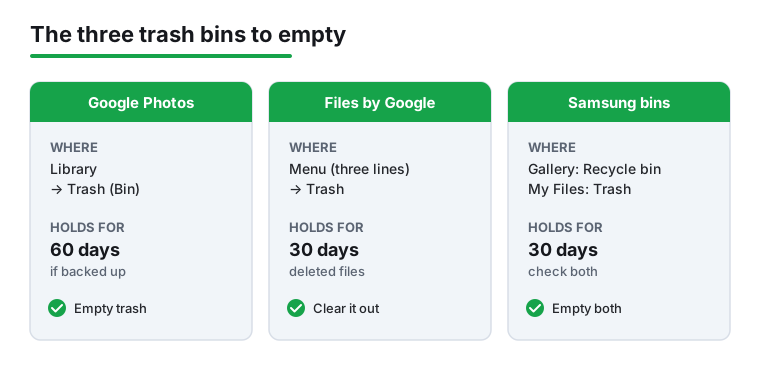
Here is the surprise that catches most people. When you delete photos and files on a modern Android phone, they are not gone. They sit in a recycle bin, taking up the same space, sometimes for two months. There are usually three separate bins, and emptying them can hand back several gigabytes in under a minute.
1. Google Photos trash. Open the Photos app, tap your profile picture or the Library tab, then Trash (sometimes labeled Bin). Tap the menu and choose Empty trash. Photos that were backed up stay here for 60 days before they delete on their own; photos that were never backed up stay for 30 days, a window confirmed in Google Photos Help.
2. Files by Google trash. Open Files by Google, tap the menu (three lines), then Trash, and clear it. This bin holds deleted files for 30 days.
3. The Gallery or My Files bin on Samsung. Samsung keeps its own recycle bins separate from Google's. In the Gallery app, tap the menu and look for Recycle bin; in the My Files app, look for Trash. Both hold items for 30 days. If you use both Google Photos and Samsung Gallery, you may have deleted the same photo into two different bins, so check each.
Worked example: a friend with a 64 GB phone was at 98 percent full and panicking. Emptying the Google Photos trash alone freed 4 GB, because she had "deleted" a year of screenshots that were quietly waiting out their 60 days.
Cache is the temporary data an app saves so it loads faster next time: thumbnails, map tiles, web pages you already viewed. It is genuinely safe to delete. You will not lose your login, your settings, or your messages. The app simply rebuilds the cache as you use it.
The catch in 2026: Android no longer offers a single "clear all cache" button, and there is no system-wide cache eraser built in. You clear it per app, which sounds tedious but takes seconds for the few apps that matter.
On a Pixel: Settings > Storage > Apps, tap the heaviest app, then Clear cache. Do this for your top five or six space hogs. Browsers, social apps, and maps are usually the worst offenders.
On a Samsung Galaxy: Settings > Apps, tap the app, tap Storage, then Clear cache. Note the extra Storage tap compared to a Pixel.
One important warning. Next to Clear cache you will see Clear storage (sometimes "Clear data"). These are not the same. Clear cache removes throwaway files. Clear storage wipes the app back to a fresh install, which can log you out and delete in-app content. For routine cleanup, only ever tap Clear cache. Leave Clear storage for an app that is genuinely broken.
Finding junk without installing a cleaner
4.5 stars from 9,020,448 reviews · 5,000,000,000+ installs · free to install · no in-app purchases listed · by Google LLC · Contains ads: No · checked 3 September 2026
Google Play listing · 4.5 (9,020,448) · read 3 September 2026
Files by Google is the cleaner worth using, and it is already on most phones: its Clean tab finds junk files, large media and duplicates, and it holds one of the three trash bins that quietly keep deleted files on the phone. It is free with nothing sold inside and no Contains ads label. The blunt con: it will not free space that photos are holding, because that job belongs to Google Photos and its own bin.
Photos and video, the biggest category
4.4 stars from 53,904,680 reviews · 10,000,000,000+ installs · free to install · no in-app purchases listed · by Google LLC · Contains ads: No · checked 3 September 2026
Google Play listing · 4.4 (53,904,680) · read 3 September 2026
Photos and video are almost always the largest thing on a full phone, and Google Photos is where you deal with them: back up first, then use Free up space to remove the local copies that are already safe in the cloud. It is free with nothing sold inside and no Contains ads label. The blunt con: Free up space and Delete look similar and do very different things, and its own bin holds deleted items for 60 days before the space returns.
Video is the giant. A few minutes of 4K footage can eat more space than a hundred apps. Photos and videos are almost always the biggest category on a full phone, so this is where the real space lives.
The smartest move is to find the largest files and review them deliberately, rather than scrolling endlessly. Open Files by Google > Clean (the broom icon at the bottom). It groups suggestions into cards: junk files, duplicate files, large files, old screenshots, blurry photos, and even "meme" dumps. You can preview each group and delete only what you choose. Nothing leaves until you tap delete, so it is hard to make a mistake.
If most of your photos are already backed up to Google Photos, you can safely remove the local copies. In the Photos app, tap your profile picture and choose Free up space on this device. This deletes only photos confirmed to be safely in the cloud, keeping the cloud versions intact. Confirm that backup actually finished first, otherwise you are deleting the only copy.
For trimming long videos down before deleting the original, a proper editor helps. See our roundup of the best video editor apps for Android if you want to keep a short clip and ditch the bulky source file. To sort and bulk-select photos faster, a capable gallery app can make the job far less painful.
Chat media, without losing the chats
4.6 stars from 242,688,799 reviews · 10,000,000,000+ installs · free to install · in-app purchases $0.40 to $199.99 per item · by WhatsApp LLC · Contains ads: No · checked 3 September 2026
Google Play listing · 4.6 (242,688,799) · read 3 September 2026
WhatsApp is routinely one of the largest items in the storage list, because every meme and forwarded video a group sends is saved to the phone. Its own Manage storage screen sorts by size and by chat, so you can clear the media without touching a single message. It is free with no Contains ads label. The blunt con: switching off automatic media download stops the problem returning, and almost nobody does it.
WhatsApp deserves its own section because it quietly becomes one of the largest things on many phones. Every meme, voice note, and forwarded video your group chats send gets saved to your storage automatically. People routinely find 5 GB or more sitting there.
You can clear it without deleting a single conversation. Open WhatsApp, tap the three-dot menu, then Settings > Storage and data > Manage storage. At the top you will see how much space WhatsApp uses overall. Below that are handy shortcuts: Larger than 5 MB and Forwarded many times. These are gold, because forwarded videos are the stuff you never needed to keep.
Steps: tap Larger than 5 MB, press and hold to select items (or use Select all), check the previews, then tap the trash icon. You can also scroll down to see your chats ranked by size and clean out the heaviest one. Deleting media here removes the files, not the text of your chats, and your conversations stay put.
To stop the buildup, go to Settings > Storage and data > Media auto-download and switch the options to Wi-Fi only or No media. Your photos will still arrive; they just will not auto-save unless you tap to download them.
You do not always have to uninstall an app to reclaim its space. Android has a middle option called archiving. When you archive an app, Android removes most of its files but keeps your data and leaves a faded icon (with a small cloud) on your home screen. Tapping that icon re-downloads the app and drops you right back where you left off. Archiving can recover roughly 60 percent of an app's footprint without losing your saved progress or logins, a figure Google gave when it introduced the feature on its Android Developers Blog. The step-by-step path lives on Google's archive unused apps help page.
This is the modern equivalent of "offloading." It is perfect for the game you play twice a year or the airline app you only need when traveling.
To archive one app: Settings > Apps, tap the app, then Archive. This works on Android 15 and newer.
To let the phone do it automatically: open the Play Store, tap your profile picture, go to Settings > General, and turn on Automatically archive apps. From then on, when storage runs low, the Play Store quietly archives apps you have not opened in a while.
When should you fully uninstall instead? When you genuinely do not want the app back, or when an app's saved data itself is the problem. Archiving keeps the data; uninstalling clears it. For the apps you do keep, our guides to the best file manager apps can help you spot the heavy folders worth pruning.
People often ask whether they can just pop in a memory card. The honest answer for most newer phones: probably not. Flagship phones dropped expandable storage years ago. No Pixel has ever shipped with a microSD slot, and Samsung removed it from the Galaxy S line starting with the Galaxy S21 in early 2021. The Galaxy S26 and Pixel 10 families have no card slot either.
Where SD cards do survive in 2026 is the budget and mid-range world. Many Samsung Galaxy A-series phones (such as the A35 and A55) still take a microSD card, often up to 1 TB, and Motorola's Moto G line generally does too. A handful of niche premium phones, like the Sony Xperia 1 series, keep the slot as well.
If your phone does have a slot, a card is a cheap way to store photos, music, and downloads. A decent 256 GB card costs roughly 20 to 35 US dollars in 2026. Two cautions, though. First, apps mostly cannot run from the card, so it helps with media, not with app bloat. Second, treat the card as removable storage, not a backup; cards can fail, so keep anything irreplaceable in the cloud too. If your phone has no slot, the cloud is your expansion option, and our guide to the Google storage cleanup covers that side neatly.
The Play Store is full of apps promising to "boost" your phone and clear gigabytes with one tap. It is worth being clear-eyed about these.
The legitimate part of what they do, finding cache, large files, and duplicates, is already built into Files by Google and your phone's Settings, without ads and without the urge to scare you into tapping. Modern Android has folded the genuinely useful cleanup features into the operating system itself, a point Android Police made when it argued the built-in tools are now good enough.
The part to be skeptical of is "RAM boost" or "memory cleaner" claims. Force-closing background apps does not speed up Android; the system just reloads those apps moments later, which actually uses more battery and processing power. Free RAM is not wasted RAM on Android. It is designed to keep recent apps ready in memory. A cleaner constantly fighting that design works against you.
If your phone feels slow, the cause is usually an aging battery, one badly behaved background app, or having less than about 10 percent free storage, not a pile of junk files a magic button can sweep away. The fix is the deliberate cleanup in this guide, plus restarting the phone now and then. If you still want a dedicated tool, our verified roundup of the best cleaner apps for Android sorts the honest ones from the noisy ones, and the two that arrived this year are read separately in the new Android cleaner apps of 2026.
Cleaning up once is satisfying. Not having to do it again is better. A few habits keep the warning away:
1. Once a month, empty your three trash bins (Google Photos, Files by Google, and Samsung's recycle bins if you have them).
2. Turn on automatic archiving in the Play Store so unused apps shrink themselves.
3. Set WhatsApp and other chat apps to download media on Wi-Fi only, so videos stop piling up silently.
4. If you use Google Photos with backup on, run Free up space on this device every couple of months to clear local copies that are safely in the cloud.
5. Keep at least 10 percent of your storage free. Phones slow down and apps misbehave when there is no room to breathe.
Do those five things and a 128 GB phone can stay comfortable for years. The whole point is to delete the stuff you never wanted, so the stuff you care about always has room.
Yes. Cache is temporary data an app can rebuild: thumbnails, map tiles, pages already viewed. Clearing it loses no messages, photos or settings, and the app simply reloads what it needs. Clearing app DATA is the destructive one. Checked 3 September 2026.
Because they went to a bin rather than out of the phone. There are three: Google Photos, Files by Google and the system Recycle bin. Photos holds items for 60 days, the other two for 30. Empty all three. Checked 3 September 2026.
Archiving removes most of the app files but keeps its icon and your data, so a tap restores it. Uninstalling removes everything. Archiving is the better first move for apps you use a few times a year. Checked 3 September 2026.
No. Flagship phones dropped expandable storage years ago, and no Pixel has ever had a card slot. A USB-C drive or a cloud copy is the way to add room on those. Checked 3 September 2026.
No. Android manages memory on its own, and killing background apps usually makes things slower because they relaunch. The useful part, finding junk and duplicates, is already in Files by Google, which carries no ads label. Checked 3 September 2026.
Around a tenth of the total is a good floor. Below that, updates fail, the camera stalls and the system has no room to work with. Aim to clear back to that headroom rather than to the last megabyte. Checked 3 September 2026.
Checked 3 September 2026: the guide leaned on three apps and linked none of them, with no rating, no install band and no dated line. Files by Google, Google Photos and WhatsApp now carry a fact line read from their own listing, a store link, a decision table row saying what each one is holding, and three pros and three cons. None of the three carries a Contains ads label, which is worth stating on a page whose last section is about cleaner apps that do.
 How to Recover Deleted Photos on AndroidPhoto & Video
 Signs of Android Malware and How to Remove ItSecurity & Privacy
 Android Battery Draining Fast: How to Find and Fix ItTools & Utilities