
Updated September 2026 · all three apps now carry their own dated listing figures, and the page has a decision table
A plain scan is a photo of a page: there is nothing in it to search until recognition adds a text layer. This guide covers the three free ways to add that layer on Android, how to check it worked, and where recognition still gets it wrong.
Scanning a lot, hands off
4.6 stars from 3,030,746 reviews · 100,000,000+ installs · free to install · in-app purchases $1.99 to $69.99 per item · by Adobe · Contains ads: No · checked 3 September 2026
Google Play listing · 4.6 (3,030,746) · read 3 September 2026
Adobe Scan is the hands-off option: recognition runs when you save, so the PDF that lands in your library is already searchable and there is no OCR button to find. It is free to install with no Contains ads label on its listing, and Adobe sells an Acrobat subscription inside it at $1.99 to $69.99 per item. The blunt con: the free tier caps how many pages of a file get the full treatment, and lifting that cap is the paid upgrade.
Adobe names the feature in the product itself: its Play listing is titled "Adobe Scan AI PDF Scanner, OCR" and describes an app that "gives you clean, easy-to-read files with a scan", so recognition is part of the product rather than an add-on.
Adobe Scan is the most hands-off option because it runs OCR on its own. You install Adobe Scan: AI PDF Scanner, OCR from Google Play (it now needs Android 10 or later), sign in with a free Adobe account, and point the camera at your document. The app finds the page edges, cleans up the image, and as soon as you save, it processes the text in the background. The PDF it produces is already searchable; there is no separate OCR button to hunt for.
To capture: open Adobe Scan, let it detect the page or tap the shutter, add more pages if you need them, then tap the thumbnail and choose Save PDF. Give it a moment after saving, then open the file and try searching. You can also tap the share or export menu to send it out as a PDF, or export the recognized text to a Word file or to plain JPEG images.
The free version covers normal personal use. Adobe limits how many pages get the full OCR treatment per file on the free tier, and lifting that cap (up to 100 pages) is part of the paid Acrobat subscription, whose price varies by region and current promotion. For everyday scans of a few pages at a time, the free tier handles it. One honest note: Adobe Scan does its recognition in the cloud, so it needs an internet connection to finish processing, and your scans pass through Adobe's servers, which matters if the document is sensitive.
No install, findable scans
4.3 stars from 10,820,325 reviews · 10,000,000,000+ installs · free to install · in-app purchases $0.99 to $1,024.00 per item · by Google LLC · Contains ads: No · checked 3 September 2026
Google Play listing · 4.3 (10,820,325) · read 3 September 2026
Google Drive is the pick when you do not want another app: the scanner is in the plus menu, and Drive indexes the text of what you save so the document turns up in a search. It is free with no Contains ads label, and the in-app purchases on its listing are Google One storage plans rather than an OCR paywall. The blunt con: indexing makes a file findable, but selecting and copying the text still needs the Open with Google Docs step.
If you have a Google account, you already have a scanner and an OCR engine, no extra install required. The Google Drive app has a built-in scanner, and Drive runs OCR on what you save.
Open the Drive app, tap the + (New) button, choose Scan, and capture your pages. Drive auto-detects edges, lets you adjust the crop and color, and saves the result as a multi-page PDF. Once the file is in Drive, the service indexes its text in the background, usually within a few minutes, so you can find the document by searching for words inside it from Drive's main search bar.
There is a useful second step if you want selectable, copyable text rather than just findability. In Drive, open the file's three-dot menu, choose Open with, and pick Google Docs. Google Docs re-runs OCR and drops the recognized text right into an editable document, with the original image usually placed above it. From there you can copy the text or save a clean copy. Google notes a few limits worth respecting: keep the source file reasonably small and sharp, make sure the page is right-side up, and expect complex layouts like multi-column pages and tables to come out imperfectly. This route is free and convenient, but the Open with Google Docs path gives you text rather than a polished searchable PDF that preserves the original layout, so use Adobe Scan when keeping the look matters.
Former Lens users and Microsoft 365
4.6 stars from 7,273,775 reviews · 5,000,000,000+ installs · free to install · in-app purchases $0.99 to $129.99 per item · by Microsoft Corporation · Contains ads: No · checked 3 September 2026
Google Play listing · 4.6 (7,273,775) · read 3 September 2026
OneDrive is the answer for anyone who used Microsoft Lens: the scanner and the Recognize text step now live here, and the scan, the recognition and the storage sit in one place. It is free to install with no Contains ads label, and its in-app purchases are Microsoft 365 storage plans at $0.99 to $129.99 per item. The blunt con: recognition is a long press on the open PDF rather than an obvious button, so it is easy to miss.
If you used Microsoft Lens, here is the news you need: Microsoft retired it. Lens entered retired status on January 9, 2026, was removed from the app stores around February 9, 2026, and its scanning stopped working in March 2026, with scanning moved into the OneDrive app and Microsoft Copilot. So the old Lens advice you may find online no longer applies, and there is no Lens to download.
The replacement works well. The OneDrive mobile app has a built-in scanner, and through late 2025 and into 2026 Microsoft added OCR for scanned PDFs across the mobile apps, on by default. To scan: open OneDrive, tap the camera or scan icon, capture your pages, and save the PDF to your OneDrive. To make an existing scanned PDF searchable, open that PDF inside the OneDrive app, then tap and hold (long-press) anywhere on the page; when the menu appears, choose Recognize text. OneDrive runs OCR and adds the text layer so you can search and select.
This is the natural choice if you already live in Microsoft 365 or keep your files in OneDrive, since the scan, the OCR, and the storage are all in one place. As with Adobe, recognition happens on Microsoft's servers, so it needs a connection and the document passes through the cloud.
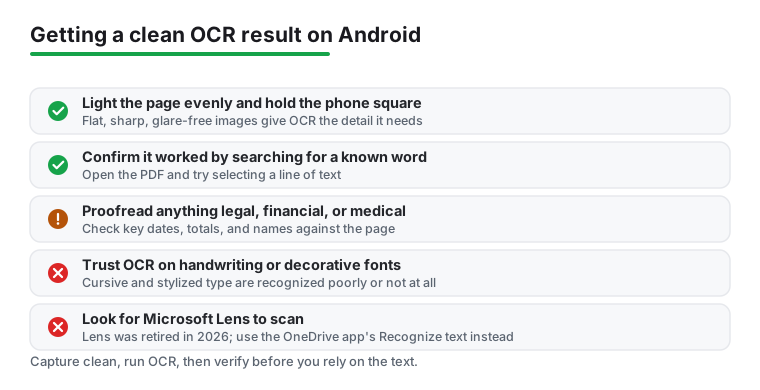
Whichever of the three you pick, the workflow is the same shape: capture a clean image, let OCR add the hidden text layer, then confirm it worked by searching for a word you know is on the page.
OCR stands for optical character recognition. It looks at the picture of a page, finds the shapes that look like letters and numbers, and works out what they say. The result gets stored in the PDF as a hidden text layer that sits invisibly on top of the original image. The page still looks identical to the scan, but now there is real text underneath that your phone can read.
That hidden layer is what makes a PDF "searchable." Once it exists, you can type a word into your reader's search box and jump straight to it, drag to select a sentence and copy it into an email, or let a screen reader speak the page aloud. Nothing about the look changes; you are adding a capability, not altering the scan.
It helps to know the difference between two things people mix up. A searchable PDF keeps the original page image and adds the text layer behind it, so it looks exactly like your scan and you can find and copy words. Text extraction (sometimes called export to Word or to a document) throws away the image and gives you the raw recognized text in an editable file, which is useful when you want to rewrite the content but loses the original layout. Most of the time you want the first kind, and that is what the methods below produce by default.
OCR can only recognize what it can see clearly, so the quality of the scan decides the quality of the result more than the app does. A few minutes spent capturing a good page saves you from proofreading garbage later.
If you scan documents often, it is worth picking a capture app you trust rather than relying on whatever is built in. Our roundup of the best scanner apps for Android compares the options on edge detection, OCR quality, and how aggressively they push subscriptions.
Do not assume the OCR succeeded just because the app said "done." Take ten seconds to check, because a silently bad recognition is worse than none at all.
The quick test: open the finished PDF in any reader, search for a distinctive word you can see on the page, and try to select a line of text by dragging. If the search finds it and the selection highlights the actual words, the text layer is there and correct. If the search comes up empty or your finger selects nothing, OCR either did not run or did not stick, so re-run it or try one of the other methods.
When recognition ran but produced wrong text, the cause is almost always the source image. Rescan the page with better light and a flatter, squarer shot. If a single word or two came out wrong, you can correct them: in Google Docs the text is directly editable, and in a full PDF editor you can fix the recognized layer. For tidying up scanned PDFs after OCR, reordering pages, or fixing recognized text, our guide to the best PDF editor apps for Android covers apps that let you edit the text layer directly.
OCR is good, not perfect, and pretending otherwise will burn you on the documents that matter most. Recognition accuracy drops sharply in a few predictable situations, and you should expect to proofread anything important.
The rule to carry away: always proofread the recognized text before you rely on it, especially for anything legal, financial, or medical. Search the document for a couple of key figures, like a total, a date, or a name, and confirm they match the page. OCR saves you retyping; it does not replace reading.
Pick the path that matches what you already use and how much the document matters:
Whatever the document, treat OCR as a strong first pass that still needs your eyes on the result. If you want to streamline the whole capture-to-search routine on your phone, the wider productivity apps section has more on building a paperless workflow that actually holds up.
Because a plain scan is a photo of the page saved as a PDF. There is no text in it for your phone to search, only an image of text. Recognition adds a hidden text layer behind the image, and after that the document becomes searchable and selectable. Run one of the three methods here on the file and try the search again. Checked 3 September 2026.
Yes for normal use. Drive's scanner and its text indexing are free with a Google account, the OneDrive Recognize text step is free, and Adobe Scan is free to install and recognises on save, though Adobe caps how many pages of a file get the full treatment on the free tier. None of the three listings carries a Contains ads label. Checked 3 September 2026.
Microsoft retired it. Lens entered retired status on January 9, 2026, left the app stores about a month later, and its scanning stopped working in March 2026, with scanning moved into the OneDrive app and Microsoft Copilot. Any Lens advice you find online is out of date: scan in OneDrive instead. Checked 3 September 2026.
No, when you create a searchable PDF. The text layer sits invisibly behind the original page image, so the document looks exactly like your scan and you simply gain search, selection and copy. Extracting the text into Word or Google Docs is a different job, and that one does change the layout. Checked 3 September 2026.
Usually not well. Phone recognition is built for printed type, so cursive and casual handwriting come out poorly or not at all. Treat any handwriting result as a rough draft and read every line before relying on it. Checked 3 September 2026.
Almost always the source image. Shadows, glare, blur, a skewed angle, a curled page or a faded original all rob the recogniser of detail. Rescan with even light, hold the phone square and close, flatten the page and use a plain dark background. Unusual fonts and dense columns are the other common cause. Checked 3 September 2026.
Checked 3 September 2026: this guide named three apps and linked none of them, and carried no rating, no install band, no price and no dated line anywhere. All three now carry their own fact line read from their own listing, plus a decision table, a verdict capsule and a How we verify box. The figures that changed the advice: Google Drive rates 4.3 from 10,820,325 reviews, the lowest of the three, while Adobe Scan and OneDrive both sit at 4.6, and none of the three carries a Contains ads label.
 RCS vs SMS on Android, ExplainedCommunication