
Updated September 2026 · all six apps now carry dated listing figures, three lines were corrected by the listings, and the how-to keeps its steps
Most people install CamScanner, photograph one receipt, and never touch the half of it that actually saves time. The gap between poking at it and really using it is huge. Here is how to set CamScanner up on Android, the habits that save the most time, and the honest catches worth knowing before you lean on it for anything that matters.
Pull CamScanner from the Play Store and open it. You can skip the account step for now if you just want to kick the tires, but signing in with a free Google account early is worth it anyway. That account is what keeps your scans if the phone dies and what lets you reach them from a laptop later. On first launch it asks for the camera, which it obviously needs, and optionally for photo access so it can import shots you already took.
Two settings are worth changing before you scan anything real. Tap the gear icon, turn on auto capture, and set the default export to PDF instead of JPG. Auto capture trips the shutter the moment the page sits square in the frame, so you're not stabbing at a button while pinning a document flat with your other hand. While you're in there, switch the default mode to the document color preset. It reads printed text far more cleanly than the plain photo mode. Spend two minutes here and everything afterward feels quicker.
Batch scanning is the one to learn first. Rather than shooting a page, saving it, and starting over, tap the batch icon and CamScanner leaves the camera running, dropping each page into one multi page file as you go. When a corner drifts, dragging the handle fixes it in about a second.
The cleanup is the other thing that quietly earns its keep. Shoot a page at an angle and the app straightens it; shoot it under a desk lamp and it lifts most of the shadow, so the result looks scanned rather than snapped. Magic color is the mode aimed at printed pages, while grayscale suits pencil and handwriting. When a document's done, the share sheet pushes a single tidy PDF to email, Drive, or a chat, which beats attaching a stack of loose photos one by one.
A few small habits make the biggest difference. Name a document the second you finish it instead of letting a wall of dated files pile up. You can add tags too, so tag receipts, contracts, and IDs and then filter by tag when you actually need to dig something out. Searching a named, tagged library beats scrolling forever, every time.
For anything with a fold or a staple shadow, slide a sheet of plain white paper behind the page and shoot in even, indirect light. That single move removes almost every shadow the software would otherwise have to guess at. Before you export, use the built in page tools to reorder or delete a page so the file goes out clean the first time.
One thing to set expectations on: the recognize text feature, CamScanner's OCR, is no longer a free unlimited tool in 2026. Pulling text out of scans sits in the paid tier, sold as in-app purchases of $0.49 to $399.99 per item on the listing read 5 September 2026; how much the free tier allows before that is not something the listing states. Text recognition is what turns a phone number on a flyer into something you can copy and clean print into something you can search. So treat it as a handy thing you can sample for free, not something to build a workflow on unless you're paying.
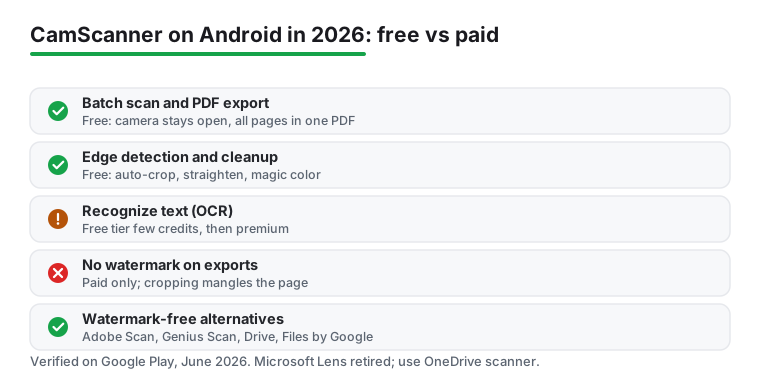
Now the honest part. The free version stamps a small CamScanner watermark in the corner of exported pages, and the only way to drop it permanently is the paid upgrade, sold as in-app purchases of $0.49 to $399.99 per item on the listing read 5 September 2026. For personal receipts and notes that mark is easy to live with. For anything going to a client it reads as unprofessional, and there's no tidy way around it: the watermark sits where cropping would cut into your document, so trying to trim it off just mangles the page. If a clean, mark free PDF is the point, you're better off using an app that doesn't add one in the first place, which we get to below.
On permissions, the camera is non negotiable and reasonable. Photo and storage access are optional and only matter if you want to import existing images, so you can decline them and still scan fine. The thing actually worth managing is the cloud. By default your scans sync to CamScanner's own servers, which is convenient and also means a copy of every sensitive document leaves your phone. Its Data Safety card, read 5 September 2026, says the app may share data types with third parties and may collect data types. If you scan anything private, open settings and turn cloud sync off, or export straight to your own Drive and delete the local copy. The free tier also nudges you toward premium fairly often and parks a few export options behind the paywall. Its listing, read 5 September 2026, carries the Contains ads label as well. None of that is a reason to skip it, but you should know it going in.
The batch, tag and cloud workflow this page describes
4.6 stars from 5,043,804 reviews · 500,000,000+ installs · free to install · in-app purchases $0.49 to $399.99 per item · listing updated 3 September 2026 · by INTSIG PTE · Contains ads: Yes · checked 5 September 2026
Google Play listing · 4.6 (5,043,804) · read 5 September 2026
The most installed dedicated scanner app on this page, at 500,000,000+ installs and 4.6 stars from 5,043,804 reviews on a listing read 5 September 2026. Two things on that listing frame everything above: it carries the Contains ads label, and the watermark-free export is a paid upgrade sold as in-app purchases of $0.49 to $399.99 per item. Its Data Safety card says the app may share data types with third parties, which is why the cloud sync setting above matters.
CamScanner is polished, but it isn't the only option, and the right pick depends on what you scan and whether that watermark is a dealbreaker. If it is, three Android apps scan without one. Adobe Scan is free to install with in-app purchases of $1.99 to $69.99 per item on its listing read 5 September 2026, adds no watermark, and carries no Contains ads label, though its longer text recognition sits behind that paid tier. Genius Scan is fully ad free with no watermark on the free tier, works offline, and keeps documents on the device unless you opt into cloud backup; its listing, read 5 September 2026, carries no Contains ads label and sells in-app purchases of $0.99 to $39.99 per item. If you live in Microsoft's apps, the OneDrive app has a built in scanner that saves straight to your cloud storage, which matters now that the standalone Microsoft Lens app has been retired and pulled from the Play Store, where its listing still returned nothing on 5 September 2026.
You may not need a separate app at all. Google Drive has scanned documents for years, and Files by Google added its own scanner back in late 2023 too: open it, tap Scan at the bottom right, point the camera, and it drops a PDF into a Scanned folder. Both are free to install and built in on most phones, and fine for the occasional one off page; Drive's listing, read 5 September 2026, sells in-app purchases of $0.99 to $1,024.00 per item, while Files by Google's lists none.
Once your scans are PDFs you'll usually want to sign, merge, or mark them up, and a dedicated editor does that better than any scanner. Our roundup of free Android PDF editors covers the ones worth pairing with a scanner. For the full field, including the watermark free and privacy minded picks, our best scanner apps for Android pillar ranks them by use case, and you can browse the rest in our Productivity apps hub. Our take: if you scan often and already live in Google services, CamScanner is the most installed dedicated scanner app on this page at 500,000,000+ installs on its listing read 5 September 2026, as long as you tame the cloud sync and either accept the watermark or pay to drop it.
A watermark-free scan without the ads label
4.6 stars from 3,031,178 reviews · 100,000,000+ installs · free to install · in-app purchases $1.99 to $69.99 per item · listing updated 4 August 2026 · by Adobe · Contains ads: No · checked 5 September 2026
Google Play listing · 4.6 (3,031,178) · read 5 September 2026
The same 4.6 star rating as CamScanner, from 3,031,178 reviews, without the ads label: its listing, read 5 September 2026, shows no Contains ads label, free to install with in-app purchases of $1.99 to $69.99 per item behind the longer text recognition. The blunt con is the same Data Safety line CamScanner carries: the app may share data types with third parties.
The best rated watermark-free scanner on this page
4.9 stars from 607,535 reviews · 10,000,000+ installs · free to install · in-app purchases $0.99 to $39.99 per item · listing updated 28 August 2026 · by The Grizzly Labs · Contains ads: No · checked 5 September 2026
Google Play listing · 4.9 (607,535) · read 5 September 2026
The best rated app on this page at 4.9 stars from 607,535 reviews, read 5 September 2026, with no Contains ads label and no watermark on the free tier. It is free to install with in-app purchases of $0.99 to $39.99 per item, and it has the smallest install band on this page at 10,000,000+, which is the blunt con: a fraction of CamScanner's audience, with the same Data Safety line about data that may be shared with third parties.
Scanning straight into Microsoft cloud storage
4.6 stars from 7,279,302 reviews · 5,000,000,000+ installs · free to install · in-app purchases $0.99 to $129.99 per item · listing updated 4 September 2026 · by Microsoft Corporation · Contains ads: No · checked 5 September 2026
Google Play listing · 4.6 (7,279,302) · read 5 September 2026
Where Microsoft's scanner lives now that Microsoft Lens is gone from Play: the OneDrive app, at 4.6 stars from 7,279,302 reviews and 5,000,000,000+ installs on a listing read 5 September 2026, with no Contains ads label and in-app purchases of $0.99 to $129.99 per item. It is one of three listings here whose Data Safety card says no data shared with third parties. The con is the obvious one: every scan lands in Microsoft's cloud, which is the point or the problem depending on where you keep your files.
A one-off page with no extra install
4.3 stars from 10,820,780 reviews · 10,000,000,000+ installs · free to install · in-app purchases $0.99 to $1,024.00 per item · listing updated 1 September 2026 · by Google LLC · Contains ads: No · checked 5 September 2026
Google Play listing · 4.3 (10,820,780) · read 5 September 2026
Already on most Android phones, with a scan button that drops a PDF into Drive, and the lowest rating on this page: 4.3 stars from 10,820,780 reviews on a listing read 5 September 2026. No Contains ads label, free to install, and in-app purchases of $0.99 to $1,024.00 per item on the same listing. Its Data Safety card says no data shared with third parties and lists an independent security review.
The occasional page, with nothing to buy
4.5 stars from 9,023,031 reviews · 5,000,000,000+ installs · free · no in-app purchases · listing updated 17 August 2026 · by Google LLC · Contains ads: No · checked 5 September 2026
Google Play listing · 4.5 (9,023,031) · read 5 September 2026
The only app on this page whose listing sells nothing at all: free, no in-app purchases, no Contains ads label, read 5 September 2026, at 4.5 stars from 9,023,031 reviews and 5,000,000,000+ installs. Its Data Safety card says no data shared with third parties and lists an independent security review, with one line the other five lack: data cannot be deleted. The scanner is the Scan button at the bottom right, which files a PDF into a Scanned folder.
Yes, to install. The core scanning, batch capture, and PDF export cost nothing, on a listing read 5 September 2026 that carries the Contains ads label and sells in-app purchases of $0.49 to $399.99 per item. The catches are a small watermark on exported pages and a handful of features, including most text recognition, gated behind the paid tier. For personal notes and receipts the free tier is plenty. Client facing documents are where the watermark starts to push you toward paying.
The only clean way is upgrading to a paid plan, which strips the watermark from every export. Don't bother trying to crop it off; it sits where trimming would cut into your actual page. If a watermark free result is what you're after, an app like Adobe Scan or Genius Scan adds no mark on the free tier, which is simpler than paying CamScanner to remove one.
Be careful here. By default your scans sync to CamScanner's cloud servers, so private documents leave your phone, and its Data Safety card, read 5 September 2026, says the app may share data types with third parties. For anything sensitive, turn off cloud sync in settings or export the file straight to your own storage and delete the local copy. The scanning itself is fine; the automatic upload is the part to manage.
It can, but it's no longer free without limits. Open a scan and tap recognize text and the OCR pulls the words out so you can copy or search them. In 2026 the free tier only gives you a few OCR credits, after which it's a premium feature. Clean print is the easy case for phone OCR and messy handwriting the hard one, which is normal for the category.
Genius Scan, at 4.9 stars from 607,535 reviews on its Google Play listing read 5 September 2026, with no Contains ads label and in-app purchases of $0.99 to $39.99 per item. CamScanner and Adobe Scan both sit at 4.6 stars, from 5,043,804 and 3,031,178 reviews respectively, and CamScanner is the only app on this page whose listing carries the Contains ads label.
Checked 5 September 2026: the page named six apps and linked none, with no ratings, no ads labels, no table and no dated line. All six now carry fact lines read today, and Microsoft Lens, which the page already called retired, was checked as well: its Play listing returned HTTP 404. Three lines were corrected by the listings. Adobe Scan was called free with no qualification, and its listing sells in-app purchases of $1.99 to $69.99 per item. Google Drive and Files by Google were called free together, and Drive's listing sells in-app purchases of $0.99 to $1,024.00 per item while Files by Google's lists none. The CamScanner watermark line spoke of a subscription and the page never mentioned ads; the listing carries the Contains ads label and prices the upgrade as in-app purchases of $0.49 to $399.99 per item, so both are now stated. Ten first-person or usage claims are withdrawn: we'd sign in with a free Google account early anyway; The features that actually saved us time; dragging the handle fixed it in about a second; so we tag receipts, contracts, and IDs; That single move erased almost every shadow; When it ran, it copied phone numbers off flyers; that mark never bothered us; None of that stopped us using it daily; one of the faster mobile scanners around; and When it ran it handled clean print reliably. One sentence moved from past to present tense: A few small habits made the biggest difference. The FAQ gained a question on the best rated app, and its watermark question now reads in the second person.
 Signs of Android Malware and How to Remove ItSecurity & Privacy