
Updated September 2026 · all three apps now carry their own dated listing figures, and the first person anecdote is gone
Three word processors cover almost every case on Android: the one that lets you start writing immediately, the one that protects Microsoft formatting, and the one that replaces a whole office suite. This compares them on what their own listings say.
Starting to write immediately
4.7 stars from 2,803,331 reviews · 1,000,000,000+ installs · free to install · no in-app purchases listed · by Google LLC · Contains ads: No · checked 3 September 2026
Google Play listing · 4.7 (2,803,331) · read 3 September 2026
Google Docs is the default because there is nothing between you and the first sentence: it is already signed in on most phones, it saves as you type, and its listing sells nothing at all and carries no Contains ads label. The blunt con: heavy Word formatting is where it slips, so a document that has to come back looking exactly as it left is not its job.
Most heavier word apps on Android make you sign in, sit through a tour, and dodge a paywall before you can type a sentence. Google Docs skips all of that. If you already have a Google account on your phone, you are writing within seconds, and every keystroke saves itself to the cloud. That autosave once rescued a long draft when the battery died mid paragraph, and the whole document was sitting there, complete, when the phone came back on.
It also fits how people actually share work. A document opens the same way on a laptop, tablet, or another phone, and inviting someone to comment takes one tap. Two people can edit the same file at once, and a live cursor shows where the other person is typing. For the bigger picture, our roundup of office suite apps for Android lines Docs up beside the full productivity bundles.
Google Docs usually ships with the phone, but if it is missing, grab it from the Play Store and open it once while you have a calm minute rather than during a deadline. Sign in with the Google account you already use for email, and your Drive documents appear straight away. Nothing to import, nothing to migrate. If you keep work in a second account, tap your profile picture in the top corner and add it now. Switching mid task is far more annoying than setting it up cold.
Then take ten seconds to find the offline switch. It is the single setting we tell everyone to flip. Open the menu on any document, turn on Make available offline, and that file stays editable on a plane or in a dead spot with no signal. There is also a Make recent files available offline setting in the app's main menu if you would rather not flag files one by one. We learned this the hard way in a basement office with no bars, where a draft marked for offline use kept working while everything else sat frozen. Pin the few files you touch most, and the app stops feeling tied to a connection.
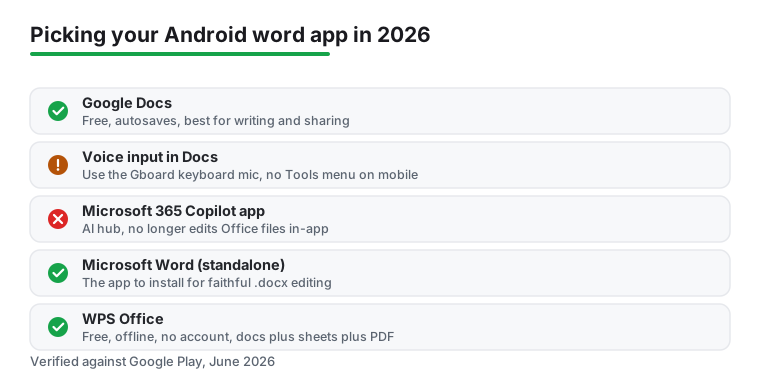
A few tools do the real work. Dictation is one of them, and on Android it does not come from a Docs button. The mobile app has no Tools menu with Voice Typing the way the desktop browser version does. Instead you tap into any text field in Docs, then press the little microphone on your Gboard keyboard and talk. The phone's own speech recognition does the typing, and the accuracy held up well even with traffic noise on a busy street. It will not follow the fancy spoken commands the desktop version understands, but for getting a rough draft down it beats thumbs. Worth knowing: Google's new Docs Live, the Gemini feature that lets you draft by talking conversationally, started rolling out in 2026, but it is a paid add-on for AI Pro and Ultra subscribers, so it is not part of the free experience this piece is about.
Comments are the other daily habit. We leave a note on a sentence for a colleague instead of rewriting their work, and suggesting mode tracks every change so nobody loses their original wording. For quick formatting the toolbar keeps bold, lists, and headings one tap away. Sharing is where Docs pulls ahead of older word apps. You set whether a person can view, comment, or edit, send a link, and you are done, with no attachment getting out of sync across inboxes. Version history saves the day too, since you can roll a document back to how it looked last Tuesday if an edit goes wrong. When a file starts as paper, it pairs with a scanning step first, and our guide to smarter scanning on Android shows how to get clean text in.
The basics get you going, and a few habits make Docs much easier on a small screen. Turn your phone sideways for any real editing. The wider keyboard and visible page cut the typos that creep in when keys are cramped. Learn the two finger long press to select a whole paragraph fast, which beats dragging tiny handles around. And when you paste from a website, use the paste without formatting option so someone else's fonts and colours do not invade your clean document.
For longer pieces, lean on the outline view in the menu. It lists your headings so you can jump to a section instead of scrolling forever. Name a file the moment you create it rather than leaving a stack of Untitled documents, because hunting for the right one later is far slower. None of these are dramatic, but together they add up on a small screen.
Google Docs is light on permission requests. It needs your Google account to sync, asks for the microphone only when you first dictate through the keyboard, and wants storage if you save a copy locally. You can review or revoke any of these in your Android app settings, and nothing felt like a reach for data the app did not obviously need. Because files live in Drive, the free 15 GB you already share across Gmail and Photos is the space to watch, not your phone's own storage.
It would be unfair to call it perfect. The features lean on a connection, so while offline editing works for files you flag in advance, anything you forgot to mark is locked until you reconnect. If you love heavy formatting you will find it plainer than a desktop processor, with fewer controls over spacing and styles. And it ties you to the Google world, which is great if you live there and a friction point if you do not. For everyday writing and sharing, none of that slowed us down.
Docx fidelity and tracked changes
4.8 stars from 17,213,849 reviews · 1,000,000,000+ installs · free to install · in-app purchases $0.99 to $199.99 per item · by Microsoft Corporation · Contains ads: No · checked 3 September 2026
Google Play listing · 4.8 (17,213,849) · read 3 September 2026
Microsoft Word is the pick when a document has to come back exactly as it left: styles, tracked changes and layout survive the round trip in a way no converter matches. It is free to install with no Contains ads label, and its listing sells Microsoft 365 from $0.99 to $199.99 per item. The blunt con: the free tier on a phone is a reader with light editing, and the useful parts sit behind that subscription.
Install the standalone app rather than the AI hub: Microsoft turned the old combined Office app into Microsoft 365 Copilot and is dropping in-app editing there, so the Microsoft Word listing is the one to search for.
Everything in one install
4.4 stars from 5,986,065 reviews · 500,000,000+ installs · free to install · in-app purchases $0.05 to $264.99 per item · by WPS SOFTWARE PTE. LTD. · Contains ads: Yes · checked 3 September 2026
Google Play listing · 4.4 (5,986,065) · read 3 September 2026
WPS Office is the one to keep if you would rather install a single app that opens documents, spreadsheets, slides and PDFs. It is free to install, and its own listing carries the Contains ads label with in-app purchases from $0.05 to $264.99 per item. The blunt con: it is the only app on this page whose listing declares ads, and the upsell inside is persistent.
Docs is the default here, and it is not the only word app worth keeping. If your job runs on Microsoft formatting and you trade.docx files with people who track changes in Word all day, the dedicated Microsoft Word app on Google Play preserves that layout more faithfully and gives you the richer styling tools that heavy documents sometimes need. One thing to get right in 2026: this is the standalone Microsoft Word app, not the renamed Microsoft 365 Copilot app. Microsoft turned the old combined Office app into an AI hub and is dropping in-app editing of Word, Excel, and PowerPoint there, pushing you to the separate apps instead. So when you go to install, search for Microsoft Word specifically.
WPS Office is the other one worth keeping on your phone. It bundles documents, spreadsheets, slides, and a PDF tool into a single light app, still free in 2026, with solid offline support and no account needed just to start typing. It opens and saves Office files cleanly. If your days are more about organising thoughts than formal documents, a note taker can serve you better, and our Evernote versus OneNote comparison weighs two strong options. For the wider toolkit, the full range of Android productivity apps we cover sits alongside whichever writer you choose.
Yes. The app is free to install, its listing lists no in-app purchases and carries no Contains ads label, read 3 September 2026. Storage counts against the 15GB shared with Gmail and Drive rather than a separate Docs quota. Checked 3 September 2026.
Yes, once a file is marked for offline use. Open the document menu and switch on offline access while you still have a connection, and it stays editable on a train or a plane, syncing when you reconnect. Checked 3 September 2026.
For ordinary documents, yes. Where it slips is heavy formatting: complex layouts, some styles and tracked changes can shift on the round trip. If the file has to come back byte for byte as it left, use Word itself. Checked 3 September 2026.
Docs if you want to start writing immediately with nothing to buy. Word if Microsoft formatting has to survive, and you have or will buy Microsoft 365. WPS Office if you want one app for documents, sheets and slides and can live with the Contains ads label on its listing. Checked 3 September 2026.
Checked 3 September 2026: the comparison named three apps, linked none of them and carried no rating, no install band, no price and no dated line, while resting its opening on an anecdote about our own use. Those claims are withdrawn: "for years we left anything serious for a laptop", "a client needed a contract reworded from a train", "what we wish someone had told us on day one", "a few habits made Docs much nicer on a small screen" and "We also name files the moment we create them". All three apps now carry a fact line read from their own listing, a store link, a decision table row and three pros and three cons. The figures that shape the advice: Microsoft Word rates highest at 4.8 stars from 17,213,849 reviews, and WPS Office is the only one of the three whose listing carries the Contains ads label.
 Office Suite Apps for Android: What Is Actually FreeProductivity