
Updated September 2026 · both apps now carry their own dated listing figures, and the ads label on one of them is now stated
A PDF form is one of two things: a file with real fields you can tap, or a flat picture of a form. The route is different for each, so this guide starts by telling them apart, then fills both and flattens the result.
Open the PDF and tap somewhere on a blank line where an answer should go, like the name or date area. If a cursor appears, a keyboard pops up, or a box highlights, you have an interactive form with real fields. If nothing happens no matter where you tap, it is a flat form. A scan of a paper form is almost always flat, and so are many PDFs exported as images.
This matters because the easy path only exists for interactive forms. For flat forms you place text on top of the page yourself, which is more fiddly. Knowing which one you are dealing with saves you from hunting for fields that were never there.
Both kinds of form
4.5 stars from 7,929,489 reviews · 500,000,000+ installs · free to install · in-app purchases $0.99 to $299.99 per item · by Adobe · Contains ads: Yes · checked 3 September 2026
Google Play listing · 4.5 (7,929,489) · read 3 September 2026
Acrobat Reader is the one app that covers both jobs on this page: it types into real form fields, and its Fill and Sign tool overlays text on a flat scan that has no fields at all. It is free to install, and its own listing carries the Contains ads label with in-app purchases from $0.99 to $299.99 per item. The blunt con: the paid tier is pushed hard inside the app, and editing existing fields is part of it.
Adobe sums the app up on its own Play listing as a way to "Edit and sign your PDFs quickly. Do it all in one app.", which is the both-kinds-of-form case this guide uses it for.
Adobe Acrobat Reader is free on Google Play and handles standard fillable PDFs well. Open the file in the app and tap a field. For a text field the keyboard opens and you type. For a checkbox or radio button, a single tap toggles it. Acrobat tries to auto-detect fields and may suggest text you entered in earlier forms, so review those suggestions before accepting them.
Move between fields by tapping each one directly rather than guessing where the next line is. When you are done, the app saves your entries back into the file. One thing to keep in mind on mobile: you can fill the existing fields, but you cannot add, move, or delete the form fields themselves. That is a desktop job. If you only need to complete what is already there, the phone is fine. For heavier edits you would want one of the PDF editor apps for Android instead.
Interactive forms, no ads label
4.2 stars from 475,180 reviews · 10,000,000+ installs · free to install · in-app purchases $2.99 to $109.99 per item · by Xodo Technologies · Contains ads: No · checked 3 September 2026
Google Play listing · 4.2 (475,180) · read 3 September 2026
Xodo is the better pick when the form does have real fields, because it highlights every fillable box in light blue so you can see what is tappable before you start. It is free to install and its listing carries no Contains ads label, with in-app purchases from $2.99 to $109.99 per item. The blunt con: a much smaller audience than Acrobat at 475,180 reviews, and the flat-scan workflow is weaker.
Xodo describes the same job on its own Play listing: "Fill forms, sign and manage documents easily."
Xodo (listed as PDF Reader and Editor: Xodo on Google Play) is the other reliable choice and is free for this. It highlights fillable fields in light blue so you can see at a glance what is tappable. Tap a field and Xodo works out the type, giving you a text box for a name, a list to pick from for a dropdown, or a toggle for a checkbox.
Because the fields are highlighted, Xodo is a good pick when a form is dense and you are not sure where every entry goes. If you mostly read documents and only fill a form now and then, you may already have a capable reader; the PDF reader apps for Android roundup covers which readers include form support so you do not install a second app for no reason.
When the form has no real fields, you overlay your own text. In Acrobat Reader this is the Fill and Sign tool. Open the flat PDF, choose Fill and Sign from the menu, pick the text box tool, and tap where the answer should sit. Type, then drag the box to line it up with the printed line and resize the text so it fits. Repeat for each blank. For boxes you need to tick, Acrobat has a checkmark stamp you place the same way.
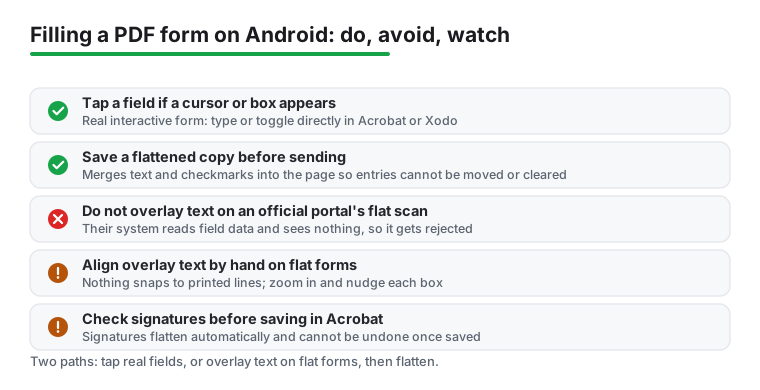
Xodo does the same thing with its annotation tools. Use the Text Box tool to drop typed text onto the page wherever a line needs an answer, and a stylus works for signatures if your phone supports one. The principle is identical in both apps: you are not filling a field, you are sticking text on top of an image of a form.
Overlay text is not a real form field, and that comes with three catches worth knowing before you rely on it. First, alignment is manual. Nothing snaps to the printed lines, so you nudge each box by hand, and on a small screen that takes patience and a zoom-in. Second, because the text sits on top rather than inside a field, it can shift or look slightly off if the recipient opens the file in a different viewer. Third, and most important, some portals only accept their own official fillable PDF. If a government or bank site gives you a specific form to complete, an overlaid flat copy may be rejected even though it looks right, because their system reads the actual field data and finds none. When a form is official, fill the interactive version if one exists rather than overlaying a scan.
After filling either kind of form, save a flattened copy before you send it. Flattening merges your text and checkmarks into the page so they cannot be moved, cleared, or edited by whoever opens the file next. In Acrobat Reader, signatures and initials flatten automatically once saved and cannot be undone, so be sure they are right first. Saving a fully flattened copy of the whole form is more limited on Android than on desktop; a dependable workaround is to share or export the finished file as a new PDF, or print it to PDF, which bakes everything into the page.
If you skip flattening on a flat form, your overlay text is still just an annotation, and some viewers let the recipient drag it around or hide it. Flattening removes that risk and is the difference between a form that looks done and one that stays done.
Once it is filled and flattened, share it straight from the app using the share icon, which lets you attach it to email or send it through a messaging app or cloud link. Rename the file to something clear like your name and the form title so the recipient is not staring at a string of numbers. If you handle forms alongside spreadsheets and documents on your phone, keeping a reader, a light editor, and your office suite apps for Android together cuts down on app-switching. For more on building a tidy mobile paperwork setup, the productivity hub ties these tools together.
Open it and tap a blank answer line. If a cursor appears or a box highlights, the form has real fields. If nothing happens anywhere you tap, it is a flat scan and you need the overlay route instead. Checked 3 September 2026.
Yes, with overlay text. In Acrobat Reader use Fill and Sign, place a text box where the answer goes, type, then drag it onto the printed line. It is manual alignment rather than real fields, so zoom in before you place each one. Checked 3 September 2026.
Usually because it was not flattened, or because the recipient expects the original field data. Save a flattened copy so your answers are merged into the page, and keep the file name clear so the person on the other end knows what it is. Checked 3 September 2026.
It merges your typed text, checkmarks and signature into the page itself, so nothing can be dragged, cleared or edited afterwards. Without it, overlay text is still a separate layer that another reader can move. Checked 3 September 2026.
Both are free to install and free for filling and signing. Acrobat Reader's listing carries the Contains ads label and in-app purchases from $0.99 to $299.99 per item; Xodo carries no ads label, with purchases from $2.99 to $109.99 per item. Both read 3 September 2026. Checked 3 September 2026.
Not in the free tiers. Adding or changing real form fields is a paid feature in both apps, and on a phone it is fiddly enough that a desktop is the better tool for it. Filling and flattening are the parts that work well on Android. Checked 3 September 2026.
Checked 3 September 2026: the guide named Acrobat Reader and Xodo, linked neither, and carried no rating, no install band, no price and no dated line. Both now have a fact line read from their own listing, a store link, a decision table row and three pros and three cons. The correction that matters: the page called Acrobat Reader free without saying that its own listing carries the Contains ads label and sells in-app purchases up to $299.99 per item, while Xodo, the smaller app at 475,180 reviews, carries no ads label at all.
 8 Free Android PDF Editors · Where Each One Stops Being FreeProductivity