
Updated September 2026

Updated September 2026 · the three listings this page depends on are read afresh, and the surprise is where the money lives
If you have held the power button lately, you may have noticed your phone answering in a different voice. Google is swapping out the old Google Assistant for Gemini, its conversational AI, and the change has been rolling out across Android through 2025 and into 2026. This guide walks you through turning it on, setting it up the way you want, and using it for real, everyday things. It also covers the privacy switches worth knowing about and, just as honestly, where Gemini still trips over tasks the old Assistant handled fine.
For years, the helper on your phone was Google Assistant. It was good at short commands: set a timer, what is the weather, call Mom. Gemini is a different kind of tool. It is built on Google's generative AI models, so it holds a back-and-forth conversation, understands what you mean across a few sentences, and can write, summarize, and reason rather than just react to single commands.
Google originally planned to finish replacing Assistant in 2025, then pushed the full transition into 2026 to smooth out the handover. The standalone Assistant app is going away on phones and tablets, and the separate iOS app is being retired too. The rollout is gradual and varies by device and region, so your phone and a friend's may not switch on the same day.
One thing to set expectations on: this is not just a new name on the same helper. Some long-standing Assistant habits behave differently now, and a few have been dropped. We get to those near the end.
The assistant that replaced Assistant
4.6 stars from 42,814,648 reviews · 1,000,000,000+ installs · free · no in-app purchases · by Google LLC · Contains ads: No · checked 4 September 2026
Google Play listing · 4.6 (42,814,648) · read 4 September 2026
Free, with no Contains ads label and, worth noting for a page about what it costs, no in-app purchases at all on its listing, read 4 September 2026: the paid AI plans are sold through Google One rather than through this app. At 4.6 stars from 42,814,648 reviews it is the best rated of the three apps here, which is a striking contrast with the app it took over from.
Search, and the settings that hand over to Gemini
4.0 stars from 29,418,029 reviews · 10,000,000,000+ installs · free · no in-app purchases · by Google LLC · Contains ads: Yes · checked 4 September 2026
Google Play listing · 4.0 (29,418,029) · read 4 September 2026
The app that hosted Google Assistant, and the one whose settings hand the assistant role over. It is free with no in-app purchases, and it is the only app on this page whose listing carries the Contains ads label, read 4 September 2026. Its 4.0 stars from 29,418,029 reviews is six tenths of a star below Gemini, which is worth remembering when a handover feels like a downgrade.
Gemini is forgiving about hardware, but a few basics matter.
The conversational camera and screen-sharing parts (more below) run on phones with 2 GB of RAM or more on Android 10 and up, so most phones from the last few years qualify.
You have two equally good routes. Pick whichever you reach faster.
From the Gemini app:
From the Google app: open it, tap your profile picture, then Settings > Google Assistant > Digital assistants from Google > Gemini.
On a Pixel: the path above works as written. To check it stuck, go to Settings > Apps > Default apps > Digital assistant app and confirm the Google app is selected.
On a Samsung Galaxy (One UI): the assistant control lives in a slightly different spot. Go to Settings > Apps > Choose default apps > Digital assistant app, tap it again, and pick Gemini, then OK. Separately, the press-and-hold side button is its own setting. From One UI 7 onward, holding the side button launches Gemini by default, but you can change it under Settings > Advanced features > Side button > Press and hold, where you can pick Gemini, Bixby, or the power-off menu.
Once set, you can summon Gemini by holding the power or side button, swiping from a bottom corner, or saying "Hey Google" where that phrase is supported. Google's own walkthrough is here if you want the official version: Get started with the Gemini app. Samsung explains the One UI 7 side-button change in its own support note.
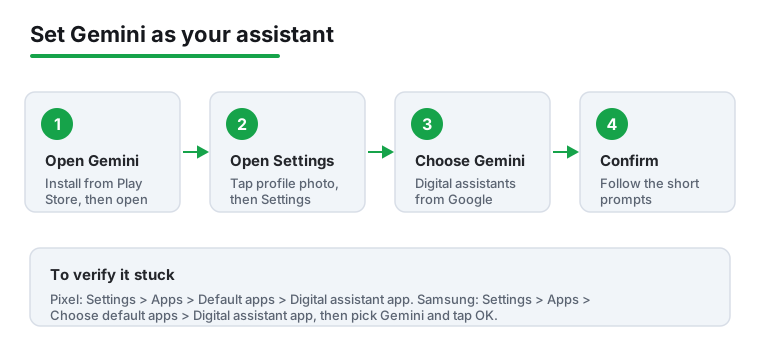
Out of the box, Gemini will chat with you but will not touch your email or calendar. The connections that let it take action are called Connected Apps, and a couple are worth turning on deliberately.
Older guides told you to type @Gmail or @YouTube to call a specific app. Google has been retiring that symbol in favor of plainer phrasing, so you can now just ask naturally, for example "check my email for the dentist confirmation." A small note: to pull public info from Google Maps, Flights, Hotels, or YouTube, your Gemini Apps Activity (covered below) needs to be on. Google explains what each connection reaches in its Connected Apps help page.
Here is where Gemini earns its place, with small examples you can try today.
Gemini handles the thinking, but it does not replace purpose-built tools. For tidy meeting notes, a real notes app still wins, and for turning a paper document into clean text you will want one of the scanner apps rather than a photo of it.
Most of what Gemini does happens in Google's cloud: your words travel to a server, the AI thinks, and the answer comes back. That is why the heavier conversations need a connection.
Some phones also run a smaller model called Gemini Nano directly on the device. Because the work stays on the phone, certain features keep working with no signal and without sending that data away, which is friendlier for privacy and spotty coverage. As of mid 2026, Nano runs with full support on recent Pixels from the Pixel 8 family through the Pixel 10 line, via Google's on-device AICore system. Samsung Galaxy S24 phones get a subset through Samsung's own AI layer, and other phones with high-end Snapdragon 8 Gen 3 chips are gaining support over time.
The practical takeaway: do not assume everything works offline. A few small on-device features may; the rich conversational answers will not. If you have no bars and Gemini stalls, that is usually the connection, not a bug.
By default, your chats help improve Google's services, and a sample of conversations can be read by trained human reviewers to make the AI better. If that is not for you, here is how to change it.
One detail to know: even with this off, Google holds your interactions for up to 72 hours to run the service and keep it safe, then they drop off. A side effect of turning it off is that Gemini can only continue a conversation if you reply within that 72-hour window; after that, older threads disappear.
You can also manage history at myactivity.google.com/product/gemini, where you can delete past chats or set auto-delete after 3, 18, or 36 months. There is a useful middle ground worth highlighting: you can now use Gemini as your phone assistant, placing calls, sending messages, and changing settings, without keeping Apps Activity on, so basic helper duties no longer force you to feed every word into the training pipeline. The full rules sit in Google's Gemini Apps privacy hub. If privacy across your whole phone is on your mind, it is worth a wider look with our Android security and antivirus guide.
You do not need to pay to use Gemini. The free tier covers chat, summarizing, drafting, image generation, Gemini Live, Canvas, and custom Gems, plus the 15 GB of Google storage shared across Gmail, Drive, and Photos. The catch is usage caps: heavier tools are rate-limited, and the Deep Research feature, which compiles a longer cited report, is held to roughly 5 runs a month on the free plan.
The paid plans are not sold through the Gemini app at all: its listing shows no in-app purchases. They are bought through Google One, whose listing publishes a band of $0.89 to $199.99 per item, read 4 September 2026. The tiers differ in usage limits, in how widely Gemini appears across Google apps, and in storage, from 400 GB on the middle plan to 5 TB higher up. Prices differ by country and the tiers are renamed often, so the purchase screen is the only honest place to read yours.
Google has also moved to compute-based limits that refresh every few hours up to a weekly ceiling. For most people, the free tier is plenty; pay only if you keep bumping into caps on long research or image work. Current plan details live on Google's subscriptions page.
Checking what a paid tier really costs you
4.1 stars from 909,180 reviews · 1,000,000,000+ installs · free to install · in-app purchases $0.89 to $199.99 per item · by Google LLC · Contains ads: No · checked 4 September 2026
Google Play listing · 4.1 (909,180) · read 4 September 2026
Gemini's own listing shows no in-app purchases, because the AI plans are bought here instead. This listing publishes the band, $0.89 to $199.99 per item read 4 September 2026, which covers everything from the smallest storage plan to the top AI tier. It is the honest place to check a price, because the tiers are renamed and repriced regularly and they differ by country.
Gemini is capable, but the handover from Assistant has left some rough edges, and it is fair to know them before you rely on it.
If a task keeps failing, you are not doing it wrong. Google is still filling these gaps, and the old Assistant lingers in places during the transition.
Small adjustments go a long way.
Give it a week of real use before you judge it. The conversational style takes getting used to after years of barking single commands, but for summarizing, drafting, and talking through what is on your screen, it does things the old helper never could.
Yes, that is Google's plan. The standalone Google Assistant on Android phones and tablets is being retired, and the switch that was meant to finish in 2025 now extends into 2026. It arrives gradually by device and region, and during the transition you can still switch back to Assistant in some places through the Digital assistants from Google setting.
No. The free tier covers chat, summarizing, drafting, image generation, Gemini Live, and 15 GB of shared Google storage, with usage caps on heavier tools. Paid plans add more capacity: Google AI Plus at the entry AI plan, Google AI Pro at the next plan up, and Google AI Ultra at the top of the range. Most people are fine on the free tier.
Mostly no. The rich conversational answers run in Google's cloud and need a connection. Some phones, including the Pixel 8 and 9 series and to a lesser extent the Samsung Galaxy S24, also run a smaller on-device model called Gemini Nano that keeps a few features working offline and keeps that data on the phone. Do not assume everything works without signal.
Open Gemini, tap your profile picture, go to Settings, then Gemini Apps Activity, and turn it off. New chats will no longer be saved to your activity or used for training unless you send feedback. Google still keeps interactions for up to 72 hours to run and protect the service, and with the setting off, conversations you do not continue within 72 hours will disappear.
From One UI 7 onward, Samsung set the press-and-hold side button to launch Gemini by default instead of Bixby. To change it, go to Settings, Advanced features, Side button, then Press and hold, and choose Gemini, Bixby, or the power-off menu. The separate default assistant lives under Settings, Apps, Choose default apps, Digital assistant app.
This is a known weak spot during the changeover. First, turn on the Utilities connection under Gemini's Settings, Connected apps, which is what lets it set alarms and timers and change device settings. Even then it is not perfect, and routines and some media commands still lag behind the old Assistant in 2026.
Through Google One, not through the Gemini app. Gemini’s own Play listing shows no in-app purchases at all, read 4 September 2026, while the Google One listing publishes in-app purchases of $0.89 to $199.99 per item. That band covers storage plans and AI tiers together, so the purchase screen inside the app is where to read the price that applies to your country.
Checked 4 September 2026: the guide named three apps and linked none of them, with no ratings, no table and no dated line. Reading the listings turned up the fact the pricing section needed: Gemini's own listing shows no in-app purchases at all, because the AI plans are sold through Google One, whose listing publishes a band of $0.89 to $199.99 per item. Three monthly prices are withdrawn for that reason, at 4.99, 19.99 and 99.99. Two other figures worth having side by side: Gemini sits at 4.6 stars from 42,814,648 reviews while the Google app that hosted Assistant sits at 4.0 from 29,418,029, and only the Google app carries the Contains ads label.
 How to Identify a Song Playing on AndroidMusic & Audio