
Updated September 2026
Updated September 2026 · the three apps now carry their own dated listing figures, and the routes sit in one table
A song in a cafe, in a car, or buried in a video on your own screen: the route differs for each. This guide covers the built-in options first, then the two apps people install, and where each one fails.
Updated: July 16, 2026. Added how Gemini (now replacing Google Assistant) identifies songs with Song Search.
No install, and humming works
4.0 stars from 29,413,614 reviews · 10,000,000,000+ installs · free to install · no in-app purchases listed · by Google LLC · Contains ads: Yes · checked 3 September 2026
Google Play listing · 4.0 (29,413,614) · read 3 September 2026
The Google app is the route most phones already have: Circle to Search names the music it hears, Gemini answers the question "what song is this", and both accept humming when you cannot remember a word of it. It is free to install with nothing sold inside, and its listing carries the Contains ads label. The blunt con: at 4.0 it is the lowest rated listing on this page, and Circle to Search needs a recent phone.
If your phone runs a recent version of Android, the quickest route does not need a separate app at all. Touch and hold the home button or the navigation bar at the bottom of the screen to bring up Circle to Search, then tap the music note icon. A small screen appears asking you to play, hum, or sing the song. Hold the phone toward the source for a few seconds and Google returns the title and artist, usually with a link to open it in your music app.
This works on a wide range of Android phones, not just Pixels, which is the main reason it has quietly replaced the older approaches. In 2026 Google also added a song search history, so tracks you have identified this way show up later with album art, artist names, and the date you found them. That history is handy when you identify something in a hurry and want to come back to it.
You can also just ask. Open the Google app, or ask Gemini, which has replaced Assistant on most phones, "what song is this," then let the audio play. It listens, matches what it hears, and shows the result. The same tool lets you hum or sing a melody if you do not have the recording handy, which is useful for that song stuck in your head from years ago.
One honest note: the standalone Sound Search widget that some people remember pinning to their home screen is gone. Google stopped supporting it, so if you go looking for that specific widget you will not find it. The recognition itself lives on inside Circle to Search and Assistant now, and increasingly through Gemini, which is replacing Google Assistant on Android and gained its own Song Search in 2025, so you have not lost the feature, only the old shortcut to it.
Pixel owners have something the others do not. Now Playing listens in the background and shows the name of nearby songs right on the lock screen, without you doing anything. It runs entirely on the device, comparing a small audio fingerprint against a local database, so it works with no internet connection and does not send what it hears to Google.
In March 2026 Google turned Now Playing into its own app, which keeps a running, browsable list of everything it has recognized over the months. If you ever heard a song, glanced away, and forgot to check, the history is there. Google also brought back the manual "tap to see what's playing" option on the lock screen after briefly removing it, so you can force a check instead of waiting. You need a Pixel 6 or later on the March 2026 update or newer to install the app.
Now Playing only covers your immediate surroundings, though. It will not reach into a video or a streaming app playing through the same speaker, and its on-device database is smaller than the cloud ones the dedicated apps use.
Fast, clean matches and a history
4.8 stars from 12,156,782 reviews · 500,000,000+ installs · free to install · no in-app purchases listed · by Apple · Contains ads: No · checked 3 September 2026
Google Play listing · 4.8 (12,156,782) · read 3 September 2026
Shazam is the app to install if you want one button that names a track in a couple of seconds and keeps a history you can go back through. Its listing is free to install, carries no Contains ads label and sells nothing at all, at 4.8 stars from 12,156,782 reviews, the highest rating on this page. The blunt con: it matches recordings, so a live version, a club remix or someone singing the song will defeat it.
Apple describes the app on its own Play listing as a way to "Find songs, concerts, lyrics and videos", which is the job this page uses it for.
Shazam is still on Google Play in 2026 and still does the one job well. Open it, tap the big button, and it names the track in a couple of seconds. Where it earns its place is the extras. You can add a Shazam quick tile to your notification shade or use its notification shortcut to identify music without leaving whatever app you are in. Auto Shazam keeps listening across app switches and logs several songs in a row, which is good at a party or a long playlist you did not put together.
Once it finds a song, Shazam can open it directly in Apple Music, Spotify, YouTube Music, Amazon Music, or Deezer. It also identifies audio coming from TikTok, Instagram, YouTube, and Snapchat, so it covers the in-app case that built-in tools sometimes miss. If you want somewhere to actually play those finds, pair it with one of the music player apps for Android covered on this site.
When you can only hum the tune
3.6 stars from 915,738 reviews · 100,000,000+ installs · free to install · in-app purchases $0.99 to $5.99 per item · by SoundHound AI · Contains ads: Yes · checked 3 September 2026
Google Play listing · 3.6 (915,738) · read 3 September 2026
SoundHound leans into the case the others handle worst: humming or singing a melody you cannot name. It is free to install, and its listing carries the Contains ads label with in-app purchases from $0.99 to $5.99 per item. The blunt con: at 3.6 stars from 915,738 reviews it is the lowest rated app here by a distance, and the Google app now matches hummed tunes too, which removes much of the reason to install it.
SoundHound, still updated and on Google Play as of mid-2026, overlaps a lot with Shazam but leans harder into humming and singing. Tap the orange button and sing the tune as best you can, and it tries to match the melody rather than the recording. That makes it the better pick when you have no way to play the original, only the shape of it in your memory. It also shows title, artist, album, and lyrics once it lands a match.
Between the two, a fair rule of thumb: reach for Shazam when the actual recording is playing, and SoundHound when all you have is your own voice carrying the tune.
This is the case people get stuck on. The song is not in the room, it is in a reel or a video on the same phone, and holding a microphone up to your own speaker feels silly. You have two clean ways around it.
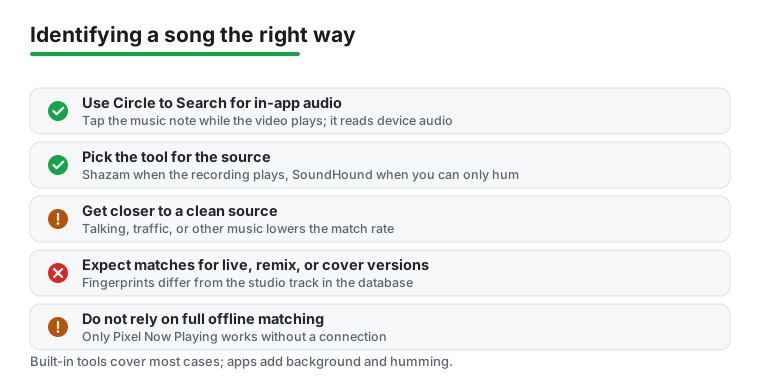
The first is Circle to Search. While the video plays, hold the navigation bar to bring it up and tap the music note. Because it can read the audio your device is producing, it often identifies the track without you replaying anything. The second is Shazam's notification tile or pop-up, which listens to the phone's output the same way. Both beat the awkward speaker-to-microphone routine. If the clip you are trying to identify is from a song you already partly know and just want the lyrics for, the apps that sync lyrics on screen can fill in the words once you have the title.
None of these tools is perfect, and it helps to know why before you blame yourself for a failed match. Live recordings, club remixes, mashups, and covers throw off recognition because the fingerprint no longer matches the studio version in the database. Very new releases can also miss for a day or two until they are indexed. A track buried under talking, traffic, or other music is harder to catch, so get the phone closer to a clean source if you can.
Offline matching is limited too. Pixel's Now Playing works without a connection, but the apps and Circle to Search generally need the internet to reach their full databases. And humming only goes so far; if you are off-key or the melody is unusual, expect a few wrong guesses before a hit. When you do find something worth keeping, our roundup of music downloader apps for Android covers how to save it legally for offline listening. For the wider set of listening and discovery tools, the music and audio hub ties the rest together.
Usually not. Circle to Search and Gemini live in the Google app, which most phones already have, and both name a song playing near you or inside a video. An app is worth installing for a history of your finds or for humming. Checked 3 September 2026.
Yes. Circle to Search listens to the audio your phone is playing, so a song inside a reel or a video is exactly its case. SoundHound also handles audio from social apps. Holding the microphone to your own speaker is not necessary. Checked 3 September 2026.
Both match recordings. A live version, a club remix, a mashup or a cover produces a different fingerprint from the studio track, so the match fails. Background noise and a very short clip do the same. Checked 3 September 2026.
No. That widget is gone, and its job moved into the Google app, Circle to Search and Gemini. Any guide that tells you to add it is out of date. Checked 3 September 2026.
Only on a Pixel, through Now Playing, which matches against a small database stored on the device and shows the result on the lock screen. Every other route here needs a connection. Checked 3 September 2026.
Hum to search in the Google app, or SoundHound, which is built around melody matching. Hum steadily for ten seconds or so and keep the tune rather than the words. Checked 3 September 2026.
Yes. Ask what song is playing and let the audio run, and it returns the match in the same conversation. It replaced Assistant on most phones, and the Song Search behaviour is the same. Checked 3 September 2026.
Checked 3 September 2026: the guide named three apps and linked none of them, with no rating, no install band and no dated line. All three now carry a fact line read from their own listing, a store link and three pros and three cons, and the four routes sit in one decision table. One claim about our own reading was withdrawn: "music player apps for Android we have looked at". The figures that change the advice: Shazam rates 4.8 stars with no ads label and nothing sold, while SoundHound, the app this page recommended for humming, sits at 3.6 stars with the Contains ads label, and the Google app now hums too.
 How to Transfer Files Between Android and a PCTools & Utilities