
Updated September 2026 · the phone side app now carries its own dated listing figures, and the two routes sit in one table
Two routes put an Android screen on a Windows PC, and which one works depends on the phone rather than the PC. This covers both, with the catch most guides skip stated first.
Before you touch any settings, figure out which tool matches your phone. It saves a lot of wasted clicks.
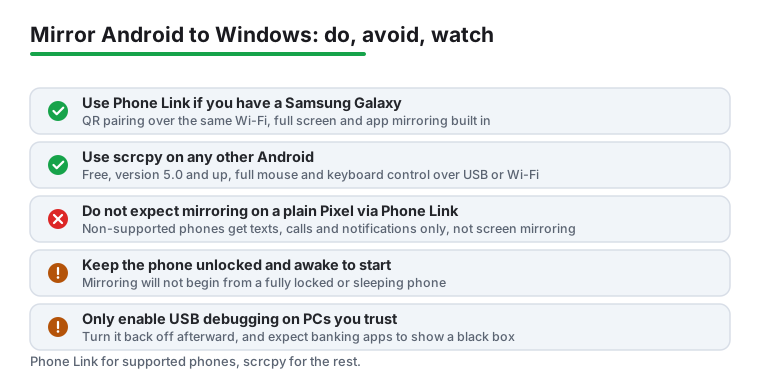
Microsoft Phone Link is the one Microsoft ships with Windows. The catch most guides skip: the part that puts your whole phone screen on the PC only runs on phones that come with the Link to Windows software built in. That is mainly Samsung Galaxy, plus a handful of models from HONOR, OPPO, ASUS, vivo, Xiaomi and a few others. If you have a Samsung Galaxy, Phone Link is the easy answer.
If you have a Pixel, a Motorola, a Nothing phone, or most plain Android handsets, Phone Link will still connect. You get your texts, calls, notifications and recent photos on the PC. You do not get live screen mirroring or app streaming. That is a hardware-partner limit, not something you can switch on.
For everyone the partner list leaves out, scrcpy is the answer. It runs on basically any Android from version 5.0 up, costs nothing, and mirrors the screen with full mouse and keyboard control. It asks for a one-time setup with a developer setting and a small download. Once that is done it is quick to launch.
A short checklist for either method.
One thing worth checking now. On Windows, open the Phone Link app once and make sure it updates. The screen and app features have changed a lot, so an old version behaves differently from what you read online.
Samsung and other supported phones
3.8 stars from 1,270,014 reviews · 1,000,000,000+ installs · free to install · no in-app purchases listed · by Microsoft Corporation · Contains ads: No · checked 3 September 2026
Google Play listing · 3.8 (1,270,014) · read 3 September 2026
Link to Windows is the phone side of Microsoft Phone Link, and on a Galaxy or another supported model it is the easy route: pair once by QR code and the screen appears on the PC. It is free with nothing sold inside and no Contains ads label. The blunt con: at 3.8 stars from 1,270,014 reviews it is the lowest rated app this site has covered this week, and full screen mirroring is limited to supported phones rather than any Android.
Microsoft describes the app on its own Play listing as a way to "Access your phone's notifications, calls, apps, photos and texts on your PC", and screen mirroring is the part that depends on the phone model.
This is the route for Samsung and other supported phones. The pairing itself is the same on any Android, even if mirroring later is not available to you.
When pairing finishes, your phone shows up in the Phone Link sidebar. If you only see texts, calls, photos and notifications, that is the normal experience for a non-supported phone. Nothing is broken.
On a Galaxy or another supported model, look in the Phone Link sidebar for your phone image or a Phone screen option. Click it, then click Start now on the prompt. Your phone display appears in a window on the PC, and you can click around with the mouse.
A few honest limits to know:
There is a step beyond full-screen mirroring. On supported phones, mostly Samsung and a few HONOR, OPPO and ASUS models, Phone Link can stream individual phone apps into their own resizable windows on the desktop, separate from the phone screen view. As of early 2026 this expanded view can use up to about 90 percent of your desktop, so an app feels close to a real PC window.
The trade-offs are real. You can run up to five phone apps at once through Link to Windows, not unlimited. The apps still run on the phone, so the phone has to stay connected and awake, and Wi-Fi quality still decides how smooth it feels. And like full mirroring, this only works on the partner phones. A Pixel will not do it.
If app streaming matters to you and you are shopping for a phone, this is one of the few genuine reasons to lean Samsung Galaxy for a Windows household.
scrcpy (say it "screen copy") is an open-source tool from Genymobile. It mirrors your Android to the PC and lets you control it with mouse and keyboard. It does not need root, and it does not install anything permanent on the phone. The current release is version 4.0, out in May 2026.
Why people pick it over Phone Link:
The cost is setup effort, and the fact that it is a command-line tool by default. If a terminal makes you nervous, there are friendlier front-ends people build on top of it, but the core tool is what is described below.
Here is the USB path, which is the simplest first time.
To go wireless after that first wired setup: with the phone still plugged in, open a terminal in the scrcpy folder and run adb tcpip 5555. Find your phone IP under Settings, Wi-Fi, then your network details. Unplug the cable and run adb connect followed by your phone IP and :5555. Then launch scrcpy again and it connects over Wi-Fi. Both devices need to be on the same network for this.
A safety note. USB debugging is a powerful door into your phone. Only ever tap Allow for computers you own and trust, and turn the setting back off when you are done if you share the PC.
Short version. If you have a Samsung Galaxy or another phone with Link to Windows built in, and you mostly want to glance at the screen, reply to messages, or run a couple of phone apps on the desktop, use Phone Link. It is already there and the pairing takes two minutes.
If you have any other Android, or you want real control with keyboard and mouse, file transfer, low lag over USB, and no dependence on a partner list, use scrcpy. It asks for a bit of patience the first time and rewards you with something that just works afterward.
There is no shame in keeping both. Phone Link for quick notifications and texts, scrcpy for the moment you actually need to drive the phone from your desk.
No. Notifications, messages and calls work broadly, but full screen mirroring is limited to supported phones, mostly Samsung Galaxy with a few HONOR, OPPO and ASUS models. On anything else, scrcpy is the route that works. Checked 3 September 2026.
For Phone Link the phone must be on and paired, and the screen feature asks permission the first time. scrcpy shows whatever the phone is showing, so a locked phone shows a lock screen. Checked 3 September 2026.
For the Phone Link screen feature, yes. scrcpy over USB needs no network at all, which is why it is the more reliable route on a slow connection. Checked 3 September 2026.
It is an open source project from Genymobile, downloaded from its official releases page, and it installs nothing on the phone: it talks over adb while connected. Free with no account. Checked 3 September 2026.
Yes with both. scrcpy gives mouse and keyboard control by design, and Phone Link allows interaction on supported phones once mirroring is running. Checked 3 September 2026.
Because an app has flagged its window as protected, which banking, video and some messaging apps do. The mirror shows black rather than the content, and no setting on either route removes that. Checked 3 September 2026.
Checked 3 September 2026: the guide covered two routes and linked neither the phone side app nor its store entry, with no rating, no install band and no dated line. Link to Windows now carries a fact line read from its own listing, a store link, a decision table row and three pros and three cons, and scrcpy sits in the same table marked as a PC program with no Android listing rather than being given figures it does not have. The figure worth knowing: Link to Windows rates 3.8 stars from 1,270,014 reviews, which is low for a Microsoft app on a billion install band, and the mirroring limitation to supported phones is the most common complaint behind it.
 How to Identify a Song Playing on AndroidMusic & Audio