
Updated September 2026 · the two apps on this page now carry their own dated listing figures, and the four routes sit in one table
A QR code is a web address hidden in a square of dots, so the two things that matter are reading it quickly and checking where it goes before you tap. This guide covers all four routes on Android, including the one for a code on your own screen.
On almost every recent Android phone, the camera app reads QR codes on its own. Open the camera, point it at the code, and hold steady for a second. A small banner or a link bubble appears. Tap it and your phone opens the link, adds the Wi-Fi network, or shows the contact, depending on what the code holds.
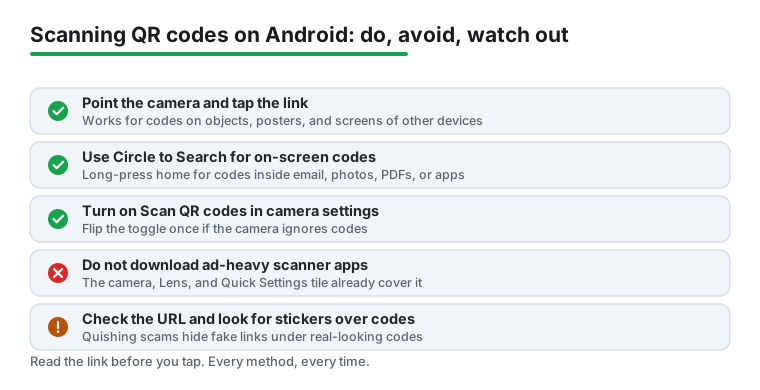
You do not need a separate scanner app for this. The feature lives inside the stock camera on Pixel, Samsung Galaxy, OnePlus, Oppo, Xiaomi and most others. If you have ever downloaded a "QR reader" from the Play Store, you can usually delete it. Many of those apps are stuffed with ads and ask for permissions they have no business wanting.
One tip that saves frustration: fill the frame with the code, but do not jam the phone right against it. Most cameras need a few centimetres to focus. If the code is small, pinch to zoom slightly instead of moving closer.
If you point the camera at a code and absolutely nothing happens, the scanning feature is probably switched off. It is a simple toggle, and once you turn it on it stays on.
The path changes a little by brand, but it is always inside the camera's own settings:
If you genuinely cannot find the toggle on your phone, do not worry. The next three methods do not rely on the camera app at all.
Android has a dedicated QR scanner that opens straight into scan mode, with no fiddling around inside the camera app. You get to it from Quick Settings.
Swipe down from the top of the screen twice to fully open the Quick Settings panel. Look for a tile that says QR code scanner or shows a small QR icon. Tap it and a viewfinder opens with a frame to line the code up in. Google refreshed this scanner in late 2025, rolled it out through Google Play services, and the current version keeps the scan prompt small at the top and puts the flash, file picker and other controls in a pill along the bottom for easier one-handed use.
If you do not see the tile, you can add it. Tap the pencil or edit icon at the bottom of the expanded Quick Settings panel, find QR code scanner in the list of available tiles, and drag it up into your active set. Now it is one swipe away whenever you need it.
This route is handy because it skips the camera app entirely and lands you in a viewfinder built only for codes. It is also the one to reach for if your camera app's scanning is acting up.
Poor light, odd angles, several codes
4.7 stars from 2,858,528 reviews · 1,000,000,000+ installs · free to install · no in-app purchases listed · by Google LLC · Contains ads: No · checked 3 September 2026
Google Play listing · 4.7 (2,858,528) · read 3 September 2026
Google Lens is the one to reach for when the camera app gives up: it reads codes in poor light, at an angle, and with several codes in one shot. Its listing is free with no in-app purchases and carries no Contains ads label. The blunt con: on most phones Lens is reached through the Google app or the camera rather than its own icon, so the separate listing is not where you will actually open it.
Google describes the app in its own words on the Google Lens listing, as a way to "identify plants, find products" and more "using just your camera", which is the same recogniser that reads a code the camera app cannot.
Google Lens is the workhorse when the camera app struggles. It reads QR codes and barcodes, and it copes with poor lighting, odd angles, and even several codes in the same shot better than the basic camera scanner does.
You can open Lens a few ways. It is built into the Google app and the Google search bar widget, where you tap the small camera icon. On many phones it also sits inside the camera app as a Lens mode or a Google Lens button. Point it at the code, or tap the shutter, and Lens shows the result with options to open or copy the link.
Lens also works on a code you have already saved as an image. Open the photo, send it to Lens, and it reads the code from the picture. That bridges the gap nicely toward the next method, which is for codes living on your screen right now.
Codes inside an email, chat or photo
4.0 stars from 29,413,431 reviews · 10,000,000,000+ installs · free to install · no in-app purchases listed · by Google LLC · Contains ads: Yes · checked 3 September 2026
Google Play listing · 4.0 (29,413,431) · read 3 September 2026
Circle to Search lives in the Google app, and it is the only route here that solves the case the camera cannot: a code sitting on the screen you are holding. Hold the home button or the gesture bar, circle the code, and the link comes back. The app is free with nothing sold inside, and its listing carries the Contains ads label. The blunt con: the feature is limited to recent phones, and the same app rates the lowest of the two here at 4.0.
Here is the situation the camera cannot fix. A QR code arrives inside an email, a PDF, a chat message, a photo, or an app, and it is on the very screen you are holding. You cannot point your camera at your own display. This is exactly what Circle to Search is for.
While the code is on screen, press and hold the home button. If you use gesture navigation, long-press the navigation handle at the bottom instead. Circle to Search activates over whatever you were looking at. Often you do not even need to circle the code. If a QR code is visible, your phone assumes that is what you want and shows the link straight away. If it does not, draw a circle around the code with your finger.
Circle to Search is on newer devices, including Pixel 6 and later and the Samsung Galaxy S24 series and up, running recent Android versions. To check it is on, open Settings, search for Circle to Search, and turn the toggle on if it appears. If your phone does not have it, the Google Lens trick above still works: take a screenshot of the code, open it in your gallery, and run Lens on the image.
This is the part most guides skip, and it matters. A QR code is just a way of hiding a web address inside a square of dots. You cannot read it with your eyes, so you are trusting it blindly. Criminals know this. The polite name for QR code phishing is quishing, and it has grown into a real problem rather than a rare one. Security teams now log thousands of malicious QR detections a day.
The trick is usually low-tech. Someone prints a sticker with their own QR code and slaps it over a real one on a parking meter, a restaurant table, or a poster. You scan it expecting the genuine site and land on a fake page that asks for a card number or a login.
So slow down for one second before you tap:
You do not need to be paranoid about every code. A menu in a cafe you trust is fine. The point is simply to glance at the URL before you commit, the same way you would check a link in a suspicious email.
Most of the time the camera app is all you need, so start there. Keep the Quick Settings tile handy for when you want to jump straight into scan mode or the camera is being stubborn. Reach for Google Lens when the lighting is bad, the code is faded, or there are several codes at once. And remember Circle to Search the moment a code is already on your own screen, because no amount of camera pointing will solve that one. Whichever route you take, the link check at the end is the same.
No. The camera app on a recent phone reads codes on its own once the scanner toggle is on, and Android also has a Quick Settings tile that opens straight into scan mode. A separate scanner app is unnecessary, and many of them carry ads. Checked 3 September 2026.
Nine times out of ten the scanner toggle is off. Open the camera settings and look for a QR or scan option, then try again. If it still does nothing, use the Quick Settings tile or Google Lens, which cope better with poor light and odd angles. Checked 3 September 2026.
Use Circle to Search, which lives in the Google app: hold the home button or the gesture bar, then circle the code. That is the one case the camera cannot solve, because you cannot point it at your own display. Checked 3 September 2026.
Swipe down twice from the top of the screen to open Quick Settings fully, then tap the pencil or plus to edit the tiles and drag the QR code scanner into the panel. After that it is one swipe away. Checked 3 September 2026.
Scanning is safe; tapping blindly is not. The code hides a web address, so read the link preview before you open it, and be wary of codes stuck over the top of a poster or a parking meter. Checked 3 September 2026.
Yes, and it is the most forgiving of the routes here on light and angle. Its listing is free with no in-app purchases and no Contains ads label, read 3 September 2026. On most phones you reach Lens through the camera or the Google app rather than a separate icon. Checked 3 September 2026.
Checked 3 September 2026: this guide named Google Lens and Circle to Search and linked neither, and carried no rating, no install band and no dated line. Both now have a fact line read from their own listing, a store link and a section with three pros and three cons, and the four routes sit in one decision table. The figure worth knowing: the Google app, which carries Circle to Search, rates 4.0 from 29,413,431 reviews and carries the Contains ads label, while Google Lens sits at 4.7 with no ads label.
 Google Play Store Not Working or Won't Download AppsTools & Utilities