
Updated September 2026 · the routes now sit in one table that jumps to the matching step, the component that delivers Quick Share to a Pixel carries its own dated listing figures, and the FAQ moved to the second person
For years, sending a photo from an Android phone to a nearby iPhone meant compressing it through a messaging app or emailing it to yourself. That ended in November 2025, when Google made Quick Share on the Pixel 10 compatible with AirDrop. Samsung followed in March 2026 with the Galaxy S26, and Google has since confirmed the feature is spreading to OnePlus, Xiaomi, OPPO, vivo, and HONOR phones through the rest of 2026. The transfer is direct and peer to peer, so nothing passes through a server and it works without internet. There are real conditions attached, though, and older Android phones have to use a QR code cloud fallback instead. Here are the exact steps on both ends, plus what to do when the two phones refuse to see each other.
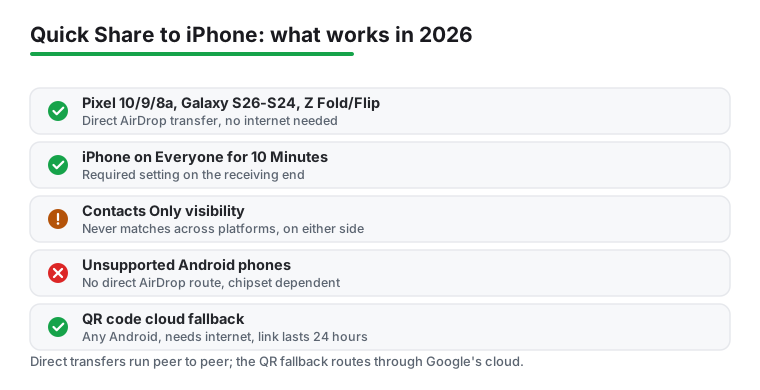
Direct Quick Share to AirDrop transfers need hardware support for Apple Wireless Direct Link, the radio protocol AirDrop uses, so this is not something every phone gets with a software update. As of June 2026, the supported list looks like this:
Google has named the OPPO Find X8 series and the HONOR Magic8 Pro as next in line. On the Apple side, any reasonably recent iPhone, iPad, or Mac works. If your phone is not listed, skip ahead to the QR code section, which works on effectively any Android phone.
This is the step people miss, and it is not optional. AirDrop normally runs in Contacts Only mode, which matches devices against Apple ID contact data. An Android phone has no Apple ID, so it can never pass that check. The iPhone must be set to accept from everyone, temporarily:
The quicker route: open Control Center, long-press the connectivity block (the tile with Wi-Fi and Bluetooth), tap the AirDrop icon, and choose Everyone for 10 Minutes. Either way, iOS flips the setting back after ten minutes. If a transfer suddenly stops finding the iPhone after working earlier, the window probably expired; just set it again.
Two more iPhone-side conditions: the phone should be unlocked with the screen on while you send, and Personal Hotspot should be off, since an active hotspot blocks AirDrop entirely.
On the Android side you need Bluetooth and Wi-Fi turned on. The transfer itself is peer to peer and does not use your Wi-Fi network or mobile data, but both radios have to be active for discovery and the high-speed link.
On a Samsung Galaxy, confirm the feature is enabled: go to Settings > Connected devices > Quick Share and check the Share with Apple devices toggle. It ships enabled by default after the One UI 8.5 update, but it is the first thing to verify if an iPhone never appears in your share list.
On a Pixel, there is no separate toggle; AirDrop targets just show up in the Quick Share device list once the feature has reached your phone through a Google Play services update. You can review your own visibility under Settings > Connected devices > Connection preferences > Quick Share, though visibility only matters for receiving, not sending.
Keeping the Quick Share module current on a Pixel
4.3 stars from 44,546,751 reviews · 10,000,000,000+ installs · free · no in-app purchases · updated 4 September 2026 · by Google LLC · Contains ads: No · checked 5 September 2026
Google Play listing · 4.3 (44,546,751) · read 5 September 2026
Not an app you open, but the one that matters on a Pixel: the AirDrop-compatible Quick Share reaches the phone through it rather than through a separate download, which is why a Pixel that never lists an iPhone is fixed by letting this update, not by searching the store. Free, with no in-app purchases and no Contains ads label on a listing read 5 September 2026, at 4.3 stars from 44,546,751 reviews on 10,000,000,000+ installs, and updated on the store on 4 September 2026. The blunt con sits in the same listing: it does not mention Quick Share at all, so the store page cannot tell you whether your phone has the feature yet, and it warns that apps may not work if you uninstall it, so the only safe repair is an update, never a removal.
Google's own description, on the listing read 5 September 2026, opens with one line: "Google Play services is used to update Google apps and apps from Google Play." Skip this section on a Samsung phone: there, Quick Share is Samsung's own and is switched under Settings, Connected devices, Quick Share, as the paragraph above says.
With the iPhone set to Everyone for 10 Minutes and sitting nearby, the sending side runs exactly like a normal Quick Share transfer:
You can select multiple photos or a batch of documents in one go, and speeds are in the same range as a normal AirDrop transfer, so a multi-gigabyte video is realistic. Google states the connection is direct, nothing is routed through a server, and the transfer is not logged. If the iPhone does not show up, hold the phones within about 30 cm of each other, the distance Google's own support docs recommend for stubborn cases.
The pipe runs both ways: an iPhone user can AirDrop to your Android phone, but now the visibility requirement lands on you. Cross-platform discovery only works in everyone mode, on both platforms, in both directions.
If someone is handing over content from their old iPhone in person, this complements a full migration, covered separately in how to switch from iPhone to Android.
Google also rolled out a second method in 2026 that works on Android phones without the AirDrop-compatible hardware, and it needs nothing installed on the iPhone:
Understand the trade-offs. This route goes through Google's cloud, so both phones need a working internet connection, and speed depends on that connection rather than on proximity. Google says the transfer is end-to-end encrypted, the download link stays valid for 24 hours, and this route is capped at 10 GB and 1,000 files per 24 hours. It is fine for documents and a handful of photos; for a 4 GB video on hotel Wi-Fi it will be painful, and with no connectivity at all it simply will not work, whereas the direct method would.
Nearly every failure comes down to one of these, roughly in order of likelihood:
One known Pixel 10 bug: after the AirDrop-compatible update, some users found that merely opening the Quick Share menu dropped their Wi-Fi connection. If you hit it, finish the transfer and reconnect to Wi-Fi afterward, and keep Google Play services and the Quick Share module updated so you pick up the fix once it ships.
If both phones qualify, the direct route wins every time: no internet needed, no upload wait, no expiring link, and no cloud in the middle. Reserve the QR method for unsupported phones, or for cases where the recipient is not physically next to you but you are already on a call with them, since the link works at any distance once generated.
Also think about whether ad hoc sharing is even the right tool. If you are regularly moving your whole camera roll around, a synced library beats manual transfers; see how to back up photos on Android for that setup. And for big one-time moves to a computer rather than a phone, cable and network options are faster and more reliable, covered in how to transfer files between Android and PC.
Setting AirDrop or Quick Share to everyone mode makes your device discoverable to any stranger in radio range, which is exactly why both platforms enforce the 10-minute auto-revert; unsolicited AirDrop spam in public places is a real thing. You still have to explicitly accept every incoming transfer, and the direct connection carries no account data between the devices. The other side sees only your device name, so if your phone is named after your full name, rename it under Settings > About phone > Device name before turning visibility on in public.
The direct AirDrop-compatible transfer does not; it is peer to peer over Bluetooth and a direct Wi-Fi link, so it works in airplane-mode-adjacent situations as long as the Wi-Fi and Bluetooth radios themselves are on. The QR code fallback is the opposite: it uploads through Google's cloud, so both devices need internet.
Almost always because AirDrop is set to Contacts Only, which cannot match an Android device. It must be Everyone for 10 Minutes, and that window may have quietly expired since you set it. Also check that the iPhone is unlocked and Personal Hotspot is off.
Yes. Set your Android phone's Quick Share visibility to Everyone (or keep the Quick Share receive screen open), and your phone appears as a target in the iPhone's normal AirDrop share sheet. Received files land in your Downloads folder.
Only mildly, and only for ten minutes. Anyone nearby can see your device name and send you a share request during that window, but nothing transfers unless you accept it, and iOS reverts the setting automatically. Avoid leaving the receive screen open in crowded public places.
Photos, videos, documents, and general files all work over the direct connection, with no published size cap, so multi-gigabyte videos are fine. The QR cloud method has published caps of 10 GB and 1,000 files per 24 hours, and its link expires after 24 hours.
Google confirmed in May 2026 that support is expanding across Samsung, OnePlus, Xiaomi, OPPO, vivo, and HONOR through the year, generally starting with each brand's current flagships. Older and mid-range phones may never get it, since the feature depends on chipset support for Apple's wireless protocol; those devices keep the QR code method.
No. On a Pixel the AirDrop-compatible Quick Share arrives through Google Play services, which its Google Play listing, read 5 September 2026, shows as free with no in-app purchases and no Contains ads label at 4.3 stars from 44,546,751 reviews on 10,000,000,000+ installs. On a Samsung phone it is Samsung's own Quick Share, switched on under Settings, Connected devices, Quick Share. The iPhone needs nothing installed for either the direct route or the QR code link.
Checked 5 September 2026: the guide named Quick Share and Google Play services and linked neither, with no table, no dated line and no store figure. The routes now sit in one table that jumps to the matching section. Google Play services, the component through which the AirDrop-compatible Quick Share reaches a Pixel, carries a fact line read from its own listing: 4.3 stars from 44,546,751 reviews, 10,000,000,000+ installs, free, no in-app purchases, no Contains ads label, updated on the store 4 September 2026, with two sentences of its description quoted verbatim. Samsung's own Quick Share app returned no Google Play listing from the US storefront on 5 September 2026, by direct read and by store search, so it carries no card and no store figure, and its settings path stays as written. Two sentences were reworded because they described the transfer as experienced rather than as documented: the sending side feels exactly like a normal Quick Share transfer now reads runs exactly like, and The classic fix genuinely works here now reads applies here. Two links to the new section were added where the text already named a Play services update. Two FAQ questions moved to the second person and a seventh was added on whether anything needs installing. No figure was withdrawn: the QR route caps and the supported-phone list are carried as the page attributes them to Google.
 Google Play Store Not Working or Won't Download AppsTools & Utilities