
Updated September 2026 · the three apps now carry their own dated listing figures, and one recommendation whose listing could not be identified is gone
Your phone already knows where you stopped driving. This guide saves that spot in two taps, adds the level and bay so a garage does not defeat you, sets a meter reminder, and covers the apps that save it for you.
Saving it yourself, with notes and a photo
3.2 stars from 19,540,658 reviews · 10,000,000,000+ installs · free to install · no in-app purchases listed · by Google LLC · Contains ads: Yes · checked 3 September 2026
Google Play listing · 3.2 (19,540,658) · read 3 September 2026
Google Maps is the answer for almost everyone, because the spot you save carries the extras that actually get you back to the car: a note for the level and bay, a photo, and a meter reminder. It is free with nothing sold inside, and its listing carries the Contains ads label. The blunt con: on Android it will not save the spot by itself, so if you walk off without tapping, there is no pin.
This is the manual method, and it is fast once you have done it once. Open Google Maps, then tap the blue dot that marks your current location. A small card slides up. Tap Save your parking. That is it. A gray pin labeled "You parked here" drops on the map and stays there until you clear it or save a new spot.
Do this before you walk away, while you are still standing next to the car. GPS is sharpest outdoors, so if you are in an underground garage where signal is weak, step toward the entrance or grab the location the moment you pull in. The pin records where your phone was when you tapped, not where the car actually is, so a clean fix matters.
A pin on a flat map will not help you in a multi-story garage. Open the saved parking card (tap the gray pin, or see the next section on finding it) and tap More info. From there you can:
None of this syncs to anyone else unless you share it, and the photo lives with the parking card, not in your main camera roll clutter.
If you are at a paid meter, this is the part that saves you money. On the parking card, set how much time is left before the meter expires. Google Maps will send you a notification roughly 15 minutes before time runs out, which is usually enough to walk back or top up from the meter app.
The reminder is a local notification on your phone, so it will only fire if notifications for Google Maps are turned on. If you never get the alert, check Settings > Apps > Maps > Notifications and make sure they are allowed.
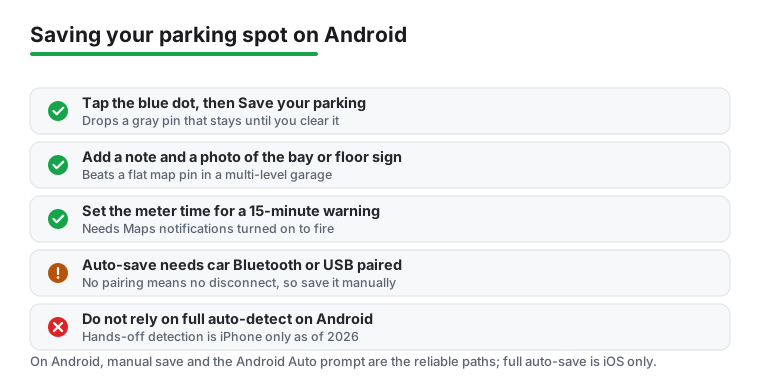
If your car runs Android Auto and you navigate to a destination, Maps can prompt you to save the parking spot on the arrival screen. When you reach the place you were routing to, a Save parking location button appears on the dashboard. Tap it and the spot is stored to your account, and you typically get a reminder the next day. This has been in Android Auto since late 2023 and is still the closest thing to hands-off saving that Android gets from Google directly.
The catch is that it only shows up when you were actively navigating to a destination. If you just drove somewhere out of habit without setting a route, no prompt appears, and you are back to the two-tap manual save. If you are setting up your dashboard for the first time, our roundup of car launcher apps for Android covers how to get Maps front and center while driving.
In December 2025 Google rolled out fully automatic parking detection, where Maps notices you have stopped driving (your phone disconnects from the car's Bluetooth, USB, or the system detects you parked) and pins the spot for up to 48 hours with nothing to install. As of mid-2026 that automatic detection is live on iPhone only. Android has not received it.
So on Android, "automatic" depends on what you are willing to use. The Android Auto prompt is semi-automatic but needs an active route. Genuine walk-away-and-it-saves behavior, triggered by your car's Bluetooth or USB disconnecting, currently comes from third-party apps rather than Google Maps. That trade-off is covered in the alternatives section, and the requirement is the same for all of them: your phone has to be paired to the car's Bluetooth or plugged into its USB for the disconnect to register.
When you are ready to walk back, open Google Maps and tap the search bar, then choose Parking location from the suggestions. You can also just look for the gray pin on the map labeled "You parked here" and tap it. Either way, open the card, check your note and photo, and tap Directions to get walking guidance.
Walking directions from Maps are fine for getting back to the right block or garage entrance, but indoors and in tight lots they drift. This is where your photo earns its keep. If you want turn-by-turn that is sharper than the Maps default for the drive home afterward, compare options in our guide to GPS navigation apps for Android. And if you are the person who is genuinely worried about the car itself, not just where it sits, that is a different tool entirely, see phone tracker apps for Android for live location and device-finding.
A manual saver without Bluetooth monitoring
4.4 stars from 49,231 reviews · 1,000,000+ installs · free to install · in-app purchases $0.99 to $5.50 per item · by CarFind · Contains ads: Yes · checked 3 September 2026
Google Play listing · 4.4 (49,231) · read 3 September 2026
Find My Parked Car is the middle route: a single save button when you park, then a map with the distance back, and no background Bluetooth watching at all. It is free to install, its listing carries the Contains ads label, and it sells in-app purchases from $0.99 to $5.50 per item. The blunt con: it is manual, so it solves the walking back problem rather than the forgetting to save one.
Met a friend at the stadium and want them to find the car while you grab food? Open the parking card, tap More info, then Share. Pick a contact or messaging app and they get a link that opens the exact pin. Handy when one person parks and another is driving home, or when you want a partner to be able to find the car if your phone dies.
This shares a static location, not your live position, so it is a one-time "here is where the car is" message rather than ongoing tracking. For a wider tour of what Maps and similar tools can do behind the wheel, the navigation and auto hub pulls the related guides together.
Automatic saving, hands free
4.1 stars from 8,998 reviews · 1,000,000+ installs · free to install · no in-app purchases listed · by TalentApps · Contains ads: Yes · checked 3 September 2026
Google Play listing · 4.1 (8,998) · read 3 September 2026
ParKing is the pick if you want the phone to remember without being asked: it watches for your phone disconnecting from the car Bluetooth and drops the pin itself. It is free to install with nothing sold inside, and its listing carries the Contains ads label. The blunt con: it has the smallest audience here at 8,998 reviews, and its listing has not been updated in about a year.
If you want the car to save itself the moment you step away, a dedicated app does what Maps on Android still will not. All of these are on Google Play in 2026:
The honest caveat applies to every one of them, and to any future Android auto-save from Google: detection that triggers on its own needs your phone paired to the car's Bluetooth or connected by USB. No pairing, no disconnect event, no automatic pin. If your car has no Bluetooth and you do not plug in, the reliable move stays the same, tap the blue dot in Google Maps and save it yourself before you walk off.
No. Automatic detection shipped on iPhone in December 2025 and Android still needs the tap: open Maps, tap the blue dot, then Save your parking. An app like ParKing fills that gap by watching for the car Bluetooth disconnecting. Checked 3 September 2026.
Open Maps, tap the search bar and pick Parking location, or tap the grey pin on the map. Then start walking directions from the card. Checked 3 September 2026.
Yes. On the parking card set the time left on the meter, and Maps notifies you roughly 15 minutes before it expires. Checked 3 September 2026.
Because the pin lands where the phone last had a good fix, and a concrete garage blocks satellite signal. That is why the note and photo fields matter more than the pin underground. Checked 3 September 2026.
Yes. Open the parking card, tap More info, then Share, and pick a contact or a messaging app. They get a link that opens the exact pin. Checked 3 September 2026.
For automatic saving, yes: the trigger is your phone disconnecting from the car. Without pairing there is no disconnect event and no automatic pin, so a manual saver like Find My Parked Car, or the two taps in Maps, is the reliable route. Checked 3 September 2026.
Checked 3 September 2026: the guide named four apps and linked none of them, with no rating, no install band, no price and no dated line. Google Maps, ParKing and Find My Parked Car now carry a fact line read from their own listing, a store link, a decision table row and three pros and three cons. Parked Car Finder was removed as a recommendation: a Play search returns several apps with near identical names and none whose listing title matches the one this page printed, so no listing could be read for it. The figure worth knowing: Google Maps itself rates 3.2 stars from 19,540,658 reviews on the United States storefront, lower than either dedicated parking app here.
 How to Identify a Song Playing on AndroidMusic & Audio
 Best Compass Apps for AndroidNavigation & Auto