
Updated September 2026 · all three apps now carry their own dated listing figures, including the two that have no published rating
A PDF that will not send is almost always a scan, because a scan is a stack of photos. This guide shrinks one on the phone in under a minute, and says which route to pick when the document is private.
A PDF made from text, like one you exported from a word processor, is usually small. The file stores the actual letters as text data, so even a long report can sit under a megabyte. The problem starts when a page is an image rather than text.
Scanner apps and many phone cameras capture each page as a high resolution photo. If the scan is set to color at 300 DPI, a single page can weigh 5MB to 10MB. Ten pages and you are suddenly looking at a 50MB to 80MB file that no email will take. Photos pasted into a PDF, logos, and full color backgrounds add to it the same way. So before you compress anything, it helps to know what you are dealing with: a text PDF that is somehow large can shrink dramatically, while a color scan has a floor it will not drop below without becoming hard to read.
If you are the one creating the PDF, the cleanest fix is to capture it lighter from the start. Most scanner apps let you pick a quality or color setting before you save. Scanning in grayscale instead of full color can cut the size by around 60 percent on its own, and for a document you only plan to read on a screen or email, 150 DPI looks the same to your eye as 300 DPI while weighing about a quarter as much.
If your scans are routinely huge, it is worth revisiting the tool that makes them. Our roundup of scanner apps for Android covers which ones expose quality controls and which ones auto-bloat every page. Getting the capture right means you may never need a separate compression step at all.
Sensitive files, nothing uploaded
no rating published yet · 10,000+ installs · free to install · no in-app purchases listed · by SoulApps · Contains ads: Yes · checked 3 September 2026
Google Play listing · no published rating · read 3 September 2026
This one compresses entirely on the phone, with no sign in and no upload, which is the whole point for a document you would not hand to a stranger. It is free to install with nothing sold inside, and its listing carries the Contains ads label. The blunt con: at a 10,000+ install band its listing has not gathered enough ratings for Play to publish a score at all, so there is no track record to lean on.
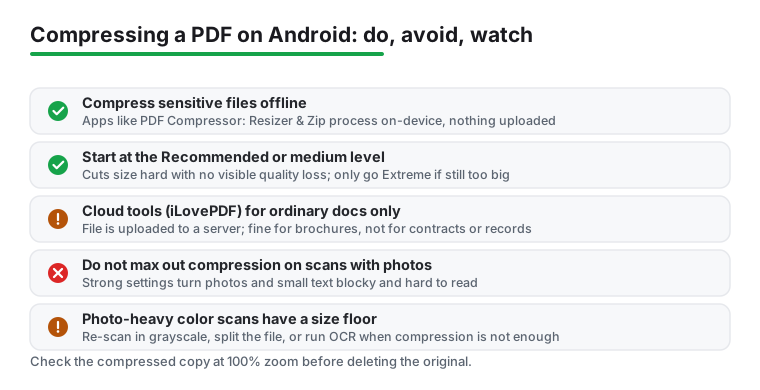
For anything you would not want a stranger reading, compress on the device with no upload. These apps do the work locally, so the file never leaves your phone.
One habit worth keeping: these apps save a copy and leave the original untouched. Check the new file opens and reads correctly before you delete anything. A good file manager app makes it easy to compare the two sizes and tidy up the leftover.
A second offline choice
no rating published yet · 100,000+ installs · free to install · in-app purchases $0.99 to $1.99 per item · by DLM Infosoft · Contains ads: Yes · checked 3 September 2026
Google Play listing · no published rating · read 3 September 2026
The second offline choice, listed as PDF Compressor Offline, processes everything on the device and sells a small unlock at $0.99 to $1.99 per item. It is free to install and its listing carries the Contains ads label. The blunt con: like the other offline tool it has no published rating, so the only evidence you have is the install band and what the developer says on the listing.
Ordinary documents, best controls
4.6 stars from 337,377 reviews · 10,000,000+ installs · free to install · in-app purchases $5.99 to $46.99 per item · by iLovePDF · Contains ads: No · checked 3 September 2026
Google Play listing · 4.6 (337,377) · read 3 September 2026
iLovePDF is the one to reach for on ordinary documents: three named compression levels take the guesswork out, and the free tier covers the core tools. Its listing carries no Contains ads label, and it sells subscriptions from $5.99 to $46.99 per item. The blunt con: the compression happens on iLovePDF servers rather than your phone, so the file leaves the device, which rules it out for anything sensitive.
iLovePDF: PDF Editor & Scanner is the most polished of the bunch and free for the core tools. Open the app, tap Tools on the bottom bar, then Compress PDF, and pick your file. The processing happens on iLovePDF servers, not your phone, which is the part to be aware of.
The reason people reach for it anyway is the three clear modes, which take the guesswork out of choosing a level:
Use a cloud tool for ordinary documents, slideshows, brochures, anything you would not mind a server briefly holding. For a medical record, a signed contract, or a tax form, stick with offline.
Most apps give you a few strength options, and the temptation is to mash the strongest one. Resist that for documents you actually need to read. Start in the middle, the "recommended" or "medium" tier, and only step up to "extreme" if the result is still too big.
Here is the rule of thumb that matters: text on a white page survives heavy compression well, because there is not much detail to lose. Photographs, colored charts, and dense diagrams are where strong compression shows up as blockiness and fuzzy edges. So a contract that is mostly black text on white can take aggressive settings and still print clean. A scanned receipt with a faint thermal print, or a page with a photo, needs a gentler hand. After compressing, open the file and zoom to 100 percent on the smallest text. If you can read it comfortably, you are done.
Sometimes the file simply will not get small enough, usually a long color scan. A few moves beyond plain compression:
For more ways to keep documents tidy and shareable on a phone, the wider productivity apps hub collects the tools that pair well with these.
Free online compressors are genuinely useful, but the deal is plain: you upload your file to their server, it gets processed there, and you trust them to delete it. Most reputable services do delete files after a window, often a few hours, and say so in their policy. Still, that is a window where your document sits on someone else's machine.
For anything with a name, an account number, a signature, or health information, the offline route removes that question entirely. The file never leaves the phone, so there is nothing to trust and nothing to delete. It costs you nothing extra, and the size reduction is usually comparable. Save the cloud tools for documents where exposure would not bother you.
Because a scan is a stack of photographs rather than text. A text PDF stores letters, which is tiny; a scan stores a full image of every page, which is not. That is why compression helps scans far more than exported documents. Checked 3 September 2026.
At the strongest setting it can. Start at the middle level, check the smallest text on the page, and only step up if the file is still too large. Text that has gone soft cannot be recovered by decompressing. Checked 3 September 2026.
For ordinary documents, yes. For anything sensitive, no: the file is uploaded, processed on someone else's server and held until they delete it. Use one of the offline apps here for those, since the file never leaves the phone. Checked 3 September 2026.
A colour scan usually drops by more than half at the middle setting, and grayscale before scanning saves about 60 percent again. If it still will not fit, split the document rather than crushing it further. Checked 3 September 2026.
Low trims lightly and keeps image resolution high, Recommended is the default balance, and Extreme squeezes hardest and softens the visuals. Recommended is the right pick for almost every document. Checked 3 September 2026.
Yes, through a browser on the same cloud services, with the same trade: the file is uploaded. On a phone the app versions are easier to use, and the offline apps here are the only route that keeps the document on the device. Checked 3 September 2026.
Checked 3 September 2026: the guide recommended three apps and linked none of them, with no rating, no install band, no price and no dated line. All three now carry a fact line read from their own listing, a store link, a decision table row and three pros and three cons. The finding that changes how much weight to give them: both offline compressors have too few ratings for Google Play to publish a score at all, on 10,000+ and 100,000+ install bands, while the cloud tool this page warns about is the only one with a track record, at 4.6 stars from 337,377 reviews.