
Updated September 2026

Updated September 2026 · every app listing re-read on 1 September 2026, refreshing 2 review counts and 1 listing date, and the verdict moved below the comparison table so the picks sit next to the evidence
Two keyboards, compared on what anyone can check before installing either: the rating and the sample behind it, the price, the advertising label, what each Data Safety section declares, and what each developer documents about the words you type.
Gboard is our overall pick because its free Play listing, read 20 August 2026, rates 4.5 with no advertising label.
Microsoft SwiftKey is our pick for deleting keyboard data because its Data Safety section, read 20 August 2026, offers a deletion request path Gboard’s lacks, on a free listing labelled Contains ads.
Gboard is our pick for outside validation because, of the two, only its Data Safety section, read 20 August 2026, carries an Independent security review, on a free listing with no ads label.
Data checked: 3 September 2026.
Better of the two on the listing facts
Rating 4.5 from 18,803,930 reviews · Installs 10,000,000,000+ · Free · No in-app purchases listed · Developer Google LLC · Listing updated 27 August 2026 · Contains ads: No · checked 1 September 2026
Google Play listing · 4.5 (18,803,930) · read 1 September 2026
Gboard is the better of the two on the listing facts, with one blunt catch: its Data Safety section, read 20 August 2026, offers no deletion request path. In its own words the developer does not provide a way for you to request that your data be deleted, where the Microsoft SwiftKey section says the opposite. The listing itself is rated 4.5 from 18,803,930 reviews, free, with no in-app purchases listed and no Contains ads label.
Google sets the boundary itself. Its Gboard help page on how the keyboard improves, read 20 August 2026, says Federated learning doesn’t send the text you speak or type to Google, but will send what it learns to Google, where it will be combined with learnings from other users to create better speech and typing models.
The same page states that federated learning is turned on by default and can be turned off, and describes a Delete learned words and data control that clears what Gboard has saved on the phone. That control is about the phone, which is a different thing from the deletion request path the Data Safety section says Google does not provide, and this page keeps the two apart.
Skip this if. Skip Gboard if being able to ask for your keyboard data to be deleted is a firm requirement, because its own Data Safety section says the developer provides no way to request it.
Choosing between them. Choose Gboard over Microsoft SwiftKey for the higher rating, the missing advertising label and a Data Safety section that declares nothing for advertising, and Microsoft SwiftKey over Gboard when you want a deletion request path and the learned words in a form you can view and export.
Better of the two on getting the learned words back
Rating 4.3 from 4,584,789 reviews · Installs 1,000,000,000+ · Free · No in-app purchases listed · Listed as Microsoft SwiftKey AI Keyboard, developer SwiftKey · Version 9.13.13.5 · Listing updated 19 August 2026 · Contains ads: Yes · checked 1 September 2026
Google Play listing · 4.3 (4,584,789) · read 1 September 2026
Microsoft SwiftKey is the pick here for getting the learned words back, and the blunt catch is on the same listing: it carries the Contains ads label. Its Data Safety section, read 20 August 2026, declares approximate location, precise location, device or other identifiers and in-app search history, each marked optional, for advertising or marketing, where the Gboard section declares no advertising purpose at all. It is free with no in-app purchases listed and rated 4.3 from 4,584,789 reviews. On languages, Microsoft publishes a figure on its own SwiftKey languages page, read 20 August 2026: 700+ languages for Android, with up to five enabled at once. Google states it differently, its listing pointing to a Set up Gboard page, read the same day, that lists 916 language entries. Which of the two lists is broader depends on how the script and region variants in each are counted, so this page prints both figures and ranks neither.
Microsoft documents where the words go. Its Backup and Sync page, read 20 August 2026, describes an account feature under which the words and phrases that matter to you are backed up securely and seamlessly synced across all of your devices
, and the same page states that disabling Backup and Sync does not automatically remove the account data already stored. Its data portal page, read the same day, describes a scrollable list of the words the keyboard has learned, which you can view and export.
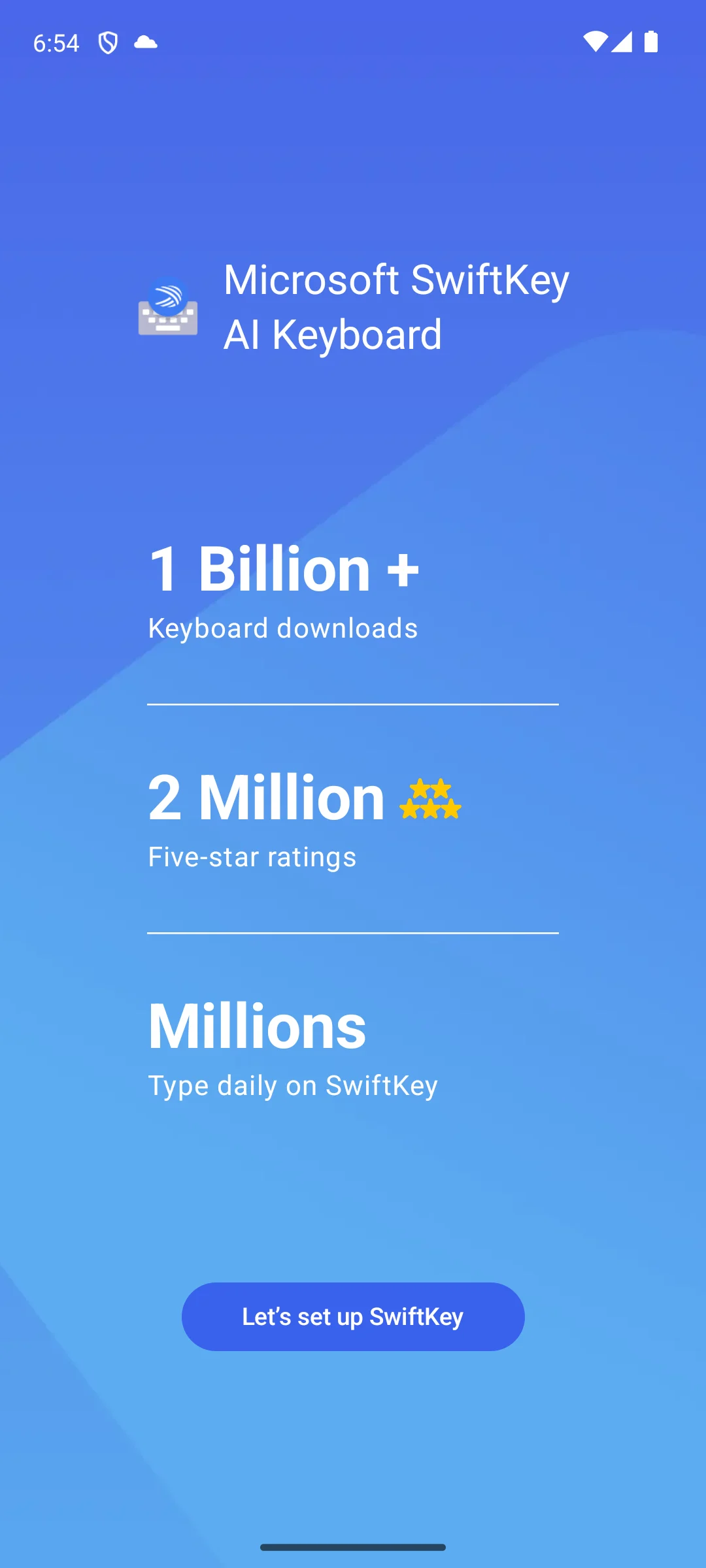
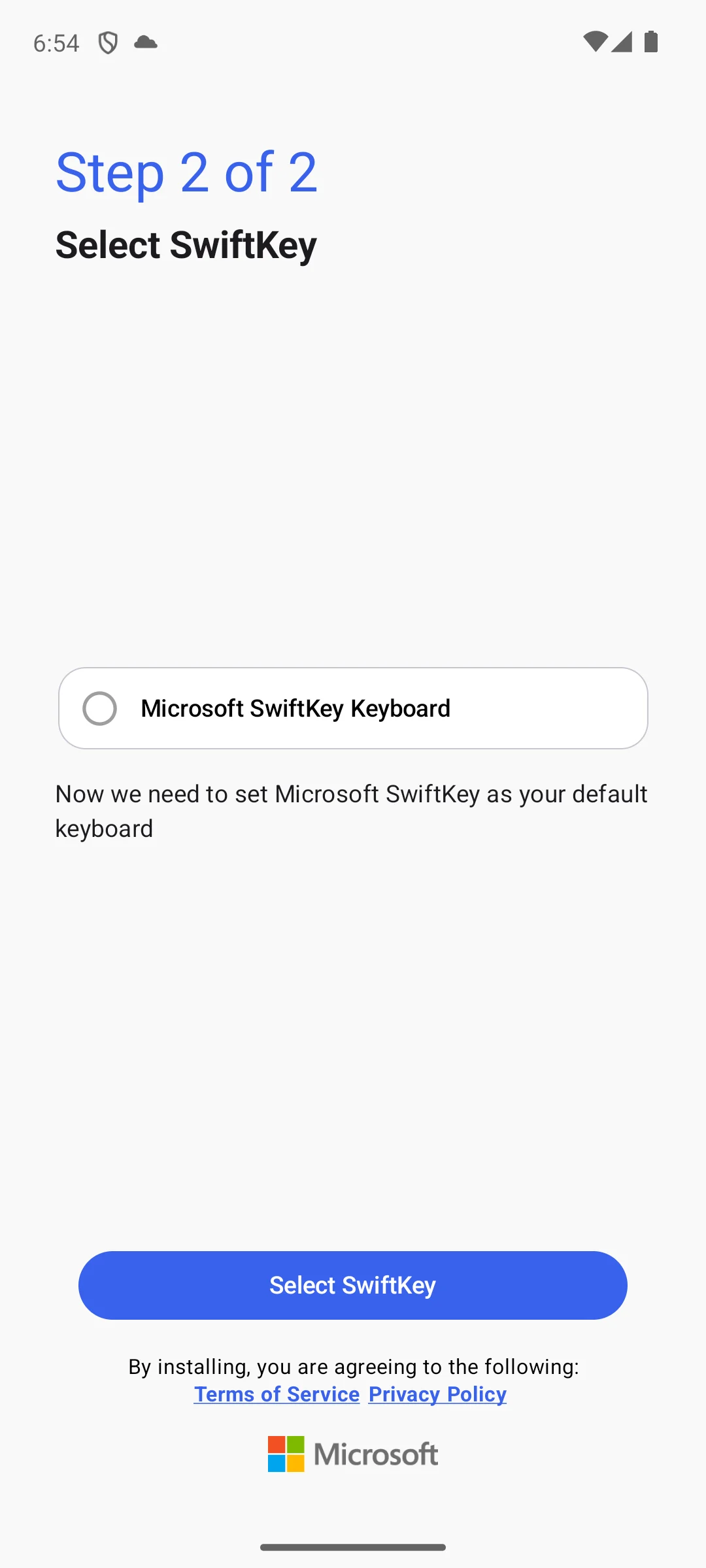
The two screens below are ours, from the app’s setup flow. The first prints the developer’s own headline figures for keyboard downloads, five star ratings and daily typists. The second is headed Step 2 of 2, Select SwiftKey, and asks to be made the default keyboard, with a line under that button reading By installing, you are agreeing to the following: Terms of Service Privacy Policy
.
Skip this if. Skip Microsoft SwiftKey if an advertising label on the app that receives everything you type is a firm no, because its listing carries one and the alternative here does not.
Choosing between them. Choose Microsoft SwiftKey over Gboard when you want a documented way to ask for the learned data back, and to view and export it, and Gboard over Microsoft SwiftKey when the advertising label and the rating settle it.
Both keyboards come from companies whose main business is data, and each publishes a Data Safety section. That section, together with each developer’s own help pages, is the only sourced statement either makes about what happens to what you type, so what follows is what each one declares rather than what either is reputed to do.
Google’s documented position is that the learning leaves the phone and the text does not: its help page on how Gboard gets better describes federated learning sending what it learns to Google rather than what you typed, states that federated learning is turned on by default, and says it runs only while the phone is charging, on Wi-Fi and not in use. The same page describes a second and voluntary route, conventional learning, under which you can choose to donate snippets of your speech, says Google will not keep those snippets beyond 18 months, and states that human reviewers may listen to or transcribe some of them. Microsoft’s documented position differs in kind rather than in degree. Its Backup and Sync page, linked in its section above, describes an account feature that backs the learned words up and syncs them across devices, and its data portal page describes a list of those words that you can view and export. One sends what it learns and leaves the typed text on the phone, on by default, with an opt in route for donating speech; the other offers to copy the vocabulary itself to an account, and lets you look at it.
One thing neither declaration contains is worth stating plainly, and only as a fact about the declarations. Neither Data Safety section, read 20 August 2026, lists a category called keystrokes or typed text. The nearest either comes is Other user-generated content, which both list and both mark optional. That is a finding about what these two listings declare today, not a finding about what either keyboard does with your typing, and nothing on this page turns the one into the other.
A keyboard is the app that receives what you type, which is why these two sections carry more weight here than in almost any other category. Both were read in full on 20 August 2026.
They agree on three things. Neither declares sharing any data with third parties. Both declare that the app may collect data. Both declare that data is encrypted in transit.
They part in five places that decide something here. The Gboard section carries an Independent security review line and the Microsoft SwiftKey section does not. The Gboard section declares no advertising or marketing purpose for anything it collects, while the Microsoft SwiftKey section declares approximate location, precise location, device or other identifiers and in-app search history, each marked optional, for advertising or marketing. The Gboard section declares an audio type, voice or sound recordings, marked optional, and the Microsoft SwiftKey section declares no audio type at all. The Microsoft SwiftKey section declares personal information the Gboard section does not, namely an email address, user identifiers and photos, each marked optional. And on deletion the two say opposite things: the Gboard section says the developer does not provide a way for you to request that your data be deleted, while the Microsoft SwiftKey section says you can request it.
One caution on reading that. Both developers document a control you operate yourself: Google a Delete learned words and data control that clears what Gboard has saved on the phone, Microsoft a Delete personalized dictionary backup control reached from the app, which its Backup and Sync page says is needed because turning sync off does not remove account data already stored. Neither control is the deletion request path the Data Safety sections address, and this page keeps the two apart.
So the routine is short. If the advertising label decides it, take Gboard. If you want a documented way to ask for the learned words back, or to view and export them, take Microsoft SwiftKey and accept the label. Neither costs money and neither uninstalls the other, and switching back is a settings change: Google’s own Gboard help page, read 20 August 2026, puts the on-screen keyboard list under Settings, then System, then Language and input.
Checked 20 August 2026: both Play listings and both Data Safety sections were re read in full today, and every rating, review count, install band, price, advertising label and Data Safety line here carries today’s date. The counts printed before, 18,766,366 for Gboard and 4,578,730 for Microsoft SwiftKey, and the version printed before, 9.13.12.4, were stale and have been replaced. The table lost its Price column, which read Free in both rows and so decided nothing, and gained the two columns a reader actually arrives for: what each section declares for advertising, and whether the developer offers a deletion request path. Both sections are now read by one rule, with the optional marker reported on both sides where before it was reported for one app only, and the audio difference between them has been added. A tier headed Installed and examined has gone from the How we verify box, together with the paragraph under the Microsoft SwiftKey section that described opening the app: the standing rule here is verified, not tested, and that box exists to replace such wording rather than to carry it. The screenshots stay, they serve, and the text around them now describes only what each screen shows; the caption prints the date the image files on this server carry and says that is what it is. The claim that Microsoft publishes the widest language claim of the two has been withdrawn. Microsoft publishes 700+ languages for Android with up to five enabled at once, and Google’s own Set up Gboard page, linked from the Gboard listing, lists 916 language entries, so which list is broader depends on how the variants in each are counted. Both figures are printed, neither is ranked, and no pick, table verdict or heading on this page now rests on that comparison. The statement about typing used to rest on Google’s writing tools page and the phrase on your device or in the cloud, which is about one feature rather than about typing; it now rests on Google’s page on how Gboard gets better, and the summary of it has been corrected, because what federated learning sends to Google is what it learns, and it is on by default. Google’s second and voluntary route, conventional learning, and the 18 month limit it publishes for donated speech snippets have been added, so both developers’ upload paths are stated. Beside the Data Safety line that says Gboard offers no deletion request path, the page now records the on-device Delete learned words and data control Google documents and the Delete personalized dictionary backup control Microsoft documents. The Pixel and Galaxy menu paths, which carried no source, have been replaced by the path Google’s own help page prints, and the uncited assertion about what a keyboard sees has been replaced by what a keyboard is. The quick answer carries three picks and no separate free pick, because both listings are free and a free pick would decide nothing.
Gboard, on the listing facts. It is rated 4.5 where Microsoft SwiftKey is rated 4.3, and it carries no Contains ads label while Microsoft SwiftKey does. Both are free and neither lists in-app purchases. Microsoft SwiftKey answers back on deletion, where its Data Safety section offers a request path that the Gboard section does not, and on the learned words, which Microsoft says its data portal lets you view and export. On languages the two are not comparable from what each publisher publishes, so this page prints both figures and ranks neither. Checked 20 August 2026.
The Microsoft SwiftKey listing carries the Contains ads label. The Gboard listing does not. Neither lists any in-app purchases. Separately from the label, the Microsoft SwiftKey Data Safety section declares approximate location, precise location, device or other identifiers and in-app search history, each marked optional, for advertising or marketing, and the Gboard section declares no advertising purpose at all. Checked 20 August 2026.
Neither declares sharing data with third parties, both declare that the app may collect data, and both declare that data is encrypted in transit. They differ most sharply in three ways. Only the Microsoft SwiftKey section declares data collected for advertising or marketing, each of those types marked optional. Only the Gboard section declares an audio type, voice or sound recordings. And only the Gboard section says the developer provides no way to request deletion, though Google separately documents an on-device control that clears what the keyboard has learned. The Gboard section also carries an Independent security review line, and the Microsoft SwiftKey section does not. Checked 20 August 2026.
Neither Data Safety section lists a category called keystrokes or typed text, so this page states only what each developer documents. Google says federated learning sends what it learns rather than the text you speak or type. Microsoft says that with Backup and Sync switched on, the words and phrases you use are backed up to your account and synced across your devices. Checked 20 August 2026.
Yes, and it costs nothing. Installing one keyboard does not remove the other, so the switch is a settings change. Google's own Gboard help page puts the on-screen keyboard list under Settings, then System, then Language and input, and that page was read on 20 August 2026. Both are free to install, so trying both costs only the time it takes to switch. Checked 20 August 2026.
 How to Move From iPhone to Android Without Losing AnythingProductivity
 How to Recover Deleted Photos on AndroidPhoto & Video