
Updated September 2026 · all four launcher listings re-read on one date, Nova's rating corrected to 3.4 and Niagara's in-app purchase ceiling corrected to $74.99 per item
The steps below change the launcher on your own phone. The table above and the sections further down compare the four launchers this guide links, each read from its own Google Play listing. Menu wording moves between Android versions and manufacturer skins, so every path here is a guide rather than a verified fact.
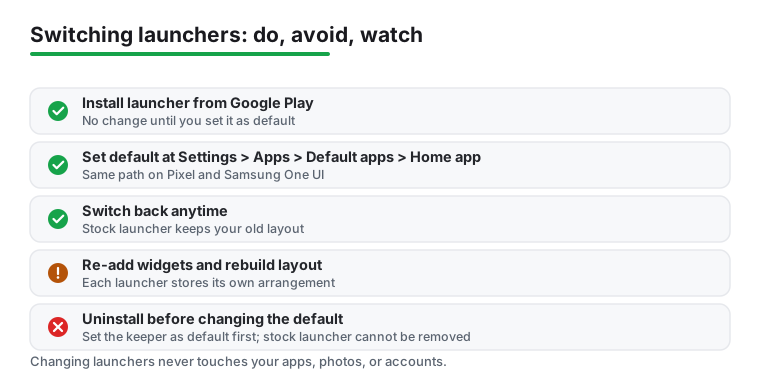
Nothing changes until you install something, so start there. Open Google Play, search for the launcher you want and tap Install, exactly as you would for any other app. Your home screen stays as it is: the launcher sits on the phone doing nothing at all until Android is told to use it.
If you have not settled on one yet, the table near the top of this page compares the four launchers this guide links, each read from its own Google Play listing on 6 September 2026, and each has a section further down the page. For a longer shortlist, our roundup of launcher apps for Android covers the wider field.
With a launcher installed, the next step is telling Android which one is in charge. On most current phones the route is:
Settings > Apps > Default apps > Home app, then tap the launcher you just installed.
Treat that as a guide rather than a fact about your particular phone. The wording belongs to your Android version and to the manufacturer's skin, and no app listing verifies a settings path: some phones label the middle entry Default apps and others Choose default apps, while the last one may read Home app or Launcher. If tapping around does not find it, pull down and search Settings for default apps to go straight there. The moment you pick a new launcher, the home screen redraws. That is the whole switch.
Some phones also throw up a one time prompt the first time you press the home button after installing a launcher, asking which app to use and whether to use it Always or Just once. Choosing Always does the same thing as setting it in Settings.
On a Pixel running a current version of Android, the route is Settings > Apps > Default apps > Home app, then select your launcher. The Pixel Launcher stays installed in the background, so nothing is being deleted: the home button is simply being pointed somewhere else.
One thing to expect. The moment you leave the Pixel Launcher, the At a Glance widget, the search bar at the bottom and the Discover feed you swipe to from the left may disappear or move, because those belong to the Pixel Launcher rather than to Android itself. Your old Pixel layout is not wiped. Select Pixel Launcher again under Home app and it comes back the way you left it.
Samsung phones ship One UI Home as the stock launcher, and the same route applies with the middle entry usually labelled differently: Settings > Apps > Choose default apps > Home app, then pick the launcher you want. Older Galaxy builds may instead read Settings > Applications > Default applications > Home screen. If the entry is not where you expect it, open the Apps list, tap the three dot menu in the corner and look for default apps there. As everywhere on this page, those labels move between versions and skins.
As on a Pixel, switching away from One UI Home does not remove it. Samsung specific touches, such as the way Edge panels behave under One UI Home or the folder style, may change once another launcher takes over. Switch back to One UI Home and they return.
This is the part that trips people up, so be clear about it before you commit. Changing launchers does not touch your installed apps, your photos, your messages, your contacts or any account you are signed into. All of that lives outside the launcher.
What does not follow you across is the arrangement. Your home screen layout, the position of each icon, your folders and your placed widgets are stored by the launcher that created them, so a new launcher starts with its own default and you rebuild your screens once. Widgets in particular have to be added again, since each launcher manages its own. The upside is that the old layout is preserved inside the old launcher, so flipping back restores it. If a deliberate rebuild is what you were after anyway, our guide to building a minimalist home screen with Niagara is a good template for starting from scratch instead of recreating the clutter.
If the new launcher is not for you, going back is the same move in reverse. Return to Settings > Apps > Default apps > Home app, or whatever your phone calls it, and pick the original launcher: Pixel Launcher on a Pixel, One UI Home on a Samsung. Press the home button and you are back where you started, with your old layout intact because the stock launcher kept it the whole time.
There is no penalty for trying a few. You can move between launchers as often as you like, since each one holds its own setup independently.
When you have settled on one launcher and want to clear out the others you tried, do the steps in the right order or the home button has nothing to fall back on. First set the launcher you intend to keep as the default Home app. Only then uninstall the ones you no longer want, from Google Play or by long pressing the icon and choosing App info, then Uninstall.
Here is the honest limit. You can fully uninstall any launcher you downloaded yourself, but you generally cannot remove the launcher your phone came with. The Pixel Launcher and Samsung's One UI Home are system apps, and Android blocks removing them on a phone that is not rooted. That is deliberate: it guarantees there is always a working home screen if something else fails. The most you can do without rooting is leave the stock launcher installed and simply not use it as the default. Rooting can remove it, but that risks bootloops and voids the safety net, so it is not worth it for almost anyone. Leaving the stock launcher sitting unused costs you nothing and keeps a known good fallback one tap away.
For more ways to tailor the look and behaviour of your phone beyond the launcher, the rest of our personalization guides cover icons, widgets and home screen setups.
Four launchers, one section each, in the order of the table above. Every figure below was read from that launcher's own Google Play listing on 6 September 2026, and where a listing publishes no figure the section says so rather than leaving a gap for you to fill in. None of this describes how an app behaves in use: a store record states what a developer declares and what the store counts, and nothing more.
Best for a Pixel style home screen, as its own listing describes it
500,000+ installs · free to install · no in-app purchases on the listing · developer entry: David Sn · category: Personalization · listing updated 18 April 2026 · Data Safety: No data collected, and No data shared with third parties · Contains ads: No · checked 6 September 2026
Google Play listing · no rating and no review count are published there to quote · read 6 September 2026
Lawnchair is the one to look at if you want the Pixel home screen with more control over it. It is free to install, with no in-app purchases and no Contains ads label, and the honest first thing to say is what its store record leaves out: Google Play publishes no star rating and no review count for it at all. Read on 6 September 2026, its listing header carried the developer entry, the install band of 500,000+ and the Install button, with no star figure beside them. Nothing published is not a low score and it is not a warning either: it is the store having no figure to show.
Its listing describes it, in the developer's own words, as a free, open source home screen replacement
(Google Play listing, description read 16 August 2026), which is the developer's claim about the app rather than a finding of ours. Choose Lawnchair over the other three here if the Pixel look and a Data Safety card declaring No data collected are what decide it. Skip it if a published rating is part of what you weigh before installing anything, because the other three listings here publish one.
Best for apps sorted into categories without you doing it
4.6 stars from 687,864 reviews · 50,000,000+ installs · free to install · in-app purchases $0.49 to $29.99 per item · developer entry: Smart Launcher Team · category: Personalization · listing updated 4 September 2026 · Data Safety: No data shared with third parties, and this app may collect these data types · Contains ads: No · checked 6 September 2026
Google Play listing · 4.6 (687,864) · read 6 September 2026
Smart Launcher 6 sits in the middle of the three listings here that publish a rating, at 4.6 stars from 687,864 reviews, free to install, with in-app purchases $0.49 to $29.99 per item and no Contains ads label on the listing. The blunt part is in the same Data Safety card that makes it interesting: it declares No data shared with third parties, and it also states that data cannot be deleted, which no other listing here says.
The automatic sorting of apps into categories is what its own description leads on (Google Play listing, description read 16 August 2026), which is the developer describing the app rather than a finding of ours. Choose Smart Launcher 6 over Niagara Launcher if the No data shared with third parties line is what decides it, and the other way round if being able to request deletion matters more. Skip it if arranging every icon yourself is the point of a home screen for you.
Best for a short vertical list you can reach one handed
4.8 stars from 228,541 reviews · 10,000,000+ installs · free to install · in-app purchases $0.99 to $74.99 per item · developer entry: Mellowdrop Studio · category: Personalization · listing updated 3 September 2026 · Data Safety: this app may share these data types with third parties, and may collect these data types · Contains ads: No · checked 6 September 2026
Google Play listing · 4.8 (228,541) · read 6 September 2026
Niagara Launcher holds the highest rating of the three listings on this page that publish one, 4.8 stars from 228,541 reviews, free to install, with in-app purchases $0.99 to $74.99 per item and no Contains ads label on its listing. The blunt part sits in the same listing: its Data Safety card declares that the app may share these data types with third parties, which is the developer's own declaration rather than a measurement of what the app does.
Its own description leads on minimalism and on cutting home screen clutter (Google Play listing, description read 16 August 2026), which is the developer talking about the app and not a verdict of ours. Choose Niagara Launcher over Smart Launcher 6 if the rating decides it, and the other way round if the sharing declaration does. Skip it if you want a grid of icons and folders, because a short vertical list is the whole idea here.
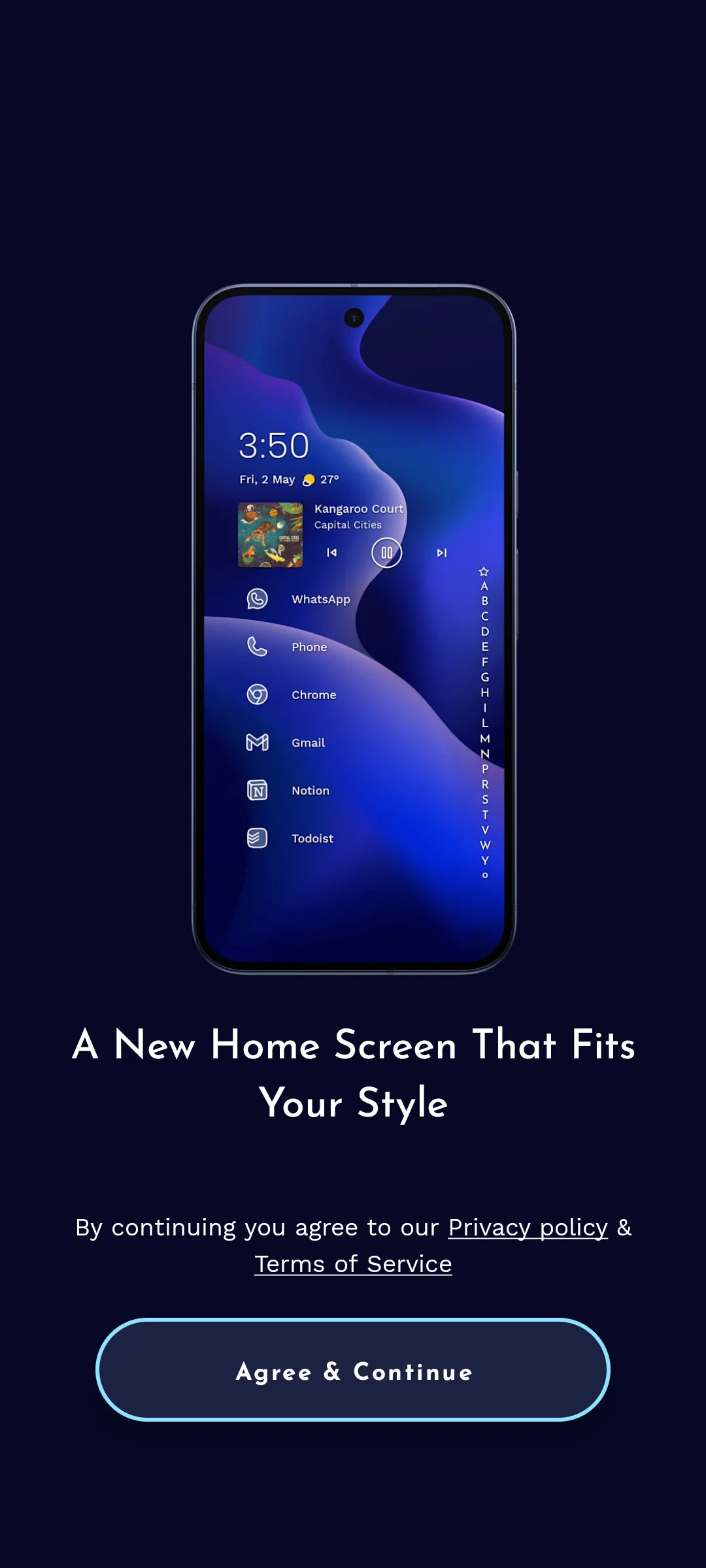
The screenshot below is our own capture, taken on 18 August 2026. It shows the introduction screen the launcher opens on: the developer's own mockup of the home screen it builds, and one way forward, a line saying that continuing means agreeing to the Privacy policy and Terms of Service, above an Agree and Continue button. That gate is where the capture stops, and a launcher in any case shows nothing until it is set as the default Home app in Android settings.
Best if you already have a Nova layout you would rather not rebuild
3.4 stars from 1,384,153 reviews · 100,000,000+ installs · free to install · in-app purchases $0.99 to $99.99 per item · developer entry: Instabridge Sweden AB · category: Tools · listing updated 4 September 2026 · Data Safety: this app may share these data types with third parties, and may collect these data types · Contains ads: Yes · checked 6 September 2026
Google Play listing · 3.4 (1,384,153) · read 6 September 2026
Nova Launcher is the entry here whose listing carries the Contains ads label, and it is the lowest rated of the three listings on this page that publish a rating, 3.4 stars from 1,384,153 reviews. It is free to install, with in-app purchases $0.99 to $99.99 per item. The rating deserves reading rather than dismissing: it rests on far more reviews than either of the other two here, and it is the only one of the three counted in millions.
Its listing calls it a powerful, customizable, and versatile home screen replacement
(Google Play listing, description read 16 August 2026). Its developer entry reads Instabridge Sweden AB and its category is Tools, where the other three sit under Personalization; this page reports the entry as the listing prints it and makes no claim about how it came to read that way. Choose Nova Launcher over the other three if you already run it and would rather not rebuild a layout. Skip it if the Contains ads label on the listing is what decides the question for you.
No. The launcher only draws the home screen, the app drawer, the icons and the gestures. Your installed apps, photos, messages, contacts and accounts are untouched. The only thing that resets is the home screen arrangement, which the new launcher rebuilds with its own default.
On most phones it is Settings > Apps > Default apps > Home app. Samsung usually labels the middle entry Choose default apps, and some phones call the last one Launcher. That wording belongs to your Android version and your phone maker rather than to any launcher, so treat the path as a guide: if you cannot find it, search Settings for default apps.
Widgets are managed by the launcher that placed them, so a new launcher starts without them and you add them again from the new one. The old widgets are still there inside the previous launcher if you switch back.
Usually not. The Pixel Launcher and Samsung One UI Home are system apps that Android does not let you uninstall on a phone that is not rooted. You can only stop using one as the default. That is by design, so the phone always has a working home screen to fall back on.
Because its listing publishes none. Read on 6 September 2026, the header carried the developer, an install band of 500,000+ and the Install button, with no star figure and no review count for the app itself. That is the store publishing nothing rather than a low score, so this page prints no rating for it. The other three launchers here do publish one. Checked 6 September 2026.
Nova Launcher is the one of the four whose listing carries the Contains ads label, read 6 September 2026. The other three listings carry no such label. A label is what the developer declares on the listing, not a measurement of what an app does on your phone. Checked 6 September 2026.
Go to the same Settings > Apps > Default apps > Home app menu, or your phone's equivalent, and select the stock launcher: Pixel Launcher on a Pixel, One UI Home on a Samsung. Your original layout returns, because the stock launcher kept it the whole time you were away.
No. All four are free to install, read 6 September 2026. Three of them sell in-app purchases: Smart Launcher 6 at $0.49 to $29.99 per item, Niagara Launcher at $0.99 to $74.99 per item and Nova Launcher at $0.99 to $99.99 per item. Lawnchair is the one of the four whose listing carries no in-app purchases at all. Those ranges are what Google Play publishes for single items, not a subscription price. Checked 6 September 2026.
Checked 6 September 2026: all four listings were re-read on one date, which this page had stopped doing: the table lead and several fact lines still said 16 August 2026 while other lines said 2 and 3 September 2026. Three statements were wrong against the listings, and the listing wins each time. Nova Launcher's rating was printed as 3.3 in the table, in the capsule, in its heading, in one con line and in the metaDescription, while its own fact line and its lead said 3.4; Google Play publishes 3.4 and the page now says 3.4 throughout. Niagara Launcher's in-app purchase ceiling has moved, so the line Its in-app purchase range tops out at $42.99 per item is withdrawn and the range now reads $0.99 to $74.99 per item. Niagara was also called the most recently updated listing here, which it no longer is, so the line It is the most recently updated of the four listings here is withdrawn; the store update dates now read 4 September 2026 for Smart Launcher 6 and for Nova Launcher, 3 September 2026 for Niagara Launcher and 18 April 2026 for Lawnchair. Three review counts drifted and are replaced: 684,924 becomes 687,864 for Smart Launcher 6, 226,470 becomes 228,541 for Niagara Launcher, and 1,383,872 becomes 1,384,153 for Nova Launcher. One first person line is withdrawn: Installed on our own Android emulator on 18 August 2026. The screenshot itself stays with its capture date, and how it was obtained is now stated only in the How we verify box. The decision table, the Our answer capsule and that box move above the steps, and the capsule is rebuilt so each pick is one sentence carrying its own reason and date. The seven questions in the FAQ were phrased half in the first person and now read in the second person throughout, and one question about what these launchers charge is added. The counts were labelled ratings and now read reviews, which is the field Google Play publishes them under. The two developer quotes and the lines taken from a store description keep 16 August 2026, the date that description was read, because this pass re-read the store fields and not the descriptions. Lawnchair still publishes no rating and no review count on Google Play, re-checked today, and nothing published is still not a low score.
 Best Launcher Apps for AndroidPersonalization
 How to Actually Free Up Storage on AndroidTools & Utilities