
Updated September 2026 · every app listing re-read on 1 September 2026, refreshing 4 review counts, and the verdict moved below the comparison table so the picks sit next to the evidence
Four OBD2 apps for Android, compared on the adapter each one needs, the cars each developer documents, the price, the ads label and the Data Safety section. An app of this kind reads what the car’s control unit reports. It does not work out the fault behind a code, and clearing a code resets the warning light without repairing anything.
Car Scanner is our best overall and best free pick because its listing, read 20 August 2026, is free with a Contains ads label and its developer alone documents coding.
Torque Pro is our privacy pick because it costs USD 4.95 once, has no ads label, and its Data Safety declared no data collected on 20 August 2026.
OBDeleven is our Volkswagen group pick because its listing, read 20 August 2026, is free with no ads label but needs OBDeleven hardware, not a generic ELM327.
Data checked: 3 September 2026.
Takes any ELM327, and its developer publishes a coding list
Rating 4.7 from 356,188 reviews · Installs 10,000,000+ · Free to install, with in-app purchases from USD 1.49 to USD 3.99 per item · Developer CAR SCANNER LLC · Data Safety: this app may share these data types with third parties · Listing updated 20 July 2026 · Contains ads: Yes · checked 1 September 2026
Google Play listing · 4.7 (356,188) · read 1 September 2026
Car Scanner ELM OBD2 is the one to reach for first, and the catch sits in the same sentence: it is free to install, its listing carries the Contains ads label, and its Data Safety section is the only one of the four that declares this app may share these data types with third parties. It is rated 4.7 from 356,188 reviews, its listing was updated 20 July 2026, and its in-app purchases run from USD 1.49 to USD 3.99 per item.
Read this first. Coding is why most readers arrive here, and this developer is the only one of the four who documents what it costs to get wrong. The coding FAQ on carscanner.info, read 20 August 2026, tells readers to back up all blocks before making any changes
, and the same page warns that a bad adapter can pass for a good one while sending garbage to the car or corrupting what is read back. Nothing here presents changing a factory setting as risk free, and this page does not cover safety systems, emissions equipment or an odometer.
On the adapter, its own adapter guide, read 20 August 2026, is more specific than the listing: it takes ELM327 adapters over Wi-Fi, classic Bluetooth or Bluetooth LE, warns that far more bad adapters are on the market than good ones, and rules wired adapters out. On that last point the developer disagrees with itself: the release note on its own Play listing, for the version dated 20 July 2026, records USB ELM327 device support being added, while the same listing still asks for a Wi-Fi or Bluetooth or Bluetooth LE adapter and the guide carries no date of its own. Both are that developer's own words, read 20 August 2026, and the disagreement is printed here rather than settled. On the cars, its listing says any vehicle using the OBD 2 standard and then points at the developer's own site for detail, and that page is markedly narrower: it calls the belief that every car from 1996 onward is covered a common misconception, puts the EU at 2001 for petrol and 2003 for diesel, Australia at 2005 to 2006 and China at 2008, and notes that cars built for the Japanese domestic market mostly do not support the standard at all. It also warns that a car can carry the 16 pin connector while its control unit has no OBD2 support behind it.
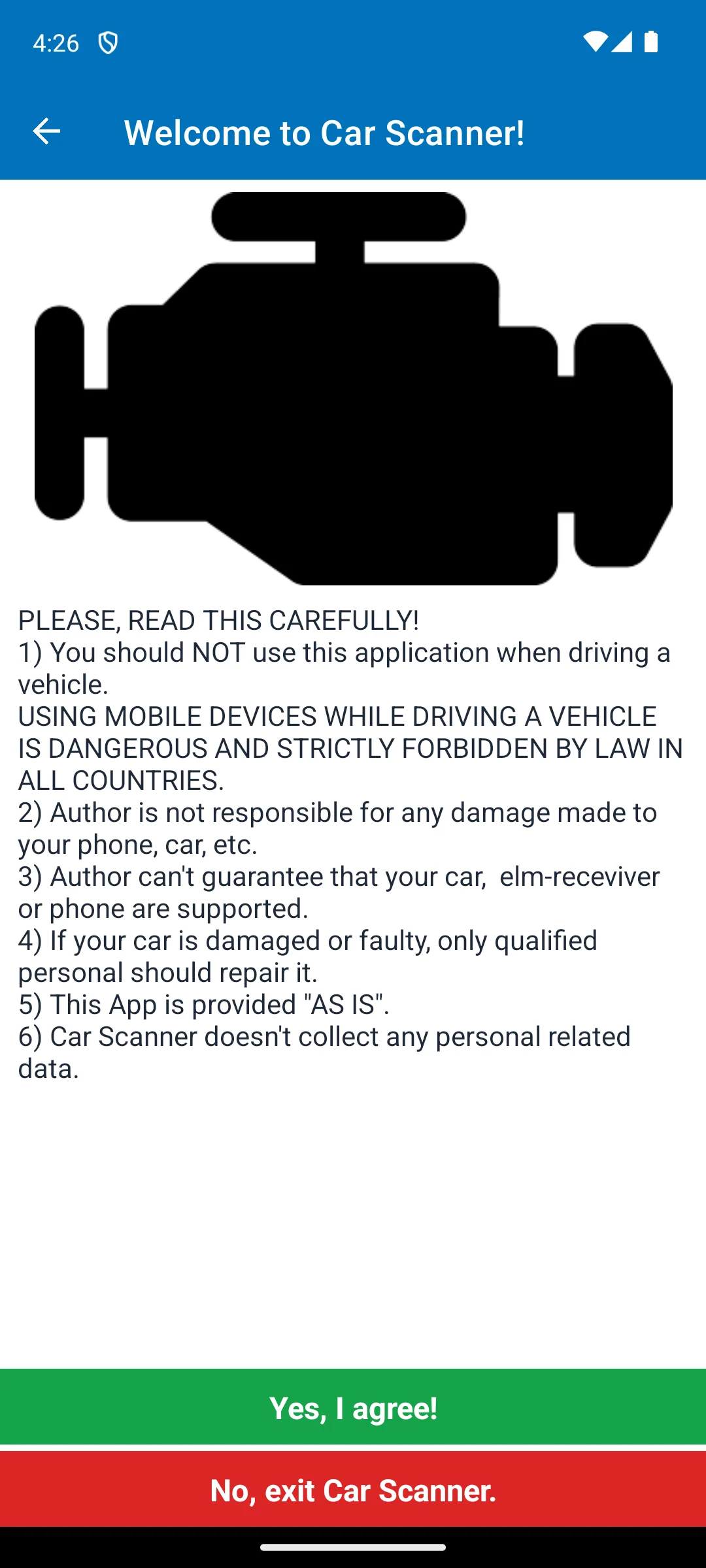
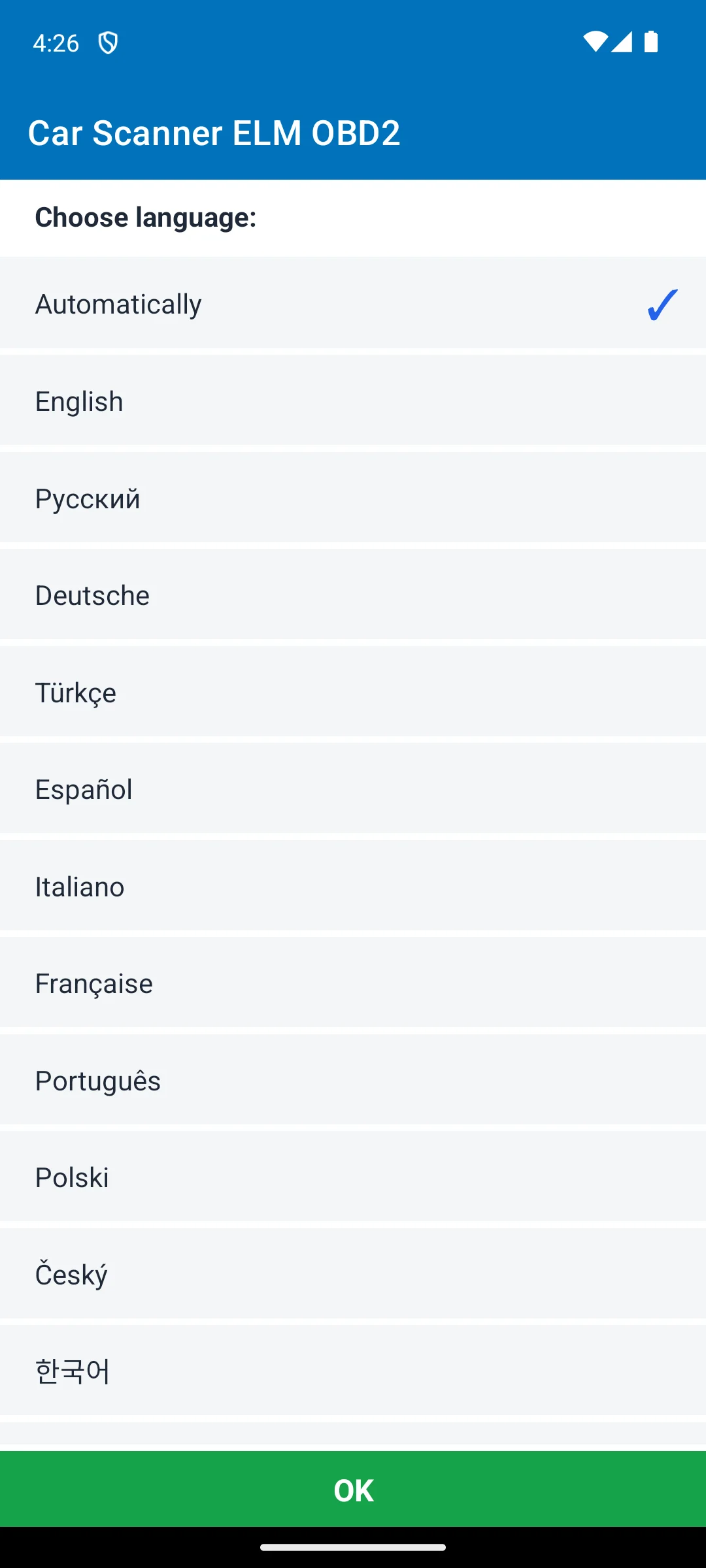
The first capture shows a disclaimer with two buttons, Yes, I agree and No, exit Car Scanner. Its six points include that the app should not be used while driving, that the author cannot guarantee your car, adapter or phone are supported, that it is provided as is, and that a damaged or faulty car should be repaired by a qualified person, which is the app's own statement of the limit this whole category runs into. Its sixth point says the app does not collect any personal related data, which the Data Safety section of the same listing contradicts, read 20 August 2026: that declares the app may collect data types and may share them with third parties. The screenshots below are our own emulator captures of the first two screens, the disclaimer and the language chooser, dated 18 August 2026, and they are described here only by what is on them.
Skip this if. Skip it if a Data Safety section that declares sharing with third parties is the thing you came here to check.
Choosing between them. Choose Car Scanner over Torque Pro for the current listing, the published coding list and the wider choice of adapter, and Torque Pro over it for a Data Safety section that declares nothing collected and nothing shared.
Nothing collected, nothing shared, and USB adapters documented
Rating 4.0 from 81,239 reviews · Installs 1,000,000+ · Costs USD 4.95 up front, and the listing shows no in-app purchases · Developer Ian Hawkins · Data Safety: no data shared with third parties, no data collected · Listing last updated 3 February 2025 · Contains ads: No · checked 1 September 2026
Google Play listing · 4.0 (81,239) · read 1 September 2026
Torque Pro is the app you buy rather than install, at USD 4.95 up front with no in-app purchases and no advertising label, and its Data Safety section is the only one of the four that declares both no data shared with third parties and no data collected. The blunt part is the dates. Its listing was last updated 3 February 2025, and it is rated 4.0 from 81,239 reviews, the second lowest score here.
The listing says the app needs a Bluetooth OBD2 adapter to work and then links the developer's own adapter list, and that list is wider than the sentence: the adapter page on the Torque wiki, read 20 August 2026, carries working Bluetooth, Wi-Fi and USB adapters, and two non OBD2 adapters that it marks as working in Torque Pro alone, one for Nissan Consult systems and one that reaches VW, Seat and Audi over the manufacturer's native protocols. The same page is blunt about one connection type this article's own diagram gets wrong: it says BLE adapters are not fast, are not suited to OBD, and should not be expected to keep up on CAN bus cars. On the cars, the vehicle requirements page gives petrol from 1996 and diesel from 2004 as its rule of thumb, which is narrower for diesel owners than the listing's own wording.
Skip this if. Skip it if you would rather not pay before knowing that your adapter and your car work with it, because the free build below answers exactly that question.
Choosing between them. Choose Torque Pro over Car Scanner for the stricter Data Safety declaration and no advertising label, and Car Scanner over it for a listing updated in July 2026 and a published coding list.
The free way to test an adapter and car before paying
Rating 3.7 from 50,608 reviews · Installs 10,000,000+ · Free, and the listing shows no in-app purchases · Developer Ian Hawkins · Data Safety: no information available · Listing last updated 13 January 2018 · Contains ads: Yes · checked 1 September 2026
Google Play listing · 3.7 (50,608) · read 1 September 2026
Torque Lite is the free build from the same developer as Torque Pro, free with the Contains ads label and no in-app purchases. Two blunt facts sit on top of that. Its listing was last updated 13 January 2018, more than eight years before this check, and its Data Safety section reads no information available, so the listing declares nothing at all about collection or sharing. It is rated 3.7 from 50,608 reviews, the lowest of the four.
Read this first. A listing that has not been rewritten since 13 January 2018 is not the same thing as an app that has stopped working, and nothing on that store page says which it is. What the date does settle is that none of the page has been rewritten in the years since, the Data Safety section included, which is why it reads no information available rather than a declaration. Read from the listing on 20 August 2026.
The developer states the job this build is for, on its own Play listing: This is the free/basic version - it lets you get a feel for the application and lets you find out if it works with your vehicle / obd2 adapter combination; but may contain some small bugs including not working on some nissan/chrysler/subaru ECUs
. The same listing is where the split with the paid build is written down, and it is narrower than it sounds: the single bullet that mentions diesel puts the MPG readout for petrol cars in this build and diesel support in the paid one, so what the free build lacks on a diesel is that readout rather than the diesel itself. The listing separately puts more vehicles and more ECU types in the paid build.
Skip this if. Skip it if a store page that has not been rewritten since 2018 is reason enough on its own to look elsewhere. A diesel is not on its own a reason to skip it: the split its listing states is the MPG readout, which it puts in the paid build, while reading and resetting codes, live data and the adapter check are what this free build is for.
Choosing between them. Choose Torque Lite over Torque Pro only to find out whether an adapter and a car work before paying, and Car Scanner over both for a listing updated in July 2026 and a higher rating.
K-line VAG cars, a Lifetime VAG PRO plan, or an OBDeleven 1 device
Rating 4.5 from 46,742 reviews · Installs 1,000,000+ · Free to install, with in-app purchases from USD 2.99 to USD 499.99 per item · Developer OBDeleven · Data Safety: no data shared with third parties, and the app may collect data types · Listing updated 6 May 2026 · Contains ads: No · checked 1 September 2026
Google Play listing · 4.5 (46,742) · read 1 September 2026
OBDeleven VAG is the odd one out, and its own listing is why: it opens by saying this build is now part of the main OBDeleven app, and then narrows it to three cases, one of which is owning an OBDeleven 1 device. It is free to install with no advertising label and a Data Safety section declaring no data shared with third parties, but its in-app purchases run from USD 2.99 to USD 499.99 per item, by far the highest ceiling of the four.
Read this first. Its listing names the three cases for using this build rather than the current one: a Volkswagen group vehicle with K-line support, which it puts at typically older models, around 2008 or earlier, a Lifetime VAG PRO plan, or an OBDeleven 1 device. For anything else the same listing says to download the main OBDeleven app instead. Read from the listing on 20 August 2026.
The free install is not the entry price, and the developer's own shop is where that shows: on obdeleven.com, read 20 August 2026, the current device is sold bundled with credits at EUR 114.99, and the same page says the scanner works with cars using the CAN bus protocol, made mainly from 2008. That is the mirror image of this build, which its listing points at K-line cars of around 2008 and earlier, so the two cover opposite ends of the same fleet. What no source reachable from this page settles is whether an ordinary ELM327 can drive this build: its listing never uses the word. The same developer's current app points the other way. On its own Play listing, read 20 August 2026, it names an ELM327 device for basic OBD2 diagnostics and an OBDeleven 3 device for coding and customisation, so on that app a branded device is what unlocks the coding rather than what the software refuses to run at all. Neither listing settles the question for this older build, so this page reports the three cases the VAG listing names and claims nothing past them.
Skip this if. Skip it if the car is not a Volkswagen group car, or if none of the three cases its listing names applies to you.
Choosing between them. Choose OBDeleven VAG over Car Scanner only in the three cases its own listing names, and Car Scanner over it for ordinary ELM327 adapters, several marques and a published coding list.
What works on the widest range of cars. Reading and clearing stored fault codes and streaming live sensor data are described on three of the four listings read on 20 August 2026: Car Scanner, Torque Pro and Torque Lite. Car Scanner's listing also names freeze frame data, an emissions readiness view and control unit self monitoring results, and Torque Pro's names logging, dashboards and performance readouts. The fourth listing, OBDeleven VAG, spends its text on which of that developer's apps to use rather than on features. What none of them does is work out the fault: the car's control unit reports a code, and the app shows it.
What changing a factory setting needs. Only one of the four documents it. Car Scanner names coding, which its own text defines as changing hidden settings of your car, and its site publishes the platforms and models it reaches. Neither Torque listing mentions changing a setting in the car anywhere in its text. Neither does OBDeleven VAG: the one time the word coding appears on that listing it sits in the bullets giving reasons to switch to the main OBDeleven app, and this build is then narrowed to a Volkswagen group vehicle with K-line support, a Lifetime VAG PRO plan or an OBDeleven 1 device.
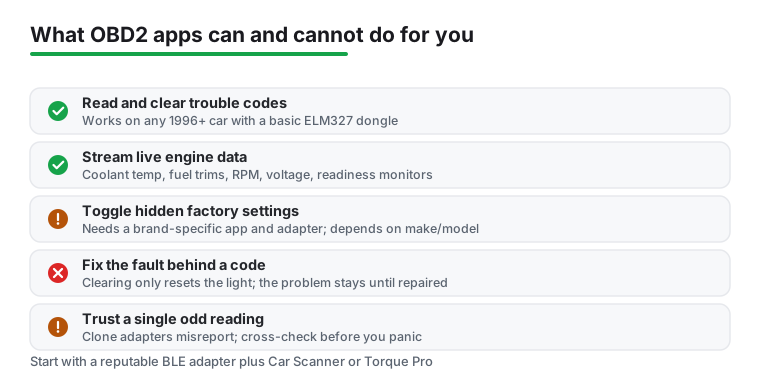
What this page does not cover. No listing here describes a coding change as undone by the app on its own, and the one developer who documents coding is also the one who tells readers to take a backup first and warns that a bad adapter can corrupt what is read back. What the listings offer is wider than what this page covers. Car Scanner's own text, read 20 August 2026, names video in motion, Mirrorlink in motion and Traffic Jam Assist activation among the functions it calls exclusive to it on Volkswagen group platforms, and the first of those defeats a lock that exists because the car is moving, which the same app's opening disclaimer warns against. This page covers none of the three, describes no procedure for any of them, and takes no view on whether they are lawful where you are. Nothing here covers altering emissions equipment or an odometer reading either, and this page gives no guidance on clearing a code before a test or a sale. Clearing a fault code is the other place expectations run ahead of the tool: it resets the warning light and repairs nothing, which is the one line of the drawing above that needs no correction.
The adapter comes first. None of these apps reaches the car on its own. Each one talks to a separate OBD2 adapter plugged into the port under the dashboard, and the four differ on which. Car Scanner's adapter guide, read 20 August 2026, takes ELM327 adapters over Wi-Fi, classic Bluetooth or Bluetooth LE and rules wired adapters out, which its own listing contradicts in the release note for the version dated 20 July 2026, as that section reports. The two disagree again about clone adapters: the listing says to make sure a cheap adapter is not marked as version 2.1, and the guide says to ignore version markings altogether, because there are good adapters marked 2.1 and bad ones that are not, and on bulk clones the number is a few characters of text the seller chooses. The listing names six brands it recommends, OBDLink, Kiwi 3, V-Gate, Carista, LELink and Veepeak, and the guide is blunter, warning that far more bad adapters are on the market than good ones and that coding needs a high quality one. Torque Pro's listing asks for a Bluetooth adapter and then links the developer's own adapter page, which is wider than that sentence: it lists working Bluetooth, Wi-Fi and USB adapters, marks two non OBD2 adapters as working in Torque Pro alone, one for Nissan Consult systems and one reaching VW, Seat and Audi over native protocols, and warns that BLE adapters are not suited to OBD. Torque Lite's listing asks for a cheap Bluetooth ELM adapter. OBDeleven is the outlier: its build here names an OBDeleven 1 device as one of three cases, and the developer's shop sells the current device with credits at EUR 114.99. Read the documentation of the app you want before buying the dongle, because an adapter the app cannot drive is the one mismatch no listing here can fix.
Location permission, and why it is asked for. Google's own Android documentation on Bluetooth permissions explains the request: an app that targets Android 11 or lower has to declare the fine location permission, because on those releases a Bluetooth scan could be used to work out where the user is, while an app that targets Android 12 or higher declares a Bluetooth scan permission instead and the system asks the reader for Nearby devices. Which of the two an OBD2 app puts in front of you therefore follows the release it targets, not anything about the car.
Where these apps sit beside the rest. A launcher does not read engine data, and the comparison of Android car launchers reaches the same conclusion from the other side. For a large speed readout there are the free speedometer apps, for routing a GPS navigation app, and for fuel and running costs the gas and efficiency apps. The wider Navigation and Auto hub holds the rest of the in-car categories.
You need both, and the adapter is not interchangeable between these four. None of these apps can reach the car on its own. Car Scanner takes ELM327 adapters over Wi-Fi, classic Bluetooth or Bluetooth LE, and its two sources disagree about wired ones: its adapter guide rules them out, its release note dated 20 July 2026 records USB ELM327 device support being added. Torque Pro asks for a Bluetooth adapter on its listing, but the adapter list that listing links to also covers Wi-Fi and USB, and says USB needs the paid build. Torque Lite asks for a cheap Bluetooth ELM adapter. OBDeleven VAG states no adapter requirement for this build at all: its listing names an OBDeleven 1 device as one of three alternative cases, and never uses the word ELM327. Read the documentation of the app you want before buying anything. Checked 20 August 2026.
Less often than the phrase suggests, and both developers here say so on their own pages rather than on their listings. Car Scanner's compatibility page calls the belief that every car from 1996 onward is covered a common misconception, and gives 1996 for the United States market, 2001 for petrol cars in the European Union, 2003 for diesels there, 2005 to 2006 for Australia and 2008 for China, while noting that cars built for the Japanese domestic market mostly do not support the standard. The Torque wiki gives petrol from 1996 and diesel from 2004 as its rule of thumb. The same Car Scanner page adds that a car can have the 16 pin connector fitted and still have no OBD2 support behind it. Checked 20 August 2026.
One of the four documents it. Car Scanner calls the feature coding and publishes a list of what it reaches, naming the Volkswagen group MQB, PQ26 and MLB-EVO platforms model by model, plus Toyota with CAN bus, Hyundai and Kia, several General Motors marques, Mitsubishi, Nissan and some Renault and Dacia cars. Neither Torque listing mentions changing a setting in the car. OBDeleven VAG does not describe coding on this build either: it names three cases for using it and sends every other reader to the main OBDeleven app. Car Scanner's own coding FAQ tells readers to back up all blocks before making any changes and warns that a bad adapter can corrupt what is read back, so this is not a risk free operation. Checked 20 August 2026.
No. Clearing a stored code resets the warning light and repairs nothing, so if the fault is still present the light returns. That is the single most useful thing to know about this category: these apps read and clear what the car's own control unit reports, and reading a code is not the same as diagnosing the fault behind it. Car Scanner's listing also offers a readout of whether the car reports itself ready for emission tests. This page reports that the feature exists and gives no advice about tests, sales or warning lights. Checked 20 August 2026.
Two of the four listings are current and two are not. Car Scanner was updated on 20 July 2026 and OBDeleven VAG on 6 May 2026. Torque Pro was last updated on 3 February 2025, and Torque Lite on 13 January 2018, more than eight years before this check, on a listing that still shows a ten million plus install band. A date is not a verdict on whether an app still works, and no listing here says which it is. Worth adding: the Torque developer documentation is older still, with the adapter page last edited in 2022 and the vehicle requirements page in 2011. Checked 20 August 2026.
Car Scanner ELM OBD2, on the figures here: rated 4.7 from 356,188 reviews on 1 September 2026, free to install, a listing updated on 20 July 2026, support for ordinary ELM327 adapters, and the only published coding list of the four. Two things to know before you do. Its listing carries the Contains ads label, and its Data Safety section is the only one of the four that declares the app may share data types with third parties. If that second point is the one that matters to you, Torque Pro declares no data collected and no data shared, and costs USD 4.95 once. If the car is an older Volkswagen group car and one of the three cases its listing names applies to you, OBDeleven VAG is the other direction, though its in-app purchases reach USD 499.99 per item. Checked 20 August 2026.
Checked 20 August 2026: all four Play listings were re-read and every rating, review count, install band, price, in-app purchase range, ads label, Data Safety line and listing date now carries the date it was read. The decision table was rebuilt: its old second column repeated the verdict line printed under each heading and decided nothing, and it has been replaced by the adapter each app needs and the cars each developer documents, both moved off the store blurb onto the developers' own pages, which are narrower in every case. Car Scanner's compatibility page calls the belief that every car from 1996 onward is covered a common misconception and gives 2001 for EU petrol and 2003 for EU diesel; the Torque wiki gives 1996 for petrol and 2004 for diesel. Claims withdrawn in this pass, each refuted at a source this page links. That reading codes and live data works on almost any car with the port: the same Car Scanner page says a car can carry the connector while its control unit has no OBD2 support behind it. That USB is not supported in Car Scanner: the adapter guide does rule wired adapters out, but the release note on the same developer's listing, for the version dated 20 July 2026, records USB ELM327 device support being added, so the disagreement is printed instead of one side of it, and with it goes the claim that the Torque adapter list is the only one here that covers USB. That OBDeleven VAG needs OBDeleven branded hardware, that a generic ELM327 will not do, and that it is the only app here that a generic ELM327 cannot drive: its listing never uses the word ELM327 and names an OBDeleven 1 device as one of three alternative cases, beside a K-line Volkswagen group car and a Lifetime VAG PRO plan, while the same developer's current app names an ELM327 device for basic diagnostics. The heading, the table cell, the capsule, the section and the FAQ now say what that listing says and nothing more. That no listing here offers that, about altering a safety system: Car Scanner's listing names video in motion, Mirrorlink in motion and Traffic Jam Assist activation among its Volkswagen group coding functions, and the page now says so and states that it covers none of them. That a diesel owner should look elsewhere because the listing puts diesel in the paid build: it does that only for the MPG readout, while codes, live data and the adapter check are what the free build is for. That an adapter already in the glovebox is worth trying before any purchase: the same guide warns that far more bad adapters are on the market than good ones and that coding needs a high quality one, and its disagreement with the listing over adapters marked version 2.1 is now printed as well. That the diagram's advice to start with a reputable BLE adapter is sound: the Torque wiki says BLE adapters are not suited to OBD. That readers should look at the emissions readiness view first if a test is coming up: the page now reports only that the feature exists and gives no advice about tests, sales or warning lights. One earlier correction was withdrawn after being re-derived: the diagram's line about clone adapters stands, because the developer's coding FAQ does say a bad adapter can corrupt what is read back from the car. Also in this pass. Torque Pro is no longer described as a Bluetooth only app, because the adapter list its listing links to carries Wi-Fi and USB adapters and two non OBD2 adapters marked as working in the paid build alone. The How we verify box previously described the app being placed on an emulator and opened, and a body paragraph and a con bullet repeated that framing; all three are gone under the standing rule of verified, not tested, and the blanket sentence that replaced them, Nothing here rests on our own use of the apps, was itself too wide and is now scoped to the verdicts, the figures and the comparisons. That box also no longer claims all four developers publish documentation: Torque Lite's two cells are read from its listing and say so, and OBDeleven publishes no adapter requirement for this build. Both screenshots are unchanged and both were re-examined, but the second was mislabelled as the lower half of the disclaimer when the screen it shows is the language chooser, corrected in three places, and the disclaimer's sixth point is now printed beside the Data Safety section it contradicts. The diagram cannot be edited from here, so its caption carries the corrections, and its count now matches the drawing: five rows and a closing line, three corrected, one standing, one needing nothing and one undisputed. The FAQ question asking whether it is safe to clear a check engine light was replaced by one asking whether clearing a code fixes the problem. The page title now carries the number of apps and asks which single app can code, because only one of the four documents coding at all.
 Best Car Launcher Apps for AndroidNavigation & Auto