
Updated September 2026 · five thermostat apps now carry their own dated listing figures, and which app you need sits in one table
If you own a Nest thermostat, the app on your Android phone is where the real savings happen, not the dial on the wall. The difference between a Nest that just sits there and one that actually trims your bill comes down to how you set it up. Here is what worked for us, what to ignore, and how to get it running on Android without fuss.
First, a heads up that trips a lot of people. Google has moved most Nest control into the Google Home app, so for any thermostat bought in the last couple of years that is the one you want from the Play Store. The older standalone Nest app (com.nest.android) still exists and still runs some older thermostats and cameras, but if you are starting fresh in 2026, install Google Home and sign in with the Google account you want tied to the device. Pick that account carefully, because moving a thermostat to a different account later is a hassle, and any sharing with housemates hangs off it.
One thing worth knowing before you spend money: in October 2025 Google ended cloud support for the 1st and 2nd generation Nest Learning Thermostats, so those units no longer connect to either app and can only be controlled at the wall. If you are buying secondhand, check the generation before you pay. The 3rd gen Nest Learning Thermostat, the Nest Thermostat E, the basic Nest Thermostat, and the current 4th gen Nest Learning Thermostat (the 2024 model with the bigger screen) are the ones still fully supported through Google Home.
From there the flow is genuinely quick. Open Google Home, tap the plus icon, choose to set up a device, and the app scans for your Nest over Bluetooth and your home Wi-Fi. You scan a QR code or punch in the pairing key shown on the thermostat screen, assign it to a room like Living Room or Hallway, and confirm your home address so it can pull local weather. That address step matters more than it looks, because Nest leans on outside temperature to make its decisions, and the newer natural heating and cooling feature on the 4th gen reads sun exposure and outdoor swings to time things better.
Give the thermostat a name you will recognise at a glance, especially if you plan to add a second unit for upstairs or a separate zone later. While you are in setup, take thirty seconds to set the heating type correctly (gas, oil, electric, heat pump) because the cost estimates and some efficiency prompts depend on it. If you have a heat pump, the app handles the slower ramp differently, and getting that flag right stops it from short cycling. The 4th gen is also Matter certified, so if you run a non-Google hub you can pull it into that ecosystem too, though the energy features we care about here live in Google Home.
Any Nest thermostat bought recently
4.0 stars from 3,653,246 reviews · 1,000,000,000+ installs · free to install · in-app purchases $0.05 to $999.99 per item · by Google LLC · Contains ads: No · checked 4 September 2026
Google Play listing · 4.0 (3,653,246) · read 4 September 2026
The app to install if the thermostat is recent, and the one Google has moved Nest control into. Free to install with no Contains ads label, read 4 September 2026; the in-app purchases, $0.05 to $999.99 per item, are Nest Aware subscriptions rather than anything the thermostat needs. At 4.0 stars from 3,653,246 reviews it is not loved, and the reviews are mostly about the app rewrite rather than the hardware.
Thermostats too old for Google Home
3.8 stars from 447,175 reviews · 10,000,000+ installs · free · no in-app purchases · last updated 17 August 2026 · by Google LLC · Contains ads: No · checked 4 September 2026
Google Play listing · 3.8 (447,175) · read 4 September 2026
Still on the store and still maintained, updated 17 August 2026, free with no in-app purchases and no Contains ads label, read 4 September 2026. It exists for hardware Google Home does not cover. Before buying anything secondhand, note what the page above says: cloud support for the 1st and 2nd generation Learning Thermostats ended in October 2025, and those units now work only at the wall, whichever app you install.
Here is where the app earns its keep. The headline feature is the schedule, and Nest can build one by learning from the temperatures you set during your first week. The learned schedule is a draft rather than a finished one, and you can edit it by hand in the app. Dragging set points around on the timeline took two minutes and shaved a noticeable chunk off the morning runtime. You do not have to accept the learned version as gospel; treat it as a rough draft and trim it.
The second big one is Eco Temperatures. You set a low heat and a high cool that the system drifts to when nobody is home, and the app uses your phone location plus the thermostat sensors to decide when the house is empty. When it kicks in you see a green leaf in the app, which became a small daily satisfaction for us. On the 4th gen this has been rebranded and reworked as Adaptive Eco, which tries to land on an energy saving temperature that is still comfortable for the moment you walk back in, rather than letting the house go cold and then blasting heat on your return. In practice the older Eco Temperature and the newer Adaptive Eco do the same job: stop paying to heat empty rooms.
The Home and Away routine ties this together. It decides whether the house is occupied using phone location and motion picked up by the thermostat's own sensor, then switches between your comfort schedule and the eco band automatically.
The third feature is the Energy History screen. It shows a day by day breakdown of when your heating ran and why, with little tags like sunny, one degree colder than usual, or you changed the temperature. That history view is the single most useful screen for understanding your own habits, because it turns a vague sense of "the heating seems to run a lot" into a clear picture of exactly which mornings and evenings cost you. The classic thing this screen exposes is a system firing up at 6am for a 7am start every day, weekends included, and fixing that one thing matters more than any clever automation. On the current models you also get newer touches like smart ventilation prompts and seasonal savings suggestions that surface in this area; accept the ones that fit your routine and ignore the rest.
A word on the savings claims. Google points to independent utility studies showing customers save roughly 10 to 12 percent on heating and about 15 percent on cooling, which it frames as up to around 10 to 15 percent, and you will see similar numbers from rival brands. Those are averages from those studies, not a promise for every home. Your real saving depends on how wasteful your old habits were. If you already turned the heating off when you left, a smart thermostat tidies things up at the margins. If you used to leave it running all day, the gains can be large.
A few small moves do most of the work. Turn on the leaf nudges so the app rewards you for picking an energy friendly temperature, then actually chase the leaf for a week. It sounds gimmicky, but chasing the leaf is how people end up setting 19 degrees instead of 21 without feeling cold, and a degree or two is where most of the saving lives. Once the habit sticks you can stop watching for the leaf and just keep the lower set point.
Tighten the Away timing. The default can wait a while before deciding you have left, so shorten it and let phone location do the work. If several people share the home, add everyone to the same home in the app so it does not switch to Away while one person is still on the sofa. We learned that the hard way when the heating dropped out one afternoon because the only person home had left their phone charging in another room and the system assumed the house was empty. Adding a second household member's phone fixed it.
Use the seasonal savings prompts when they appear, since they suggest a small schedule tweak you can accept with one tap, and they tend to show up at the changes of season when your old schedule is least suited to the weather. Set a comfortable wake temperature for a short window only, rather than holding it all morning. Most of our wasted energy was the house staying warm long after we had left for the day, and a tighter schedule fixed that more than any single fancy feature. If you have a regular work pattern, build the schedule around when the house is genuinely occupied and let Away cover the irregular gaps.
One more practical tip: set up the temperature sensor if your model came with one, or buy one for the room you actually sit in. The thermostat usually lives in a hallway, which is rarely where you spend your evenings. Letting the system balance to the living room or bedroom sensor at the right times stops the common problem of a toasty hallway and a chilly sofa. On the 4th gen a 2nd gen Temperature Sensor comes in the box; on older units you add them separately. And check the Home and Away history every week or two for the first month, because that is how you catch a phone that is not reporting location properly before it quietly costs you.
To work properly the app asks for location, and it genuinely needs it. The Home and Away feature relies on knowing roughly where your phone is, so if you deny location you lose the automatic empty house savings and fall back to a plain schedule. On recent Android versions you will be asked to allow location all the time rather than only while the app is open, because the check has to keep running in the background. Notifications are the other permission worth granting, because alerts about unusual heating, a sudden temperature drop, or a possible frozen pipe warning are useful rather than spammy. You can review and pull back any of this later in Android Settings under the app permissions.
Now the downsides, because no app is perfect. It depends on your internet, so a Wi-Fi outage means no remote control until you are back online, though the thermostat keeps following its last schedule, so your house will not go cold. The move into Google Home has annoyed long time Nest owners, and a handful of older features moved around or changed names during the transition, which is why some online guides no longer match what you see on screen. The end of support for the earliest thermostats in late 2025 left some owners with hardware they could no longer control from a phone, so it is fair to say Google's track record on keeping older kit alive is mixed.
Battery drain from constant location checks is mild but real, and on some Android phones the aggressive battery saver will quietly kill background location, which breaks Away until you exempt the app. It is worth adding Google Home to the list of apps allowed to run in the background. There is also the privacy angle: this is a cloud account tied to Google, and your home occupancy patterns and heating data live on its servers. That is fine for many people but worth a thought if you prefer to keep home data local, in which case a system like Home Assistant with local control may suit you better. Finally, some of the slicker features are tied to the newer hardware, so an older supported thermostat will not get everything the 4th gen does.
Nest is not the only way to run a smart thermostat from Android. If you own Ecobee hardware, its own app offers similar scheduling plus room sensors that balance temperature across the house, and many find its eco features just as strong. The Ecobee app needs Android 10 or newer and controls the thermostat, its sensors, and Ecobee's cameras from one place, which is handy if you have bought into more of their range. It leans on occupancy sensors as well as phone location, so the away detection does not fall apart the moment you leave your phone in another room.
Tado is popular in Europe and leans hard into geofencing and weather based control, with clear savings reports. Worth knowing in 2026: the better automation, including geofencing itself on current setups, sits behind a paid Auto Assist subscription rather than the free app, so factor that running cost in before you commit. Honeywell Home covers a wide range of thermostats and suits people who want straightforward scheduling without a learning algorithm second guessing them, though note that some newer Honeywell units have moved to the First Alert app, so check which app your exact model uses before buying.
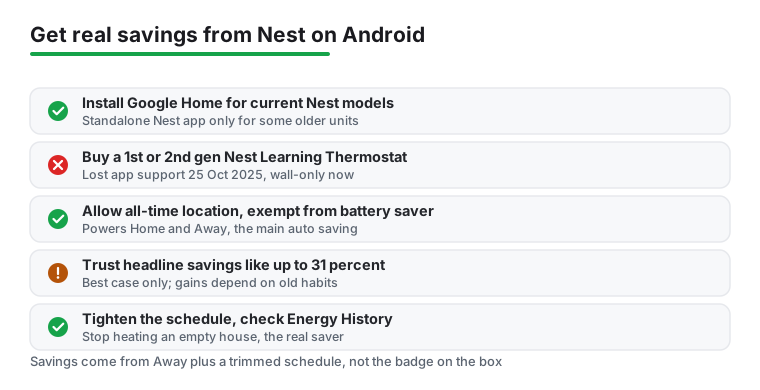
If you are chasing energy savings more broadly, the thermostat is only one piece. It pairs naturally with the wider set of utility tools on Android, and you can browse our Tools and Utilities hub for related picks, or look at dedicated battery saver apps for Android to stretch your phone while it runs all these background checks. For the smart home crowd, the right combination of a learning thermostat and a couple of good companion apps usually does more than any single product on its own. Whichever brand you pick, the same rule holds: the savings come from stopping the heating in an empty house and trimming the schedule, not from the badge on the box.
Balancing temperature across rooms
4.4 stars from 41,064 reviews · 1,000,000+ installs · free · no in-app purchases · by ecobee · Contains ads: No · checked 4 September 2026
Google Play listing · 4.4 (41,064) · read 4 September 2026
The best rated thermostat app on this page at 4.4 stars from 41,064 reviews, free with no in-app purchases and no Contains ads label, read 4 September 2026. Its difference is hardware rather than software: room sensors mean the away detection does not depend on a phone being in the right room, and the schedule can follow where people actually are.
European homes with weather-based control
3.8 stars from 69,113 reviews · 1,000,000+ installs · free to install · in-app purchases $3.99 to $29.99 per item · by tado GmbH · Contains ads: No · checked 4 September 2026
Google Play listing · 3.8 (69,113) · read 4 September 2026
Popular in Europe, and the listing confirms what the page above warns about: the app is free to install but carries in-app purchases of $3.99 to $29.99 per item, read 4 September 2026, which is the Auto Assist subscription that the geofencing sits behind. No Contains ads label. At 3.8 stars from 69,113 reviews it is rated the same as the legacy Nest app.
Straightforward scheduling on Honeywell hardware
3.6 stars from 32,647 reviews · 1,000,000+ installs · free · no in-app purchases · by Resideo · Contains ads: No · checked 4 September 2026
Google Play listing · 3.6 (32,647) · read 4 September 2026
The app the page above calls Honeywell Home now lists as Resideo - Smart Home, read 4 September 2026. Free, with no in-app purchases and no Contains ads label, and the weakest rating on this page at 3.6 stars from 32,647 reviews. It suits people who want a schedule and a thermostat rather than automation that guesses.
For most current setups you want Google Home, since Google moved the bulk of Nest control there. The older standalone Nest app still runs some thermostats and cameras, so check which one your specific model asks for during setup. If you are buying new, start with Google Home. And be aware the 1st and 2nd gen Nest Learning Thermostats lost app support in late 2025, so those can only be used at the wall.
The savings come mostly from the Away feature and a tightened schedule rather than anything magic. If you let it drift to an eco temperature when the house is empty and you stop heating an empty home all morning, the difference adds up. Headline figures, around 10 to 12 percent on heating and about 15 percent on cooling in the independent studies Google cites, are averages, not a guarantee. The app's Energy History screen helps you see exactly where your runtime goes.
Location powers the Home and Away routine, which is the part that saves energy automatically by easing off heating when you leave. If you deny it, the thermostat falls back to a fixed schedule and you lose that automation. On newer Android versions it asks for all the time access because the check runs in the background. You can review it later in Android settings. For more on managing app behaviour, our AccuWeather hidden features guide covers similar permission tradeoffs.
There is a small ongoing cost from location checks, but it was mild for us and not something most people will notice day to day. Watch out for aggressive battery savers that kill background location, since that quietly breaks the Away feature until you exempt the app. If you are sensitive to battery use, pairing it with a lean browser and good power habits helps. We rounded up battery-friendly Android browsers if you want to claw back some stamina elsewhere.
ecobee, at 4.4 stars from 41,064 reviews, read 4 September 2026. Google Home follows at 4.0 from 3,653,246 reviews, the legacy Nest app and tado both sit at 3.8, and Resideo, formerly Honeywell Home, is lowest at 3.6 from 32,647 reviews. All five are free to install and none carries the Contains ads label; tado is the one whose in-app purchases, $3.99 to $29.99 per item, gate features you may expect to be free.
Checked 4 September 2026: the guide named five apps and linked none of them, with no ratings, no install bands, no table and no dated line. All five now carry fact lines read today, and two corrections came out of reading them: the app this page called Honeywell Home now lists as Resideo - Smart Home, and tado's listing confirms the subscription warning with in-app purchases of $3.99 to $29.99 per item. The ranking is worth stating plainly: ecobee is the best rated at 4.4 stars from 41,064 reviews, while Google Home sits at 4.0 from 3,653,246 and Resideo lowest at 3.6 from 32,647. Three claims about our own thermostat are withdrawn: A few small moves made a real difference; it trained us to set 19 degrees instead of 21 without feeling cold; and We spotted that our system was firing up at 6am for a 7am start every day.