
Updated for 2026
Updated 26 August 2026 · the rating, install band, in-app purchase range and Contains ads label for Xodo, Foxit PDF Editor and PDF Converter: Images to PDF were re-read on 26 August 2026. Every figure for the other five apps, and every comparison that spans all eight, carries its 8 August 2026 reading.
Xodo is our overall pick because its listing carried no ads label on 26 August 2026 and installs free on Android 7, purchases from $2.99.
PDF Converter: Images to PDF is our free pick because it had nothing to buy on 26 August 2026, though it carries an ads label.
Foxit is our transparency pick because its capability lists asterisk every paid feature, it carried no ads label on 26 August 2026, and installs free with purchases from $0.99.
Data checked: 3 September 2026.
Lead pick
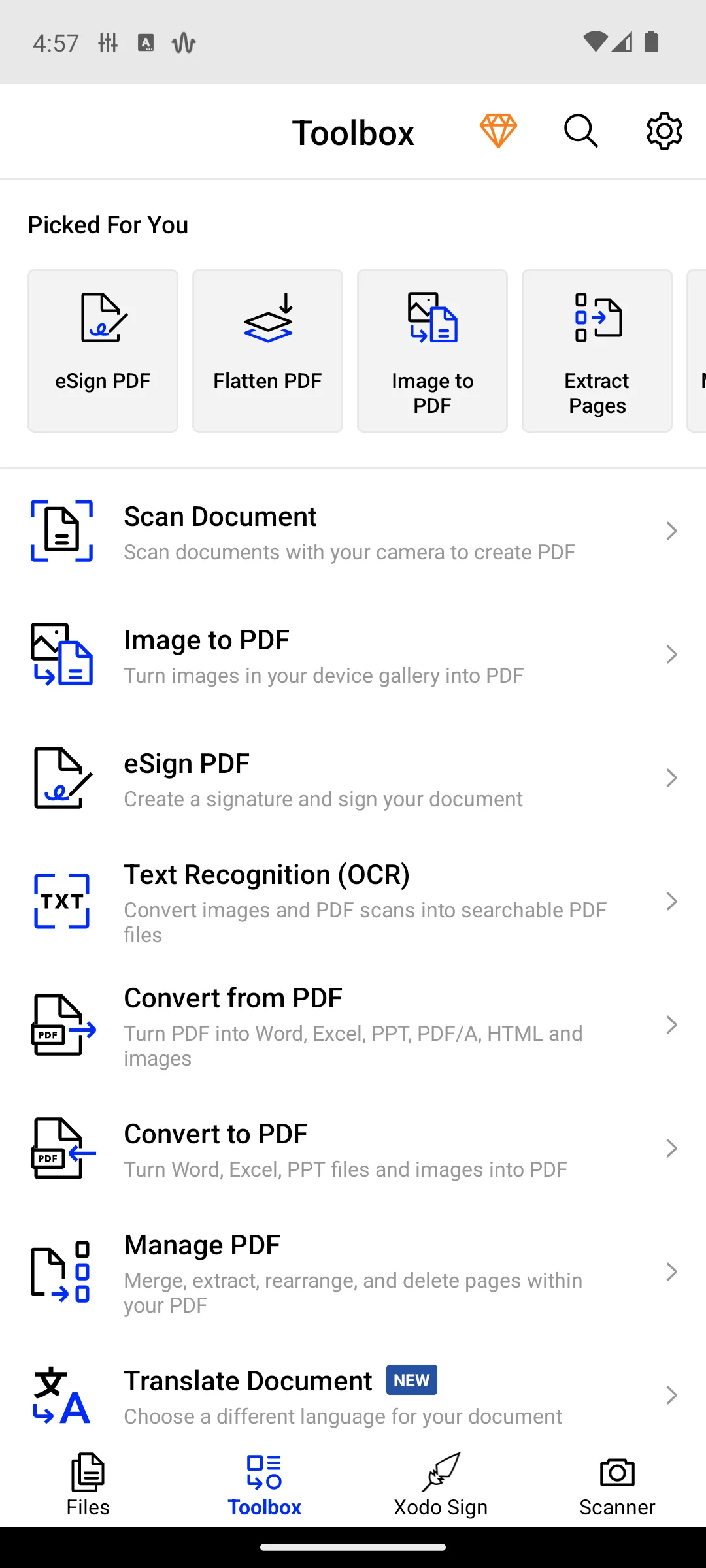
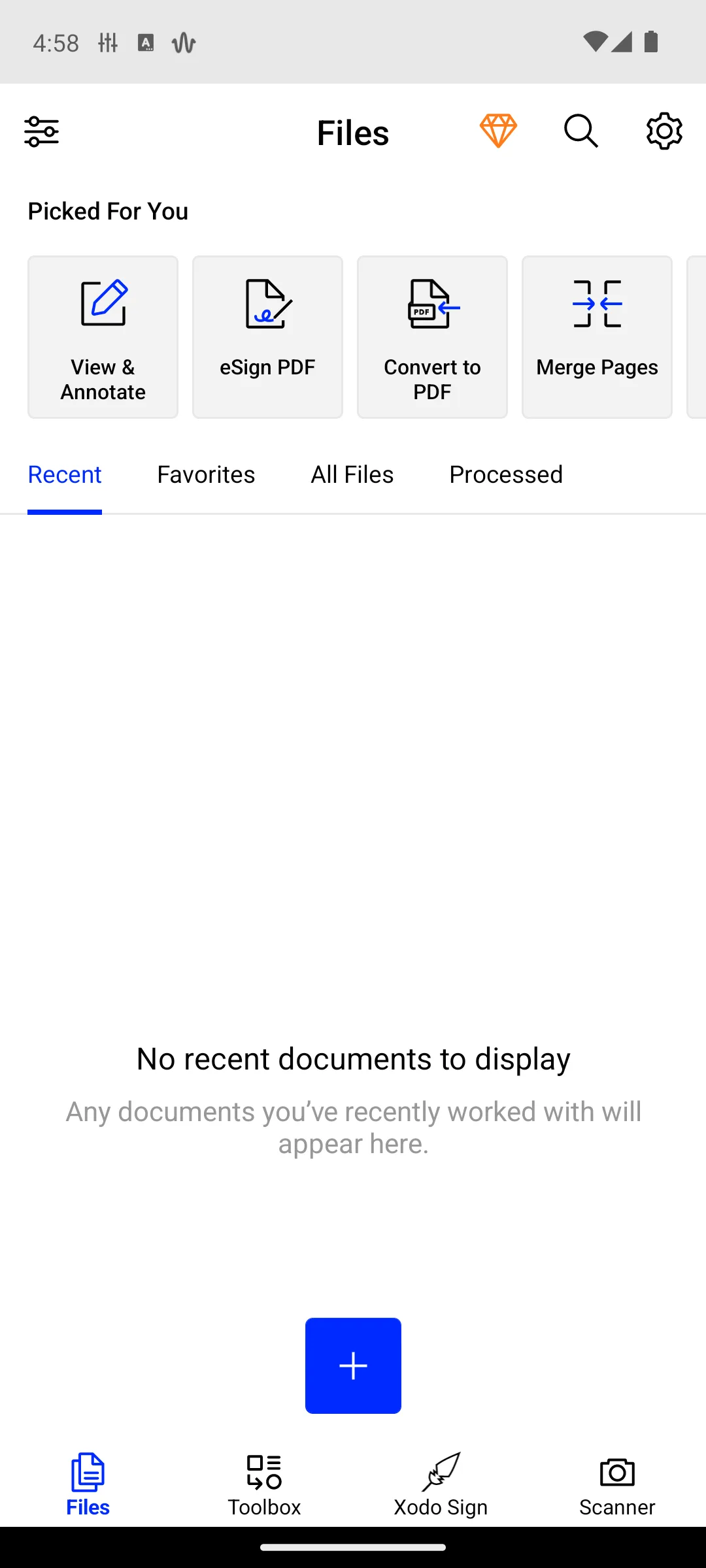
Xodo leads: viewing, annotating, form filling, scanning and converting in one app, no ads label. The blunt catch: its Play listing never states what the in-app purchases up to $109.99 unlock.
Apryse's help centre fills part of the gap. Its Xodo Actions article says "Xodo Actions include most actions as free to use with a daily limit. The daily limit will reset the next day," and its subscription article adds that "View and annotate remains to be free for personal use only!" Both are dated June 2024, older than the 11.0.0 build the listing showed on 26 August 2026, and neither June 2024 article puts a number on that limit.
For: viewer, scanner, form filler and converter in one install; no Contains ads label on 26 August 2026; a 10M+ install band behind it. Against: the listing states no free versus paid boundary at all; the daily Actions limit carries no published number; free view and annotate is personal use only, so work use needs a license.
Skip it if you need to know your limit before you start, because Smallpdf and Foxit publish theirs and Xodo does not.
Xodo or Adobe Acrobat Reader? Xodo to stay clear of ads; Acrobat when you want the free list written down before you install.
Published split
Adobe Acrobat Reader is the only listing with Free-to-use and Paid features headings. The blunt catch: it is named Edit PDF, yet editing text is paid, and it carries a Contains ads label.
Adobe's own listing puts Fill and Sign, Liquid Mode reflow, annotations, highlighting and cloud links to OneDrive, Dropbox and Google Drive under Free-to-use features. Under Paid features it puts editing text and images, OCR, merging, splitting and organizing pages, export to Word, Excel or PowerPoint, compression, password protection, having a PDF read aloud, where a sub-bullet offers free voices, and the AI Assistant, which the listing itself flags as free only for a limited time. Editing a Google Drive file needs a subscription. A 7 day trial opens everything.
For: the free and paid split is published rather than discovered at the paywall; Fill and Sign covers most everyday paperwork; 4.5 stars and a 500M+ install band, read on 8 August 2026. Against: a Contains ads label on the flagship reader; text editing is paid on an app named Edit PDF; in-app purchases reach $299.99, the highest ceiling on this page.
Skip it if you want an ad-free install, because Xodo and Foxit still carried no ads label when their listings were re-read on 26 August 2026, and iLovePDF, PDFelement and Smallpdf carried none on 8 August 2026.
Acrobat or Foxit? Acrobat for the longest free feature list and Liquid Mode reflow; Foxit for the same free jobs with no ads label and a lower ceiling.
↑ Back to the comparisonAsterisk key
Foxit asterisks every paid feature in its capability lists; the AI Assistant is named subscription-based in the intro and left unasterisked. The blunt catch: editing text is asterisked, it rated 4.0 stars on 26 August 2026, and it needs Android 9.
"The features marked with the asterisk (*) are advanced features based on subscription through in-app purchase," Foxit writes on its Play listing. Unasterisked, so free: view, reflow, search, bookmarks, read aloud, annotate and stamp, fill and save PDF forms, sign by hand, scan paper to PDF, sync to the cloud, and delete or rotate pages. Asterisked, so subscription: adding or editing text and image objects, OCR, creating PDFs, converting to and from Office formats, combining files, extracting pages, XFA forms, certificate signing, password protection and redaction.
For: the asterisk key makes the paywall readable before you install; filling and saving forms, signing and scanning are free; its data safety card declares no data shared with third parties, one of four here that do. Against: content editing is asterisked on an app named Editor; 4.0 stars on 26 August 2026; Android 9 is the highest install floor of the three listings re-read that day, and it shuts out the oldest phones, which are exactly the audience for free apps.
Skip it if your phone runs Android 8 or older, because Foxit will not install while Xodo, PDFelement and WPS Office go back to 7.0 and Images to PDF to 6.0.
Foxit or iLovePDF? Foxit for a published free tier with no daily cap; iLovePDF for one tap tools when you accept that the file is uploaded.
↑ Back to the comparisonHighest rated
iLovePDF is the highest rated of the eight. Two blunt catches: the free cap has no published size, and its developer is one of two that state files are uploaded.
The listing sells the familiar web toolset as one tap tools: compress, merge, split, rotate, page numbers, watermark, add or remove a password, plus OCR. Its paywall sentence is about volume rather than features, offering Premium subscribers their favorite PDF tools without limit, which admits a cap while never saying what it is. On uploads, the iLovePDF FAQ says of processed files: "We just keep them for a maximum of 2 hours so you can download them." That page covers the service rather than the Android build specifically, and the privacy policy, revised on 19 February 2026, repeats the window.
For: 4.6 stars, the highest here; no Contains ads label; the cheapest in-app ceiling on the page at $46.99. Against: the free cap is real but its size is unpublished; files are processed on iLovePDF servers rather than on the phone; Android 8.0 minimum.
Skip it if the document is a contract, a tax form or a medical record, because this is one of two entries whose developer states the file is uploaded.
iLovePDF or Smallpdf? iLovePDF for a softer, unnumbered cap and a cheaper upgrade; Smallpdf when knowing the exact limit up front matters more.
↑ Back to the comparisonHardest limit
Smallpdf publishes the sharpest number here: one free tool task per day. The blunt catch: that is the whole toolbox, so three files tonight means two wait until tomorrow.
Its listing states the terms in one breath: "Smallpdf is free to use with 1 daily tool task per day! If you would like to try out PRO for unlimited conversions across ALL tools, there's a free 7-day trial available. Monthly subscription available for $7.99 per month or save 48% on an annual plan!" The same listing says uploaded files are deleted an hour after processing unless you save them, so this is a cloud toolbox rather than an on device editor. One warning: the old com.smallpdf.app listing is dead, and the similarly named Small PDF Converter by WebHubCode is a different, unrated, ad-supported app.
For: the only app here that prints its exact free allowance; 4.5 stars and no ads label; a stated deletion window for uploaded files. Against: one task a day is the tightest free tier on this page; files are processed on a server; PRO starts at $7.99 a month and in-app purchases reach $119.99.
Skip it if you fix more than one file a day, because the cap stops you on the second while the Foxit free tier has no daily limit.
Smallpdf or PDFelement? Smallpdf when a published limit matters more than the feature list; PDFelement when you want AI on the document and accept an unstated boundary.
↑ Back to the comparisonAI layer
PDFelement is the AI pick: Chat with PDF, AI Summarize, AI Translate, mind maps. The blunt catch: its listing never says which is free.
For: an AI layer that works on the document rather than beside it; custom font import for files that must keep their look; no Contains ads label. Against: the listing states no free versus paid boundary; 36,511 reviews is a tenth of the iLovePDF base; in-app purchases reach $129.99.
Skip it if you want the AI tools specifically and cannot absorb a surprise, because nothing on the listing says whether Chat with PDF is free.
PDFelement or WPS Office? PDFelement for AI on a single document with no ads; WPS Office when the file has to move between PDF and Word.
↑ Back to the comparisonFull suite
WPS Office puts PDF tools inside an office suite. The blunt catch: a Contains ads label, purchases to $264.99, and no free boundary for Android.
The only mention of free anywhere in its description is about the PC and Mac builds rather than the Android app, and the Android listing publishes no free tier of its own. The same caution applies to its data safety card, which declares no data collected and none shared on an app that carries an ads label. That card is a developer declaration filed under the Google Play data safety policy, not an audit, so read it as a claim.
For: PDF, documents, sheets and slides in one install; 500M+ installs and 4.4 stars from 5,979,634 reviews; entry level in-app purchases start at $0.05. Against: a Contains ads label; in-app purchases reach $264.99; no free tier boundary published for the Android app at all.
Skip it if you only touch PDFs, because this is a full office suite with ads and Xodo or Foxit do the PDF part without them.
WPS Office or Images to PDF? WPS for the suite when documents arrive in Office formats; Images to PDF when nothing gated and nothing to buy is the whole point.
↑ Back to the comparisonNothing gated
PDF Converter: Images to PDF has no in-app purchases at all, so there is no paywall to find. The blunt catch: it is ad-supported, and it converts rather than rewriting text.
Its listing says "No in-app purchases. EVERYTHING FREE!!" and "No limits on file size or the number of documents converted", and the store record backs the money half of that. It also carries a Contains ads label, so the claim is true about price and silent about the experience. What it does: images to PDF, adding text and images to an existing PDF, watermarking, splitting, merging, reordering and password protection. What it does not do: rewrite text already in a PDF. Last updated 5 January 2026, unchanged when the listing was re-read on 26 August 2026.
For: genuinely nothing to buy, confirmed by the store record; no file size or document count limits, per the developer; Android 6.0 and up, the lowest install floor of the three listings re-read on 26 August 2026. Against: a Contains ads label its description never discloses; a converter, not a text editor; a 100K+ install band on 26 August 2026, far below the 10M+ bands of Xodo and Foxit, re-read the same day.
Skip it if you need to change words already on the page, because this app adds on top rather than rewriting.
Images to PDF or Xodo? Images to PDF when a hard no to subscriptions matters most; Xodo when you need a real viewer and annotator and can live with an unpublished cap.
↑ Back to the comparisonAndroid does not ship a PDF editor of its own. Its platform documentation describes the built-in class as one that "enables rendering a PDF document and selecting, searching, fast scrolling, annotations, etc. from Android V", in the PdfRenderer reference, and the same viewing layer reaches developers through the androidx.pdf library. Rendering is not authoring, which is why every entry above is a third party download with a business model attached.
Those models come in three shapes. The published split: Adobe and Foxit print what is free and what is not. The volume cap: Smallpdf allows one tool task a day, iLovePDF caps free use without saying where, and Apryse confirms a daily Xodo Actions limit with no number. The silent listing: Xodo, PDFelement and WPS Office sell in-app purchases up to $109.99, $129.99 and $264.99 per item without saying on their Play listing what the money buys.
Two practical notes. Install floors settle this for a lot of people, and Foxit needs Android 9 while Images to PDF still runs on 6.0. And redaction is not annotation: a black box drawn over a name hides it visually while the text stays selectable underneath, so pick a tool that names true redaction, then try to select the hidden text afterward. Foxit and Xodo both put redaction behind a subscription, Foxit on its own listing and Apryse in its help centre. If a subscription does start, Google documents how to stop it under Play subscription settings.
Two footnotes for anyone who wants no strings at all. MuPDF viewer by Artifex Software LLC carries no ads label and no in-app purchases, at 4.4 stars from 1,557 reviews on its Play listing, checked 2 September 2026. It is absent from the list above because its own listing rules it out: "This is a slim version of the MuPDF app, which focuses on reading only. It does not support editing annotations or filling out forms." PDFgear: PDF Editor & Reader is the same shape, no ads label and no in-app purchases, at 4.7 stars from 43,909 reviews and 1M+ installs on its Play listing, updated 22 July 2026. It sits in this footnote rather than in the list of eight, and its figures carry their 8 August 2026 reading until the next quarterly re-check.
Pair it with: the best scanner apps for Android to turn paper into a clean PDF first; a dedicated PDF reader app for long reading once the editing is done; a file manager app to keep finished documents findable; and the wider set of Android productivity apps in our productivity guides.
Changelog · 26 August 2026: the Google Play listings for Xodo, Foxit PDF Editor and PDF Converter: Images to PDF were re-read. Xodo's listing had been updated on 19 August 2026 and showed build 11.0.0, so the "two years older than the 10.17.2 build" line was withdrawn; its exact review count was withdrawn rather than refreshed, because that figure drifts within the hour. Adobe Acrobat Reader, iLovePDF, Smallpdf, PDFelement and WPS Office were not re-read and keep their 8 August 2026 figures, as does every comparison across all eight apps. Changelog · 8 August 2026: rebuilt as the list of eight verified apps the slug promises, Xodo still leading. PDF Gear was checked under com.pdfgear.pdfeditor, which is dead; its live listing is com.pdfeditor.pdfeditorandriod and it is named in the footnote above. Smallpdf moved to its live listing, com.smallpdf.app.android. Xodo developer corrected to Apryse Software Inc. The unsourced export watermark and three-saves-a-day figure replaced by the unnumbered daily limit Apryse publishes. Adobe corrected: filling and signing free, text editing and OCR paid, Contains ads label on the listing.
PDF Converter: Images to PDF is the only app on this page with no in-app purchases at all, checked on Google Play on 8 August 2026, and its developer states there are no limits on file size or the number of documents converted. It is ad-supported, and it converts and marks up rather than rewriting text. For a real viewer and annotator, Xodo installs free with no ads label.
It depends on the shape of the paywall. Adobe and Foxit publish the split: filling forms, signing, annotating and reading are free, while editing text, OCR and conversion are paid. Smallpdf allows one free tool task per day. iLovePDF caps free use by volume without saying where. Xodo, PDFelement and WPS Office publish no boundary on their Play listing, although Apryse states one in its help centre: view and annotate are free for personal use only, and Xodo Actions carry a daily limit with no number attached. All checked on 8 August 2026.
Viewing and annotating are free, and Apryse says on its help centre that this is for personal use only. Apryse also says most Xodo Actions, its name for convert, merge, split and extract, are free with a daily limit that resets the next day, but it puts no number on that limit. Its listing sells in-app purchases from $2.99 to $109.99 per item without saying what they unlock, checked 8 August 2026. Any daily figure quoted elsewhere does not come from the developer.
Only two say so plainly. The iLovePDF FAQ states that processed files are kept for a maximum of two hours so you can download them, and its privacy policy repeats that window. The Smallpdf listing says uploaded files are deleted an hour after processing unless you save them. The other six listings do not state where processing happens, so this page does not claim they work on the device.
Three carried a Contains ads label on Google Play on 8 August 2026: Adobe Acrobat Reader, WPS Office and PDF Converter: Images to PDF. Adobe carrying one surprises most people, because it is the flagship reader. Xodo, Foxit PDF Editor, iLovePDF, Smallpdf and PDFelement carried no ads label on the same date.
Generally no. Adobe files editing text and images under paid features, and Foxit marks adding or editing text and image objects with its subscription asterisk. Free tiers let you add your own text, notes and signatures on top of the page instead. Rewriting words already in the file, or pulling text out of a flat scan with OCR, is where almost every app here starts charging.
Be careful here. Drawing a black box with an annotation tool only hides the words visually, and anyone can still select, copy or search the text underneath. True redaction removes the text from the file. Foxit is the only app here that names redaction and marks it subscription-only, and no other listing states whether its redaction is free. For anything sensitive, redact with a tool built for it, then try to select the hidden text afterward to confirm it is gone.
PDF Converter: Images to PDF goes back furthest, to Android 6.0. Xodo, PDFelement and WPS Office need Android 7.0. iLovePDF and Smallpdf need 8.0. Foxit PDF Editor needs Android 9, the highest floor of the seven that publish one, which matters because older phones are exactly the audience for free apps. Adobe Acrobat Reader publishes no minimum version on its listing. Checked on Google Play on 8 August 2026.