
Updated September 2026 · the two apps this page names now carry their own dated listing figures, and the routes sit in one table
Remove means three things on an Android phone, and only two are open to you without root. You can disable an app, which stops it and hides it. You can uninstall it for your own user profile, which is what ADB does and what the rootless debloaters run underneath. Or you can delete the file from the read-only system image, which needs root. Nothing below touches the system image, so most mistakes are recoverable and almost nothing here frees storage. Order matters too: a removal can break something that looks unrelated to the app you removed, up to a phone that will not start, and one that will not start cannot dial an emergency number. So what to leave alone comes first.
Apps you installed yourself uninstall the ordinary way. This page is about the ones already there when you opened the box: Android Help says you cannot delete some preinstalled system apps, though on some phones you can turn them off.
Normal looks like this. The package list runs far longer than the app drawer, because most entries are Android's own components with no icon. A greyed-out Disable button is deliberate, and so is a vendor keyboard, gallery and browser beside Google's. The wins are narrow: vendor duplicates, a game lobby or maker's store, demos and operator apps.
Neither route reclaims meaningful storage, because neither deletes a file. If the phone is full, freeing up storage on Android covers what returns gigabytes; if it merely feels slow, the slow phone checklist starts with storage and caches.
One rule does most of the work: if you cannot say what a package does, it stays. Android's own dialog reads: if you disable this app, Android and other apps may no longer function as intended.
UAD-ng's documentation calls uninstalling unsafe, and Canta's Play listing gives the worst case: no device bricking, though if you remove an important app and get stuck in a bootloop after rebooting, you will still need to perform a factory reset. A phone in a bootloop places no calls at all, emergency calls included.
Look a package up rather than guess: adb shell pm list packages -f prints every package and its file, and UAD-ng's Universal Debloat List carries descriptions, though its wiki warns in capitals that Recommended is not actually recommended. Then take the order that costs nothing: disable first and live with it for a few days.
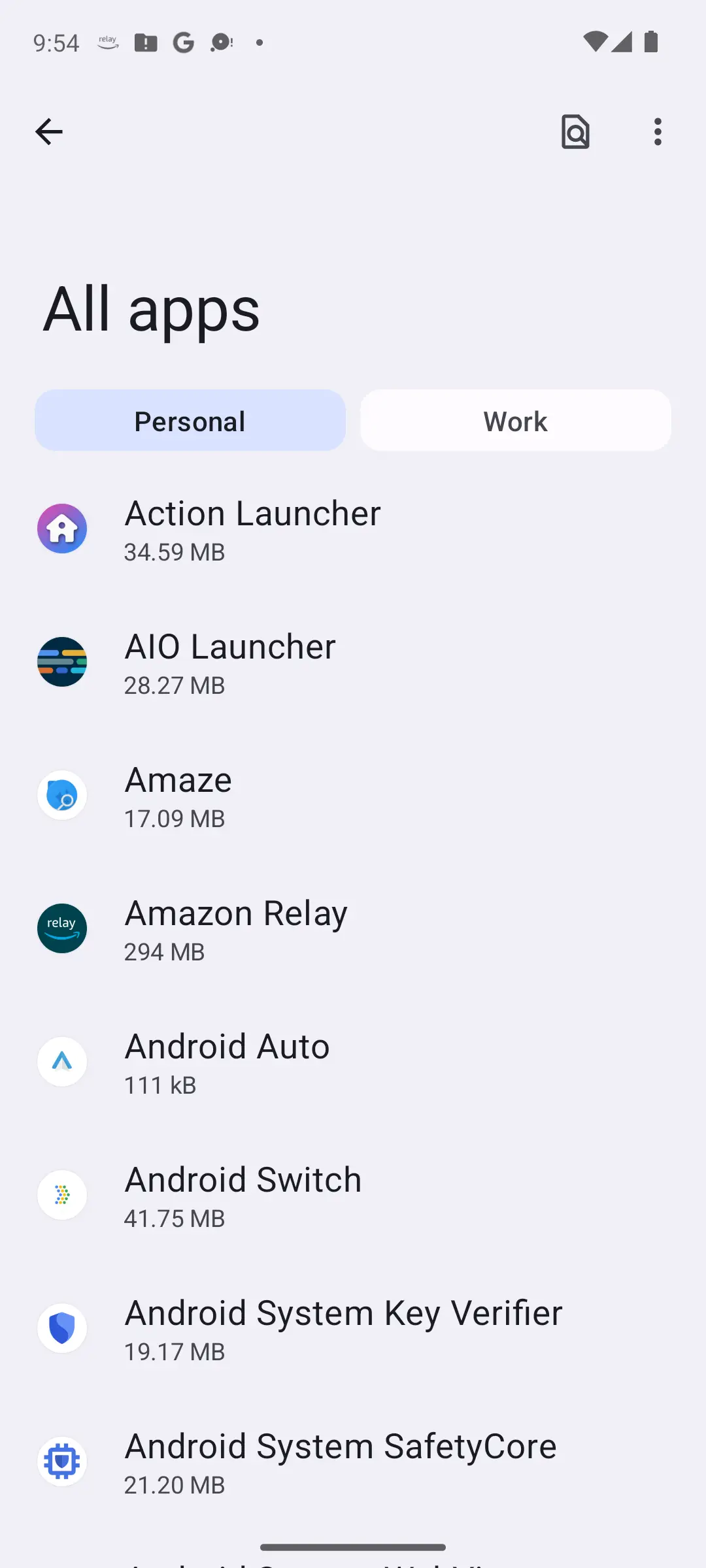
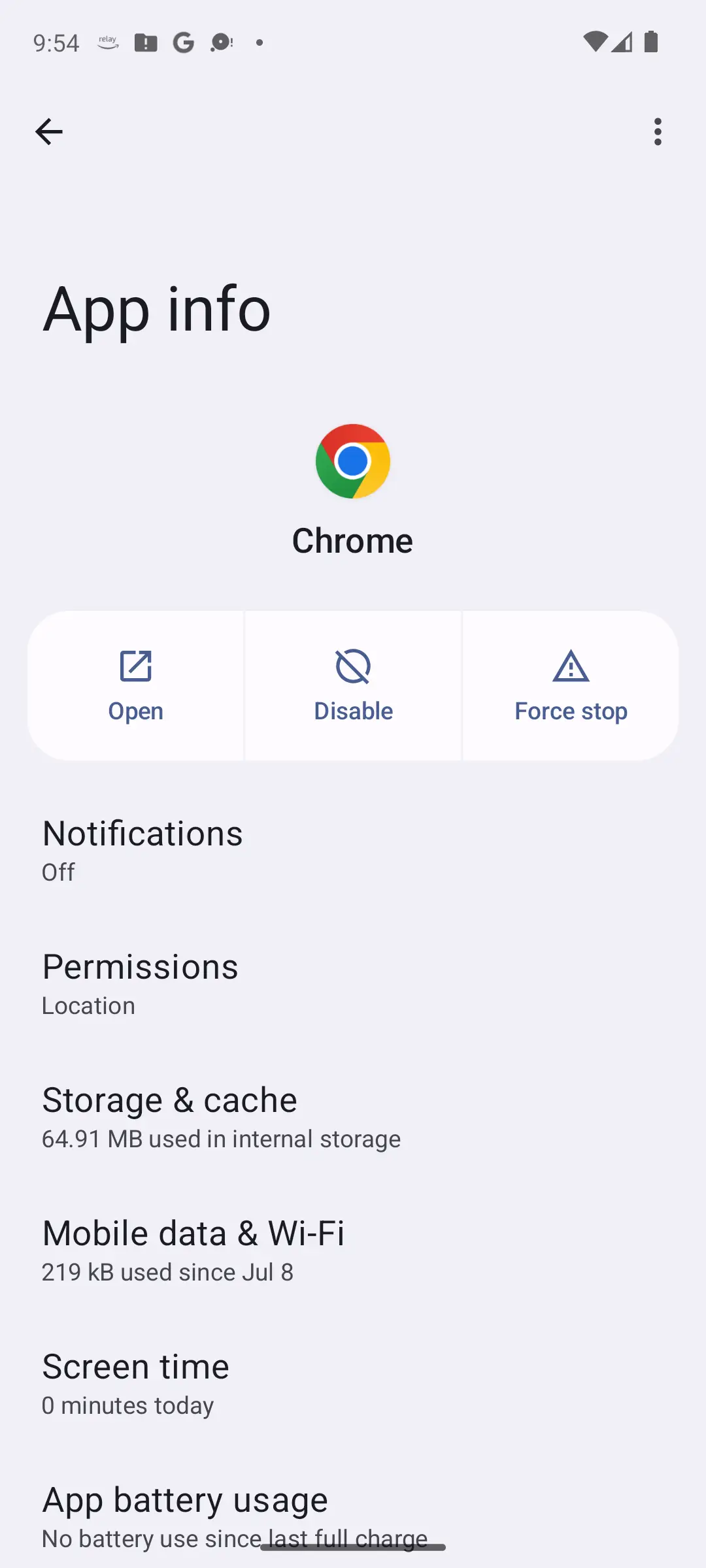
No computer, no cable, no terminal. Google's Pixel instructions are three steps: open Settings; tap Apps, then All apps, then the app; at the top, tap Disable. Availability varies by device, Google says, so expect other menu names on a Galaxy.
The confirmation dialog is worth reading: Android says disabling turns the app off and hides it on your device, and that you cannot delete it because it came preinstalled.
If Disable is greyed out, the system is refusing on purpose. If it reads Uninstall updates instead, that rolls the app back to the version the phone shipped with, the one move here that returns real space, because the update lived in the data partition.
All of it reverses from the same screen, and none of it needs an installed helper. Worth keeping in mind next to the cleaner apps roundup, which calls most of that category placebo at best.
ADB, the Android Debug Bridge, is Google's own tool and runs from a computer, out of the Platform Tools download, which unzips with no installation. Developer options is hidden by default; you make it visible by tapping Build number seven times in Settings, About phone. Then switch on USB debugging.
Plug the phone in and run adb devices. The phone shows a dialog asking whether to accept an RSA key for that computer; Google's point is that adb cannot run until you unlock the device and acknowledge it.
The part people skip belongs here, before the commands. Android states what it grants: USB debugging is intended for development purposes only, and it lets a computer copy data to and from your device, install apps on it without notification, and read log data. UAD-ng adds that debug access for a PC is access for every program on it.
The approval you gave that computer stays approved. So when you have finished, switch USB debugging back off and use Revoke USB debugging authorizations, whose own dialog offers to revoke access from every computer you have previously authorised.
Do one package at a time and keep a written list. With a real package name in place of the example:
adb shell pm uninstall -k --user 0 com.example.package
Google documents both switches. The -k flag keeps the data and cache directories after package removal. The user switch specifies the user for whom the package is removed, and by default it is removed for all users; user zero pins it to your own profile.
What it does not do is delete anything. UAD-ng's documentation is direct: preinstalled APKs sit on a read-only partition only the manufacturer may write to, so the file survives and the storage is not returned. Deleting it outright is a root job, and our root apps guide is candid about the price, mostly banking apps refusing to run on a modified phone.
What it buys, in the project's words, is that the package is prevented from loading into memory, and even after a reboot those processes will not be woken up. For anything doubtful, the same tool disables: adb shell pm disable-user --user 0 com.example.package. Each has its own undo and they are not interchangeable. A package you uninstalled comes back with adb shell cmd package install-existing --user 0 com.example.package; one you only disabled comes back with adb shell pm enable com.example.package. Both routes fail outright on some packages.
Weigh this route first: UAD-ng argues that debloating from the phone itself is likelier to end in a factory reset, because if a removal makes the system unresponsive you have no external device to recover with. Shizuku, from Xingchen and Rikka, is listed on Play as an open source app for serving apps that require root or adb, and its documentation says wireless debugging starts it on Android 11 or above with no computer, though the steps repeat after every reboot. Canta, from samo_lego, does the removing; its listing says Shizuku must be activated first.
Granting adb level access from the phone itself
4.2 stars from 52,174 reviews · 10,000,000+ installs · free · no in-app purchases · last updated on the store 10 March 2024 · by Xingchen & Rikka · Contains ads: No · checked 4 September 2026
Google Play listing · 4.2 (52,174) · read 4 September 2026
Shizuku does not remove anything. It holds the adb level permission that a remover then borrows, which is why both rootless routes start here. Its listing, read 4 September 2026, is free with no in-app purchases and no Contains ads label, and its data safety card says no data shared with third parties and no data collected. One figure deserves its own sentence: the store shows it last updated 10 March 2024, so treat it as mature rather than maintained, and expect the wireless debugging steps to repeat after every reboot.
Uninstalling for your user profile with no computer
4.0 stars from 2,191 reviews · 500,000+ installs · free · no in-app purchases · last updated on the store 1 March 2026 · by samo_lego · Contains ads: No · checked 4 September 2026
Google Play listing · 4.0 (2,191) · read 4 September 2026
This is the one that does the removing, and its own listing says Shizuku has to be activated first. Read 4 September 2026: free, no in-app purchases, no Contains ads label, and a data safety card declaring no data collected and none shared. It is the smallest audience on this page at 500,000+ installs and 2,191 reviews, which is worth knowing before you hand an app the power to uninstall system packages, and it is also the most recently updated, 1 March 2026.
Removed apps do return: UAD-ng says a package back immediately is protected by the system, and one back later points at a system update. For where updates live on a Pixel and a Galaxy, how to update your Android version has the paths.
Almost all of this reverses; be precise about the part that does not. Google's -k flag keeps the data and cache directories after package removal, which is exactly why the command above carries it. Leave it out and those directories go: restore the package later and that app comes back empty, no account, no settings, no saved state.
The undo ladder has three rungs, and the first two are not interchangeable. An app you disabled, in Settings or with pm disable-user, returns from the App info screen or with adb shell pm enable com.example.package. A package you uninstalled with pm uninstall returns with the install-existing command. A factory reset restores every preinstalled app at once, because it wipes the data partition where your removals are recorded, and Google says a reset erases all your data, so it is only survivable if your Android backup already exists. Reaching a reset on a phone that will not boot means recovery mode, and the button combination for that is set by the phone's maker, so look it up for your exact model before you start.
Which leaves the habit that decides how this goes. Write down each package you remove, one line, on the day you remove it. Six weeks later, when the camera will not open, that list is the difference between restoring one app and resetting the phone.
Two of the three meanings of remove work without root. You can disable a preinstalled app in Settings, and you can uninstall it for your own user profile using ADB or a Shizuku-based app. Deleting the file needs root: preinstalled APKs sit on a read-only partition only the manufacturer can write to. Start with disabling, which reverses from the same screen, and remove only packages you can name: a critical one can bootloop the phone into a factory reset.
Barely. Disabling an app and uninstalling it for your profile both leave the file on the read-only system partition, so almost no space comes back. The exception is the Uninstall updates button on an app's info screen, which rolls the app back to its shipped version.
Anything whose package name begins com.android or com.google.android.gms, anything named for your network operator, and anything containing telephony, ims, phone, dialer, setupwizard or systemui, and anything that delivers system updates, whatever it happens to be called: remove one of those and the phone quietly stops getting security patches. Anything you cannot identify belongs there too. Removing a critical package can bootloop the phone, needing a factory reset that erases everything. It is normal for a phone to list hundreds of system packages with no icon, so that alone is no reason to remove one.
Yes. A factory reset wipes the data partition, where your removals are recorded, and leaves the system image untouched, so every preinstalled app returns. It is also destructive: Google says a factory reset erases all your data from the phone, so back everything up first and try re-enabling the app in Settings instead.
No. Android's own prompt says USB debugging is intended for development purposes only and lets a computer copy data to and from the phone, install apps without notification, and read log data. When the job is done, switch it off in Developer options and use Revoke USB debugging authorizations.
It holds an adb level permission that another app then borrows, and it removes nothing itself. Its Play listing, read 4 September 2026, is free with no in-app purchases and no ads label, and its data safety card declares no data collected and none shared with third parties. The figure to weigh is the store update date, 10 March 2024: mature rather than maintained. It sits at 4.2 stars from 52,174 reviews.
Checked 4 September 2026: the guide named Shizuku and Canta without a single figure from either listing, and had no table, no dated line and no answer a reader could lift. Both now carry fact lines read today, a store link and three pros and three cons, the six routes sit in one table, and the answer sits directly under it. The figures that matter before you hand an app this power: Shizuku is at 4.2 stars from 52,174 reviews and was last updated on the store 10 March 2024, while Canta is at 4.0 stars from 2,191 reviews and was updated 1 March 2026. Both are free, both declare no data collected, neither carries an ads label.