
Best Scanner Apps for Android (2026)
Your phone camera is already a flatbed scanner waiting to happen, but the app you point it with makes all the difference between a crisp, signable PDF and a blurry photo nobody can read. We spent weeks scanning receipts, multi page contracts, handwritten notes, and crumpled whiteboards on a range of Android phones to see which apps actually nail edge detection, exposure, and text recognition. Below are the eleven we kept on our devices, with honest notes on what each one is best for and where the paywall kicks in.
1. Adobe Scan
This is the one we recommend first to most people. Adobe Scan is free, finds document edges almost instantly, and its OCR is genuinely sharp, even on faded receipts. Sign in with a free Adobe ID and scans sync straight to Acrobat. In our testing the auto capture rarely misfired, and business card mode dropped details into our contacts cleanly. Paid unlocks combining files and advanced exports. Note that it signs into an Adobe account and its OCR and sync run through Adobe's cloud, so it is convenient but not a stay-on-device option.
2. Genius Scan
Genius Scan is our privacy-focused pick, and that is why it stays on our phones. It processes scans on the device, so nothing is sent to a server, which makes it a strong choice for sensitive paperwork like IDs, bank letters, and medical records. The core scanner is free for the basics and works fully offline, batch scanning is fast, and smart tags keep things organized. Exports to cloud drives are a one time purchase rather than a forever subscription. If you scan sensitive documents and want the work to stay local, start here.
3. Google Drive
If you want zero new installs, the scanner built into Google Drive is right there. Tap the camera button, point at a page, and it saves a tidy PDF straight to your Drive. The 2026 version finally added solid auto capture and filters, so it feels like a real scanner. The capture and edge detection happen on the device, but the file lands in your Google Drive (Google's cloud) and the text search and OCR are done on Google's servers, so it is convenient and from a company you may already use, but it is not a keep-it-local option. It is the no fuss pick for anyone who just needs to file the occasional receipt.
4. CamScanner
The veteran that made phone scanning mainstream, CamScanner still has the deepest toolbox here: OCR in dozens of languages, ID card layouts, signatures, and even fax. The free tier now adds a watermark and nags you toward Premium, which is the main gripe. Still, the image cleanup is excellent. One thing to weigh: it shipped a malware module in 2019 and was briefly removed from the Play Store before being cleaned up, so weigh that history. If you want to push it further, our CamScanner hacks guide covers the workflow tricks worth knowing.
5. Scanner Pro
Long an iOS favorite, Scanner Pro brings its clean, no clutter approach to Android, and it suits people who hate fiddly menus. Edge detection is quick, the radar style scan animation is oddly satisfying, and exports look polished. It leans toward a subscription for the best features like text recognition and folder sync. Our guide to going paperless with Scanner Pro walks through setting it up for a real filing system.
6. vFlat Scan
vFlat earns its place by solving the one thing other apps struggle with: books. Its curved page flattening genuinely works, straightening the bend near the spine so two page spreads come out flat and readable. The OCR handles dense text well, and finger removal wipes your thumb out of the shot. It is free with generous limits, and for students digitizing textbooks it is the standout choice on Android.
7. TurboScan
TurboScan is for people who want speed and a one time price instead of a subscription. Its SureScan mode takes three shots and merges them for a sharper result in poor light, which genuinely helped on dim restaurant receipts. The interface is plain and quick, multi page PDFs assemble in seconds, and emailing a scan takes two taps. Pay once and the watermarks and limits disappear for good.
8. SwiftScan
SwiftScan, formerly Scanbot, is a polished all rounder that feels built for small business. It auto names files, recognizes QR and barcodes, and its OCR exports clean searchable PDFs. We liked the automations that send a finished scan straight to a cloud folder or email. The free version handles basics; the paid tier unlocks the smart naming that makes it shine for invoicing.
9. Notebloc
Notebloc is a friendly, lightweight scanner that does not overwhelm beginners. It captures documents, photos, and notes, cleans them up automatically, and saves tidy PDFs without demanding an account. We appreciated the simple library view that keeps recent scans within reach. It runs ads on the free tier, and a modest upgrade removes them, but for casual scanning of receipts and forms it is an easy, approachable recommendation.
10. Clear Scanner
Clear Scanner is the dependable budget pick that punches above its weight. It is free, surprisingly capable at edge detection and contrast adjustment, and lets you sync scans to Google Drive, Dropbox, or email without paying. There are ads, and the interface is more functional than beautiful, but the output quality is solid. If you want a no cost scanner that just works for everyday paperwork, this one delivers.
A scanner app does a small set of jobs, and understanding them makes it much easier to pick well. The app uses your camera to capture a document, then crops and straightens it so the page looks square instead of like a tilted photo on a table. Most apps then run OCR, which is text recognition, so the words on the page become selectable and searchable. Finally, the app exports the result, usually as a PDF. Every feature below is just a variation on those four steps: capture, crop and straighten, recognize text, and export.
How a scanner app actually works
The first step is capture. You point the camera at a page, and the app looks for the document. Good edge detection is the part you will notice most day to day. The app finds the four corners of the page, highlights them, and lets you adjust if it guesses wrong. When edge detection is accurate, you barely think about it. When it is poor, you spend your time dragging corner handles by hand, which is tedious on a stack of pages.
After capture comes crop and straighten. The app removes the background (the desk, your hand, the rest of the table) and corrects the perspective so a page shot at an angle comes out flat and rectangular. Many apps also adjust contrast and lighting so faint print becomes readable and a slightly shadowed page looks even. This cleanup is why a scan often reads better than the original photo.
The third step is OCR. Text recognition turns the image of a page into actual characters, so you can copy a paragraph, search inside the file later, or select a phone number. OCR quality matters most on faded receipts and dense text. On clean, well lit printed documents, the difference between apps is small. It is worth knowing that in 2026, on clean documents, on device OCR and cloud OCR are about equally accurate, so you do not have to send your scans away to get good text recognition.
The last step is export. The most common output is a multi page PDF, where you capture several pages in a row and the app stitches them into one file. Some apps also export plain images or a text only version. If your goal is filing contracts or sharing forms, multi page PDF support is the feature to confirm before you commit to an app.
How to choose a scanner app
Start with edge detection and image cleanup, because that is what you touch on every single scan. Test an app on a few real pages and watch how often it finds the corners on its own and how clean the straightened result looks. An app that gets this right saves you small amounts of effort dozens of times a week.
Next, look at OCR if you need searchable documents. If you mostly file paper and rarely search inside it, OCR matters less. If you want to find a document later by typing a word that appears inside it, confirm the app produces a searchable PDF rather than a flat image.
Then check export. Make sure the app builds multi page PDFs and lets you reorder or delete pages before saving. Look at where files go: a local folder, your email, or a cloud drive of your choosing. The smoother the export, the less the app gets in your way.
Finally, weigh the pricing model against how you scan. A free app with occasional limits is fine for the rare receipt. If you scan daily, a one time purchase or a clear subscription may be worth it, but only pay for features you will actually use, such as batch scanning, smart file naming, or folder sync.
Privacy and security: where your scans really go
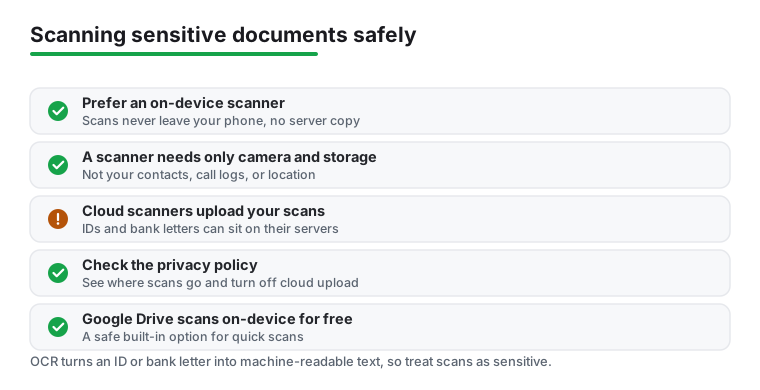
This is the part most roundups skip, and it matters more than any single feature. Think about what people actually scan: IDs, passports, bank letters, tax forms, medical records, signed contracts. These are some of the most sensitive documents you own. A scanner app that mishandles them is a far bigger problem than one with mediocre edge detection.
The core issue is simple. Many scanner apps upload your scans to their cloud, sometimes to run OCR on a server, sometimes for backup, and sometimes to make sharing easier. Once a document leaves your phone, it can sit on a company's servers, be retained for some period, or be processed by third parties. None of that is automatically sinister, but it is a real difference in how your sensitive paperwork is handled, and you usually cannot see it happening.
The alternative is on device OCR. Apps that recognize text directly on the phone keep everything local and send nothing to a server. On clean documents the difference is small, though cloud OCR can still pull more text out of faded or low-light scans. For sensitive paperwork, keeping the work on the device is a strong reason to prefer a local first app.
Permissions are the next thing to check, and they are easy to read. A scanner needs the camera, so it can capture pages. On modern Android it usually does not need a broad storage permission, because it can save through the system, so be wary of a scanner that demands all-files access. A document scanner also does not need your contacts, your call logs, or your location. If an app asks for those, there is no scanning reason for it, and you are within your rights to be skeptical or to deny them.
The single most useful habit is to read the privacy policy before you sign in. You are looking for two answers: where do my scans go, and can I turn cloud upload off. A trustworthy app makes both easy to find. If cloud upload cannot be disabled and you scan sensitive documents, that is a reason to choose something else. For a plain language overview of how Android frames app data and permissions, the Android privacy pages are a reasonable starting point.
It is also worth knowing that you may not need to install anything at all. Android already includes a free document scanner in the Google Drive app. The capture and edge detection happen on the device, but the file is saved to your Google Drive (Google's cloud) and the text search and OCR are done on Google's servers, so it is convenient and from a company you may already use, but it is not a keep-it-local option. For occasional receipts and forms, that built in option still covers a lot of ground without adding another company to the list of places your documents could travel.
A short note on safer use
You do not have to be an expert to scan safely. A few calm habits cover most of it. Match the app to the document: for a takeout receipt, almost anything is fine, but for a passport or a medical record, prefer an app that does on device OCR and keeps files local. Grant the camera permission, be wary of anything that demands all-files access, and decline contacts, call logs, or location. If you do use a cloud feature, know that you are doing it, and turn it off when you do not need it. Keep your sensitive scans in a folder you control, and delete them when they have served their purpose. Used this way, your phone becomes a genuinely good scanner without quietly turning your most private paperwork into someone else's data.
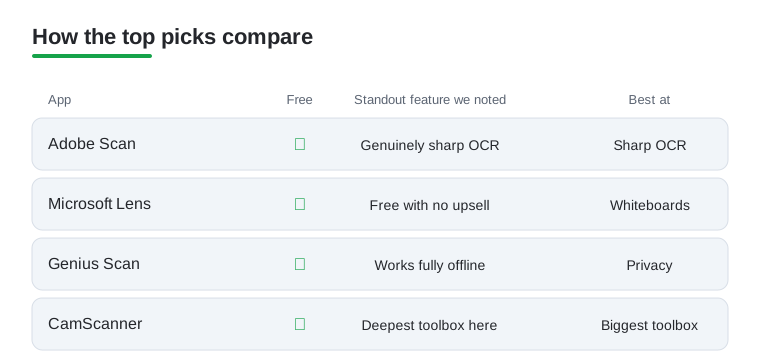
Below, our picks call out which apps lean local and which lean cloud, so you can weigh convenience against privacy for the kind of documents you scan most. Here is how four of our top picks compare on the things our notes call out for each: whether they are free, the standout feature we singled out, and the one thing each does best.
Frequently asked questions
What is the best free scanner app for Android?
For most people we point to Adobe Scan or Genius Scan. Both are genuinely free for the basics, handle edge detection and text recognition well, and save clean PDFs. If you want to avoid accounts and keep the work on your phone, Genius Scan processes scans on the device, and the built in Google Drive scanner is right there if you already use Google.
Do scanner apps actually read text so I can search it?
Yes. The feature is called OCR, and most apps here include it. Adobe Scan, CamScanner, and SwiftScan turn a photo of a page into a searchable PDF, so you can later find a document by typing a word that appears inside it. Results are best on clear, well lit printed text.
Are my scanned documents private and safe?
It depends on the app. Some upload scans to a cloud server to process OCR, while others, like Genius Scan, do the work on your device and keep everything local. If you scan sensitive paperwork such as IDs or contracts, choose an on device app like Genius Scan and read the privacy policy before signing in.
Can I scan a multi page document into a single PDF?
Absolutely, and it is one of the best reasons to use a dedicated app over your camera. Almost every scanner here lets you capture pages one after another and stitch them into one PDF. Once you have the file, pair it with one of the best PDF editor apps for Android to sign or annotate it, or browse more options in our productivity apps hub and notes apps guide.
Does a scanner app need access to my contacts or location?
No. A document scanner needs the camera to capture pages. On modern Android it usually does not need a broad storage permission, because it can save through the system, so be wary of a scanner that demands all-files access. It also does not need your contacts, your call logs, or your location. If an app requests those permissions, there is no scanning reason for it, so you can deny them or choose a different app.
Do I even need to install a separate scanner app?
Not always. Android already includes a free document scanner inside the Google Drive app. The capture and edge detection happen on the device, but the file is saved to your Google Drive (Google's cloud) and the text search and OCR are done on Google's servers, so it is convenient and from a company you may already use, but it is not a keep-it-local option. For the occasional receipt or form, that built in option is often enough. Install a dedicated app when you want extras like batch OCR, smart naming, or book friendly page flattening, or pick an on device app like Genius Scan when you want the work to stay local.