
Updated September 2026 · the symptoms now sit in one table that jumps to the fix, the companion app the page pointed at now has a name, and both apps carry their own dated listing figures
Pairing is not a connection. It is a record, and both ends keep a copy: the Bluetooth SIG calls the step bonding, the exchange of long-term keys after pairing occurs, and storing those keys for later use. Everything afterwards depends on the two copies still agreeing, and when they stop, the result looks like broken hardware. Nothing in the scan. A connection that lasts two seconds. Sound in one direction only. That is why deleting the pairing and building a new one settles so much of this, and why it belongs near the top of the list.
Three problems get typed in as Bluetooth not working: the accessory never appears in the scan; it pairs then drops or connects to something else; or it connects and something is missing, music but no microphone, or calls but no music. Each is fixed in a different place.
Some of it is not a fault. Paired and connected are separate states, and Google's instructions name the gap: under Saved devices you select a paired disconnected device. A headset that goes quiet while the screen is off and picks up seconds after you wake the phone has not lost its pairing.
Three cheap moves come first, and they are the three Google lists first: turn Bluetooth off and on again, confirm the two devices are paired and connected, and restart both devices.
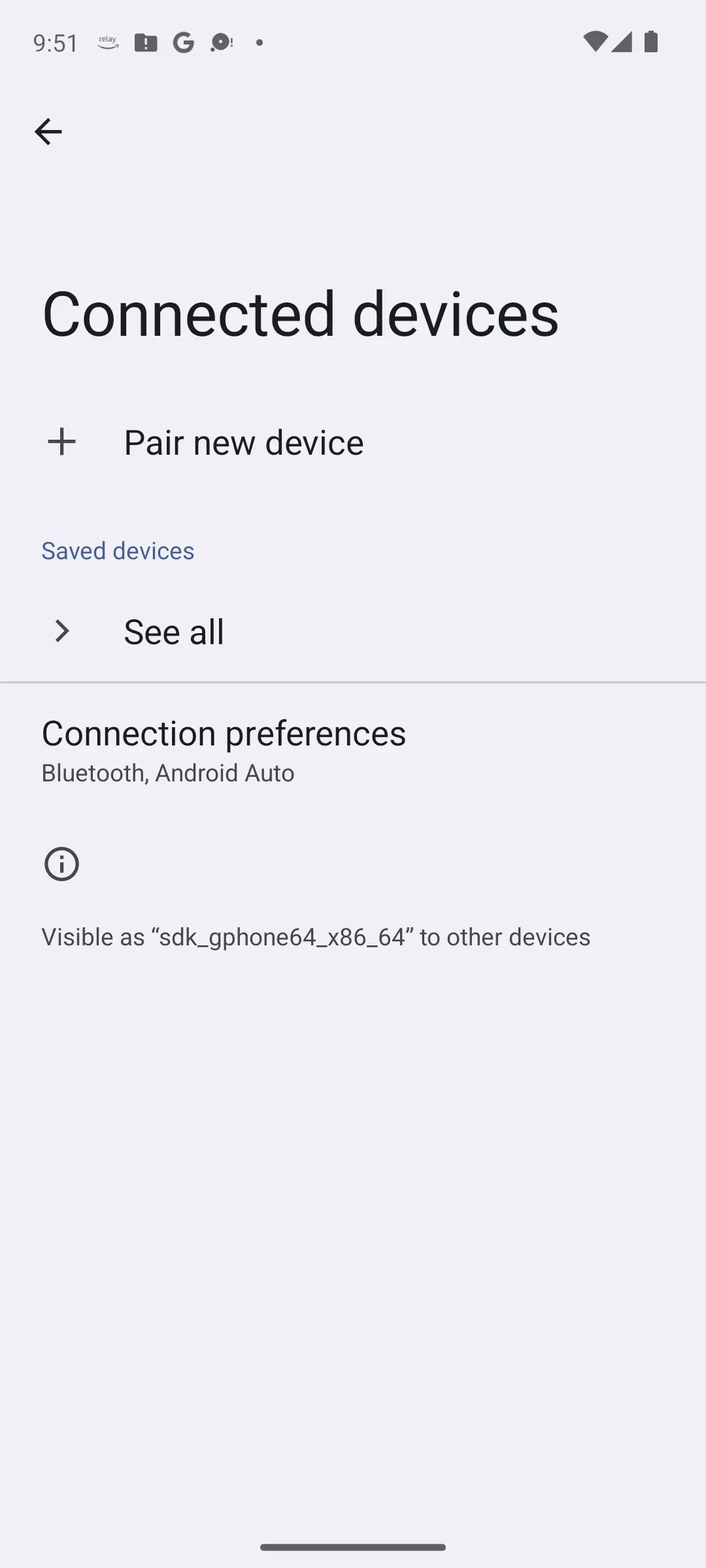
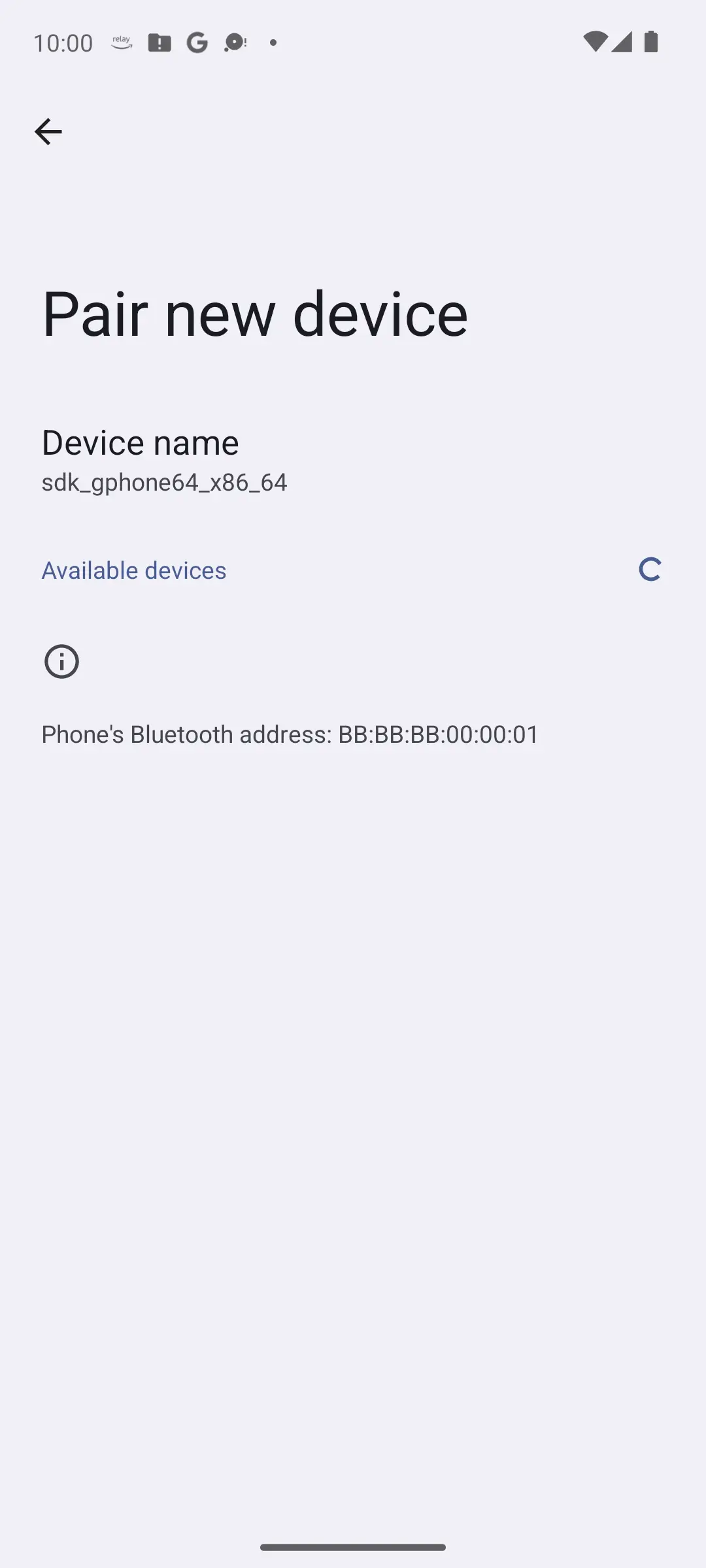
An empty list is rarely a broken radio. Google says to check the accessory is discoverable and ready to pair, often shown by a blue light. Sony's guide for the WH-1000XM5 says a headset enters pairing mode by itself only when it holds no pairing information. Otherwise you put it there by hand.
Samsung adds two checks. Keep the phone and the accessory within 30 feet of each other, about 9 metres, with the accessory in pairing mode. And in Samsung's words, a device may not connect if it is already connected to something else, so disconnect it there first.
If the list fills with a neighbour's television while your headset stays absent, the accessory is not announcing itself.
A narrower version: Settings finds the device, a companion app insists nothing is there. That is a permission, which Android calls Nearby devices and Google defines as permission to find, connect to, and determine the relative position of nearby devices.
It is where the old advice about Location came from. Android's developer documentation says an app targeting Android 11 or lower needed the fine location permission, while apps targeting Android 12 or higher use Nearby devices instead, though Fast Pair setup still asks for Location. Check the app at Settings, Apps, Permissions, which managing app permissions on Android covers.
The paragraphs above end at a judgement: the accessory is not announcing itself. One app turns that judgement into something you can see, with a limit that matters for older headsets.
Seeing every Bluetooth LE advertisement the phone can hear, with its signal strength
4.2 stars from 3,454 reviews · 1,000,000+ installs · free · no in-app purchases · listing last updated 12 December 2024 · by Nordic Semiconductor ASA · Contains ads: No · checked 5 September 2026
Google Play listing · 4.2 (3,454) · read 5 September 2026
A scanner for the first failure, published by Nordic Semiconductor ASA. It lists every Bluetooth LE advertisement in range with its signal strength, so a scan that stays empty in Settings can be checked against what the radio is actually hearing: an accessory that advertises over LE shows up here with a signal reading, and one that does not is not announcing itself. Free, no in-app purchases and no Contains ads label on a listing read 5 September 2026, with a data safety card that says No data shared with third parties and No data collected. Two blunt limits. At 4.2 stars from 3,454 reviews it is the lower rated of the two apps here, and its listing was last updated on 12 December 2024, 21 months before this read. And it sees LE only: a headset that answers classic Bluetooth discovery and nothing else will not appear in it even when it is discoverable, and the app pairs nothing.
Do the checks above first: a forget throws away a pairing that may be sound, and rebuilding it takes both ends. Past those, it settles more cases than anything else.
Clearing one side only is why this fails for people who have tried it: the phone forgets, the accessory does not.
Accessories keep their own list of hosts, and it has a ceiling. Sony's guide for the WH-1000XM5 is specific: the headset can be paired with up to 8 devices, and pairing a new one after that overwrites the registration information of the device with the oldest connection date. Nothing announces it.
The same guide describes multipoint as connecting the headset to 2 devices simultaneously, both in standby, with music played from the device that played last, which explains getting no sound from the phone while the headset holds a laptop.
So the fix is subtraction: switch Bluetooth off on the other devices in the room, then pair the phone. On Sony's models multipoint is enabled from a companion app, Sony | Sound Connect, rather than the headset. A new phone is another host on that list, worth remembering while setting up a new Android phone and moving your data.
That app has a listing of its own, read 5 September 2026, and it belongs beside the fix rather than in a footnote.
Turning multipoint on or off on a Sony headset, which is done in the app rather than on the headset
4.4 stars from 407,263 reviews · 10,000,000+ installs · free · no in-app purchases · updated 29 July 2026 · by Sony Corporation · Contains ads: No · checked 5 September 2026
Google Play listing · 4.4 (407,263) · read 5 September 2026
The companion app this page kept calling by its role. On Sony headsets the multipoint setting sits in this app rather than on the headset, so the fix for a headset that keeps holding a laptop while the phone plays to nothing runs through it. Free, no in-app purchases and no Contains ads label on a listing read 5 September 2026 and updated on the store on 29 July 2026, at 4.4 stars from 407,263 reviews on 10,000,000+ installs, the better rated of the two apps here. The blunt part is its data safety card, which says the app may share data types with third parties and may collect data. And it is Sony only: for any other brand it does nothing, and the pairing itself is still made and cleared in Android's own Settings.
A Bluetooth connection is not one pipe. Android's documentation names the two profiles that matter on classic Bluetooth: A2DP for media and HFP for voice. The Bluetooth SIG defines A2DP as the profile for high-quality audio distribution.
Google's fix for no music is to check that Media audio is turned on, and for calls, to turn on Phone audio. Both sit in Settings, Connected devices, Saved devices, then the settings icon beside the device. Google adds that if its steps do not work on a custom Android version, check with your device manufacturer.
The quality drop is the confusing one. Take a call, or open anything that uses the headset's microphone, and the sound thins out. Android's low energy audio documentation states it plainly: Bluetooth classic lowers audio quality when using Bluetooth microphones. That is the switch, not a fault. A headset kept for music alone can have Phone audio left off.
Sound that arrives but is shaped wrong is a different job: the roundup of equalizer apps for Android covers the tools.
Everything above is reversible. The next thing is not, so take the cost before the path: a network reset removes every saved Wi-Fi network and every Bluetooth device at once. Samsung says you will need to reconnect to your Wi-Fi network and Bluetooth devices afterwards, and that there is no confirmation prompt once you tap Reset settings.
With that understood, the control is one switch covering both radios, set out with its full cost and both paths in narrowing an Android Wi-Fi fault. A last try, at the price of an evening of retyping.
One popular step is missing on purpose: clearing the storage of the hidden Bluetooth system app circulates in every forum and appears in none of Google's or Samsung's own Bluetooth troubleshooting pages. The documented version is the reset above, and how to update your Android version shows where the version, the security patch and the Play system update each live.
A car is not a headset: it keeps its own list of phones, with its own limit and menus, it often wants pairing started from its side, and no button resets it. Google's fix is symmetrical: clear the car from the phone's saved devices, clear unused phones from the car's memory, then pair again.
One step is specific to cars: pairing asks you to allow access to your contacts and call history, which puts your address book on the dashboard. Delete your phone from the car's list before you hand back a hire car.
Wireless Android Auto is a different animal: it uses Bluetooth only to start and runs the screen over Wi-Fi, so most of its failures are not Bluetooth failures and have their own fixes. What a car pairing does and does not trigger by itself is covered in saving where you parked on Android.
The honest end: the car is the one device you cannot reset in a minute, and the most likely to be the fault. If the same car misbehaves with more than one phone, the problem is on four wheels.
Usually the headphones are not in pairing mode, or are already connected to something else. Sony's help guide says a headset enters pairing mode by itself only when it holds no pairing information, so headphones used before have to be put there by hand.
Not for pairing from Settings. What changed is the app permission: Android's developer documentation says an app targeting Android 11 or lower needed the fine location permission to scan, while apps targeting Android 12 or higher declare Nearby devices instead. That is a permission, not the Location switch. Google's Fast Pair troubleshooting is separate and still says to have Bluetooth and Location turned on, and a companion app that scans may still ask for it.
It clears that accessory from the phone and nothing else. Google describes Forget as removing the device from your phone completely, so the accessory has to be paired again. The accessory keeps its own record of the phone, which is why a headset or car stereo often needs clearing on its side too.
Because the headphones move from the media profile to the voice profile. Android's documentation states that Bluetooth classic lowers audio quality when using Bluetooth microphones, and anything that opens the microphone does the same while it holds it. It is the switch, not a fault in the headphones.
It can, but a network reset clears far more than one pairing, so keep it for last. Samsung says you will need to reconnect to your Wi-Fi network and Bluetooth devices afterwards, and that there is no confirmation prompt once you tap Reset settings. Forget and re-pair the misbehaving accessory first.
Often the headset has connected to something else instead. Sony's help guide for the WH-1000XM5 describes multipoint as connecting the headset to 2 devices at once, with music from whichever played last, and says pairing beyond 8 devices overwrites the oldest entry.
Not for the pairing itself: pairing, forgetting and the Media audio and Phone audio switches all live in Android's own Settings. Two apps help with specific steps. Sony | Sound Connect is where multipoint is switched on Sony headsets, free with no in-app purchases and no Contains ads label, 4.4 stars from 407,263 reviews on 10,000,000+ installs, read 5 September 2026. nRF Connect for Mobile shows every Bluetooth LE advertisement the phone can hear, so it settles whether an accessory is announcing itself; it is free with no Contains ads label, 4.2 stars from 3,454 reviews on 1,000,000+ installs, and its listing was last updated in December 2024. Neither app pairs anything for you.
Checked 5 September 2026: the guide had no dated line, no table and named no app, while sending the reader to a companion app it never identified. The symptoms now sit in one table that jumps to the fix. The Sony companion app is named in the failure two section as Sony | Sound Connect and carries a fact line read from its own listing: 4.4 stars from 407,263 reviews, 10,000,000+ installs, free, no in-app purchases, no Contains ads label, and a data safety card that says data may be shared with third parties. nRF Connect for Mobile is added beside failure one as the scanner that shows whether an accessory advertises over Bluetooth LE: 4.2 stars from 3,454 reviews, free, no Contains ads label, and a listing last updated on 12 December 2024, which the page now says. One sentence in the failure two section was edited to name the app, the H1 now matches the page title, and every other paragraph is carried unchanged. The six FAQ questions were moved to the second person and a seventh was added on whether the fix needs an app. No figure was withdrawn, because the page carried none about any app.