
Updated September 2026 · the seven checks now sit in one table that jumps to the fix, and the two apps that read the real signal and prove the line carry their own dated listing figures
Check the mobile data switch before anything else, because it is off far more often than anything on this page is genuinely broken. Google's own connectivity guide starts there: open Settings, Network and internet, SIMs, confirm Mobile data is on, then tap your carrier's name and confirm Use SIM is on. If both are right and pages still will not load, what follows works down the causes in the order that costs least, ending with a call to your provider, and says what a normal result looks like at each step.
Three things cause most of it and they are not on one screen. Mobile data and Use SIM sit under Settings, Network and internet, SIMs, the second behind your carrier's name; Airplane mode is a level up. Bars say nothing about data, and Google's signal check begins by switching Wi-Fi off so the status bar shows the mobile signal.
One warning before you flip airplane mode: Google states that Emergency SOS does not work in airplane mode or when Battery Saver is on. Broken data is not a dead phone, though: calling is a separate service, and United States rules require carriers to transmit all wireless 911 calls without respect to their call validation process.
Then take the free reset: power off rather than restart, which Google specifies, wait thirty seconds, then switch on. Airplane mode off and on is quicker.
Android will switch your data off by itself. Under Settings, Network and internet, SIMs, Data warning and limit, Set data warning only sends a notification; Set data limit is the one Google files under set limit and automatically turn off mobile data. Google's fix is to turn that limit off, not raise it. A warning cuts nothing, so passing your warning line is not a fault.
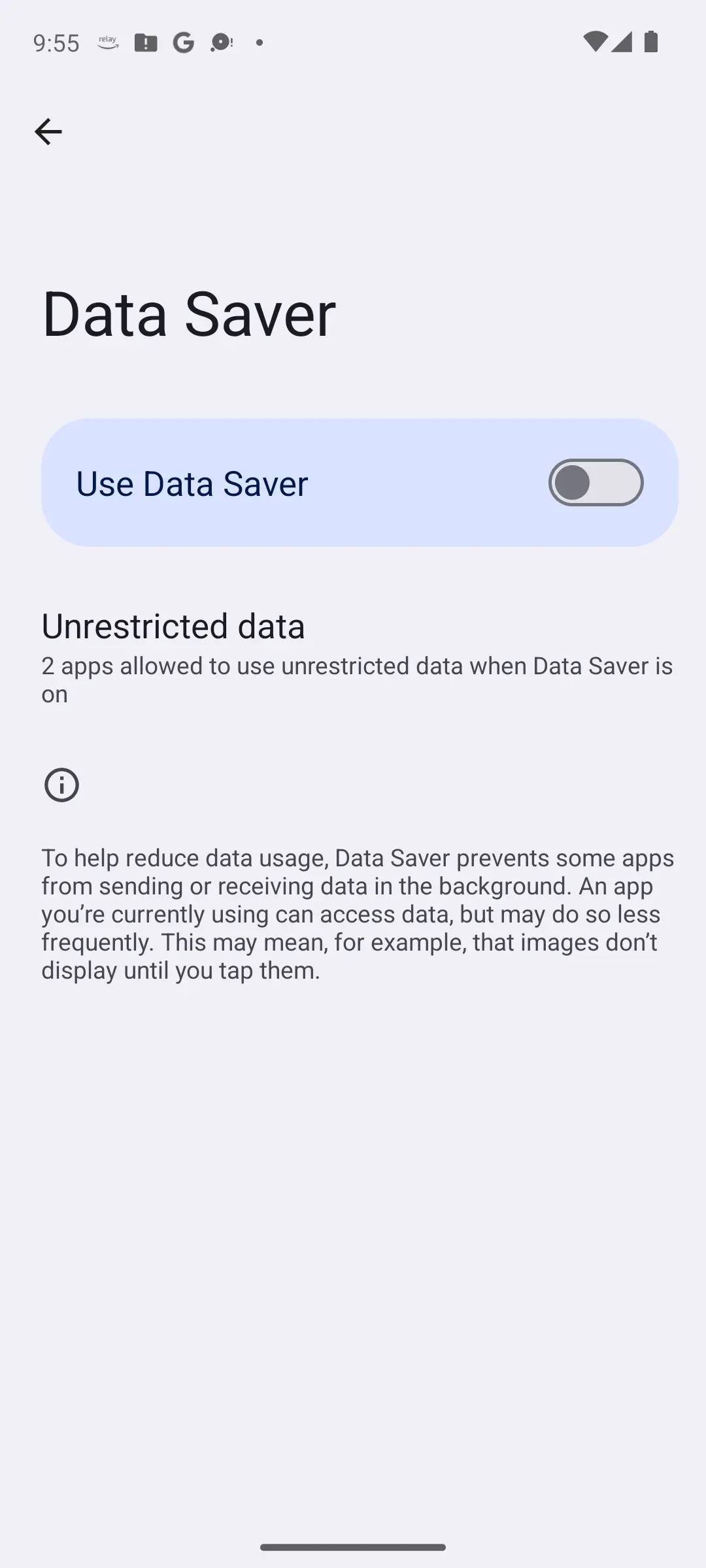
Data Saver is one switch that touches every app. Google describes it as letting most apps get background data only via Wi-Fi while active apps can still use mobile data; Android's developer documentation adds that on a metered network the system blocks background data usage and asks apps to use less in the foreground. Google says Google Play may be affected when data saver is on and Wi-Fi is unavailable, so check this before our Play Store troubleshooting guide.
The per-app control is a different screen with a different reach: on a Galaxy, Settings, Connections, Data usage, Mobile data usage, then the app, then Allow background data usage. It governs one app, so check it when a single messenger is dead and the browser is fine; finding it off is not a fault. Battery Saver matters too, since Google says it turns 5G off, and our battery drain guide shows where the power went.
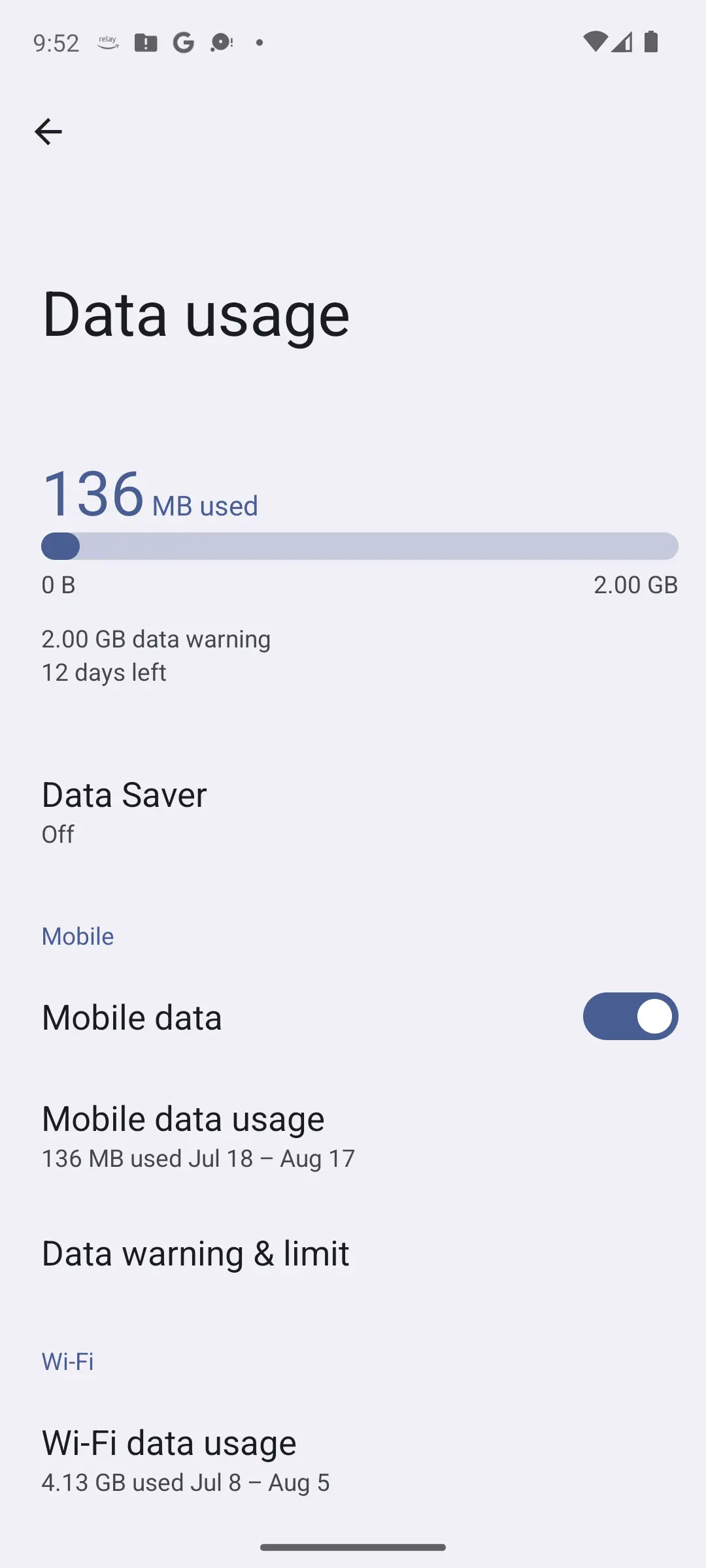
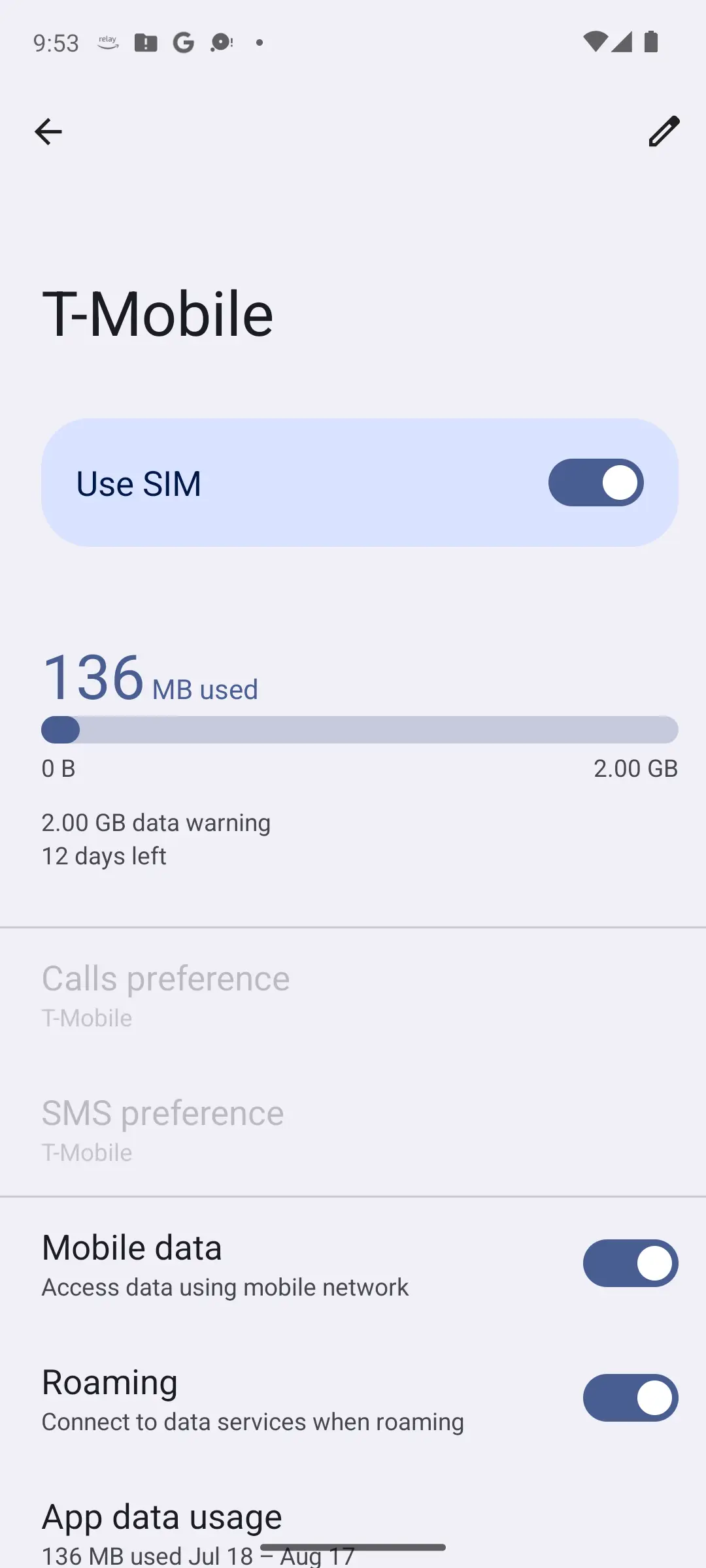
Read what this switch can cost before touching it. Google's note on the roaming toggle is that some carriers charge extra for data roaming and, in the same breath, that it may be the only way to connect in some places. Which half applies depends on your plan.
The toggle is at Settings, Network and internet, SIMs, Roaming, on the SIM you use for data. Google's definition is wider than the holiday meaning: roaming lets your phone send data over other carriers' networks when you leave an area your own carrier covers, which happens inside your own country too. Roaming off is normal at home.
Google describes access point names as what helps your carrier find the right IP address for your phone and connect it securely. Samsung is plainer: with the wrong network or wrong APN settings set, you will not be able to use internet through the data network.
The wrong move is typing values in from a forum post; the right one is the reset already in the menu. Samsung's path is Settings, Connections, Mobile networks, Access point Names, then More, then Reset to default, because Samsung ships a default APN it has tested. If that fails, ask your carrier for the values.
Android lets you pin the phone to a generation of network, and one pinned to a generation that is weak where you stand will stay there. Google's Pixel options are 5G, marked recommended, plus LTE, 3G and 2G, under Settings, Network and internet, SIMs, your carrier, then Preferred network type.
Read the status bar first: Google is explicit that a 5G icon appears when your phone is in an area where 5G is available and does not mean it is getting 5G at that moment, and that a Pixel falls back to 4G and lower by itself, so being on LTE is not a fault. Treat any change as a test: drop to LTE, retest, then restore the recommended option, since a phone parked on 2G is not fixed, only slower.
The section above asks you to read the status bar and then to distrust it: a 5G icon means 5G is available, not that the phone is using it, and bars say nothing about data. One app reads what the radio is actually doing, and it is a meter rather than a fixer: it changes nothing in Settings.
Reading which network technology the phone is really connected to, and how the signal is changing where you stand
3.8 stars from 11,140 reviews · 5,000,000+ installs · free to install · in-app purchases $1.99 to $20.99 per item · updated 3 September 2026 · by Michal Mroček · Contains ads: Yes · checked 5 September 2026
Google Play listing · 3.8 (11,140) · read 5 September 2026
A meter for the radio side of the problem, and the one app here that answers the question the status bar cannot. Its developer's own description on Google Play, read 5 September 2026, says it collects, shows and stores information about nearby cell towers, that supported networks are GSM, CDMA, WCDMA, TD-SCDMA, 4G LTE, 5G NSA and 5G SA, and that for areas where 5G NSA is available you can see if NSA is in use or just deployed. It also visualises signal changes, with a short description of what a given measurement means for reception quality. Free to install, with in-app purchases of $1.99 to $20.99 per item and the Contains ads label on a listing read 5 September 2026, whose data safety card says the app may share data types with third parties and that data cannot be deleted. At 3.8 stars from 11,140 reviews it is the lower rated of the two apps here, and it changes nothing: the preferred network type stays a Settings control.
Two controls here are hard to undo. Erase eSIM is not the eSIM version of switching something off and on: Google keeps a separate temporary control for that, and puts an optional password in front of the erase under Settings, Security, Advanced, Confirm SIM deletion. Both Pixel and Galaxy also carry two network resets, and the Bluetooth and Wi-Fi one is not it: Google warns that it deletes your saved Wi-Fi connections.
Handle a physical SIM with the phone off, as Google writes it: eject the tray, inspect the card, and ask your carrier for a replacement if it is damaged or bent. For an eSIM the reversible check is Use this SIM off and on again. Restoring an erased profile puts you back in your provider's queue, as our eSIM transfer guide explains.
The reset that belongs here is the mobile one: Settings, System, Reset options, Reset mobile network settings on a Pixel, Settings, General management, Reset on a Galaxy. Samsung says it leaves apps and personal data alone, but your provider may have to re-establish any specific configuration.
One test settles it, and Google gives it as a step: put a different SIM in your phone, and your SIM in another phone. If yours fails in a second handset, the fault is with the line, meaning the SIM, the account or the network. If another SIM works in yours, the handset is fine. Google's troubleshooter ends there too: ask your carrier about outages in your area and whether anything has changed on your plan.
Some things keep working meanwhile: text messages do not use the internet, as our guide to texting without data explains, and offline maps need no connection. None of it repairs the line: the next hour belongs to your carrier, not another pass through Settings.
Everything above ends in the same question: does the line carry traffic? One app answers it with a number, on your phone and in the second handset alike, and the number is worth having before you ring the carrier.
Proving whether the mobile line carries traffic, with a result to repeat in a second handset or quote to the carrier
4.6 stars from 1,486,373 reviews · 100,000,000+ installs · free to install · in-app purchases $0.99 to $9.99 per item · updated 7 July 2026 · by Ookla · Contains ads: Yes · checked 5 September 2026
Google Play listing · 4.6 (1,486,373) · read 5 September 2026
The blunt instrument for the question every step above ends in: does the line carry traffic? Its developer's own description on Google Play, read 5 September 2026, says the classic test measures your download and upload speeds as well as three measures of latency to check a slow connection, so one run on your phone and the same run with your SIM in a second handset turn the carrier test above into two numbers instead of two impressions. Its listing carries the Contains ads label and sells in-app purchases of $0.99 to $9.99 per item, which its own description offers as the way to remove the ads, and its data safety card says the app may share data types with third parties and may collect data types. At 4.6 stars from 1,486,373 reviews on 100,000,000+ installs it is the better rated of the two apps here, and it measures the line only: it says nothing about which network technology or how strong a signal the phone was on.
Signal bars only show that the phone can reach a mast, which is what calling needs. Mobile data can still be off, stopped by a data limit set in Android, blocked in the background by Data Saver, or broken by wrong access point name settings. Google's advice is to turn Wi-Fi off so the bar shows your mobile signal, then check Mobile data and Use SIM.
It depends which of the two resets you pick, so read the name first. Reset Bluetooth and Wi-Fi is the destructive one: Google warns it deletes your saved Wi-Fi connections, and Samsung that all previously saved connections are cleared. Reset mobile network settings is the one for a data fault, and Samsung says it leaves apps and personal data alone. Write down any Wi-Fi password you do not know by heart first.
Data Saver is a single system setting: Google says it lets most apps get background data only via Wi-Fi while active apps can still use mobile data, and Android's developer documentation says the system blocks background data usage on a metered network. Restricting background data for one app is a separate control on a separate screen, on a Galaxy under Settings, Connections, Data usage, Mobile data usage.
Try the reversible step first: Google provides a temporary control at Settings, Network and internet, Mobile network, where you select the SIM and turn Use this SIM off and on again. Erase eSIM is a different action, one Google lets you lock behind a password, and restoring the line afterwards means going back through Add SIM with your provider. Do not erase an eSIM while travelling or unable to reach your carrier.
Calling and mobile data are separate services, and Google's own troubleshooting treats mobile data problems and call problems as separate procedures. In the United States, FCC rules require carriers to transmit all wireless 911 calls without respect to their call validation process. Two cautions matter: Google states that Emergency SOS does not work in airplane mode or when Battery Saver is on, and its safety guide says never to rely solely on a wireless phone for emergencies.
NetMonster reads the radio: its developer describes it on Google Play as collecting, showing and storing information about nearby cell towers, supporting GSM, CDMA, WCDMA, TD-SCDMA, 4G LTE, 5G NSA and 5G SA, and showing whether 5G NSA is in use or just deployed. Its listing, read 5 September 2026, shows 3.8 stars from 11,140 reviews and 5,000,000+ installs, free to install with in-app purchases of $1.99 to $20.99 per item and the Contains ads label. Speedtest by Ookla proves the line: run it on your phone, then with your SIM in a second handset, and compare the two results. Its listing, read 5 September 2026, shows 4.6 stars from 1,486,373 reviews and 100,000,000+ installs, free to install with in-app purchases of $0.99 to $9.99 per item and the Contains ads label. Neither app changes a setting; both only measure.
Checked 5 September 2026: the guide asked the reader to judge the mobile signal from a status bar it then called unreliable, and to tell a failing line from a failing handset, with nothing to measure either, no table and no dated line. The seven checks now sit in one table that jumps to the fix, and two measuring apps carry fact lines read from their own listings: NetMonster at 3.8 stars from 11,140 reviews, free to install with the Contains ads label and in-app purchases of $1.99 to $20.99 per item, and Speedtest by Ookla at 4.6 stars from 1,486,373 reviews, free to install with the Contains ads label and in-app purchases of $0.99 to $9.99 per item. The H1 now matches the page title, the SEO title and description were rewritten around the symptom the page answers, and four FAQ questions moved to the second person. Nothing in the diagnostic advice changed.